Home
» NETWORK ADMIN
»
How to Fix the “Unable to Verify Identity” Session Warning in Element
How to Fix the “Unable to Verify Identity” Session Warning in Element
If Element shows an “Unable to Verify Identity” or similar session warning, the safest first fix is to verify the current session from All Settings > Sessions. Use either another already verified Element session or your recovery key. Do not reset your cryptographic identity unless you have no verified session and no working recovery key, because resetting can make older encrypted message history inaccessible.
Element’s current documentation uses wording such as unverified session, Device not verified, and Verify session. The exact warning text can differ between Element versions and platforms, so this guide focuses on the verified underlying state rather than one label.
Quick fix: verify the current Element session
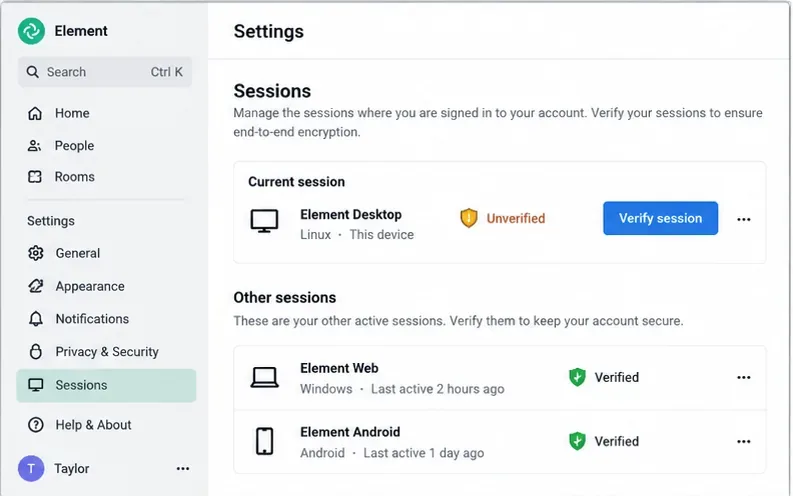
On Element Web or Element Desktop, open your profile menu, choose All Settings, and select Sessions. In the Current session section, look for the session you are using now. Element’s current support documentation says a verified current session should show a green shield.
Open All Settings, choose Sessions, and identify the current unverified session before starting verification.
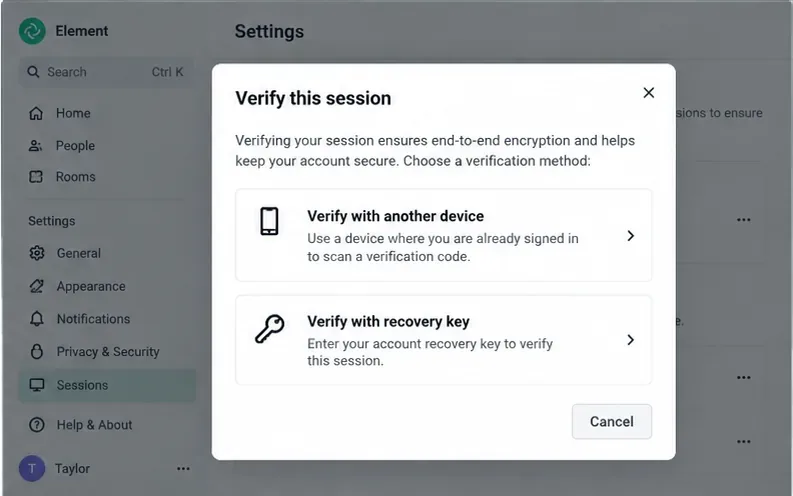
If the current session is unverified, select Verify session. Element documents two normal ways to complete verification: approve the new session from another verified device, or use a recovery key.
Choose another verified device when one is available, or use the recovery key stored for your Matrix account.
Option 1: verify with another trusted session
This is usually the best choice when you still have Element open on a phone, another browser, or another computer that is already verified. Keep the verified device online and open, then start verification from the unverified session. Follow the prompt on both devices and compare the verification information shown by Element. Only approve when the values match.
This method fits a common example: you sign into Element Desktop on a new laptop while Element X on your phone is already verified. The phone can establish that the new laptop session belongs to you without requiring you to type the recovery key.
Option 2: verify with your recovery key
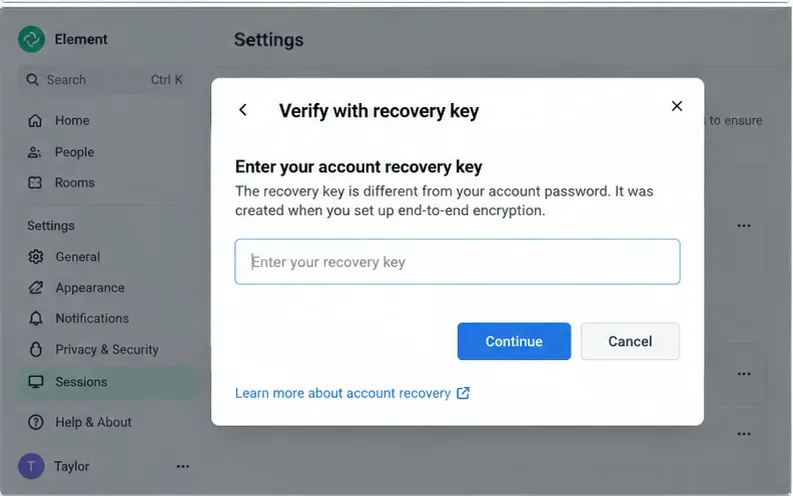
If you have no convenient verified device but you saved your recovery key, choose Verify with recovery key and enter that key when prompted. Element explicitly notes that a recovery key is separate from your account password. Your normal password proves that you can log in to the account; the recovery key is used to recover or confirm the cryptographic identity and encrypted-data access associated with that account.
Enter the recovery key only in the trusted Element client you intended to use; it is different from the account password.
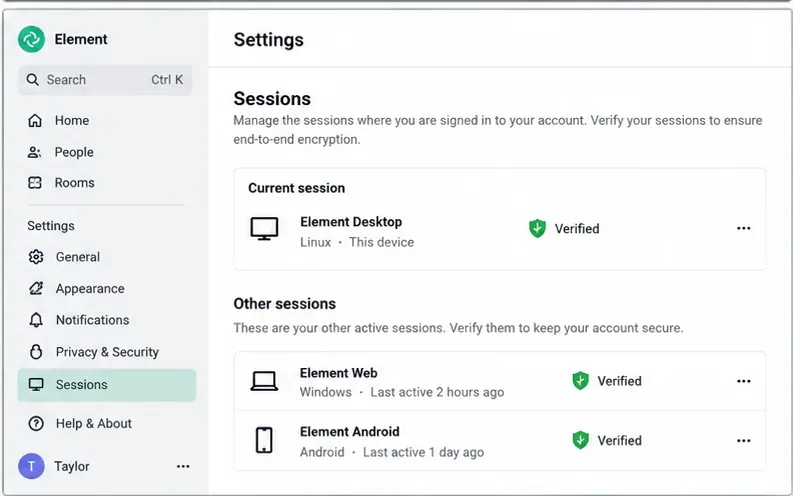
After successful verification, return to All Settings > Sessions. The current session should be shown as verified, typically with the green shield described in Element’s documentation.
Confirm that the current session is marked Verified after the verification flow completes.
What the warning usually means
In Matrix, each login is treated as a separate session or “device,” even when two logins happen on the same physical computer. For example, Element Web in Chrome and Element Desktop on the same laptop can appear as two different sessions. A fresh browser profile can create another session as well.
Verification connects that session to your account’s cryptographic identity. This matters for end-to-end encryption because Element uses cross-signed verification to distinguish sessions you have approved from sessions that merely possess valid login credentials.
So an identity-verification warning does not automatically mean your password is wrong, and it does not by itself prove that your account has been compromised. It means the current session has not reached the trusted verification state Element expects. The correct action is to inspect the Sessions page, verify sessions you recognize, and remove or sign out sessions you do not recognize.
Choose the fix that matches your situation
Situation
Recommended action
Why
You have another verified Element session
Verify the current session from that device
This preserves your existing cryptographic identity and is usually the least disruptive path.
You have a working recovery key
Use Verify with recovery key
The recovery key can verify a new session and restore access to protected encryption material.
You have neither a verified session nor a recovery key
Use the documented “Can’t confirm” recovery/reset path only after understanding the consequences
Element warns that resetting the cryptographic identity can cause loss of access to previous encrypted message history.
You see a session you do not recognize
Do not verify it; sign it out or remove it and secure the account
Verification should only be granted to sessions you control.
If another verified device does not receive the verification request
First, confirm that the other device is actually verified, not merely signed in. On Element Web/Desktop, Element’s current documentation says to check All Settings > Sessions and look for the green shield on that session. If the older device is itself unverified, it cannot serve as your trusted anchor in the way you expect.
Next, keep both clients online and retry the verification from the unverified session. If you can use a known-good recovery key, that is a practical alternative when the interactive device-to-device flow is not completing.
Also distinguish a session-verification problem from a server, SSO, or network login problem. If you cannot log in at all, the issue is earlier in the authentication chain. If you can log in but the session remains unverified, the steps in this article apply.
If the recovery key is rejected or missing
Do not substitute your Element account password unless the interface specifically asks for it. Element’s support documentation says the recovery key is separate from the account password.
If you think you saved a recovery key but are unsure whether it still works, Element recommends testing it by signing in to Element Web in another browser and attempting to verify that new session with the key. If you still have a verified device, you can also use that trusted device to create or replace the recovery key from the encryption settings.
If you have lost the recovery key and have no verified sessions left, Element’s documented last-resort path is to reset the cryptographic identity. Treat that as a recovery operation, not a routine troubleshooting step. Element states that after this reset you can lose access to previous encrypted message history, and contacts may be notified that your identity changed.
What to do with old or unknown sessions
Verification is not a reason to approve every entry in the Sessions list. Review the list for old browsers, retired phones, previous installations, or devices you do not recognize. Keep sessions you still control and need. Sign out sessions that are obsolete or suspicious rather than verifying them.
This is especially important if the warning appeared unexpectedly without a recent login. A normal explanation can be a new browser profile, cleared browser storage, or a fresh desktop installation, but an unfamiliar session deserves account-security attention.
Why fixing this matters even if encrypted chats still work today
Element and the Matrix ecosystem are tightening how unverified sessions are treated. Element’s current device-verification documentation says the rollout date for excluding insecure devices has been postponed and is still to be determined, with one month of notice promised before the date is set. Matrix has also documented the move toward not sending encrypted to-device messages to non-cross-signed devices.
The practical takeaway is simple: do not rely on an unverified session continuing to behave exactly as it does today. Verify sessions you actively use, keep a recovery key safely stored, and remove sessions you no longer control.
Verification checklist
Open All Settings > Sessions in Element Web or Desktop.
Confirm which entry is the current session.
Verify it with another already verified device when possible.
Otherwise, use your saved recovery key.
Confirm the current session shows the verified/green-shield state.
Do not verify unknown sessions.
Only reset the cryptographic identity if no verified session or working recovery key remains.
After recovery, save a new recovery key in a secure place.