Home
» NETWORK ADMIN
»
How to Install Jitsi Meet on Ubuntu 24.04 with Lets Encrypt SSL
How to Install Jitsi Meet on Ubuntu 24.04 with Lets Encrypt SSL
Installing Jitsi Meet on Ubuntu 24.04 is straightforward when the DNS name, firewall, and TLS plan are correct before you run the package installer. The official Jitsi self-hosting guide, last updated August 10, 2026, supports Ubuntu 22.04 or newer, so Ubuntu 24.04 LTS is within the documented support range. The same guide recommends using a trusted TLS certificate and offers Let’s Encrypt as the preferred certificate choice during installation.
This guide uses meet.example.org as the example hostname. Replace it everywhere with the fully qualified domain name that actually points to your server.
What should be ready before you install Jitsi Meet?
You should have an Ubuntu 24.04 server with sudo access, a public DNS name, and inbound network access for Jitsi’s required ports. Jitsi is a real-time WebRTC service, so a server that can serve a web page but cannot receive UDP media traffic is not a complete deployment.
Ubuntu 24.04 LTS with administrative access.
A DNS A record such as meet.example.org pointing to the server’s public IPv4 address.
TCP ports 80 and 443 reachable from the Internet.
UDP port 10000 reachable for normal Jitsi media traffic.
SSH access, normally TCP 22 unless you changed it.
Enough control of any upstream cloud firewall, security group, router, or NAT device to forward the same ports.
Jitsi’s documentation also lists UDP 3478 for STUN queries when enabled and TCP 5349 for TURN fallback traffic. If the server sits behind NAT, firewall configuration must be correct both on Ubuntu and on the router or cloud network.
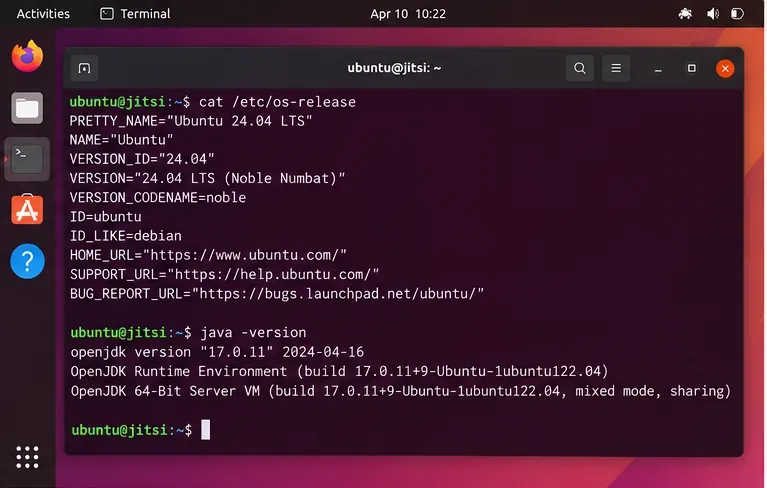
Confirm the server is running Ubuntu 24.04 and check the Java runtime before beginning the Jitsi Meet installation.
Does the hostname need to resolve before Let’s Encrypt can work?
Yes. Create the DNS record first and wait until public resolvers return the server’s public address. Let’s Encrypt must be able to validate control of the hostname, and Jitsi’s Nginx configuration will also use that hostname.
For a typical deployment, create an A record:
Type
Name
Value
A
meet.example.org
Your server’s public IPv4 address
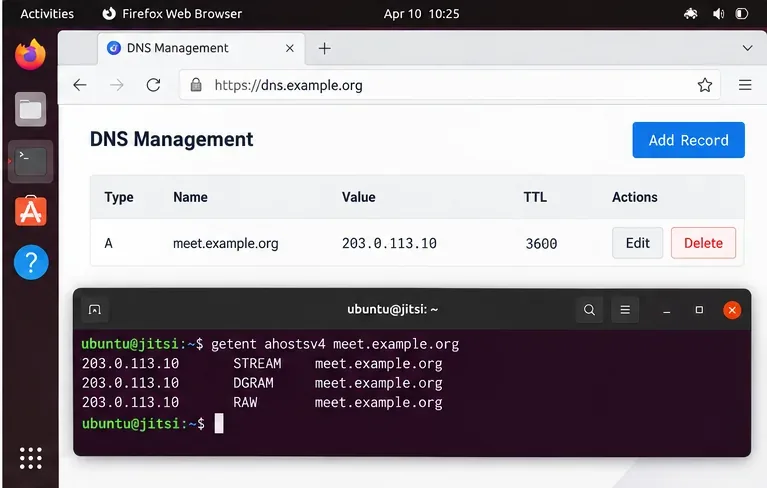
From the server, verify the name resolves as expected:
getent ahostsv4 meet.example.org
If it returns the wrong address, stop here and fix DNS. Issuing a certificate before DNS is correct usually creates avoidable validation failures.
Verify that the meeting hostname resolves to the public address of the Ubuntu server before requesting a Let’s Encrypt certificate.
Which base packages and Ubuntu repositories are required?
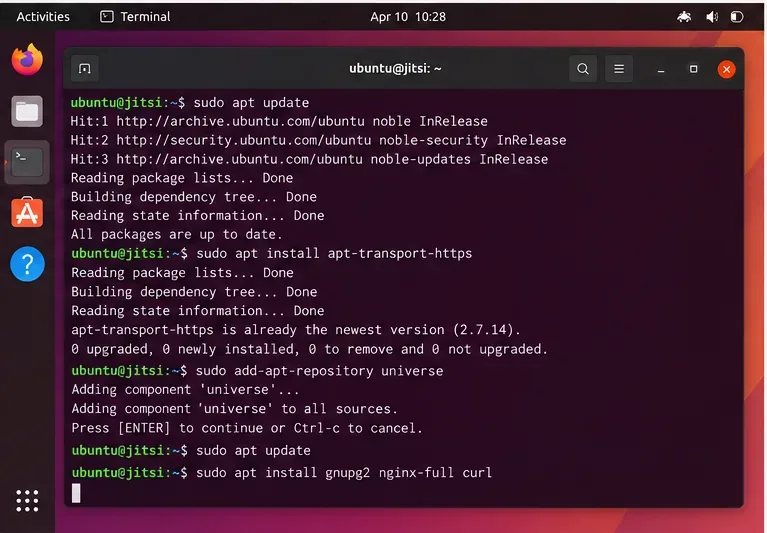
The current Jitsi Debian/Ubuntu guide lists gnupg2, nginx-full, curl or wget, and sudo when you use sudo. It also says OpenJDK 17 must be used. Jitsi depends on packages from Ubuntu’s universe repository.
The apt-transport-https package is retained here because it remains in the current Jitsi quick-start instructions. On modern Ubuntu, HTTPS transport is already integrated into APT, so installing that package may effectively be a compatibility step rather than enabling a feature that is otherwise absent.
Prepare Ubuntu’s package sources and install the prerequisites referenced by the current Jitsi self-hosting guide.
How do you add the Prosody and Jitsi repositories?
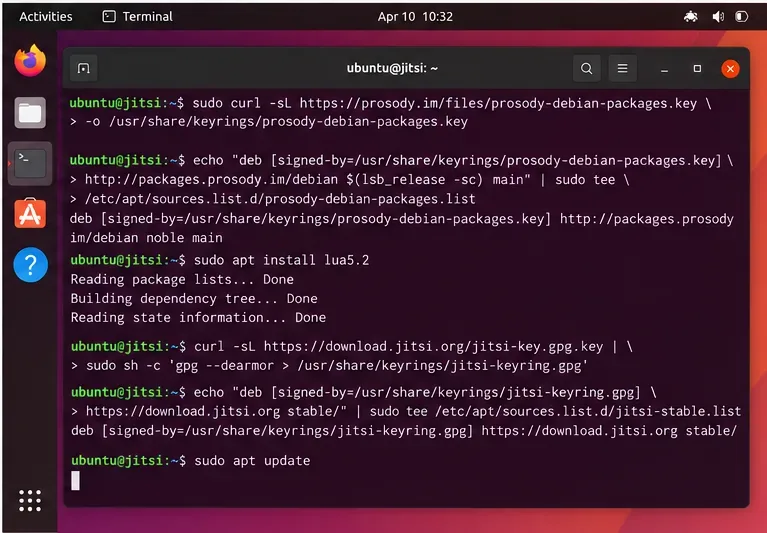
Jitsi uses Prosody for XMPP signaling. The official quick-start currently instructs administrators to add both the Prosody package repository and the Jitsi stable repository.
Do not substitute an arbitrary third-party PPA for these repositories. Using the package sources documented by Jitsi reduces the risk of mixing incompatible Jitsi, Prosody, and Ubuntu packages.
Add the package sources used by the current Jitsi Debian and Ubuntu installation guide, then refresh APT metadata.
Which firewall ports should be opened before installation?
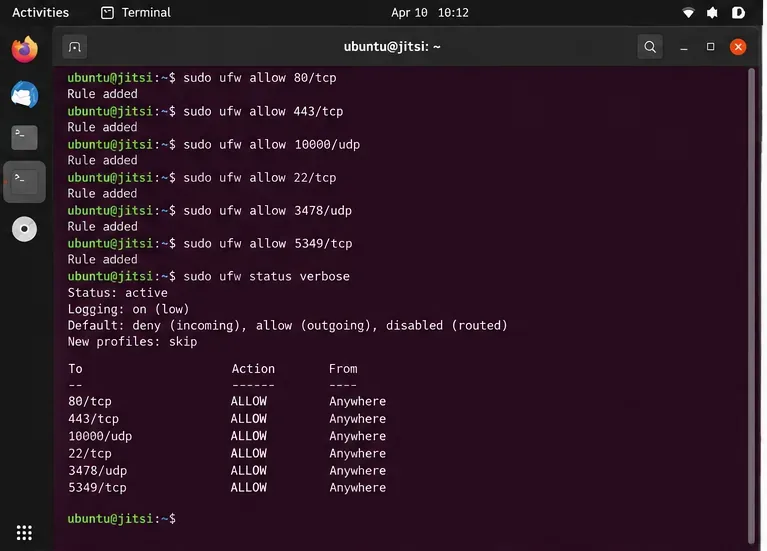
Open the required ports before requesting the certificate so HTTP validation can reach the server and media can flow after installation. For UFW, the current Jitsi guide gives these rules:
If SSH uses a different port, allow that port instead of blindly adding TCP 22. On a cloud VM, duplicate the necessary rules in the provider firewall or security group. On a server behind a router, forward the required ports to the Ubuntu host.
Open Jitsi’s documented web, media, SSH, STUN, and TURN ports in UFW, adjusting the SSH rule if your server uses a nonstandard port.
How do you install Jitsi Meet and choose Let’s Encrypt?
Install the metapackage from the Jitsi repository:
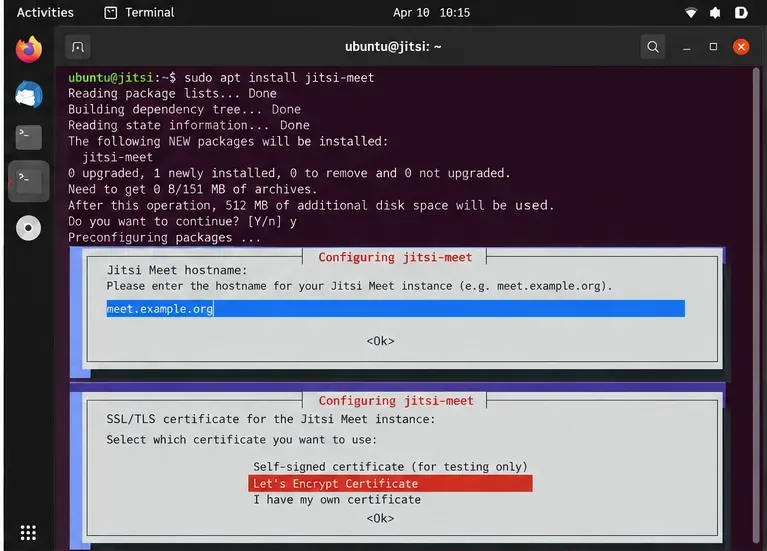
sudo apt install jitsi-meet
The installer asks for the Jitsi hostname. Enter the public DNS name, for example meet.example.org. The current Jitsi documentation says the installation also presents SSL/TLS certificate choices and recommends the Let’s Encrypt option. Select Let’s Encrypt Certificate when that choice is displayed.
This is preferable to treating an older standalone certificate script as a universal step. The current quick-start centers the certificate choice in the package installation flow. If your installed package behaves differently from the current documentation, do not invent a path: inspect the package prompts and the version-specific Jitsi documentation before changing Nginx or certificate files manually.
Enter the public meeting hostname during package configuration and choose the Let’s Encrypt certificate option when the installer presents it.
How can you confirm HTTPS and the meeting page work?
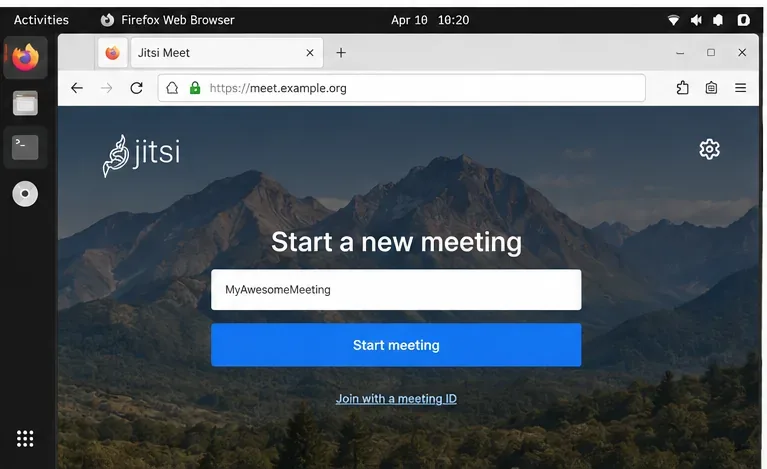
Open https://meet.example.org from a browser outside the server. A successful deployment should load the Jitsi Meet page without a browser certificate warning. Create a temporary room and join it from a second device or network.
That second-client test matters because loading the landing page proves only that HTTPS works. It does not prove that Jitsi Videobridge media traffic is reachable. If two participants can join but cannot hear or see each other, review UDP 10000 and any NAT or cloud firewall rules first.
Load the public HTTPS URL and create a test meeting; a valid Let’s Encrypt certificate should avoid browser trust warnings.
Which services should you check after installation?
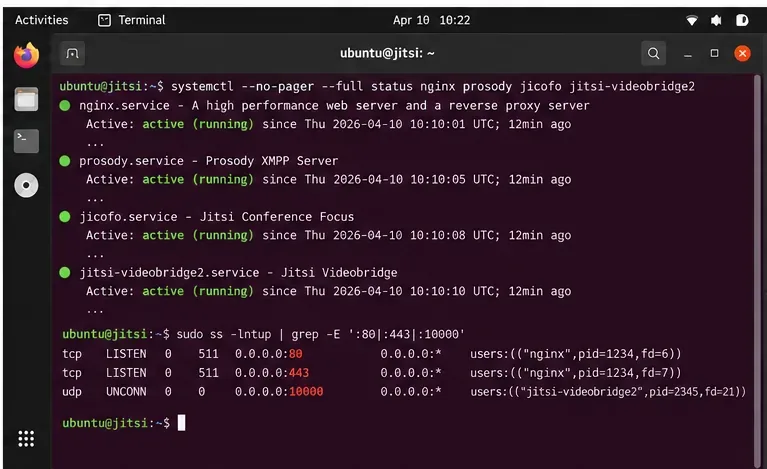
Jitsi Meet is made of several components rather than one monolithic service. Common components in a package installation include Nginx, Prosody, Jicofo, and Jitsi Videobridge. Check them individually:
sudo systemctl --no-pager --full status nginx prosody jicofo jitsi-videobridge2
You can also inspect listening sockets:
sudo ss -lntup | grep -E ':80|:443|:10000'
If a service is not active, read its logs before repeatedly reinstalling packages. The Jitsi quick-start specifically points administrators to /var/log/jitsi/jvb.log, /var/log/jitsi/jicofo.log, and /var/log/prosody/prosody.log for troubleshooting.
Check the individual Jitsi components and confirm the expected web and media sockets are listening after installation.
What if the server is behind NAT?
Jitsi’s documentation says Videobridge should normally configure itself automatically on boot when the server is behind NAT, provided the required ports are forwarded. If three-way calls still fail, the guide documents a static local-to-public address mapping in /etc/jitsi/videobridge/jvb.conf:
Use this only when it matches your network topology. A hosted VM with a directly assigned public address may not need the mapping, while a private VM behind one-to-one NAT or a home router may.
Should an Internet-facing Jitsi server allow anyone to create rooms?
Not necessarily. The default package installation allows anyone who can access the server to start a conference. For a private organization, classroom, or internal service, that can be too permissive. Jitsi’s current documentation recommends configuring authenticated access when you need to restrict who can create rooms. Treat authentication as a separate hardening step after the basic HTTPS deployment is confirmed.
Quick troubleshooting checklist
Symptom
Check first
Let’s Encrypt issuance fails
DNS A record, public TCP 80 reachability, and whether another service already owns the expected web ports.
Jitsi page does not load
Nginx status, TCP 443, DNS resolution, and package-install errors.
Browser shows a certificate warning
The certificate hostname must match the exact Jitsi hostname and be issued by a trusted CA.
Confirm the server is using a trusted certificate; Jitsi documentation warns that mobile clients do not accept a self-signed deployment in the normal setup.
Anyone can create meetings
This is the default behavior; configure authenticated access if that is not acceptable.
What should a successful Ubuntu 24.04 deployment look like?
A healthy result is more than “the installer completed.” Your DNS name should resolve to the intended public address, the browser should load Jitsi over trusted HTTPS, Nginx and the Jitsi components should be active, and a second participant should be able to exchange audio and video. If those checks pass, you have validated the web, TLS, signaling, and basic media paths that matter most in a single-server deployment.