Home
» NETWORK ADMIN
»
How to Install ownCloud Infinite Scale with Docker Compose on Ubuntu
How to Install ownCloud Infinite Scale with Docker Compose on Ubuntu
You finish a Docker Compose install, run docker compose up -d, and still cannot reach ownCloud. That is the most common practical failure pattern with Infinite Scale: the containers may exist, but DNS, TLS, storage paths, or a required environment value prevents the stack from becoming usable.
This guide uses the production-oriented Docker Compose approach documented by ownCloud for a single-server deployment. The current ownCloud documentation page is published under the 9.0 development documentation, but it explicitly says the downloadable production example uses the latest stable release and currently points to the stable 8.2 branch. That distinction matters: do not copy development image tags into a production server unless you intentionally want a development build.
The setup below is appropriate for home use and small organizations that want one Infinite Scale instance behind a reverse proxy with HTTPS. It assumes Ubuntu LTS, Docker Engine, the Docker Compose plugin, a domain you control, and administrator access to the server. ownCloud's production example recommends roughly 4–6 GB of RAM for the default enabled services and requires at least the ownCloud domain; optional office integrations need their own subdomains.
Before you start: solve the network and storage questions first
Do not begin by downloading the Compose files. First confirm the items that are hardest to fix after the stack is already running:
DNS: your chosen hostname, such as ocis.example.com, must resolve to the server's public IP address.
Firewall and NAT: an internet-facing installation needs TCP 80 and 443 reachable for the reverse proxy and certificate flow. SSH on TCP 22 is normally needed for administration.
Persistent storage: Docker-managed volumes are convenient, but production systems usually benefit from deliberate paths for configuration and user data so backups and capacity planning are easier.
Email sender: ownCloud's documented example requires SMTP_SENDER to be set, even if you have not yet configured a working SMTP relay.
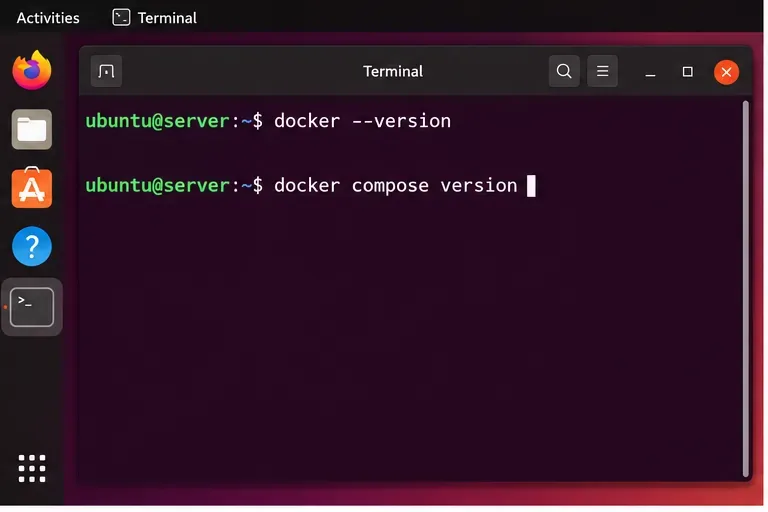
The important point is not a specific version number printed by these commands. You are confirming that both commands run successfully and that Compose is available as docker compose. ownCloud's guide recommends installing Docker from Docker's own repository rather than depending on Ubuntu's embedded Docker packages, which may lag behind.
Verify that Docker Engine and the Docker Compose plugin are installed before downloading the ownCloud stack.
2. Download the official stable Compose example
ownCloud provides a full Compose deployment example rather than asking administrators to invent a production stack from scratch. At the time of verification, the documentation says the current production download is based on the stable-8.2 branch because the 9.0 documentation is still marked development.
The official workflow downloads the deployments/examples/ocis_full directory, transfers the resulting archive to the server, and extracts it under a path such as /opt/compose/ocis/ocis_full. The exact archive name can change with the stable branch, so use the download link shown in the current ownCloud documentation rather than hard-coding a filename from an older tutorial.
After extraction, change into the deployment directory and inspect the contents:
cd /opt/compose/ocis/ocis_full
ls -la
You should see the Compose files, configuration directory, and .env file supplied by the example. If you are updating an existing extracted example, back up your .env first; ownCloud warns that extracting a newer package can overwrite it.
3. Configure the .env file carefully
Most first-start problems come from the environment file. Edit .env in the extracted directory and work through the settings in a deliberate order.
Set the public domain
Set OCIS_DOMAIN to the hostname that already resolves to the server, for example ocis.example.com. If you enable Collabora or ONLYOFFICE, configure their documented hostnames as well. Do not use a domain in .env that differs from your DNS records.
Prepare TLS
For an internet-facing deployment, the official example uses Traefik and Let's Encrypt. Set TRAEFIK_ACME_MAIL to a real email address you control. ownCloud recommends using the Let's Encrypt staging CA first, confirming that certificate issuance works, and only then switching to production. This reduces the chance of hitting Let's Encrypt rate limits while troubleshooting.
Choose data and config locations
If you want host-mounted storage, set OCIS_CONFIG_DIR and OCIS_DATA_DIR to your planned persistent paths. Make sure the underlying filesystem has enough capacity and that your backup process includes both configuration and data.
Set an SMTP sender
At minimum, define SMTP_SENDER. You can add the full SMTP host, port, username, password, authentication method, and security settings when you are ready to send notifications.
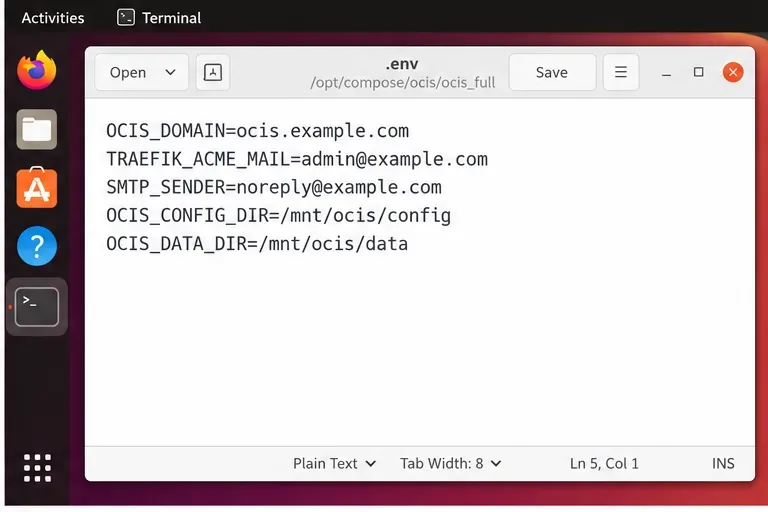
The central .env file controls the domain, certificate contact email, mail sender, and persistent storage paths.
4. Validate the Compose configuration, then start the stack
Before pulling and starting containers, ask Compose to render and validate the assembled configuration:
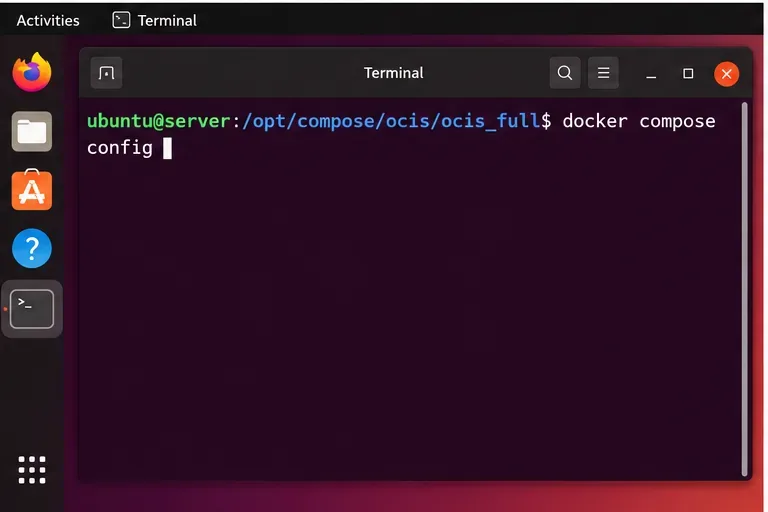
docker compose config
If this fails, fix the syntax or missing variables before continuing. This check is much faster than diagnosing a partially started deployment.
Run docker compose config before startup so syntax and variable problems are caught early.
When the configuration renders successfully, start the deployment in detached mode:
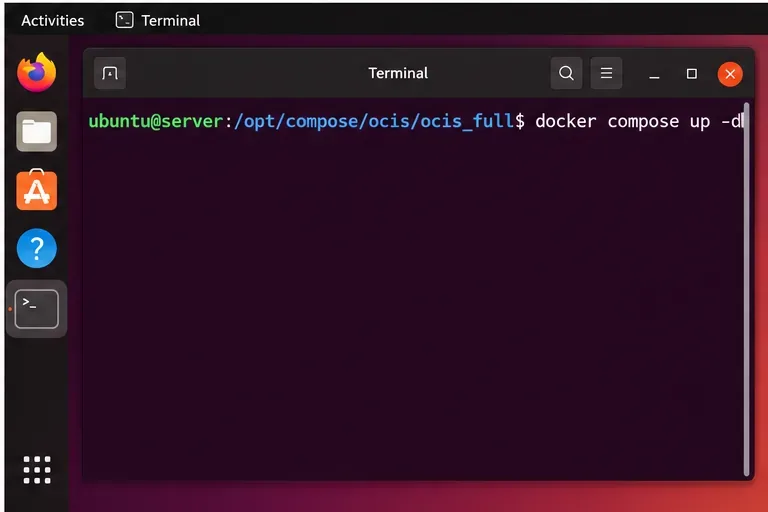
docker compose up -d
Compose will pull the required images and start the services defined by the example. On the first run this can take longer because images must be downloaded and certificates may be requested.
Start the configured ownCloud Infinite Scale stack with docker compose up -d.
If the first start fails, troubleshoot from easiest to hardest
Check container state
Start with the Compose view rather than guessing which service failed:
docker compose ps -a --format "table {{.Service}} {{.State}} {{.ID}}"
A service that repeatedly exits is more useful than a browser error because it narrows the problem to one container.
Read Traefik logs for certificate problems
ownCloud's guide specifically recommends checking Traefik first when HTTPS does not work. Typical causes include an invalid ACME contact email, closed ports 80/443, or DNS that returns NXDOMAIN or points to the wrong IP. After correcting an ACME problem, follow the official instructions for removing only the certificate volume that contains the failed test data. Do not delete all volumes.
Check the ownCloud service logs
Find the container ID with docker compose ps, then inspect its logs:
docker logs -f <container_id>
The initialization process can create the initial configuration on first run. ownCloud documents the command pattern ocis init || true; ocis server for Compose deployments so initialization is skipped when configuration already exists.
Do not use docker compose down -v casually
To stop the deployment, use:
docker compose down --remove-orphans
Do not append -v unless you intentionally want to remove volumes. ownCloud explicitly warns that this can delete deployment data. If one disposable certificate volume must be removed during TLS troubleshooting, delete that volume selectively instead.
How to verify that the installation is actually complete
A successful docker compose up -d is only one check. Verify the result at four levels:
DNS: the public hostname resolves to the correct server address.
TLS: the browser reaches the site over HTTPS without a certificate warning. If you deliberately used the Let's Encrypt staging CA, verify the staging certificate first, then switch to production as documented.
Containers:docker compose ps -a shows the expected services running rather than restarting or exited.
Application: you can open the configured ownCloud URL, sign in with the initial administrator credentials you set or retrieved, create a folder, and upload a small test file.
For a fresh deployment, the documentation says the default administrator username is admin, with the password either set manually during configuration or obtainable through the documented startup log/reset procedures. Change the initial password promptly and do not leave a production installation on a known default credential.
Once the basic file service works, add optional collaboration components or more advanced integrations. Doing that after the core deployment is healthy makes troubleshooting much easier because a failure in an office suite, external identity provider, or antivirus service is no longer mixed with basic DNS and TLS problems.
Maintenance notes for a stable deployment
Before an upgrade, back up your data and configuration and read the version-specific migration notes. The ownCloud documentation distinguishes between routine image updates and upgrades that may require configuration changes. A common maintenance sequence is to stop the stack, pull images, and restart with orphan cleanup, but you should still check the release-specific upgrade guide before changing versions.
For a production server, also monitor disk usage. Docker-managed volumes are easy to start with, but storage growth can surprise you when the operating system and user files share the same filesystem. If you expect substantial data, use dedicated storage paths from the beginning or migrate them using the documented volume procedure and correct ownership for the container user.