Home
» NETWORK ADMIN
»
How to Integrate BigBlueButton With Moodle LMS (Step by Step)
How to Integrate BigBlueButton With Moodle LMS (Step by Step)
Short answer: On Moodle 4.0 or later, you normally do not install a separate BigBlueButton activity plugin. Enable the built-in activity if your site has it disabled, enter the BigBlueButton server URL and shared secret in the site settings, then add a BigBlueButton activity to a course and test it with both a teacher and an enrolled student. You need a working BigBlueButton service and credentials from its provider or server administrator; installing the Moodle activity alone does not create a video-conferencing server.
This guide covers the standard Moodle activity integration, not a separate LTI deployment. The labels and menu paths below may move slightly between Moodle versions or themes. The interface panels are visual references to the settings and workflow, not screenshots from a live Moodle installation.
Do I need to install another Moodle plugin?
Usually, no. Moodle integrated BigBlueButton as a core plugin in Moodle 4.0. In Moodle 4.0 through 5.2, an administrator may need to enable it under Site administration > Plugins > Manage activities and accept the data processing agreement. Moodle 5.3 documentation says the activity is enabled by default on new installations, but the administrator still has to enter the server URL and shared secret; until then, the activity chooser can show BigBlueButton as unavailable. If your site is older than Moodle 4.0, check the plugin version that matches your Moodle release before installing a separate copy. Do not install a duplicate activity module on a newer site. See Moodle’s upgrade notes for BigBlueButton for the core-plugin history and Moodle 5.3 BigBlueButton documentation for current activity behavior.
What should I have ready before setup?
A BigBlueButton service: either a server your organization operates or a hosted service that permits Moodle integration.
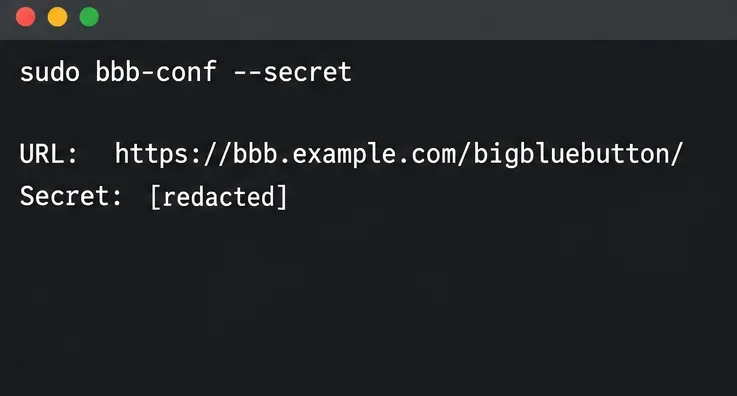
The server URL and shared secret: ask your provider or server administrator. If you administer a compatible self-hosted BigBlueButton server, its administrator can run sudo bbb-conf --secret on that server. The command prints the URL and API secret.
Administrator access to Moodle: only a site administrator can change site-wide server credentials; a course teacher can add the activity after it is enabled.
A test course and test accounts: use one teacher or moderator account and one student account enrolled in the course.
The URL is the BigBlueButton server address supplied for API integration, commonly ending in /bigbluebutton/. Copy the provider’s value exactly, including https:// and the trailing slash, rather than adding a guessed /api path. The shared secret signs server-to-server API requests. Keep it private: BigBlueButton’s API security guidance says not to expose the secret in browser-side JavaScript or public course content. If you use hosted service credentials, that provider may apply its own participant, recording, or session limits.
The BigBlueButton server administrator can run bbb-conf --secret to retrieve the server URL and shared secret; the example secret is redacted.
How do I connect Moodle to the BigBlueButton server?
1. Check the Moodle version and enable the activity
Sign in as a site administrator and confirm the Moodle version under the site notifications or system information page. If the BigBlueButton activity is disabled, enable it from the activity management page. On Moodle 4.0–5.2, Moodle’s upgrade notes say the core activity can be disabled by default and that the administrator must accept the data processing agreement to enable it. On a new Moodle 5.3 site, it should be listed as enabled, but missing credentials can still leave it unavailable in the chooser. Menu placement can vary; use Site administration search for “BigBlueButton” if the labels do not match your theme.
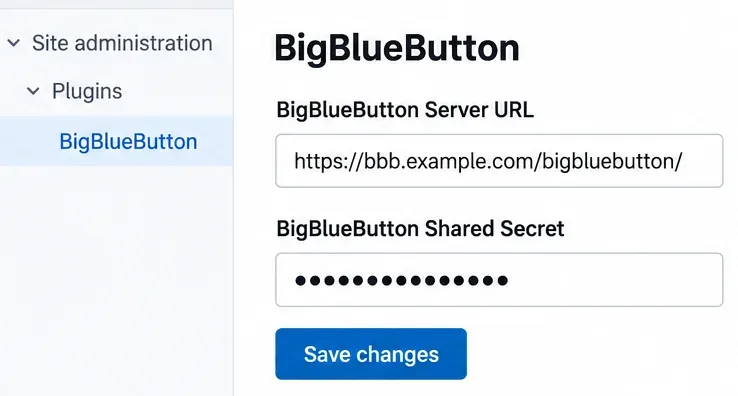
Enter the endpoint and shared secret supplied by your host in Moodle’s BigBlueButton settings, then save them.
2. Enter the server URL and shared secret
Open the BigBlueButton settings from Site administration, usually under Plugins or Plugins > Activity modules. Find the general settings for BigBlueButton Server URL and BigBlueButton Shared Secret. Paste the values from your service provider or server administrator, then save changes. Moodle 5.3 documentation describes entering these credentials from the BigBlueButton settings page; the exact navigation label can differ in earlier versions.
For a self-hosted service, compare the Moodle values with the URL and secret reported on the BigBlueButton server. Do not regenerate or change the server secret as a casual troubleshooting step: every frontend using that server must be updated to the new value. The secret is not a student password and must not be included in an activity welcome message. BigBlueButton explains how the shared secret validates API calls in its BigBlueButton’s server customization guide and BigBlueButton API security documentation.
3. Add a test activity to a course
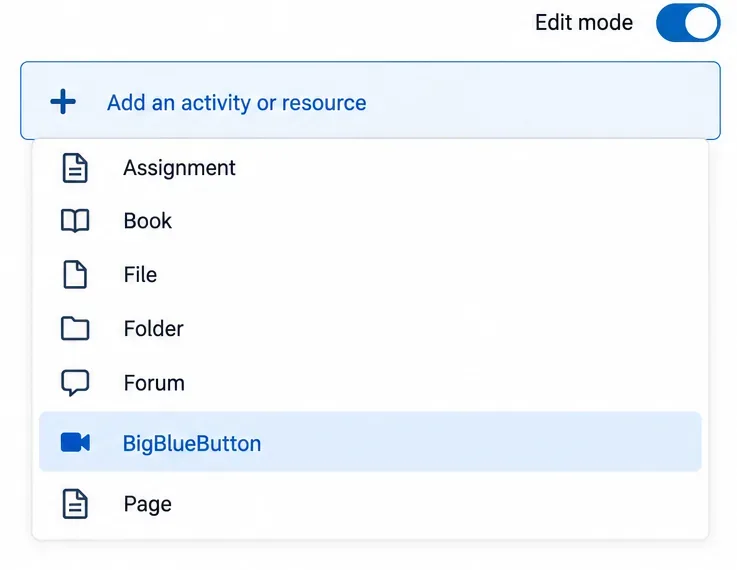
Open a course where you have editing permission and turn on Edit mode. In the target section, choose Add an activity or resource, then select BigBlueButton. If it is absent, return to the site-level checks in step 1 rather than trying to add a different plugin. Use a clearly labeled temporary session, such as “BBB Connection Test,” so students do not mistake it for a scheduled class.
In the course activity chooser, BigBlueButton appears as an activity after the site administrator enables and configures it.
4. Set the meeting details and schedule
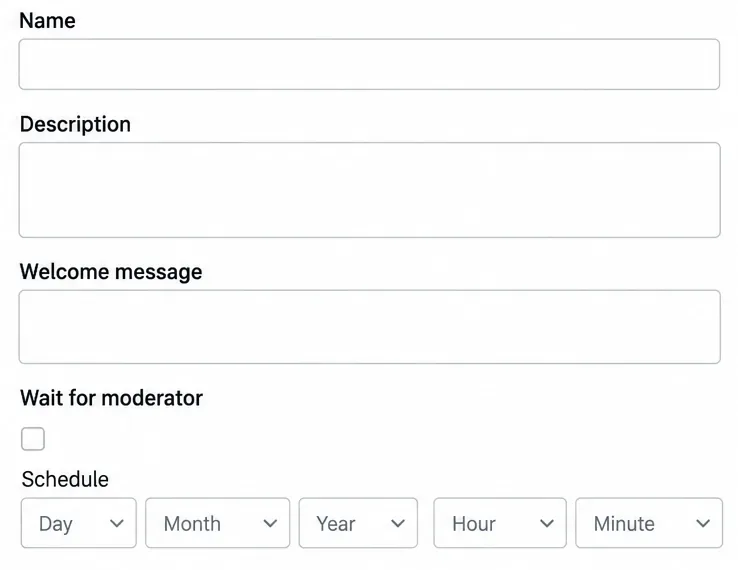
Give the activity a recognizable name and add a short description explaining the purpose of the room. A welcome message is optional. Decide whether to enable Wait for moderator: when enabled, students wait until a user with a moderator role enters. If the class has a specific start or end window, set the schedule and check the course time zone. Avoid opening a test activity to guests unless your institution intentionally allows that access; normal enrolled-user access is easier to control during setup.
Use the default participant roles initially. If the instructor should moderate the room, verify that the account has the appropriate role in the Moodle course before testing. Guest links and external access have separate site-level conditions and may be unavailable when the Moodle site requires users to log in.
The activity form includes a name and optional welcome message, a moderator-wait setting, and scheduling controls.
How can I verify that the integration works for learners?
5. Save the activity and confirm it appears in the course
Save the activity and return to the course page. Confirm that its name and scheduled time look correct. If the activity is hidden, outside its availability window, or restricted by a group or access condition, students may not see it even when the server connection is working. Review the activity visibility and course enrollment before diagnosing the BigBlueButton server.
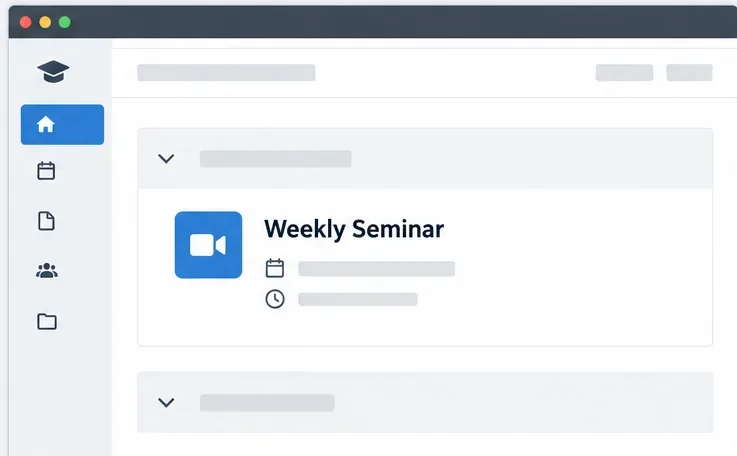
A saved Weekly Seminar activity appears in the course section with its schedule details.
6. Join as the teacher and check audio access
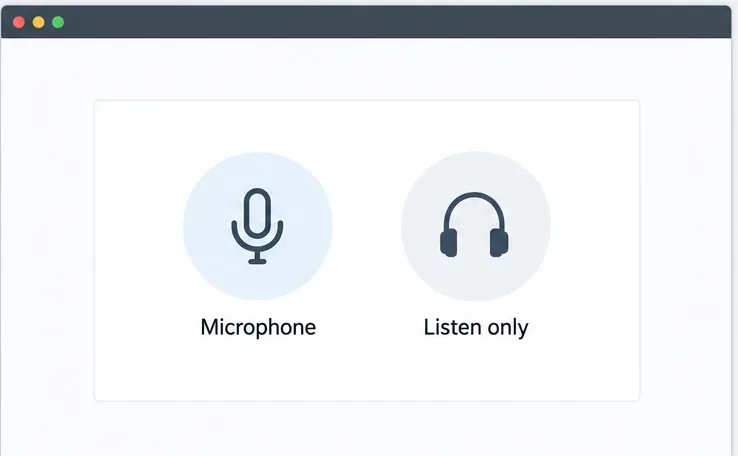
Open the test activity as the teacher or moderator. When the room prompts you to connect audio, choose Microphone to test speaking and listening, or Listen only if you are checking playback without a microphone. Allow the browser to access the microphone when prompted. A browser permission denial is different from a Moodle credential error: if the room opens but audio fails, first check the browser’s site permissions and the selected audio device.
At the audio prompt, participants can choose to join with a microphone or listen only.
7. Join again with an enrolled student account
Use a second browser profile or a separate device to sign in as an enrolled student and open the same activity. Confirm whether the student can enter immediately or sees the expected wait-for-moderator behavior. Check that the participant appears in the room and that a short chat or audio test works. This test verifies more than an administrator launch because student visibility, course enrollment, group restrictions, and moderator settings can affect the result.
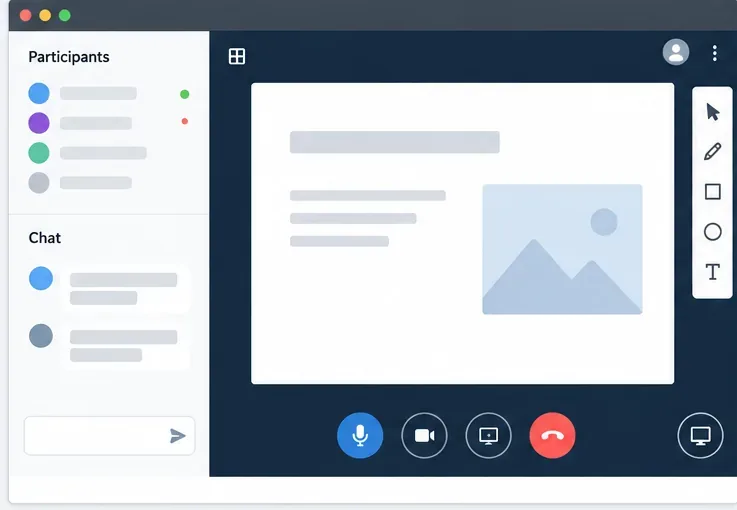
A joined classroom can show the presentation area beside the Participants list and Chat pane.
8. Check recordings only if your setup supports them
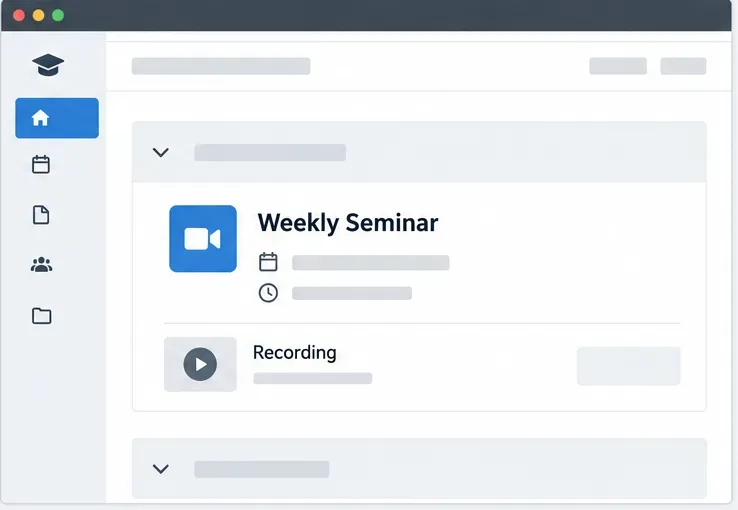
Recording is optional and depends on the server, activity settings, permissions, and service plan. If recording is enabled, make a short test recording, end the meeting cleanly, and check whether a recording link becomes available to the intended Moodle roles. A recording may not appear immediately; Moodle’s upgrade documentation notes that recording metadata tasks can run asynchronously and that Moodle cron must be operating for recording-related processing in the documented upgrade scenario. For current cron operation, review Moodle’s scheduled-task status and your provider’s recording policy before concluding that the integration itself is broken.
A recording entry can appear beneath the activity when recordings are enabled, processed, and available to that user.
What if Moodle cannot connect or students cannot join?
Symptom
First check
BigBlueButton is missing from the activity chooser
Confirm the built-in activity is enabled and available for your Moodle version.
The activity is greyed out on Moodle 5.3
Complete the server URL and shared-secret setup; current docs say incomplete credentials leave it unavailable.
Moodle reports that the server is unavailable or the room cannot start
Compare the exact URL and secret with the provider’s values; verify the Moodle server can reach the BigBlueButton host over HTTPS.
The teacher can join but a student cannot
Check course enrollment, activity visibility, access dates, group restrictions, and moderator-wait settings.
The room opens but audio or video does not work
Check browser permissions and the BigBlueButton service’s media/network requirements; API connectivity alone does not verify each participant’s media path.
A recording is absent
Confirm recording is supported and enabled, check who can view it, and review scheduled-task/cron status.
If Moodle reports that it cannot enter the room, start with the URL, shared secret, and server reachability. Moodle’s older troubleshooting page documents these as common causes; use it as a diagnostic checklist, while taking the actual credentials from your current provider rather than copying legacy test-server values. For a self-managed server, the BigBlueButton administrator can also check the service from the server side. Keep the shared secret out of screenshots, support posts, and public logs.
Final setup checklist
The Moodle version and activity-module state are known.
The correct BigBlueButton endpoint and shared secret are saved in the site settings.
The activity appears in the course and is visible to the test student.
A teacher and enrolled student can join with the intended roles.
Audio works in the browser for at least one participant.
Recording playback is tested separately only if it is part of the service.
A successful integration means Moodle can create and launch a session for the right course users—not just that a BigBlueButton activity exists in the chooser. If the teacher launch works but students, media, or recordings fail, troubleshoot those permissions or service layers separately instead of repeatedly reinstalling Moodle’s core activity.