Home
» NETWORK ADMIN
»
How to Migrate Zimbra Mailboxes to a New Server with Zextras Backup or imapsync
How to Migrate Zimbra Mailboxes to a New Server with Zextras Backup or imapsync
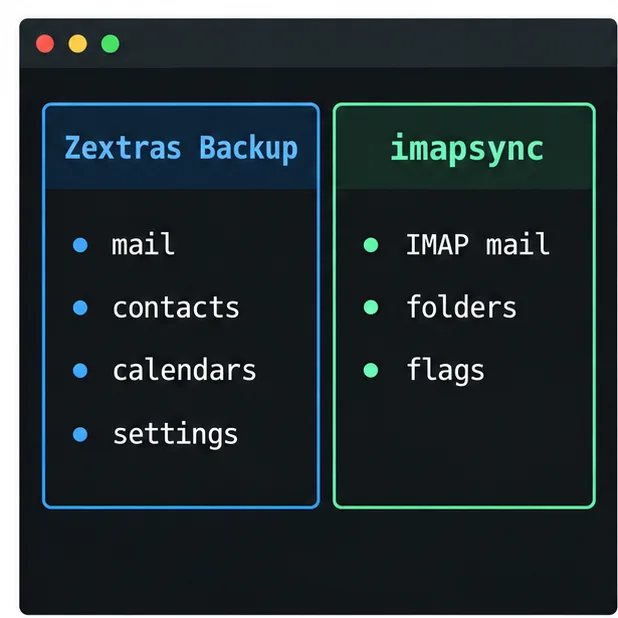
For a full Zimbra-to-Zimbra move, use a supported Zextras Backup migration workflow when you need mailbox data beyond email. Use imapsync when both servers expose the accounts over IMAP and your scope is messages, folders, and flags. Zextras says its older Zextras Migration Tool is no longer available. Its Zimbra migration guidance points administrators to Zextras Backup. Imapsync is a separate command-line option for copying IMAP mailboxes; it does not replace a Zimbra-aware migration for calendars, contacts, shares, or account settings.
That distinction determines how much you must provision and test on the new server. Before changing MX records or letting users work on the destination, confirm the source and destination versions, licensing, authentication, storage, and the exact data you must retain.
Documentation checked October 6, 2026. The official imapsync site lists release 2.314. Zextras’s migration article says the legacy Migration Tool is unavailable and describes a Zextras Backup route. Zextras pages and examples are version-dependent; validate them against your installed Zextras and Zimbra releases before a production run.
Choose Zextras Backup when the migration scope includes Zimbra collaboration data; choose imapsync for an IMAP mailbox copy.
1. Choose the route that matches the data you need
Route
Best fit
What to plan for
Zextras Backup
Zimbra-to-Zimbra migration where you need mail plus supported mailbox and domain data
Compatible Zimbra/Zextras releases, product entitlement, backup storage, and a Zimbra administrator comfortable with CLI operations
imapsync
Copying mailboxes between IMAP servers, including Zimbra, one mailbox at a time or in a controlled script
IMAP reachability and credentials on both servers, destination folder mapping, and separate migration of non-mail data
Zextras’s published Zimbra migration guide lists email and folders, contacts, calendars, tasks, shares, preferences, signatures, identities, and some domain or class-of-service data among the items its Backup workflow can migrate. It also says the workflow does not migrate server configuration, LDAP configuration, MTA or proxy configuration, or custom branding. Exact coverage depends on product versions and settings, so treat that list as a scope checklist and verify each required item in the current documentation.
Imapsync works through IMAP. It copies mailbox folders and messages and can synchronize message flags that the destination supports. It does not transfer a Zimbra server’s LDAP directory, account preferences, calendars, address books, shared resources, or server configuration. If any of those matter, plan another supported export/import method or select the Zextras route.
Do not build a new plan around the old Zextras Migration Tool: the Zextras migration guide says it is no longer available. Also avoid copying obsolete IMAP advice from archived Zimbra pages without checking it against the current imapsync Zimbra FAQ; that FAQ specifically warns that an older Zimbra imapsync guide is obsolete.
2. Prepare both servers before copying data
Make an inventory before provisioning the destination: domains, accounts, aliases, quotas, mailbox sizes, user passwords or reset plan, shared folders, calendars, contacts, distribution lists, retention needs, and the server features users depend on. Identify which host receives new mail during each phase. Keep this inventory as your post-migration checklist.
Confirm platform support. Verify the destination is installed, operating, and on a Zimbra/Zextras combination supported for your migration path. For Zextras Backup, the vendor’s Zimbra workflow requires a Zextras Backup destination and a source running Zextras Backup or Zimbra Suite Plus. Confirm entitlement with the vendor before relying on the feature.
Check capacity. Estimate space for the destination’s live mail store, staged source backup or export, and destination backup. The Zextras migration guide warns that the destination can need room for all three; do not size it only from users’ visible mailbox totals.
Back up and test restores. Keep a separate recoverable backup of the source. For a Zextras migration, follow the installed version’s checks and backup procedure. For imapsync, use a test mailbox on the destination first; imapsync’s tutorial emphasizes that the source is read while the destination is modified.
Test connectivity and authentication. Confirm that an administrator or test user can reach both IMAP endpoints using the intended secure connection. Do not enable clear-text authentication merely because an old guide says to; use the supported TLS/SSL and authentication settings for your Zimbra release.
Plan DNS and mail flow. If the MX record will change, lower its TTL in advance if your DNS provider permits it, then retain the old server during the transition so delayed or cached delivery can be monitored and reconciled.
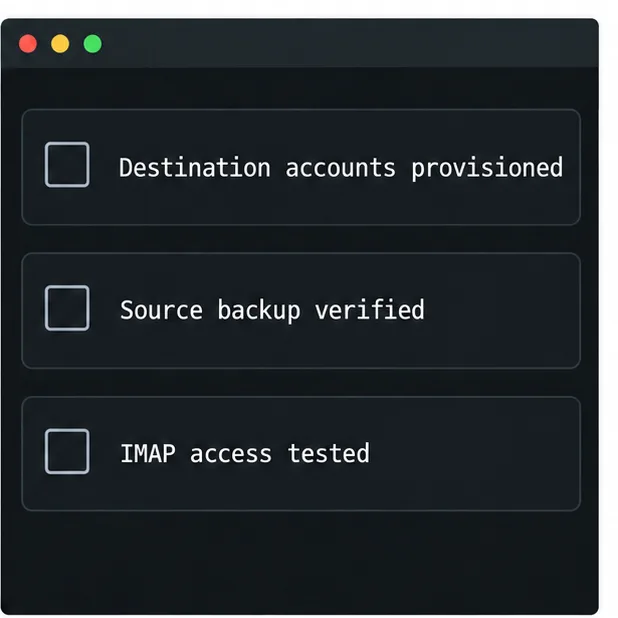
Before a migration run, confirm target accounts, a recoverable source backup, and working IMAP access where imapsync will be used.
3. Use Zextras Backup for a Zimbra-aware migration
This path is designed for administrators moving between Zimbra systems and needing more than IMAP mail. It is not a single universal command: source and destination product versions, backup-path layout, permissions, storage, and migration order matter. Zextras’s guide says its CLI commands should be run as the zimbra user unless it explicitly says otherwise.
Create and transfer a source backup
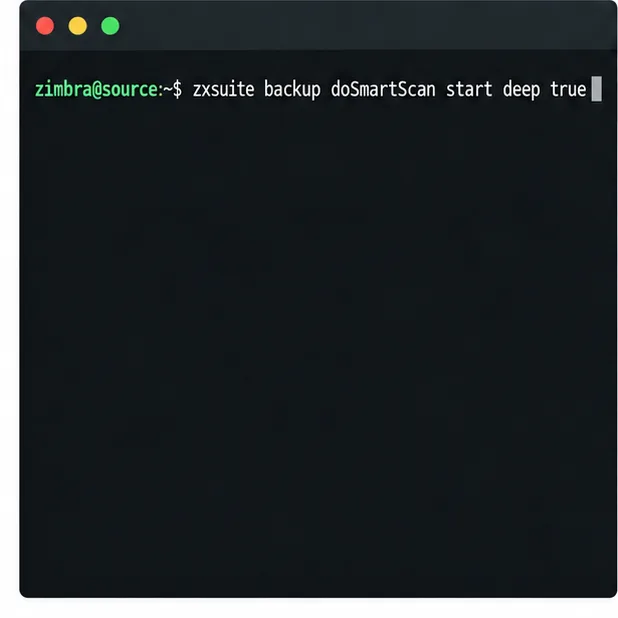
Follow the current Zextras Backup guide for your installed release. The Zextras Zimbra walkthrough starts with source integrity checks and a deep SmartScan. Its example command is shown below; verify the command syntax and any required maintenance steps against your version before running it:
zxsuite backup doSmartScan start deep true
After the source data is exported, transfer the required backup data to a staging directory on the destination. Zextras gives rsync as one possible transport and recommends repeating the transfer while the source remains active so later passes move only changed data. The destination staging path must be readable by the Zimbra user and should not be confused with the destination’s active Zextras Backup path. Protect the transfer channel and keep a log of each pass.
The source-side example starts a deep SmartScan; the screen shows the command only, not a completed scan.
Provision and restore on the destination
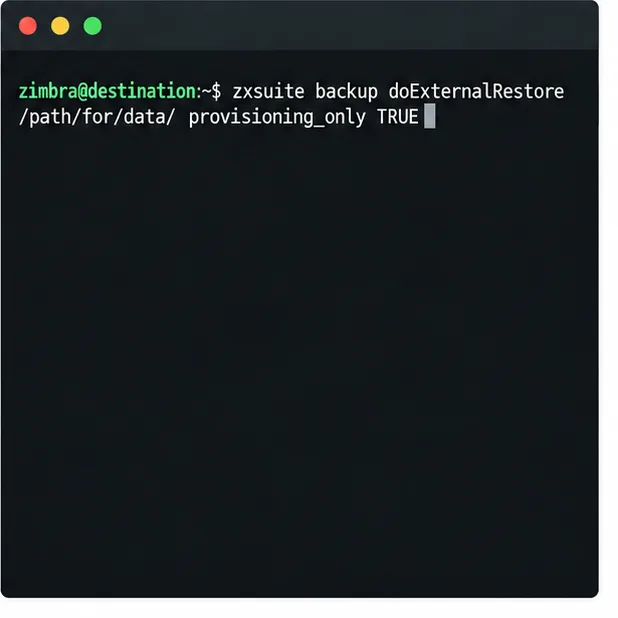
Zextras documents a provisioning-only import that creates domains, classes of service, and accounts while skipping mailbox contents. It is a setup phase, not a complete mail restore:
After provisioning, run the full external restore with a concurrency setting chosen from a test on your destination. Zextras gives concurrent_accounts as a parameter and advises testing performance rather than assuming one number fits every server. Repeat the source backup transfer and the appropriate incremental restore as needed to collect changes made during the migration window. Keep the source available until users and mail flow have been verified.
The vendor describes staged and one-pass variants, and their order can depend on the cutover plan. Use the procedure for your installed release rather than mixing commands from different versions. Do not edit or delete the imported backup data or map files while the restore is in progress.
The provisioning-only command prepares destination accounts; mailbox content requires the separate full restore stage.
4. Use imapsync when your scope is IMAP mail
Imapsync is useful when both the source and destination mailboxes are reachable over IMAP and you want to copy messages and folders without installing a Zimbra-specific migration product. It is available for Linux, Windows, and macOS. The examples below use placeholders, not real server names or credentials. Store passwords in a protected script or other approved secret-handling method; never publish them in a ticket, shared shell history, or article.
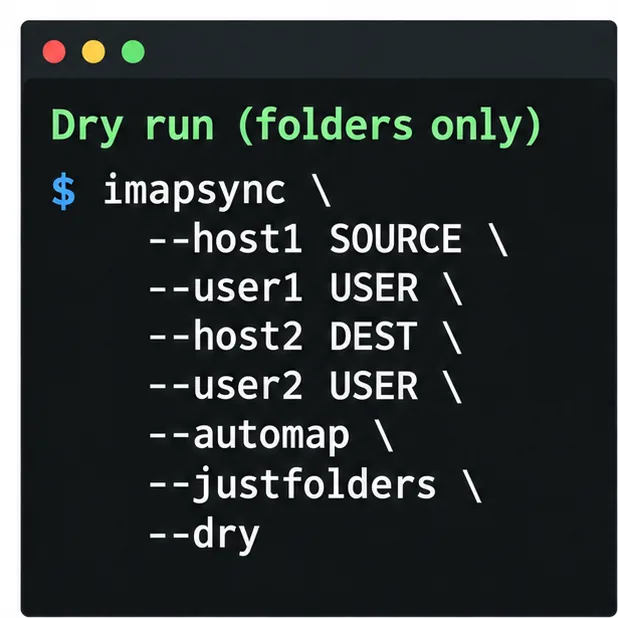
Start with one source mailbox and a test destination mailbox. Use a dry run to test logins and inspect folder mapping without writing to the destination. Imapsync’s official tutorial shows these options for an initial folder-only check:
imapsync \
  --host1 SOURCE_IMAP --user1 USER --password1 SOURCE_SECRET \
  --host2 DEST_IMAP   --user2 USER --password2 DEST_SECRET \
  --automap --justfolders --dry
Replace the placeholders using your organization’s secure credential workflow. Confirm that the source and destination are the intended hosts, both logins succeed, and folders such as Sent, Drafts, and Trash map to the correct destination names. If the mapping is wrong, correct it before copying messages.
The dry-run template checks endpoint access and folder mapping without copying mailbox contents.
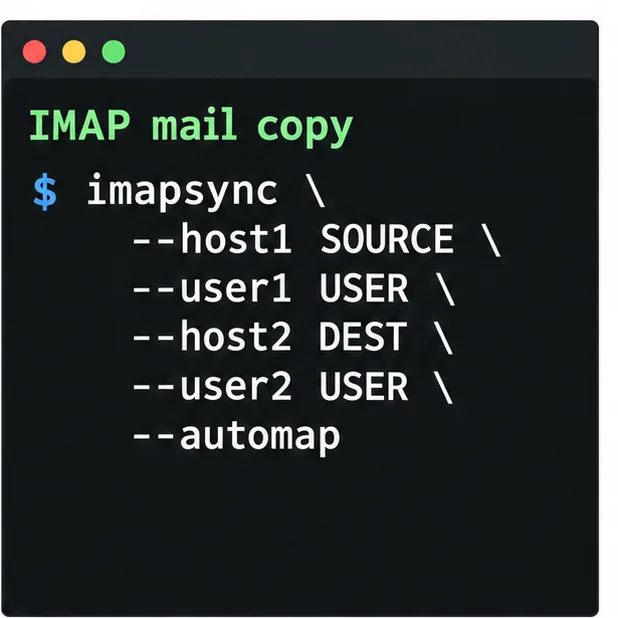
Once the test is correct, remove --justfolders and --dry to perform the actual mailbox copy. Keep --automap only if the proposed mapping is right for your folder names:
imapsync \
  --host1 SOURCE_IMAP --user1 USER --password1 SOURCE_SECRET \
  --host2 DEST_IMAP   --user2 USER --password2 DEST_SECRET \
  --automap
Run the tested command for each mailbox through a controlled script if you have many users. Review the official imapsync tutorial and good practices for platform-specific syntax and options. Avoid destructive flags such as --delete1 or --delete2 unless you intentionally want deletion on that side and have tested the result on a disposable destination. A migration copy should not unexpectedly erase source mail or destination-only data.
The full-copy command omits passwords from the illustration; supply credentials securely and run it only after the dry run is correct.
5. Run a final delta sync and switch mail flow
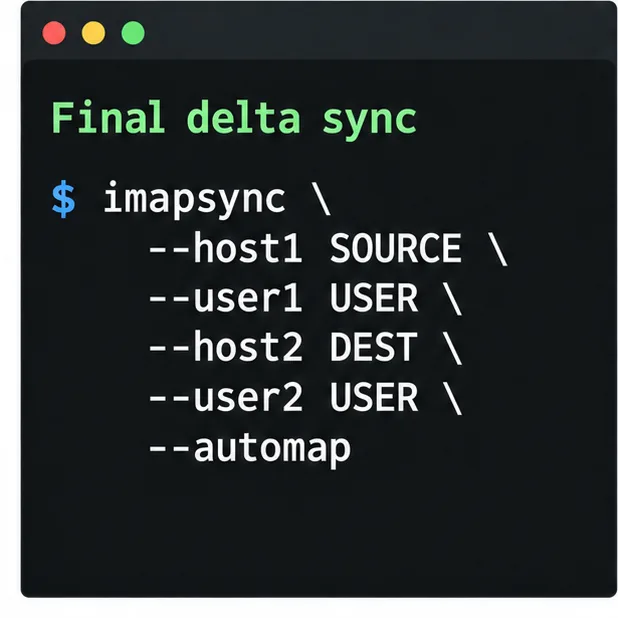
For either route, an initial pass can take time while users continue working. Schedule a final synchronization close to cutover. With imapsync, rerun the same tested command: the tool is designed for incremental runs and normally skips messages already synchronized. Keep the source mailbox unchanged during the final pass where possible. If users have already been using both servers, resolve those divergent changes separately; imapsync is not a two-way merge tool.
For Zextras Backup, follow the version-specific staged import procedure and repeat the required backup transfer/restore step to capture changes since the previous pass. Do not assume that provisioning-only imported mail, calendars, or contacts; it creates account structures while skipping mailbox contents.
When the destination is ready to receive mail, change the MX and any related webmail records according to your DNS and proxy design. Keep the old server running and monitor both systems while DNS caches expire and delayed mail arrives. Use a documented maintenance window and communicate whether users should sign in to the old or new server during each phase.
Repeat the tested IMAP sync as a final delta pass so mail received during the first copy can be included.
6. Verify the new server before decommissioning the old one
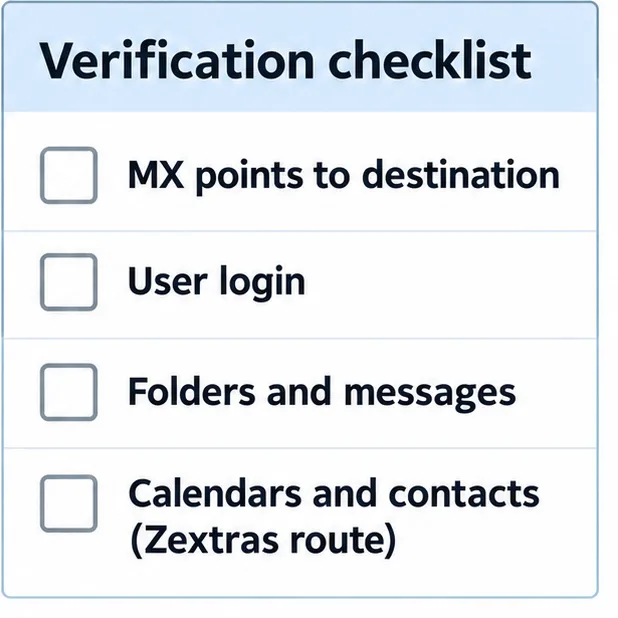
Test a representative set of small, large, recent, and older mailboxes. Compare folder lists and message counts, open messages with attachments, check read/unread and flagged status, and confirm Sent mail appears in the intended folder. Send mail both into and out of the destination, then confirm the public MX lookup and server logs show delivery at the expected host.
For a Zextras migration, separately test calendars, contacts, tasks, shares, identities, signatures, user preferences, and any domain or class-of-service settings included in your scope. Zextras documents a share-consistency check with zxsuite backup doCheckShares; use the matching repair procedure only if needed and supported by your installed release. Recheck user access and password behavior.
Keep the source server and a recoverable backup until stakeholders approve the result and your retention window ends. Do not cancel the old host simply because the destination accepts logins. Close the project only after mail routing, user access, non-mail data, and rollback records are all confirmed.
Use the checklist to verify delivery and mailbox contents; test calendars and contacts when the Zextras route is in scope.