Home
» NETWORK ADMIN
»
How to Monitor Jitsi Videobridge Metrics with Prometheus and Grafana
How to Monitor Jitsi Videobridge Metrics with Prometheus and Grafana
When a Jitsi meeting starts to stutter, an administrator may see complaints about choppy audio or frozen video but have no quick way to tell whether the bridge is overloaded, unreachable, or simply carrying more traffic than usual. Jitsi Videobridge (JVB) exposes operational metrics that Prometheus can collect and Grafana can display. This guide walks through a practical setup, starting with a local endpoint check and ending with a dashboard you can verify.
Example scenario: Imagine a small organization running one JVB on a Linux host and Prometheus and Grafana on that same host. This is an illustrative example, not a report of a real deployment or test. If your services run in separate containers or on different servers, substitute their reachable internal addresses and preserve the same network restrictions.
What you will monitor
The current JVB project documentation describes a built-in Prometheus/OpenMetrics endpoint at /metrics on the bridge's private HTTP interface. It lists statistics such as active conferences, endpoints, incoming and outgoing bitrate, packet rates, and bridge stress. The Prometheus exposition does not necessarily contain every statistic available through JVB's other reporting formats, so treat the endpoint served by your installed release as the source of truth. The reference configuration currently enables the Prometheus REST resource and binds the private HTTP interface to loopback; the documented default private HTTP port is 8080. Older packages and deployment templates may differ.
Prometheus scrapes and stores the time series. Grafana connects to Prometheus as a data source and queries those stored series. A separate Jitsi exporter is not required for this direct JVB metrics path. See Jitsi's statistics and Prometheus endpoint documentation, its private HTTP interface configuration, and the reference configuration. These upstream files can change; check the configuration and version installed on your own bridge before applying example values.
Step 1: Confirm that JVB serves metrics
On the JVB machine, first identify the active configuration. A common Debian or Ubuntu package uses /etc/jitsi/videobridge/jvb.conf, but Jitsi notes that the actual file is whichever path is passed to the bridge process. Container deployments may mount a generated configuration instead. Do not assume that a sample file is the one the running service reads.
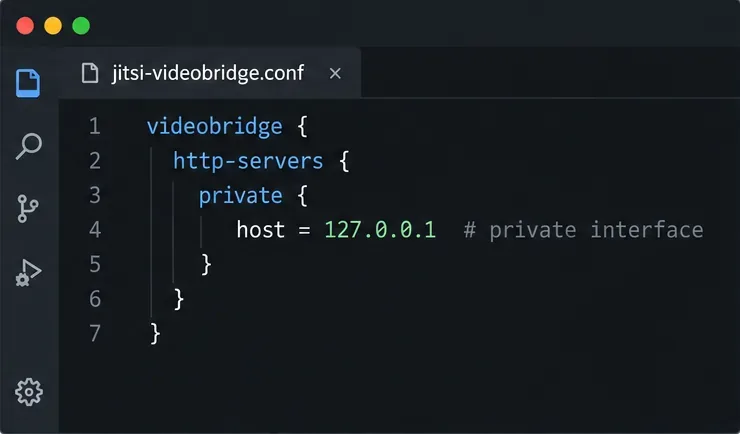
Example: the private JVB HTTP interface is bound to loopback, so only local processes can reach it.
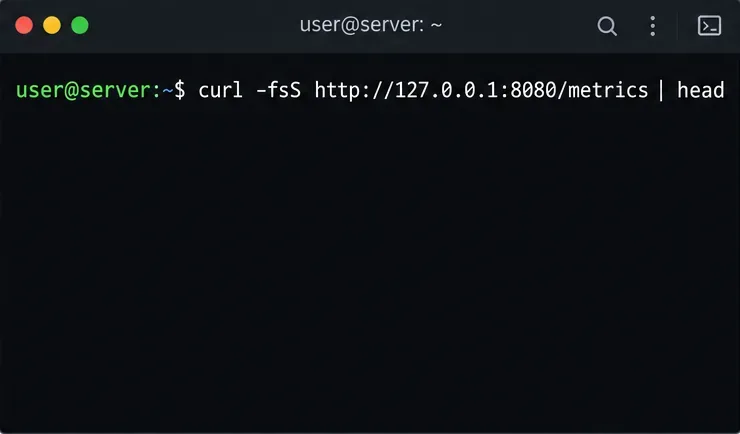
With the example's default port and loopback binding, run this command on the JVB host:
curl -fsS http://127.0.0.1:8080/metrics | head
Check the local /metrics endpoint before configuring Prometheus.
A successful response is plain text containing Prometheus metric families, often with # HELP and # TYPE lines followed by samples. The illustration shows the command only; it is not evidence of a live server response. A connection refusal commonly means JVB is stopped, listening on another address or port, or that the installed configuration disables that HTTP listener. An HTTP 404 suggests the server answered but the route is unavailable in that build or API configuration. Check JVB logs and your installed release's configuration rather than enabling the unrelated Colibri control API just to make the Prometheus path work.
You can inspect metric names and types directly with:
JVB documents that available Prometheus metrics are not a complete mirror of its JSON statistics. It also documents conference-size histograms available only in Prometheus format. Check what your installed version actually returns before writing PromQL queries or importing a dashboard that assumes particular names.
Step 2: Keep the private interface private
When Prometheus runs on the same host as JVB, leave the private interface on 127.0.0.1. This avoids opening another listener to your network. In the hypothetical same-host setup, the target 127.0.0.1:8080 can be reached directly by Prometheus.
If Prometheus runs elsewhere, JVB's default loopback binding will not accept connections from it. You may configure the private listener to bind to an internal interface reachable by Prometheus, then restrict the firewall or container network so only the Prometheus host can connect to the private port. Do not expose port 8080 or 8443 to the public internet: Jitsi explicitly describes this interface as private and says its endpoints are not intended for public access. If the environment requires encryption in transit, the private interface supports TLS when configured with a keystore; alternatively, use a tightly controlled internal TLS proxy. Avoid copying a broad public bind such as 0.0.0.0 without an accompanying access restriction.
After changing a listener setting, use your deployment's supported configuration mechanism and restart or reload JVB only as required by that release. A restart can interrupt calls on a single-bridge deployment, so schedule it appropriately. In Docker, edit the persistent host-side configuration or environment used to generate it, not a transient container file. Verify the listener from the Prometheus machine with curl before continuing.
Step 3: Add a Prometheus scrape job
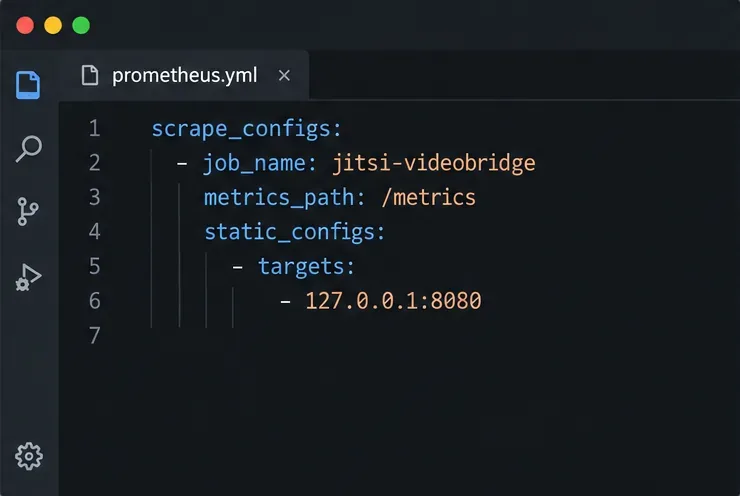
Add a scrape job to the Prometheus configuration file. For the same-host example, the relevant section is:
The scrape target must be reachable from the Prometheus process; replace loopback with the private address when the services are on separate hosts.
Prometheus configuration uses scrape_configs and supports static targets for a small fixed deployment. If the JVB is in a different container, 127.0.0.1 points to the Prometheus container itself; use the JVB service name and port on a shared private Docker network instead. For a remote host, use its private DNS name or address and keep the firewall rule narrow. The Prometheus configuration reference explains scrape jobs, targets, and interval settings.
Before applying a change, validate the full file with the Prometheus utility shipped with your installation:
If validation succeeds, reload Prometheus using the method configured for your service, or restart it if reloads are not enabled. Do not infer success from a valid YAML file alone; a syntactically valid target can still be unreachable.
Step 4: Connect Grafana to Prometheus
In Grafana, add the built-in Prometheus data source and enter the URL that Grafana itself can reach. On one host, this might be http://localhost:9090 if Grafana runs directly on that host. When Grafana runs in a container, localhost means the Grafana container, not the host or Prometheus container; use the Prometheus service name on a shared network. Save and test the data source. Grafana's Prometheus data source guide describes connection settings, and its data source documentation explains how Grafana queries a metrics backend.
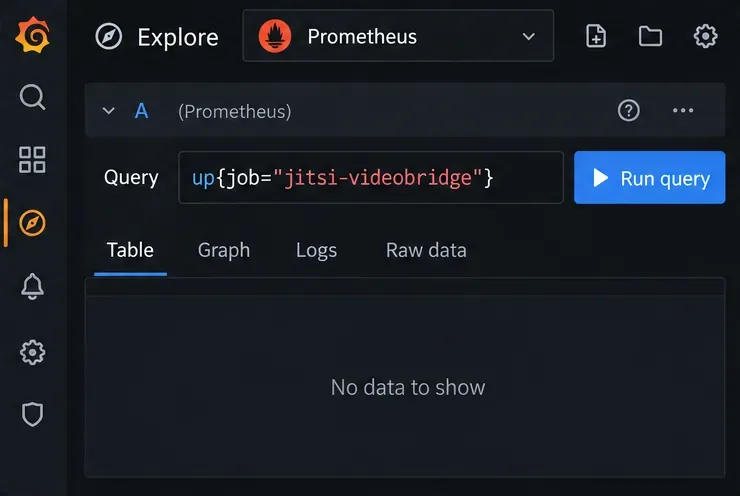
Open Explore, select Prometheus, and run up{job="jitsi-videobridge"}. This is a Prometheus scrape-health check, not a Jitsi metric. A value of 1 means Prometheus successfully scraped the target for the current evaluation; 0 means a configured target is failing. If the query returns no series at all, confirm the exact job name, configuration reload, target discovery, and selected time range.
Use the generic Prometheus up series to check scrape health before querying JVB-specific metrics.
Step 5: Build a useful dashboard and verify the data
Once up is healthy, use Grafana Explore's metric browser or Prometheus's expression browser to find the JVB series exposed by your release. Start with a small set of operational questions:
How many conferences and endpoints are active, and how do those counts change through the day?
Are incoming and outgoing RTP bitrate or packet-rate series changing as meeting load rises?
Does the bridge stress series rise alongside endpoint count, or is it already high at a modest load?
Are JVM thread and garbage-collection metrics available, and do they change around slow-call reports?
Use the metric names and units printed by your own /metrics endpoint. Jitsi's statistics reference describes examples such as conferences, endpoints, bit_rate_download, bit_rate_upload, and stress_level in its supported statistics list, but it cautions that not all statistics are currently exposed in Prometheus format. Do not paste those names into a query until you confirm the Prometheus family exists in your build. For cumulative counters, use PromQL functions such as rate() over a range; for instantaneous gauges such as current conference count, graph the sampled value directly. Preserve the documented units when labeling panels, since bitrate fields and packet rates use different units.
Create a dashboard with a few time-series panels, clear units, and a time range that includes recent scrapes. Avoid treating a missing series as zero: no data can indicate a spelling mismatch, an unsupported metric, or a scrape failure. For alerts, begin with target availability and then add thresholds only after you have observed normal traffic for your own deployment. A universal “high stress” number can mislead because capacity depends on the host, media mix, and configuration.
Check the finished setup
Run this sequence from easiest to most specific:
On the JVB host, request http://127.0.0.1:8080/metrics and confirm the response contains metric text.
From the Prometheus host or container, request the same endpoint using the configured private address. A local success does not prove remote reachability.
In Prometheus's Targets view, confirm the jitsi-videobridge target is up and inspect its last scrape error if it is down.
In Grafana Explore, confirm up{job="jitsi-videobridge"} returns 1, then query one JVB metric name copied from the live endpoint.
Open a dashboard over a time range that includes several scrape intervals and check that units, labels, and timestamps make sense.
If the endpoint works locally but Prometheus reports a connection error, revisit bind address, port, firewall, and container networking. If the target is up but JVB queries are empty, check the exact exported name, the selected time range, and whether that statistic is present in the Prometheus output. If dashboards show data but meeting quality still suffers, metrics help narrow the investigation; they do not by themselves identify a participant's local Wi-Fi, browser, or last-mile network problem.
This configuration follows the upstream Jitsi, Prometheus, and Grafana documentation reviewed on October 6, 2026. Because Jitsi's reference configuration and Grafana screens evolve, compare the examples with the documentation and files for the exact versions you operate.