Home
» NETWORK ADMIN
»
How to Mount a Samba/CIFS Share in ownCloud Server
How to Mount a Samba/CIFS Share in ownCloud Server
The current ownCloud Classic release notes list version 11.0.1 as a security release and recommend upgrading. The 11.0.0 major release also raised the minimum PHP version to 8.3 and removed deprecated features, so administrators upgrading from 10.x should verify PHP and app compatibility first. The SMB/CIFS workflow itself remains an External Storage mount; this guide follows the ownCloud Server 10.16 SMB documentation, and menu labels or dependencies may differ on 11.x.
To connect a Samba or Windows file share, enable External Storage Support, make sure the ownCloud server can reach the SMB server, and add an SMB/CIFS mount from the admin storage settings. This creates a remote storage entry inside ownCloud; it does not mount the share in the Linux filesystem with /etc/fstab. Use this approach when users should reach files through ownCloud’s Files page and permissions should be controlled by the ownCloud mount and the SMB account.
What you need before you start
Administrator access to ownCloud Server and the SMB file server.
The SMB server’s DNS name or address, share name, optional subfolder, and any domain or workgroup required for sign-in.
A dedicated SMB account with only the read or write permissions the ownCloud users need. The account must also be allowed by the share and filesystem ACLs on the SMB server.
A network route and firewall policy that allow the ownCloud host to reach the SMB server.
The SMB support dependency required by your ownCloud package. For a manual Linux installation, the matching ownCloud guide may require the PHP smbclient module; container images and packaged installs can supply dependencies differently. Check the guide for your exact ownCloud and PHP versions instead of copying an old package command.
ownCloud documents a command-line access test before configuring the external storage. On a Linux installation where smbclient is available, test server discovery and credentials first. The password prompt is interactive, so the password is not embedded in shell history.
If this fails, resolve DNS, routing, firewall, domain syntax, or share permissions before troubleshooting ownCloud. A server that cannot reach the share cannot make it available to users.
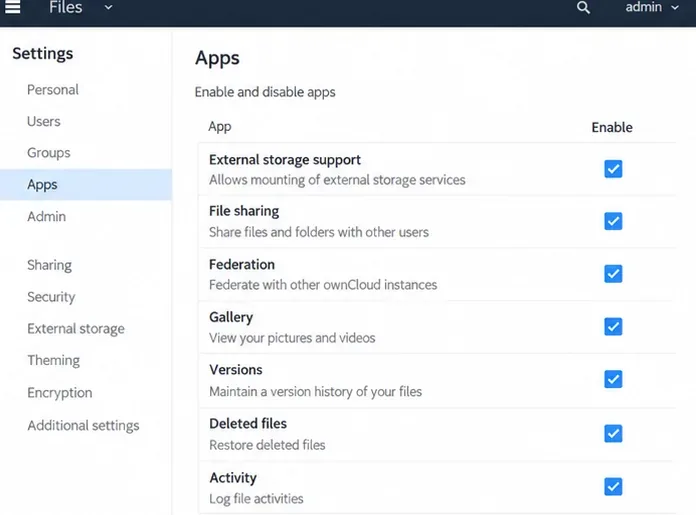
Enable External Storage Support in Apps before adding an SMB/CIFS mount in the administrator storage settings.
Mount the SMB/CIFS share in ownCloud
1. Enable External Storage Support
Sign in as an ownCloud administrator. Open Settings > Apps, find External storage support, and enable it if it is not already active. Then open the storage administration page, typically Settings > Admin > Storage or the version’s equivalent. If user-created external mounts are also needed, enable the separate Allow users to mount external storage setting only after reviewing the network access this gives users.
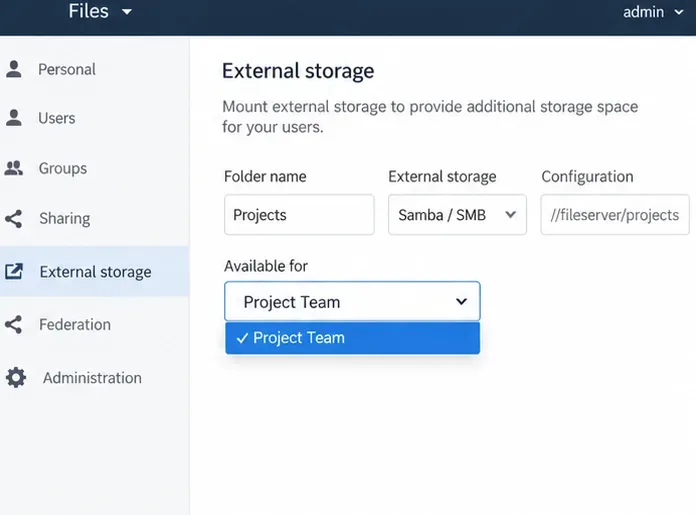
For a shared mount administered centrally, configure it in the admin storage page. Admin mounts can be available to all users by default, so restrict the Available for field to the intended people or groups before relying on the share’s contents being private.
2. Add an SMB/CIFS backend
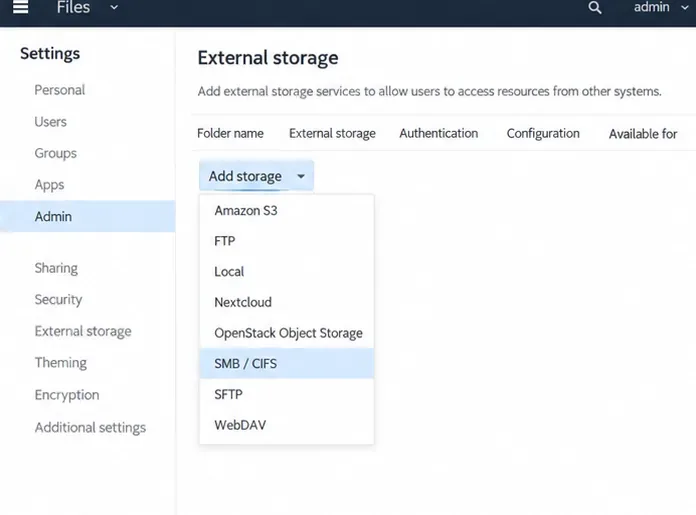
In the external storage table, select SMB / CIFS from Add storage. Enter a friendly Folder name, such as Projects. This name is the mount point users see in ownCloud. It is not the SMB server’s share name.
Choose SMB / CIFS as the external storage backend; this adds a mount row whose connection fields depend on the authentication method.
3. Enter the server and share path
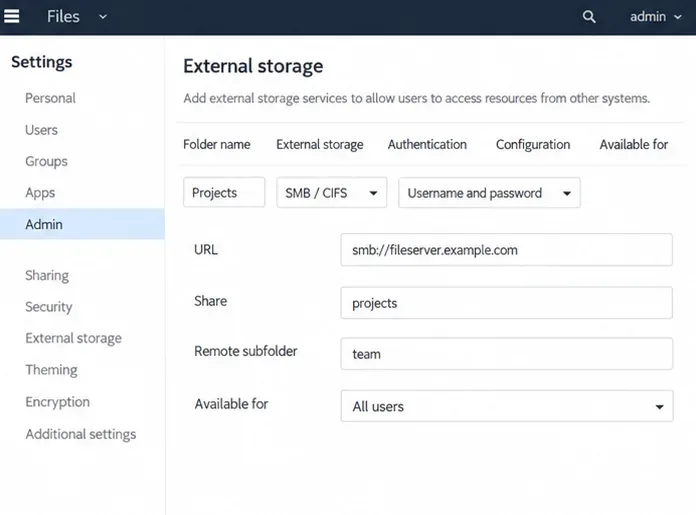
Complete the fields shown for the SMB backend. In the ownCloud 10.16 guide, these include the server URL, share name, remote subfolder, the users or groups allowed to use the mount, and, when needed, a domain. For example, a server called fileserver.example.com, a share called projects, and a subfolder called team would expose that remote subfolder beneath the ownCloud mount point. Leave the remote subfolder at its default root when the whole share should be mounted.
Enter the server value in the format expected by the field shown in your version. Do not paste a full user-facing ownCloud URL or a local path such as /mnt/share into the SMB server field. If Active Directory requires a domain, use the domain field or the documented domain-and-username format for your chosen authentication method.
Map the ownCloud folder name to the server, share, and optional subfolder; the visible folder name is the mount users open.
4. Choose how credentials are supplied
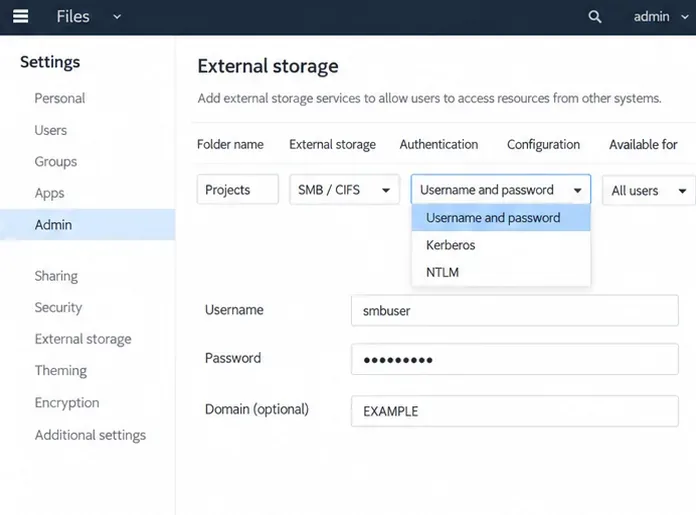
Choose the authentication method that matches the account model. A centrally managed service account is useful when the same share should work for a group of users. Enter its username and password in the SMB configuration and add a domain only if the file server requires it. Store the password in ownCloud’s protected configuration flow, and use a dedicated account rather than a personal administrator login.
The Log-in credentials, save in session method uses each user’s ownCloud login credentials for the remote share and does not store them on the server. ownCloud documents important tradeoffs: direct sharing of that mount and background file scanning do not work normally because ownCloud does not retain the storage credentials. For shared team access or automated background operations, choose a supported credential method that stores the required credentials securely instead.
Provide a dedicated SMB account and add a domain only when the file server’s authentication setup requires one.
5. Limit access and set mount options
Use Available for to choose the ownCloud users or groups that should see the mount. Avoid leaving an admin mount available to everyone when the share contains restricted files. The SMB server’s own permissions still apply: an ownCloud user cannot gain more file access than the SMB account and server ACLs allow.
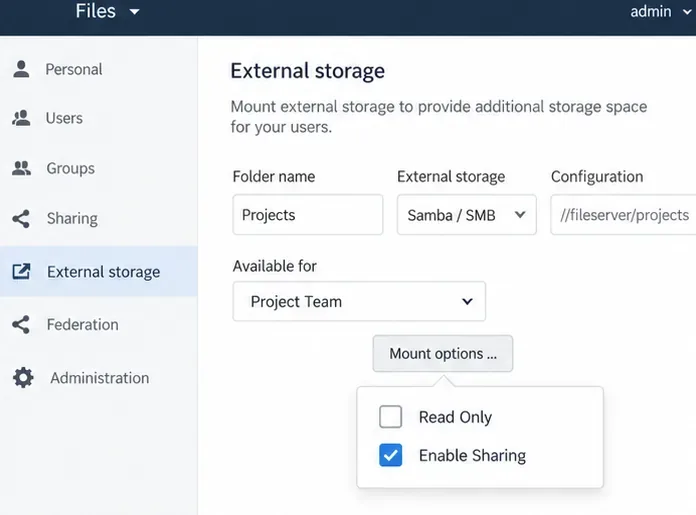
Open the mount’s options to set Read Only when users should browse or download without changing remote files. External mount sharing is disabled by default in ownCloud’s admin mount options; enable Enable Sharing only if users should share files from this mount through ownCloud and your permission model allows it. Selecting users in the mount’s availability field and enabling file sharing are separate decisions.
Restrict the admin mount to the ownCloud users or groups that are meant to access the remote files.Set the mount to Read Only when edits are not intended; decide separately whether users may share files from it.
6. Check the mount status
Required fields are marked in the admin storage table, and ownCloud saves a mount after the required configuration is supplied. A green status dot indicates the external storage is ready. A red or yellow icon means ownCloud could not connect; recheck the hostname, share, subfolder, credentials, account permissions, and network availability. The documentation says a connection problem can leave the mount marked unavailable for ten minutes. Click the status icon or reload the admin page to retry after correcting the cause.
Verify the mount as an administrator and a user
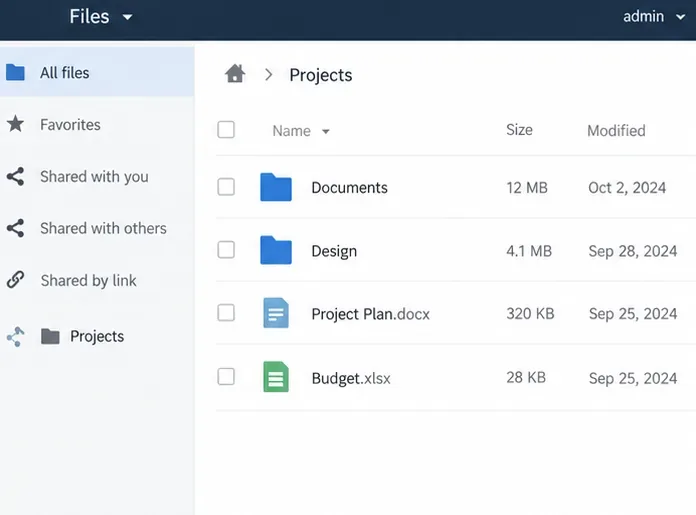
Open the ownCloud Files page as a user in the allowed group and confirm the mount folder appears. Test with a harmless file: open or download an existing file, then, if the mount is intended to be writable, create or upload a small test file, rename it, and remove it. Confirm the same changes appear on the SMB server. If the mount is read-only, verify that reads work and that writes are blocked as expected.
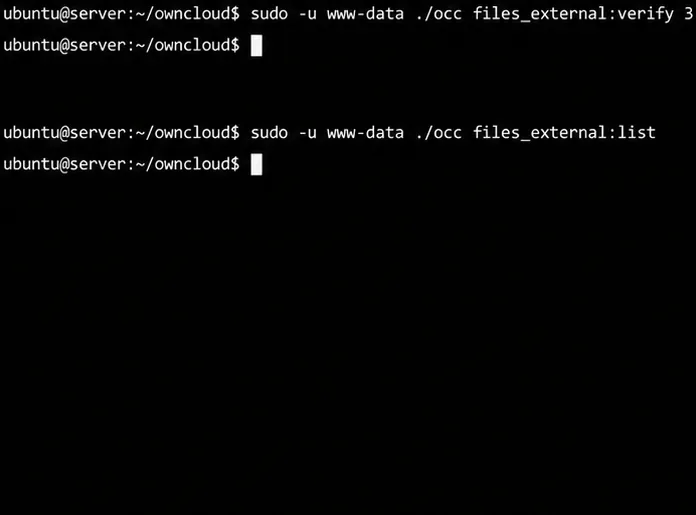
For command-line diagnosis, ownCloud’s occ tools can list external mounts and verify a mount by its ID. Run commands as the web-server account and from the ownCloud installation directory; adapt the account and path for your system. First get the actual mount ID from the list, then verify that ID. Do not expose mount passwords in shared command output.
The number 3 is only an example. Replace it with the ID returned by your own files_external:list output. In containers, run occ with the deployment’s documented container command rather than assuming the host has the same path or web user.
As a permitted user, confirm the mount appears in Files and test access using a noncritical file.Use the mount ID from your own files_external:list output when running files_external:verify; paths and service accounts vary by installation.
Troubleshoot by the failure point
What you see
What to check
SMB / CIFS is missing from the backend list
Confirm External Storage Support and the SMB backend are enabled, then check the dependencies for your ownCloud package and PHP runtime. Restart the relevant PHP or web service after changing PHP modules.
smbclient cannot list the server or share
Check the server name from the ownCloud host, firewall and routing, credentials, domain syntax, and permissions on both the share and its underlying files.
The mount row stays red or yellow
Recheck the SMB URL, share name, remote subfolder, account, and network path. If the host uses SELinux, review ownCloud’s official SELinux guidance for outbound network access before changing policy.
The mount is green, but a user cannot see it
Check the Available for user/group selection and confirm the person is actually a member of that group. Admin mounts and personal mounts have different scopes.
Files added directly on the SMB server do not appear immediately
ownCloud may not detect every remote change at once, particularly deeper in a folder tree. Review the external-storage background-job guidance and authentication limitations for the mechanism you selected.
Limitations to plan for
An SMB/CIFS external mount is a live connection to another server, not a copy of the data inside ownCloud. If the SMB server is unavailable, the mount can become unavailable in ownCloud too. Changing or removing an external mount does not necessarily remove all metadata entries associated with the old configuration, so avoid repeatedly deleting and recreating production mounts while testing.
Authentication choice affects automation. Session-only credentials are not available to background processes in the same way as stored service credentials. Also, changes made directly through another SMB client may not be reflected immediately in ownCloud’s file view. If reliable background discovery, sharing, or per-user access is a requirement, test those exact behaviors with the selected backend and ownCloud release before rollout.
Documentation checked October 6, 2026. Package dependencies and exact menu labels vary by ownCloud release, Linux distribution, and container image. Follow the installation and administration guide matching the version you run.