What should you change first on a low-bandwidth Jitsi Meet deployment?
Start with three controls, in this order: lower the camera capture resolution, reduce how many remote videos each client receives, and only then tighten codec-specific bitrate caps. That sequence matters because resolution and the number of received streams usually have the clearest effect on bandwidth consumption, while aggressive bitrate caps can make motion look muddy without solving packet loss or Wi-Fi instability.
Jitsi documents the client-side video controls in its current configuration reference. As of October 6, 2026, the documentation says the constraints object defaults to an ideal 720p capture height, channelLastN defaults to unlimited with -1, and startLastN can start a conference with fewer received videos before the user changes the Manage Video Quality setting.
For a constrained branch office, mobile hotspot, rural link, or overloaded Wi-Fi network, a practical starting target is often 360p rather than 720p. Jitsi's infrastructure requirements page gives rough planning figures of about 200 kbit/s for 180p, 500 kbit/s for 360p, and 2.5 Mbit/s for 720p, while also warning that real requirements vary with many factors. Treat those figures as capacity-planning references, not guaranteed per-user rates. See the official Jitsi Meet requirements guide.
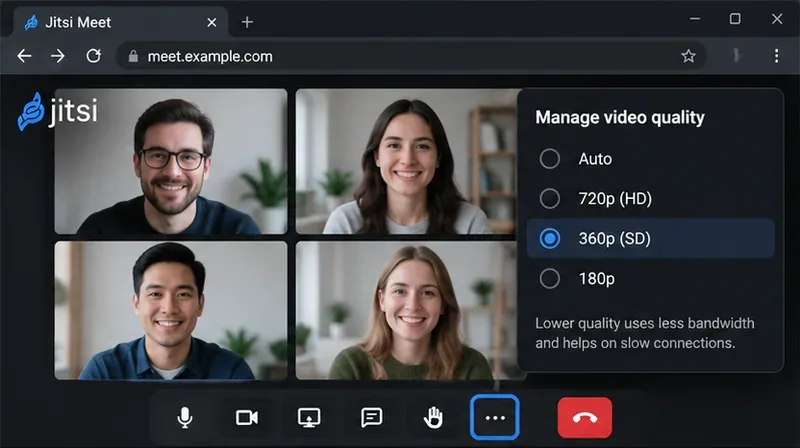
Illustrative meeting view showing a 360p quality choice for a constrained connection; the exact control layout can vary by Jitsi Meet build.
Should you cap resolution before bitrate?
Usually, yes. Lowering the capture height reduces the number of pixels the encoder must process before bitrate allocation even begins. Jitsi's current configuration reference separates the W3C video constraints from the older preferred resolution value and notes that the constraints default to an ideal 720p capture height.
For a site where video stability matters more than fine facial detail, test a 360p capture ceiling like this:
constraints: {
    video: {
        height: {
            ideal: 360,
            max: 360,
            min: 180
        }
    }
},
This is an example profile, not a Jitsi default. It asks the browser to prefer 360p and not exceed it, while still allowing the capture path to fall as low as 180p if needed. Avoid assuming that min: 180 guarantees a stable 180p stream under severe congestion; WebRTC can still respond to available bandwidth, CPU load, packet loss, device capabilities, and codec behavior.
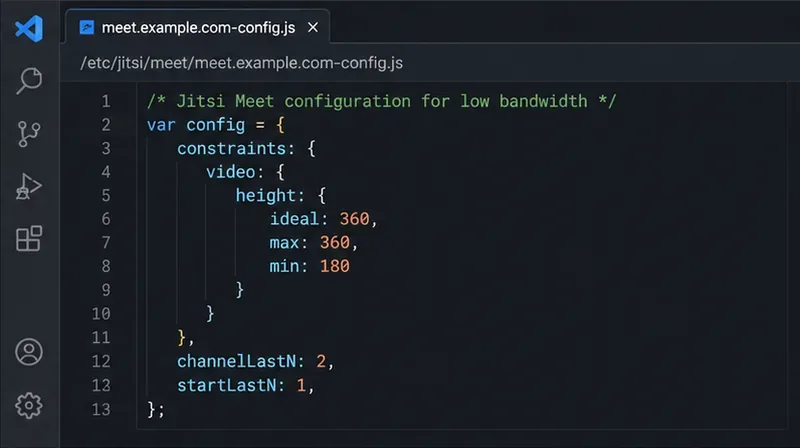
Example self-hosted Jitsi configuration with a 360p capture ceiling and conservative LastN values.
How many remote video streams should each participant receive?
If a participant receives eight remote videos at once, lowering only the local camera resolution does not address the entire download side. Jitsi provides LastN controls specifically for how many remote video streams are forwarded to a participant.
The documented channelLastN default is -1, meaning unlimited. The documented startLastN option lets a conference begin with a smaller LastN value, and Jitsi notes that channelLastN is used when the user changes the quality level with the Manage Video Quality slider.
A cautious starting point for a bandwidth-constrained environment is:
channelLastN: 2,
startLastN: 1,
With this example, a participant starts by receiving one remote video and can move to a state where up to two remote videos are received, depending on the application's quality behavior. Do not treat 2 and 1 as universal recommendations. A classroom where students mainly watch one presenter can use a smaller LastN than a four-person design review where everyone needs to remain visible.
What bitrate values does Jitsi currently use?
Jitsi's current config.js template and configuration reference expose codec-specific maxBitratesVideo levels. In the project master configuration viewed on October 6, 2026, AV1 uses 100,000 bit/s for low, 300,000 for standard, and 1,000,000 for high; VP9 uses 100,000, 300,000, and 1,200,000; VP8 and H.264 use 200,000, 500,000, and 1,500,000 for those same levels. You can verify the live template in the official Jitsi Meet GitHub repository.
Those values are upstream defaults or template values, not a promise that every call will transmit at exactly those rates. WebRTC bandwidth estimation, congestion control, selected codec, simulcast or scalable coding behavior, scene complexity, frame rate, and receiver constraints all affect what is actually sent.
When does it make sense to lower the caps?
Lower the caps when your network budget is known and stable video matters more than detail. For example, you might test a VP8 profile such as:
videoQuality: {
    vp8: {
        maxBitratesVideo: {
            low: 150000,
            standard: 300000,
            high: 800000
        }
    }
},
These numbers are deliberately labeled as an example for testing, not Jitsi defaults. They make sense only if VP8 is actually negotiated on the endpoints you care about. If your desktop clients prefer AV1 or VP9, adjusting only the VP8 object will not produce the effect you expect.
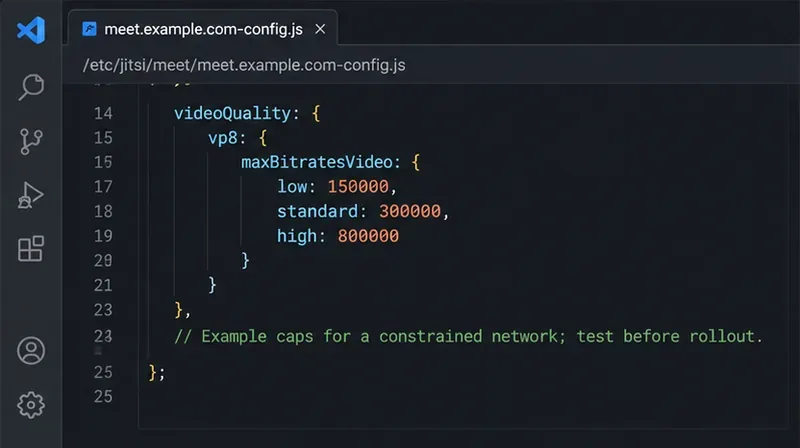
Example VP8 bitrate caps for a constrained network; test them against your own devices and call patterns before rollout.
Should you force a particular codec to save bandwidth?
Not automatically. Modern Jitsi builds expose codec preference ordering and different default bitrate ladders for AV1, VP9, VP8, and H.264. AV1 and VP9 can be efficient, but codec choice also affects CPU cost, device support, browser support, and scalability features. A low-powered laptop that struggles to encode a more complex codec may deliver a worse meeting even if the codec is efficient on paper.
A safer operational rule is to keep Jitsi's current codec preference behavior unless you have measurements showing a problem. If you change codec order, test on the actual Chrome, Firefox, Safari, Android, and iOS combinations used by your organization. Do not infer codec performance from a single desktop browser.
What about screen sharing on a slow connection?
Screen sharing has a different quality trade-off from camera video. Text and slides benefit from readable resolution, while smooth motion needs more frames per second. Jitsi documents desktopSharingFrameRate and currently lists a default of { min: 5, max: 5 }. For a presentation-heavy meeting, leaving screen sharing around 5 fps can preserve legibility without spending bandwidth on unnecessary motion.
If users share animation, CAD rotation, or video clips, 5 fps may feel too slow. In that case, raise the frame rate carefully and observe whether resolution or packet loss degrades. The official Jitsi configuration documentation is the right reference for the currently supported option names.
How do you know whether the changes actually helped?
Do not judge only by whether the picture “looks okay.” Validate the network behavior. Jitsi's IFrame API exposes getConnectionStats(), which can return local connection quality, available bandwidth, upload and download bitrate, audio and video bitrate, packet loss, codec information, frame rate, decoded frames, resolution, and transport details. See the official IFrame API functions reference.
For embedded deployments, a simple check can look like this:
api.getConnectionStats().then(stats => {
    console.log(stats.bitrate);
    console.log(stats.packetLoss);
    console.log(stats.resolution);
    console.log(stats.connectionQuality);
});
Run the same meeting pattern before and after your changes. A useful test has at least three conditions: normal office bandwidth, deliberately constrained bandwidth, and a realistic multi-participant call. Record whether audio remains intelligible, video freezes, packet loss rises, participants drop to lower resolution, or CPU usage becomes excessive.
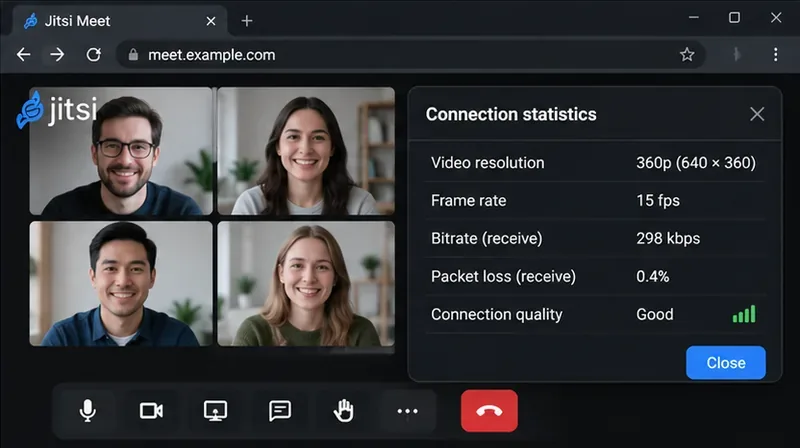
Illustrative connection-statistics view showing the kind of resolution, frame-rate, bitrate, and loss values to compare during validation.
Which low-bandwidth profile should you start with?
| Scenario | Starting capture target | LastN starting point | Bitrate approach |
|---|
| One presenter, many viewers | 360p | 1 | Keep defaults first; cap only after measuring |
| Small team call on weak Wi-Fi | 360p | 2-3 | Test lower standard/high caps for the negotiated codec |
| Very poor mobile link | 180p-360p | 1 | Prefer audio continuity over video detail |
| Slide or document sharing | Camera at 360p | 1-2 | Keep screen-share frame rate low unless motion is necessary |
These are starting profiles, not guaranteed optimal values. The right configuration depends on uplink and downlink asymmetry, participant count, camera content, chosen codec, endpoint CPU, and the quality expected by users.
Where should you edit the configuration on a self-hosted server?
On a Debian-package installation, Jitsi commonly keeps the virtual-host web configuration in /etc/jitsi/meet/<your-hostname>-config.js. Jitsi's own authentication documentation uses that path in its examples. In Docker deployments, the official Docker guide says generated config.js files inside the container are recreated on startup, so custom settings should go in the host-side CONFIG/web/custom-config.js file instead. See the official Docker self-hosting guide.
Before editing, copy the existing configuration, change one group of parameters at a time, and validate the JavaScript syntax. Avoid pasting an entire sample config.js over a working deployment because upstream templates evolve and may include deployment-specific values.
What is the safest tuning order?
- Measure first. Reproduce the low-bandwidth problem with a realistic participant count and note packet loss, bitrate, resolution, and CPU load.
- Cap camera capture at 360p. Use
constraints.video.height and test whether video stability improves.
- Reduce received streams. Lower
startLastN and, if needed, channelLastN so each participant is not downloading unnecessary thumbnails.
- Preserve screen-share readability. Keep screen-share frame rate low for slides and documents unless the use case requires motion.
- Tune codec bitrate caps last. Change only the codec profiles actually negotiated by your clients, and compare quality before and after.
- Re-test under congestion. A configuration that looks good on a LAN may fail on hotel Wi-Fi or a mobile hotspot.
What should you avoid?
Do not disable simulcast or retransmission features merely because you are trying to reduce bandwidth; those controls affect how Jitsi adapts and recovers from loss, and changing them can create new failure modes. Do not force 180p for every user unless the use case truly tolerates it. Do not treat a bitrate cap as a reservation of that bandwidth. And do not optimize only the server link while ignoring the last-mile connection at each endpoint.
The best low-bandwidth Jitsi configuration is therefore not the one with the smallest numbers. It is the one that keeps audio dependable, keeps the active speaker readable, limits unnecessary incoming video, and still gives the encoder enough room to adapt. Start with 360p, conservative LastN values, and Jitsi's current codec defaults; then tighten bitrate limits only when your measurements show that doing so improves the meeting rather than simply lowering picture quality.









