Home
» NETWORK ADMIN
»
How to Optimize ownCloud 10 Database Indexes Safely
How to Optimize ownCloud 10 Database Indexes Safely
A slow ownCloud folder listing, delayed sync, or long-running cron job can point to a database bottleneck, but adding indexes blindly can make the server less reliable. In ownCloud Server 10, the safe starting point is to check the exact version and database, back up the instance, then use only schema changes documented for that ownCloud release. Indexes can help selective searches and joins; they also consume storage and add work to inserts and updates.
There is an important version distinction: the current official ownCloud Server 10.16 command reference documents database operations such as database conversion, but does not document a general db:add-missing-indices repair command. That command appears in Nextcloud guidance, which is a separate product. Check the commands on your own server before running a command copied from another project.
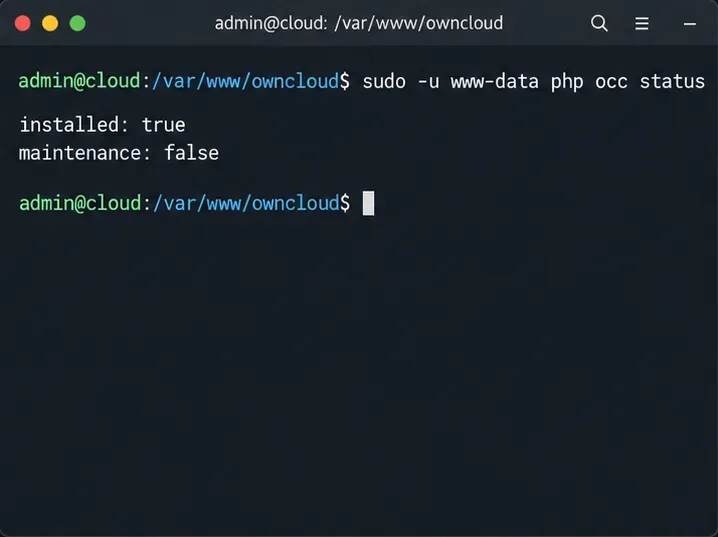
The occ status command confirms that the CLI is reaching the ownCloud installation before database work begins.
What a database index can—and cannot—fix
A database index is an auxiliary structure that helps the database locate matching rows without scanning an entire table. It can improve a query that filters, joins, or sorts on indexed columns when the query and data distribution make that index useful. It is not a general speed switch: the database optimizer can correctly choose a table scan for small tables or queries that return a large share of the rows.
Indexes also have costs. They take disk space, need to be maintained when rows change, and can slow write-heavy work. Extra indexes on ownCloud core tables can conflict with schema migrations or app expectations. Do not add an index because a column name looks important; first identify the slow request and confirm that the actual query plan is inefficient.
1. Confirm the ownCloud build and database
Run commands from the ownCloud installation directory as the web server account. On a typical Debian or Ubuntu installation, that account is www-data:
cd /var/www/owncloud
sudo -u www-data php occ status
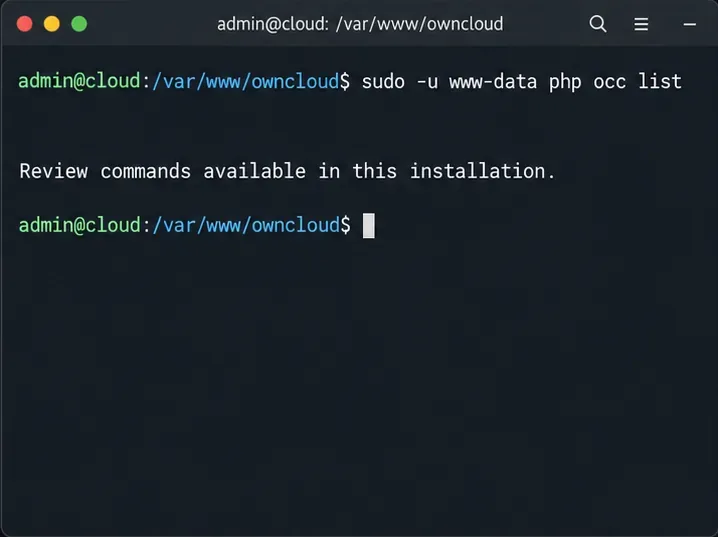
sudo -u www-data php occ list
Use the path and service account configured on your host. In Docker, use the container’s documented command form—for example, the ownCloud manual uses docker compose exec owncloud occ …. The status output identifies the ownCloud version and database type. The command list shows what this installation actually supports; if a database repair command is not listed, do not assume Nextcloud instructions apply.
Check ownCloud’s administrator overview for setup warnings, and note the exact table and index names if it reports a missing index. Also record what is slow: a particular file search, sharing page, background job, or sync operation. A vague complaint such as “ownCloud is slow” is not enough to justify a schema change.
Use the installed occ command list as a version check; command availability can differ between ownCloud and Nextcloud.
2. Back up before changing database structures
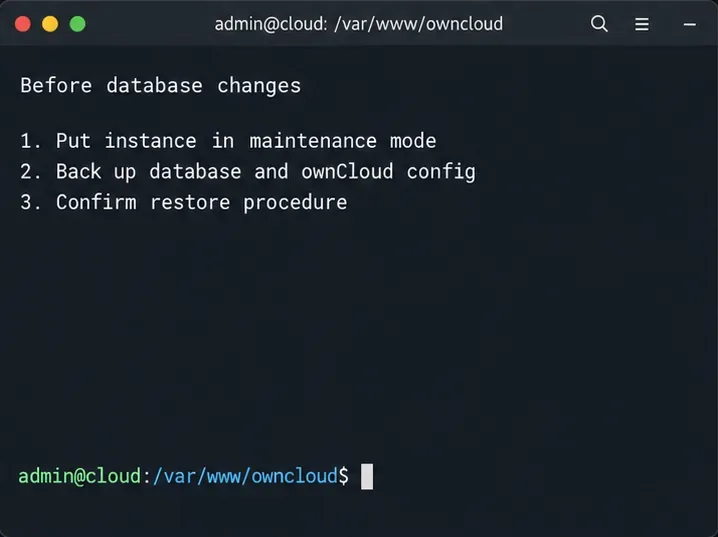
Before any index creation, database migration, or repair, take a consistent backup of the database and ownCloud configuration, and make sure you know how to restore it. The ownCloud backup guide recommends enabling maintenance mode before taking a database backup. Its exact database dump command depends on whether the server uses MySQL or MariaDB, PostgreSQL, or SQLite; use the matching database vendor tools and protect credentials and backup files.
sudo -u www-data php occ maintenance:mode --on
# Back up the database and ownCloud configuration with your vendor's procedure
# Confirm that the backup can be restored before proceeding
Maintenance mode prevents ordinary use while maintenance is underway; plan a service window for production. Do not copy a live database file as a substitute for a database-aware backup. Once the work and basic checks are complete, return the instance to normal mode:
sudo -u www-data php occ maintenance:mode --off
Have a restorable database and configuration backup before you attempt an index or schema change.
3. Use ownCloud-managed migrations for ownCloud schema changes
First bring ownCloud and its compatible apps to a supported release by following the official upgrade instructions and release notes. ownCloud upgrades run database migrations that evolve the schema, including changes required by core and apps. The official guidance recommends running the database upgrade step through occ for larger systems, where a web request may time out.
If the administrator overview still reports a missing index, inspect sudo -u www-data php occ list and the relevant official documentation for your exact ownCloud build. Some third-party guides show db:add-missing-indices, but the command is not documented in the ownCloud 10.16 database command section reviewed for this article. If your build lists that command, read its local help and confirm the procedure with the documentation or app vendor for that build before running it. If the command is absent, do not install a Nextcloud command, edit ownCloud’s core tables manually, or copy SQL from another version. Share the warning, ownCloud version, database type, and relevant logs with ownCloud or the app maintainer.
Database commands shown in the ownCloud manual—such as db:convert-type or db:convert-mysql-charset—serve specific conversion tasks; they are not generic index tuning commands. Do not use a conversion command to try to improve query speed.
4. Investigate a slow query with database-native tools
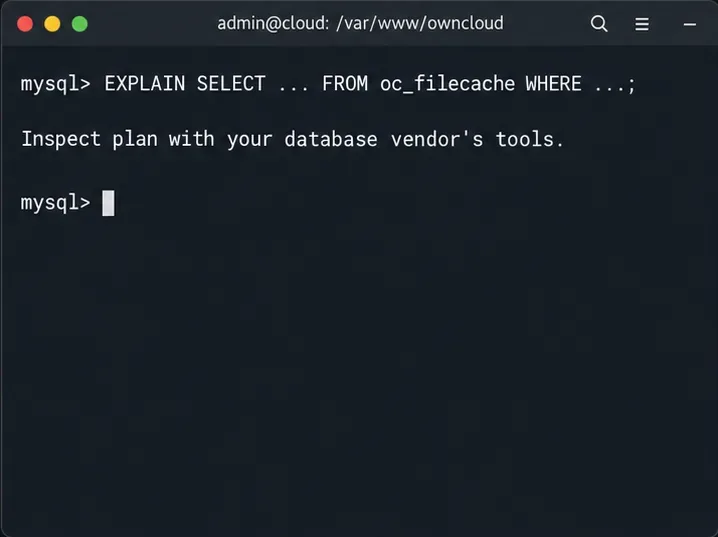
When you can identify a slow SQL query, use the analysis tools supplied by your database. MySQL and MariaDB provide EXPLAIN; PostgreSQL also provides EXPLAIN, with its own output and options. Start with a plan that explains the query without executing it. Be careful with an analyze option: some database variants execute the statement, which may be unsafe for writes or expensive on a busy production database.
EXPLAIN SELECT ... FROM oc_filecache WHERE ...;
Check whether the plan reads far more rows than the query returns, whether the expected index is considered, and whether sorting or joining dominates the work. An index not chosen by the optimizer is not automatically missing: if the query returns many rows, a scan may be cheaper. Compare the same workload on a representative staging copy before making database-specific changes. OwnCloud core SQL and table layouts can change across releases, so an index that appears useful today may become redundant or unsafe after an upgrade.
Read a database-specific query plan for the real slow query before considering any custom index.
5. Recheck the original symptom
After a supported migration or approved index repair completes, check the ownCloud administrator overview again and review the server and database logs for errors. Repeat the same user action or background job that was slow, using similar data volume and conditions. Compare response time, database CPU or I/O, and rows examined where your database exposes those measurements. Do not report a performance gain from a single small test or an unrelated page load.
If the warning is gone but the same action is still slow, the bottleneck may be elsewhere: storage latency, PHP workers, network round trips, cron backlog, file locking, or memory caching. ownCloud recommends memory caching and external transactional file locking to reduce database load. Those settings address different work than a database index, so configure them according to the official manual and your deployment topology.
Quick checklist
Record ownCloud version, database type, the affected action, and any exact setup warning.
Check the installed occ command list; distinguish ownCloud instructions from Nextcloud instructions.
Take and verify a consistent database and configuration backup before schema work.
Use supported ownCloud upgrade and app migration steps; do not manually alter core tables without release-specific instructions.
Use the database vendor’s query-plan tools on the real slow query, then repeat the same workload to verify the result.
There is no universal index set that makes every ownCloud 10 installation faster. The durable approach is to keep the supported schema current, diagnose the real query, change only what the relevant vendor or maintainer documents, and verify the same workload afterward.