Home
» NETWORK ADMIN
»
How to Restrict Jitsi Room Creation to Specific Authenticated Users
How to Restrict Jitsi Room Creation to Specific Authenticated Users
As of October 6, 2026, Jitsi’s current self-hosting handbook still supports the goal of letting only authenticated users create conference rooms while allowing guests to join afterward. However, the handbook now marks its older “Secure Domain” procedure as deprecated for new installations and recommends token-based authentication instead. The right setup depends on how you installed Jitsi: this guide gives a direct internal-authentication path for Docker deployments and explains the current direction for new Debian or Ubuntu installations.
These controls govern who can start a room. They do not automatically make every room private. Room passwords, the lobby, and the invitation process are separate controls.
Choose an authentication path
Deployment
Practical choice
What it controls
Official Docker Compose deployment
Enable internal authentication and provision accounts in Prosody
Only accounts you create can start a conference; guest joining is configurable
New Debian or Ubuntu deployment
Follow Jitsi’s current token-authentication guide, which uses Keycloak in its documented example
Only users who receive a valid token from your identity flow can start a conference
Existing installation using the old secure-domain setup
Keep it only as a legacy configuration while planning an upgrade
The older authenticated-host and anonymous-guest split
The current Jitsi authentication guide describes authenticated room creation with anonymous guests, and the older Secure Domain page explicitly says that method is deprecated for new installations. Avoid copying old Prosody or Jicofo settings into a newer deployment without checking the guide that matches your installation method.
Docker: allow only provisioned users to start rooms
This procedure assumes you already run Jitsi Meet from the official Docker Compose project and can edit its .env file. The example below uses the built-in internal authentication mode. It does not add a public sign-up page: an administrator creates and removes the permitted accounts.
1. Enable authentication in the environment file
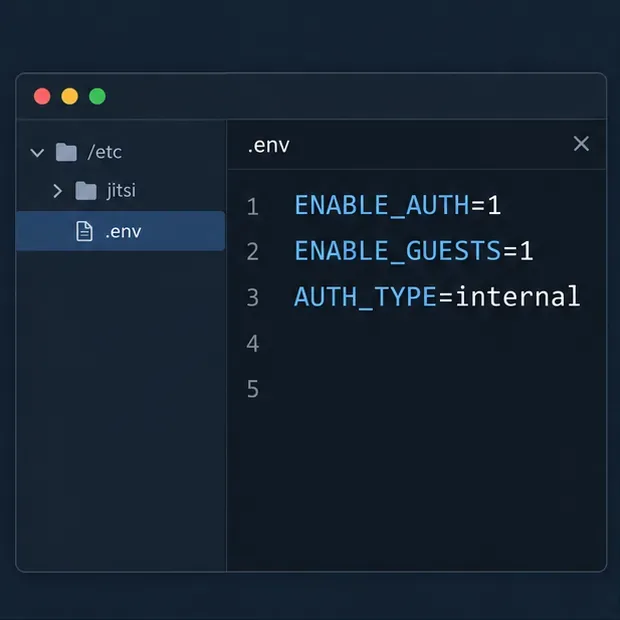
Open the .env file used by your Jitsi Compose deployment. Set the authentication variables like this:
The Docker environment values that turn on authentication, allow guest access, and select internal accounts.
ENABLE_AUTH=1
ENABLE_GUESTS=1
AUTH_TYPE=internal
Make sure the lines are active settings rather than comments beginning with #. With ENABLE_GUESTS=1, people who are not logged in may join as guests after an authenticated user has opened the conference. If you want every participant to authenticate, set ENABLE_GUESTS=0; that changes who may join, not just who may create rooms.
The Docker guide documents these variables and the built-in account workflow. See its Authentication section for Docker for the current list of supported authentication types and options.
2. Apply the configuration
From the directory containing your Compose file, apply the updated environment. Compose will recreate services whose configuration changed:
docker compose up -d
Check that the containers are running before creating accounts. If you use a customized Compose project, a different project name, or an orchestration layer, run the equivalent update for that deployment rather than starting a second Jitsi stack.
3. Create an account for each approved room host
Open a shell in the Prosody container:
docker compose exec prosody /bin/bash
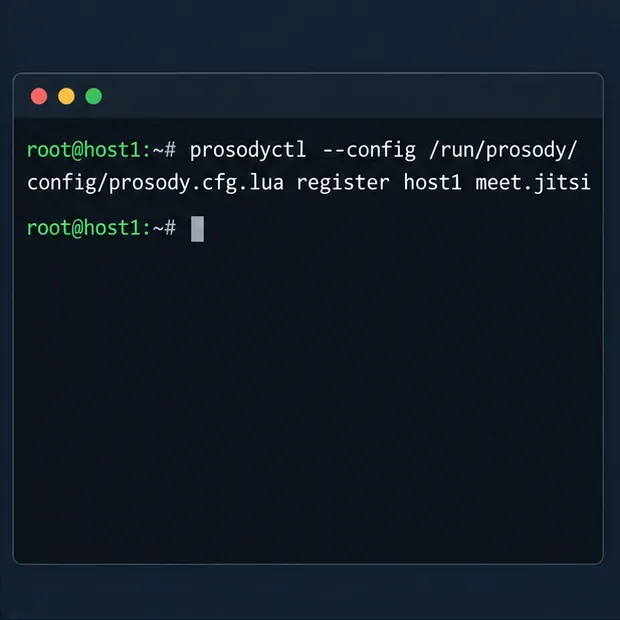
Then register a Jitsi user on the default Docker XMPP domain:
The account-registration command creates an internal user; supply the chosen username and password when you run it.
Replace both placeholders with the username and a unique password for that person. Do not include the angle brackets. For a second authorized host, run the command again with a different username. The command shown uses the default Docker domain meet.jitsi; if you changed XMPP_DOMAIN, follow the domain configured by your deployment. The current Docker guide documents the Prosody container command and the related removal command.
To revoke a user, enter the Prosody container and run:
Keep the account list limited to people who should be able to initiate conferences. A room name is not an access-control mechanism, and account access should be removed when a host no longer needs it.
4. Test the host and guest paths separately
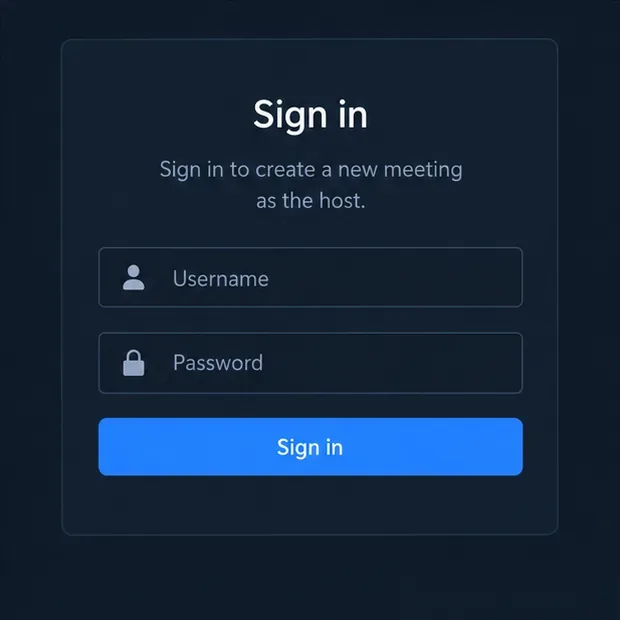
Use a private browser window or a separate browser profile so an existing Jitsi login session does not hide the result. Open the public Jitsi URL and try to start a new room without authenticating. The instance should require authentication before it allocates the new conference. Sign in with one of the accounts you created and start a room; then verify that the room opens.
A generic sign-in screen illustrates the authentication gate that should appear before an approved host creates a room.
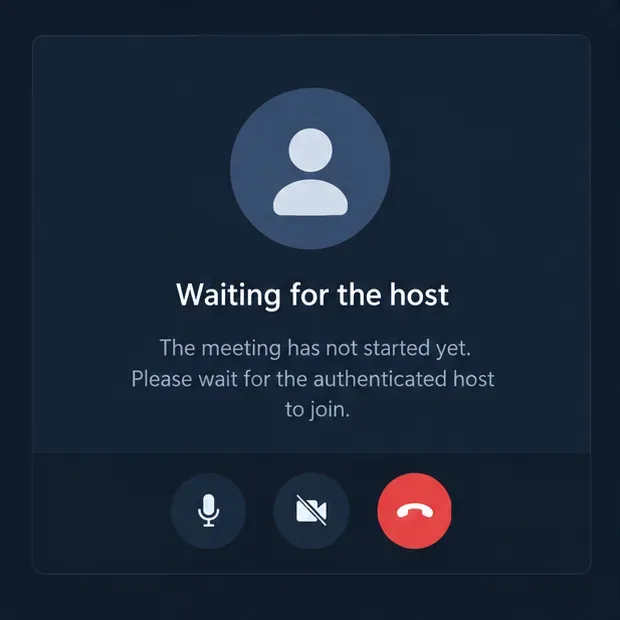
Next, open the room link in a separate unauthenticated browser session. With guest access enabled, the guest should be able to join the conference after the authenticated host starts it. Jitsi’s Docker guide says that unauthenticated users need to wait until a user authenticates when guest access is enabled.
A guest waiting for the authenticated host demonstrates the difference between room creation and guest joining.
For new Debian or Ubuntu installs, use the current token-authentication guide
Jitsi’s current self-hosting handbook provides a newer authentication path using token authentication. Its documented example connects Jitsi to Keycloak, configures the Prosody host to require a token, and adds an anonymous guest domain when guests should be allowed. In the Jitsi configuration, the documented setup uses authentication = "token" and allow_empty_token = false for the main host, then maps the guest domain as jitsi-anonymous. Follow the full authentication guide for the Keycloak realm, client redirect URLs, reverse-proxy routing, Prosody, and Jitsi web-client settings. Replace every example hostname with your own and keep the identity-provider endpoint protected by HTTPS.
Token authentication is useful when accounts should be managed by an identity provider or when your application issues room-specific access tokens. It requires a correctly configured issuer and token validation; simply switching on a browser setting does not restrict room creation securely. If you need LDAP-backed accounts with Docker, the Docker guide also documents an LDAP mode, but LDAP connection, certificate, and filter settings must match your directory.
Room creation is separate from room privacy
Authentication answers “who can start a conference?” It does not by itself answer “who can enter this room?” If guests are allowed, anyone who obtains a room URL may be able to attempt to join. Add a room password or configure the lobby for meetings that should admit only invited participants. Jitsi’s self-hosting guide distinguishes the server-level ability to start conferences from access controls managed in an individual room.
Common problems to check
Room creation still works anonymously: confirm ENABLE_AUTH=1 is active in the environment file used by the running Compose project, then reapply the configuration.
Every participant gets a login prompt: check whether ENABLE_GUESTS is disabled. That setting requires participants to authenticate; it is not needed when your goal is authenticated hosts with guest attendees.
A new account cannot sign in: verify you registered it on the domain configured for your deployment. Docker’s default command uses meet.jitsi; custom XMPP domains need corresponding values.
Guests cannot enter before the host: this is consistent with guest access behavior. Have the authenticated host start the room first, then ask guests to use the room link.
Following a tutorial from another installation type: do not mix Debian package paths, Docker-generated configuration, and older secure-domain snippets. Use the handbook section for your installation and review its deprecation notes.
Verification checklist
An unauthenticated browser cannot create a new room.
A provisioned user can sign in and start a room.
A removed account can no longer authenticate.
Guest joining behaves as intended for your ENABLE_GUESTS setting.
Private meetings also use a room password or lobby policy where needed.
The key decision is whether your Jitsi instance should use individually provisioned internal accounts or tokens issued through an identity provider. For an existing Docker Compose deployment, internal authentication is a direct way to restrict room creation to the small set of users you register. For a new installation, start with the current token-authentication guide and keep room-level admission controls configured separately.