Moving a Nextcloud data folder to a larger external hard drive sounds like a simple copy-and-edit job. It is not. The important detail is that Nextcloud identifies local storage by its absolute path on disk. If that path changes carelessly, the server can treat the files as a different storage location, which can lead to duplicate or orphaned file records, broken metadata, or lost share relationships.
The safest practical approach for an existing installation is therefore to keep Nextcloud seeing the same data-directory path while moving the actual bytes to the external disk. Nextcloud's current Administration Manual explicitly recommends moving the directory and then creating a symbolic link from the original path to the new location. The manual also warns that directly changing datadirectory requires database changes and is not a supported migration method. See the Nextcloud data-directory troubleshooting guidance.
Before You Start: What Is Verified, What Depends on Your Setup?
| Question | Practical answer |
|---|
Can I just edit datadirectory in config.php? | Not safely by itself. Nextcloud documents that changing the absolute local-storage path can break database relationships. Prefer preserving the original path with a symlink. |
| Do I need a full backup? | Yes. Nextcloud's backup documentation includes the configuration, data directory, database, and relevant custom application/theme data. Do not treat the old disk as your only rollback copy. |
| Must the external drive be ext4? | No single filesystem is mandated by this procedure. The examples below use ext4 because normal Linux ownership and permission behavior is straightforward. Other filesystems may require different mount options. |
Should I run files:scan --all afterward? | Usually not for a path-preserving move. Use it when files are actually missing from the file cache or when files were copied into the data tree outside Nextcloud and need an immediate rescan. |
| Is a USB hard drive as reliable as an internal disk? | That depends on the enclosure, cable, power, filesystem, and host. A removable drive becoming unavailable is an availability risk, so make the mount persistent and verify it before starting Nextcloud. |
1. Mount the External Drive at a Stable Path
First identify the device and filesystem. On Linux, commands such as lsblk -f and blkid show the filesystem UUID. Avoid building a permanent configuration around a device name such as /dev/sdb1; Linux device names can change when hardware is added or detection order changes. The Linux fstab manual recommends UUID or LABEL identifiers for persistent mounts.
lsblk -f
sudo blkid /dev/sdb1
sudo mkdir -p /mnt/nextcloud-data-storage
Add a suitable entry to /etc/fstab. Replace the example UUID and filesystem type with values from your own disk:
UUID=YOUR-FILESYSTEM-UUID /mnt/nextcloud-data-storage ext4 defaults 0 2
Then test the mount before touching Nextcloud:
sudo mount -a
findmnt /mnt/nextcloud-data-storage
df -h /mnt/nextcloud-data-storage
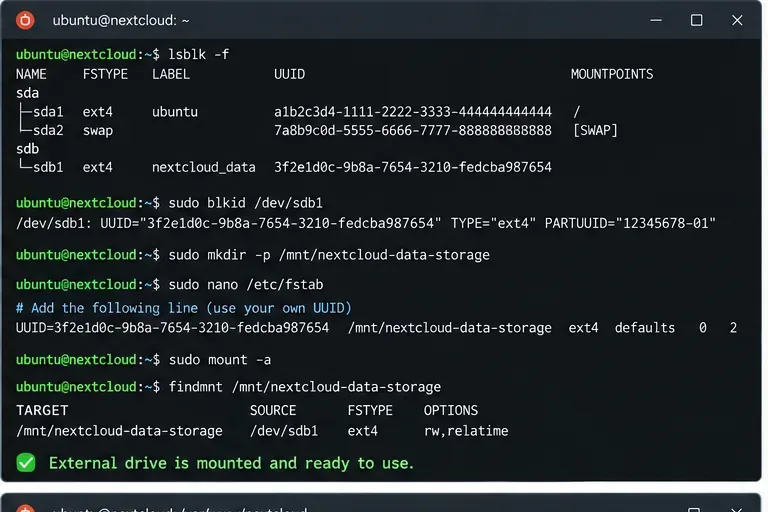
Verify the external disk by UUID and confirm its mount point before moving any Nextcloud files.
Common misconception: a directory named /mnt/nextcloud-data-storage does not prove the disk is mounted there. If the drive is absent, the mount-point directory can still exist on the system disk. Action: use findmnt or mountpoint every time you test the migration and after a reboot.
2. Back Up Nextcloud and Stop Writes
Nextcloud's current backup guide says a recoverable backup includes the data directory, configuration, database, and other deployment-specific content such as custom apps and themes. Review the official Nextcloud backup documentation and make sure the backup is stored somewhere other than the drive you are about to repartition or repurpose.
Next, enable maintenance mode from the Nextcloud installation directory. On Debian and Ubuntu the web-server account is commonly www-data:
cd /var/www/nextcloud
sudo -E -u www-data php occ maintenance:mode --on
The migration guidance also says no cron job should run during the move and recommends stopping the web/application servers while the data is being relocated. How you do that depends on the deployment: Apache, Nginx plus PHP-FPM, Docker Compose, Snap, AIO, and Kubernetes all have different service boundaries.
Action: disable the Nextcloud cron entry or stop the relevant cron service, then stop the web/app service before the final copy. If the data set is very large, you can pre-seed the external disk while the site is online, then enter maintenance mode, stop writers, and run a final rsync pass to capture changes.
3. Copy the Entire Data Directory, Including Hidden Files
Do not copy only user folders. The data directory also contains hidden files such as .ncdata and application data that belong with the storage. Nextcloud explicitly calls out hidden/dot files in its move procedure.
Assume the current directory is /var/www/nextcloud/data and the external disk is mounted at /mnt/nextcloud-data-storage. Create the destination and copy the directory:
sudo mkdir -p /mnt/nextcloud-data-storage/data
sudo rsync -Aax --info=progress2   /var/www/nextcloud/data/   /mnt/nextcloud-data-storage/data/
The Nextcloud restore documentation uses rsync -Aax as an example for preserving the directory tree and metadata. For very large installations, run a second pass after all writers are stopped and inspect the output. The exact options you need can vary if your source uses ACLs, extended attributes, unusual filesystems, or container-mounted storage.
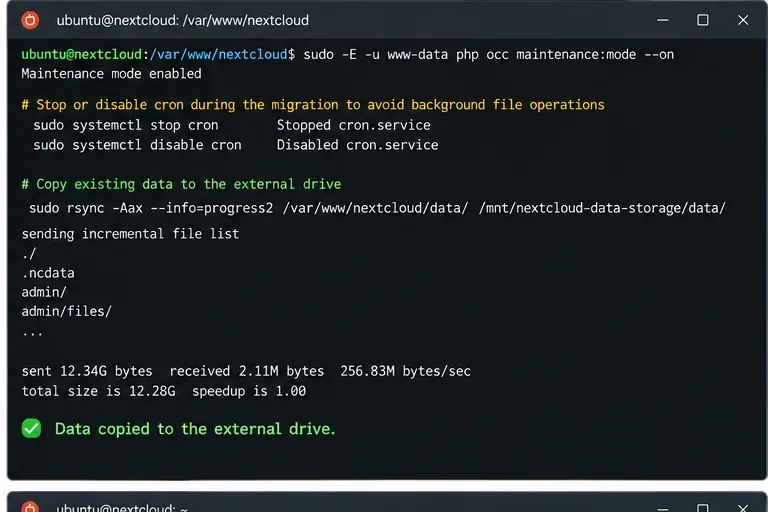
Stop background writes and copy the complete data tree, including hidden Nextcloud metadata files.
Common misconception: a completed copy means the migration is finished. It does not. Nextcloud still needs the expected path, and the HTTP user must be able to traverse and write the new location. Action: verify file counts or sample checksums before switching paths, and keep the source directory intact until the new storage has passed testing.
4. Preserve the Original Data Path with a Symbolic Link
This is the key safety measure. Suppose Nextcloud currently uses:
'datadirectory' => '/var/www/nextcloud/data',
Do not change that value for the recommended path-preserving migration. Instead, keep the old directory as a rollback copy and replace it with a symlink pointing to the external drive:
sudo mv /var/www/nextcloud/data /var/www/nextcloud/data.old
sudo ln -s /mnt/nextcloud-data-storage/data /var/www/nextcloud/data
ls -ld /var/www/nextcloud/data
Nextcloud documents this symlink method because local storage is identified by the absolute path. With the link in place, Nextcloud continues to see /var/www/nextcloud/data even though the bytes live on the external disk.
Check ownership before making broad permission changes:
stat -c '%U:%G %a %n' /var/www/nextcloud/data.old
stat -c '%U:%G %a %n' /mnt/nextcloud-data-storage/data
namei -l /mnt/nextcloud-data-storage/data
The HTTP user must be able to traverse the parent directories and read/write the data directory. The correct owner varies by distribution and installation method. Nextcloud's occ documentation notes that the HTTP account is commonly www-data on Debian/Ubuntu, apache on Fedora/CentOS, and different on other systems.
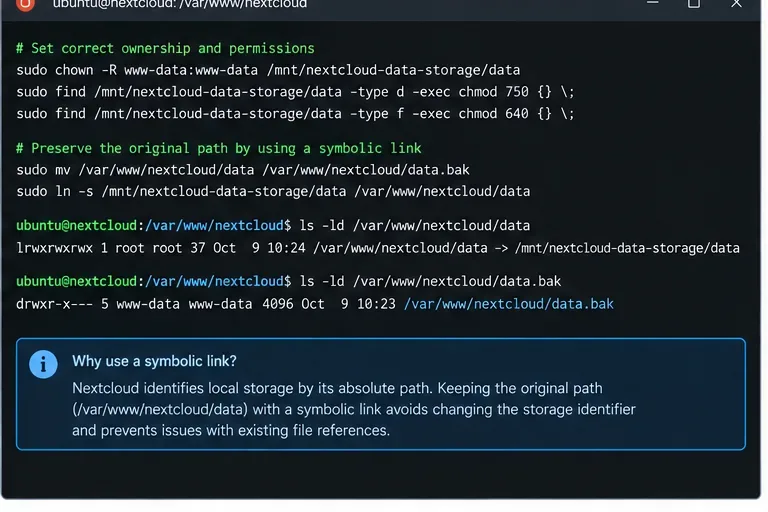
Keep the original data-directory pathname and point it to the external disk with a symbolic link.
Common misconception: recursively running a generic chmod 777 fixes permissions. It may hide the real problem while weakening security. Action: compare the new directory with the original ownership and permissions, preserve ACLs where used, and make only the minimum correction required for the HTTP user.
What If You Really Want to Change datadirectory?
Nextcloud does describe a no-symlink procedure, but the same documentation labels it unsupported and warns that it can break the database. It requires both changing config.php and updating the matching local::/old-data-dir/ entry in the oc_storages table.
That is not simply an alternative syntax for the same operation; it changes the storage identifier that Nextcloud records internally. Action: use the symlink method unless you have a tested backup, a tested restore process, and a specific operational reason to remove the old pathname. For a new Nextcloud installation, choose the final data location during installation instead. Nextcloud explicitly says that is easier than moving it later.
5. Restart, Verify the Mount, and Bring Nextcloud Back Online
Before starting Nextcloud, verify that the external filesystem is really mounted and that the symlink resolves into it:
findmnt /mnt/nextcloud-data-storage
readlink -f /var/www/nextcloud/data
sudo -E -u www-data test -r /var/www/nextcloud/data/.ncdata && echo readable
Restart the web/application service and re-enable the Nextcloud cron job using the method appropriate for your deployment. Then turn maintenance mode off and check server status:
cd /var/www/nextcloud
sudo -E -u www-data php occ maintenance:mode --off
sudo -E -u www-data php occ status
Log in and test several operations: open an existing file, upload a new file, rename it, delete it, restore it from Trash, and confirm that another client can synchronize it. Reboot the host once and repeat findmnt; this catches an invalid /etc/fstab entry before it becomes a surprise during an outage.
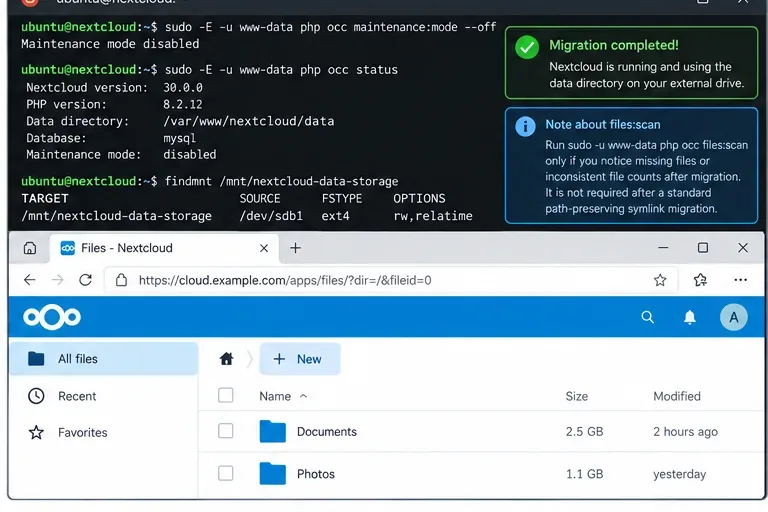
After the switch, verify both the operating-system mount and normal file operations in Nextcloud.
Do You Need occ files:scan --all?
Not automatically. Nextcloud's files command documentation says files:scan updates the file cache for new or changed files and can be useful after manual copying or when investigating cache inconsistencies. A correctly executed path-preserving move is intended to keep the same files and the same logical local-storage path, so a full scan should not be the default “just in case” step.
Action: first test the UI and compare expected files. If files are missing from Nextcloud even though they are present on disk, then use a targeted scan or, when justified, files:scan --all. Be aware that a full scan on a large installation can take significant time.
Final Migration Checklist
- A current database, configuration, and data backup exists outside the disk being migrated.
- The external filesystem has a stable mount configured by UUID or LABEL.
findmnt confirms the external drive is actually mounted.- Nextcloud writes and cron jobs are stopped during the final synchronization.
- The complete data directory, including
.ncdata, was copied.
- The original
datadirectory pathname is preserved with a symlink.
- The HTTP user can traverse the mount path and read/write the data.
- Nextcloud starts without storage errors and
occ status is normal.
- Upload, rename, delete, restore, download, and sync tests succeed.
- The server has been rebooted once to prove the external drive mounts reliably at startup.
- The old data directory has not been deleted until the new setup has been tested and separately backed up.
The most important idea is simple: migrating Nextcloud data is not only a filesystem copy. The path is part of Nextcloud's local-storage identity. Preserve that path when possible, make the external drive a reliable system mount, stop writes during the final copy, and retain a rollback copy until the new storage has survived both application testing and a reboot.









