Home
» NETWORK ADMIN
»
How to Set Up a Jibri Recording and Streaming Server for Jitsi Meet
How to Set Up a Jibri Recording and Streaming Server for Jitsi Meet
Jitsi’s current Docker handbook documents an important deployment change: since release stable-11146, its containers run as an unprivileged UID/GID 1000, and persistent data directories must be writable by that container user. The Jibri service also no longer needs the SYS_ADMIN capability. Older guides that recommend privileged containers or broad 777 permissions should not be copied into a current deployment without checking the release-specific instructions.
This walkthrough uses Docker Compose for an existing self-hosted Jitsi Meet installation. It follows a clearly hypothetical example: Riverview Team already runs Jitsi at meet.example.net, stores configuration under /opt/jitsi-meet-cfg, and wants moderators to record meetings locally and occasionally stream to an RTMP destination. This is an example configuration, not a report of a real installation or test.
Illustration note: The screen views below are schematic examples, not captures from a real server; displayed command output and meeting states are illustrative.
What Jibri does, and what it needs
Jibri is Jitsi’s broadcasting infrastructure for recording or live streaming a conference. It joins a meeting through a browser session, captures the audio and video, then encodes the output. A working Jibri setup therefore depends on the Jitsi web service, Prosody XMPP server, and Jicofo agreeing on the internal recorder account and the Jibri “brewery” room where available instances announce themselves.
Use a full Jitsi Meet installation that you administer; Jibri cannot be attached to the public meet.jit.si service as if it were your own server. The upstream Jibri project describes running it on a separate machine or virtual machine, with no unrelated workload using its display or audio devices. The official Docker Compose deployment packages Jibri as an additional service. For a small installation, that can be a separate container on the Compose host; for sustained use, give it dedicated CPU, memory, and disk capacity or place it on an appropriately resourced host.
One Jibri instance can handle one recording or stream session at a time. If Riverview expects concurrent sessions, it should plan a Jibri pool with multiple instances and account for the extra audio loopback configuration described in Jitsi’s handbook. Adding more containers without unique audio devices is not a complete scaling plan.
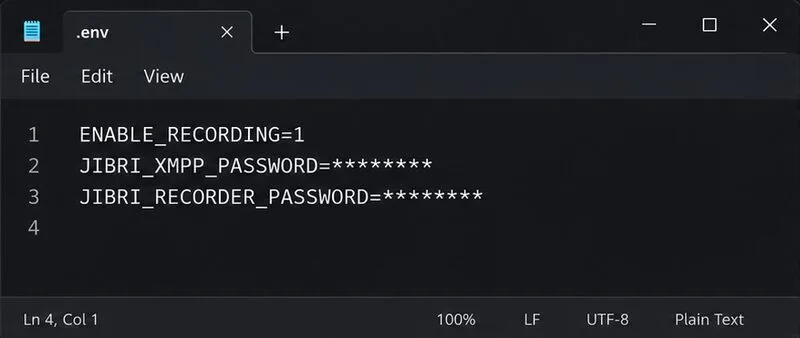
Example environment settings for enabling Jibri; the password values are masked placeholders.
Step 1: Prepare the Docker Jitsi Meet environment
Start from an official Docker Jitsi Meet release and its matching Compose files. Keep the .env file and Compose files from the same release. In the environment file, enable recording:
ENABLE_RECORDING=1
Jitsi’s Compose configuration uses internal XMPP accounts for Jibri itself and for the recorder browser session. Set strong, distinct values for the Jibri and recorder passwords and keep them private. For a brand-new stack, the project’s gen-passwords.sh script can generate the internal service passwords. It changes the environment file, so back it up first. If the Jitsi stack is already running, do not casually regenerate every password: the running components must all receive the matching updated credentials during a planned restart.
For Riverview’s example, ENABLE_RECORDING=1 is the required switch, while the release’s environment template supplies the names and defaults for the XMPP user, recorder user, brewery MUC, storage path, and other options. Do not paste passwords into a public issue, terminal screenshot, or shared meeting chat.
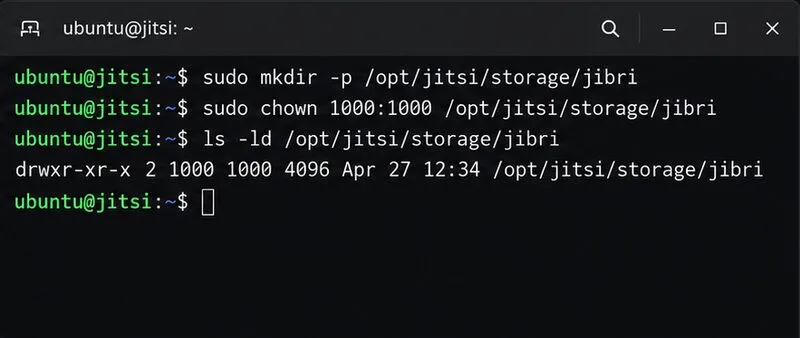
Prepare the persistent Jibri directory for the unprivileged container user before starting the service.
Step 2: Create writable persistent storage
Recordings must survive container replacement, so Jitsi’s Compose setup mounts persistent host storage for Jibri. With the example CONFIG=/opt/jitsi-meet-cfg, the host directory is /opt/jitsi-meet-cfg/storage/jibri. Create it before starting the service and make it writable by the container’s UID/GID 1000:
The numeric listing should show owner and group 1000. Use the actual CONFIG path from your environment file if it differs. Avoid recursively changing ownership of the entire Jitsi configuration directory; apply the needed ownership to the Jibri storage path, and preserve existing recordings when adjusting an established host. On SELinux systems, retain the volume-label settings from the matching official Compose file rather than stripping them out.
The container’s recording directory is configurable; the handbook’s documented example for JIBRI_RECORDING_DIR is /storage/recordings, mounted beneath the host’s Jibri storage directory. Check your release’s environment template before changing it. Confirm the host has adequate free disk space and a retention plan: a working recorder can fill a small volume over time.
Step 3: Start Jibri with the matching Compose file
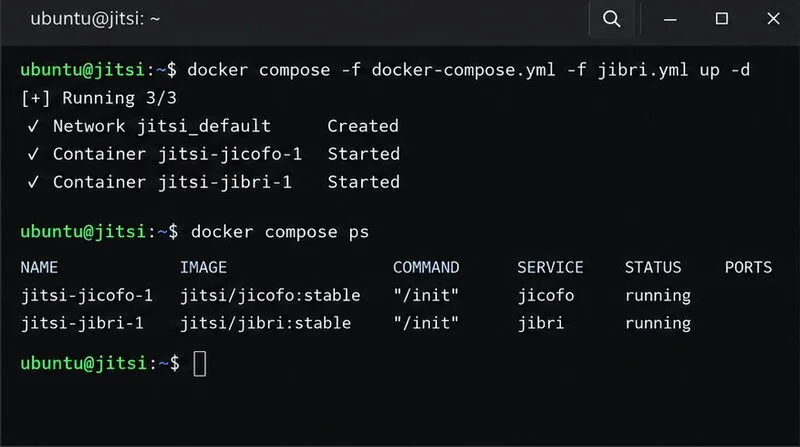
From the directory containing the official Jitsi Compose files and the configured environment file, start the base stack with the Jibri override:
docker compose -f docker-compose.yml -f jibri.yml up -d
The official handbook uses this Compose pattern to add Jibri to the Docker deployment. The Jibri override defines the service’s container image, configuration and storage mounts, and shared-memory allocation. Use the file bundled with your chosen release; avoid mixing a current jibri.yml with an older .env or compose bundle.
Check whether the Jibri service stays up and review its logs together with Jicofo and Prosody:
A running container is an initial check, not proof that the conference can be recorded. Jibri must authenticate to the correct XMPP host and join the expected internal brewery MUC. If logs show authentication failures, compare the XMPP domain, internal MUC, Jibri account, recorder account, and passwords across the environment file and generated service configuration. The values must match; changing only one component’s password will break the handshake.
Start the Jibri Compose service and inspect its status; this screen is illustrative, not a claim of a tested deployment.
Step 4: Test a recording and an RTMP stream
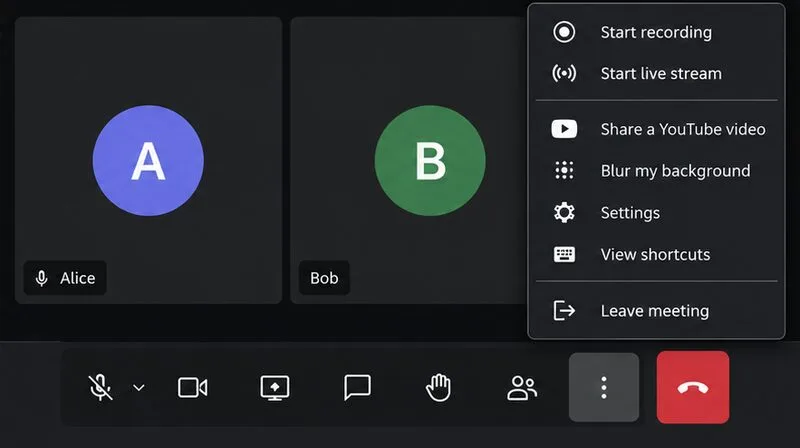
Join a test meeting at meet.example.net with a moderator account. In the meeting’s More actions menu, verify that recording and live-streaming actions are available. Start with a short recording, wait for the session to finish, and inspect the configured host storage path for the output. The recording should remain present after the Jibri container is recreated, because it is stored on the mounted host volume rather than only in the container’s writable layer.
For a live stream, use the RTMP ingest URL and stream key supplied by the destination service. Enter the current provider values in Jitsi’s live-stream workflow and check the destination’s preview or receiving status. Provider dashboards and labels can change, so use the destination’s current RTMP instructions. Treat the stream key like a password: do not publish it in meeting chat or article screenshots. Recording to local storage and sending a live stream to an RTMP service are related Jibri functions, but they have different destinations and checks.
The meeting menu can expose the recording and live-stream actions after Jibri is configured; menu availability depends on the deployment.
Troubleshoot by the point of failure
No recording or stream action appears: Confirm ENABLE_RECORDING=1 is present in the active environment file and that the matching Compose stack was recreated after the change. Check the generated web, Prosody, and Jicofo configuration instead of editing files inside a running container; Docker regenerates service configuration from the host inputs.
The action appears but Jibri cannot join: Inspect Jibri and Jicofo logs for XMPP authentication or MUC errors. Verify the internal host, recorder domain, brewery name, and both internal passwords against the same Compose release.
The container exits or restarts: Check its logs for a missing or unwritable storage path. On current rootless images, verify the mounted directory is writable by UID/GID 1000. Also check host memory and the shared-memory configuration supplied by the official Jibri Compose file.
The session starts but no recording file appears: Confirm the configured recording directory maps to the host volume and that the session was stopped/finalized normally. Check free disk space and file permissions.
Recording works but streaming fails: Recheck the RTMP ingest URL and stream key, the destination’s current requirements, and the host’s outbound network path. Look at Jibri logs for the streaming failure instead of opening extra inbound ports without evidence.
When a meeting works but you need more simultaneous recordings, add capacity deliberately. Jibri’s one-session-per-instance limit means concurrent jobs require more instances; the Docker handbook also calls out selecting distinct audio loopback interfaces for multiple instances. Test one additional instance before expanding the pool and verify each instance can create a separate recording.
Use these official references
Follow the instructions that match your deployment rather than copying settings from an unrelated Jibri version. The Jitsi Docker handbook documents the Compose workflow, recording variables, storage path, rootless container permissions, and current Jibri notes. The Jibri project README explains Jibri’s role, single-session limitation, and configuration model. The official Jibri Compose service definition and environment template are the source of truth for release-specific variable names and mounts.