Home
» NETWORK ADMIN
»
How to Set Up a Matrix Server on Raspberry Pi 4 with Conduit
How to Set Up a Matrix Server on Raspberry Pi 4 with Conduit
A Raspberry Pi 4 can make a practical small Matrix homeserver for a household, private group, or lab, and Conduit is designed with lightweight hardware in mind. Matrix is an open protocol for decentralized communication: your users connect to a homeserver, which stores their accounts and room data, while federation lets that homeserver exchange events with other Matrix servers.
This guide uses Conduit in Docker, with NGINX in front of it for HTTPS. That keeps the Matrix service isolated on the Pi while exposing only the public web ports. The instructions were checked against the Conduit, Matrix, Raspberry Pi, Docker, and NGINX documentation available in October 2026. One important limitation comes first: Conduit still describes itself as beta, so it is best suited to users who accept that some Matrix features and older room versions may not work exactly as they do on a mature Synapse deployment. Check the official Conduit project before using it for a critical service.
A Raspberry Pi 4 is capable of hosting a small Conduit Matrix homeserver when paired with reliable storage, power, and networking.
1. Understand the setup before installing anything
The finished path is straightforward: a Matrix client such as Element connects to https://matrix.example.com; NGINX terminates TLS and forwards the request to Conduit on the Pi; Conduit stores its database in persistent Docker storage. If federation is enabled, other homeservers reach the same public HTTPS endpoint.
You will need a Raspberry Pi 4, a reliable power supply, a microSD card or SSD, and a 64-bit operating system. An SSD is preferable for a server you expect to keep for a long time because Matrix continuously writes database and media data. You will also need a domain name if the server must be reachable from the public Internet.
As of September 15, 2026, the current Raspberry Pi OS 64-bit release is based on Debian 13 “Trixie,” and Raspberry Pi OS Lite is available for the Pi 4. See the official Raspberry Pi OS download page. For this server, Lite is a good fit because it avoids an unnecessary desktop environment.
Choose the Matrix server name carefully
In this guide, the server name is matrix.example.com. A resulting Matrix user ID looks like @alice:matrix.example.com. Treat this name as a long-term identity choice. Matrix IDs and federation references include the server name, so changing it later is not equivalent to simply renaming a web host.
2. Install Raspberry Pi OS and update the Pi
Write Raspberry Pi OS Lite 64-bit to the card or SSD with Raspberry Pi Imager, enable SSH during imaging if you want a headless installation, and boot the Pi. Confirm you are on a 64-bit ARM system:
uname -m
cat /etc/os-release
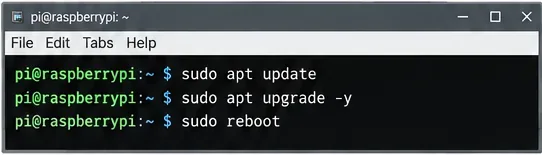
uname -m should normally report aarch64. Then install current updates:
Update Raspberry Pi OS before installing Docker and Conduit so the server starts from current system packages.
3. Install Docker Engine and Compose
Docker’s documentation says that 64-bit Raspberry Pi OS users should use the supported Debian ARM64 packages rather than the older Raspberry Pi OS 32-bit path. The authoritative procedure is on the Docker Engine for Debian page. The following repository setup follows that approach:
If the final command prints Docker’s hello-world confirmation, the container runtime is working. You can continue using sudo docker for the rest of the guide. Adding your account to the docker group is optional, but remember that Docker group membership effectively grants root-level control of the host.
4. Create a Conduit configuration
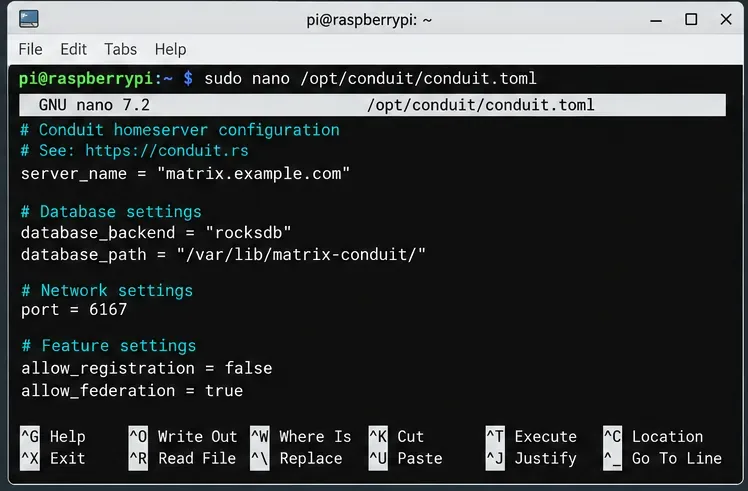
Conduit can be configured with a TOML file or environment variables. The official Conduit configuration reference lists server_name, database_backend, and database_path as required fields and recommends RocksDB.
Why 0.0.0.0 here? Inside a container, Conduit must listen on the container interface so Docker can reach it. The host-side port will still be bound only to 127.0.0.1, so port 6167 is not exposed directly to the Internet.
A minimal Conduit configuration defines the Matrix server identity, RocksDB storage, local service port, and registration and federation behavior.
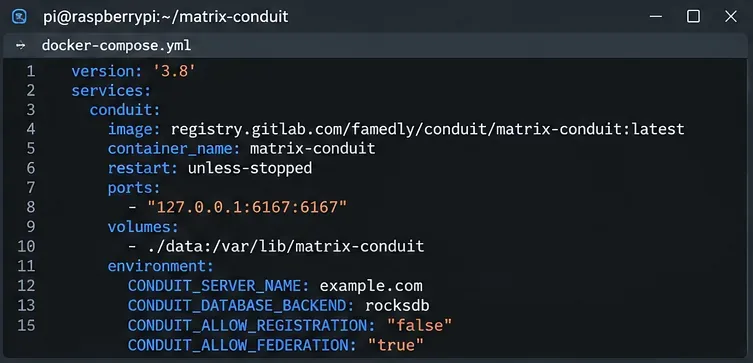
The stable GitLab Registry image is the image recommended by the official Conduit Docker documentation. Avoid copying an old image tag from a random tutorial; use the official registry and review release notes before upgrades.
Docker Compose keeps the Conduit container definition, persistent storage, and networking in one reproducible file.
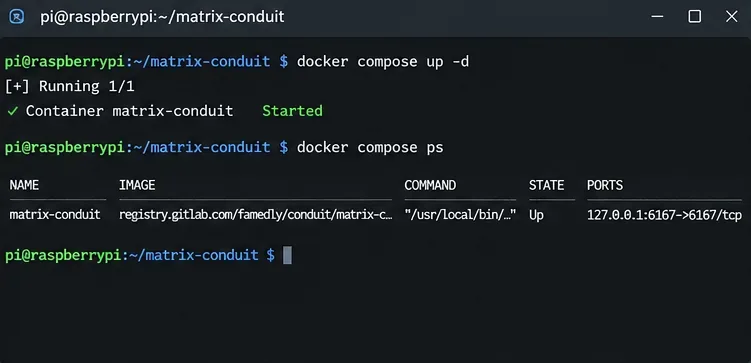
A running Conduit container should stay up and publish its internal port only to the Raspberry Pi loopback interface.
6. Point DNS to the Pi and put NGINX in front of Conduit
Create an A record for matrix.example.com that points to your public IPv4 address. If you publish an AAAA record, make sure IPv6 actually reaches the Pi; a broken IPv6 record can make clients fail even when IPv4 works.
On a typical home router, forward TCP ports 80 and 443 to the Raspberry Pi. If your ISP uses carrier-grade NAT (CGNAT), ordinary inbound port forwarding may not work; in that case you need a public address, a VPS/reverse-tunnel design, or another hosting arrangement.
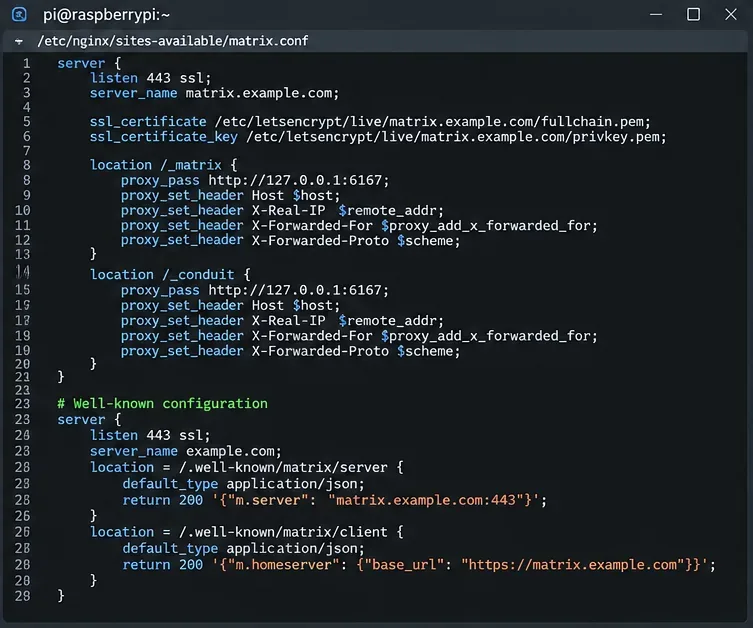
NGINX is the public-facing layer: it terminates HTTPS and forwards Matrix requests to Conduit. Matrix well-known endpoints can be proxied to Conduit or served explicitly.
7. Enable HTTPS and Matrix discovery
Matrix requires valid HTTPS for a normal public deployment. Obtain a certificate only after DNS resolves to the Pi and port 80 is reachable. Debian Trixie provides Certbot packages, while the Certbot project also publishes current platform-specific instructions at certbot.eff.org.
After Certbot updates the NGINX virtual host, test the configuration again:
sudo nginx -t
sudo systemctl reload nginx
Because this guide uses the same hostname for the Matrix server name and the public endpoint, Conduit can answer the Matrix /.well-known discovery paths through the reverse proxy. The Matrix specification defines these endpoints so clients and other servers can discover the correct homeserver URL. See the Matrix Client-Server specification.
8. Create the first account, then verify the server
Conduit’s Docker documentation says the first account created on a new homeserver becomes the administrator. Open a Matrix client that supports registration tokens, choose a custom homeserver, and enter:
https://matrix.example.com
Register the first account using the token from conduit.toml. Do this soon after bringing the service online. If you do not want further registrations, edit the configuration to set allow_registration = false and restart the container:
cd /opt/conduit
sudo docker compose restart conduit
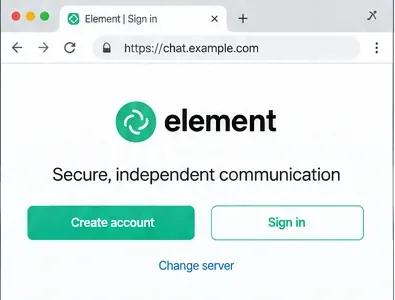
In a Matrix client such as Element, choose the custom homeserver URL instead of the default public server before registering or signing in.
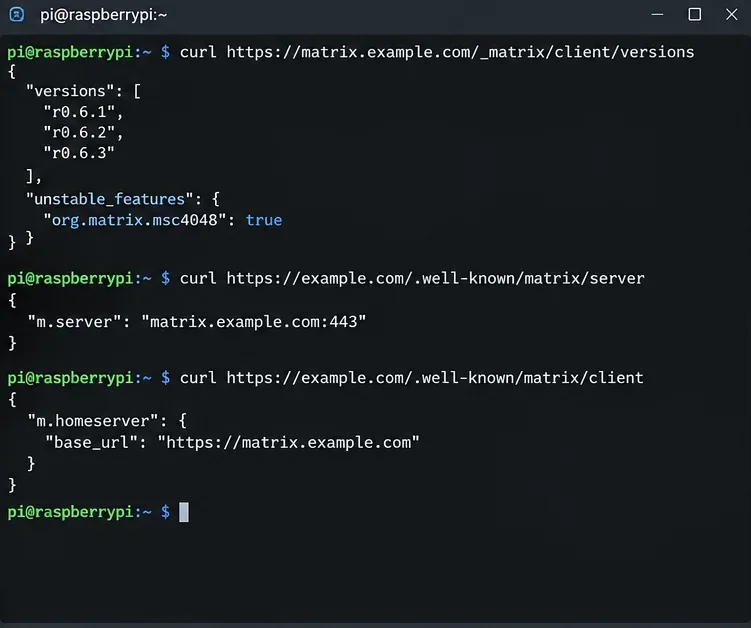
Now run three checks from any machine that can reach the domain:
The first request should return JSON describing supported Matrix client API versions. The well-known requests should return valid JSON discovery information. For federation, also use the Matrix Federation Tester and try joining a federated room from the new account.
Successful JSON responses from the Matrix version and well-known URLs are useful final checks for HTTPS routing and discovery.
Common mistakes that stop a Raspberry Pi Matrix server from working
Using a 32-bit OS unnecessarily: for a Pi 4, use Raspberry Pi OS 64-bit and Docker’s supported Debian ARM64 packages.
Exposing Conduit directly: keep port 6167 bound to 127.0.0.1 on the host and expose HTTPS through NGINX.
Leaving registration open without protection: use a strong registration token during initial setup, then disable registration if you do not need it.
Publishing incorrect DNS: both IPv4 and IPv6 records must lead to a working endpoint if you publish both.
Forgetting router or firewall rules: a correct container cannot compensate for blocked inbound TCP 80/443.
Assuming messaging and voice calls are the same: Matrix messaging can work while calls fail. Conduit’s documentation states that voice communication needs a TURN server such as Coturn.
Skipping backups: Conduit’s FAQ recommends stopping Conduit before making a normal filesystem copy of its database unless you use a suitable filesystem snapshot. Back up the Docker volume and your configuration before upgrades.
What a successful installation looks like
You are finished when all of these are true: the Conduit container stays running after a reboot; https://matrix.example.com/_matrix/client/versions returns JSON; a Matrix client can register or sign in against your custom homeserver; the account can create a room and send a message; and, if federation is enabled, the federation tester can reach the server and the user can communicate with accounts on another homeserver.
For a small Raspberry Pi deployment, this is a clean baseline rather than the end of administration. Monitor free storage, keep Raspberry Pi OS and Docker patched, back up the database, and read the official Conduit documentation before enabling extra features. Conduit remains a lightweight and appealing option for Pi-class hardware, but its beta status is a real operational consideration rather than a footnote.