Home
» NETWORK ADMIN
»
How to Set Up Automated Database Backups for ownCloud Server
How to Set Up Automated Database Backups for ownCloud Server
You discover the weakness in a backup plan at the worst possible time: an upgrade fails, a database table is damaged, or a server disappears, and the only “backup” is a copy of the user files. That is not enough for ownCloud Server. The database holds critical application state such as users, shares, file metadata, and configuration data. A reliable recovery plan needs the database as well as the files and configuration that belong to the same point in time.
This guide shows a practical way to automate ownCloud database backups on Linux, starting with a manual dump and ending with a scheduled, verified job. The examples focus on MySQL/MariaDB because ownCloud recommends those engines, and a PostgreSQL variant is included. The commands are aligned with the current ownCloud Server 11.0 administration documentation, while also noting the command difference for traditional non-Docker installations.
First, understand what a database backup does not cover
A database dump is only one part of an ownCloud backup. The ownCloud Server 11.0 backup documentation lists the database together with the configuration directory, data directory, app directories when applicable, and custom theme files. The data directory can also contain encryption keys, so a database-only backup cannot reconstruct a complete server after total storage loss.
Use the automation below for database protection, but pair it with a file-level backup or snapshot strategy for the rest of the ownCloud installation. When you need a fully consistent recovery point, coordinate the database dump and the file backup in the same maintenance window.
Step 1: Confirm which database ownCloud uses
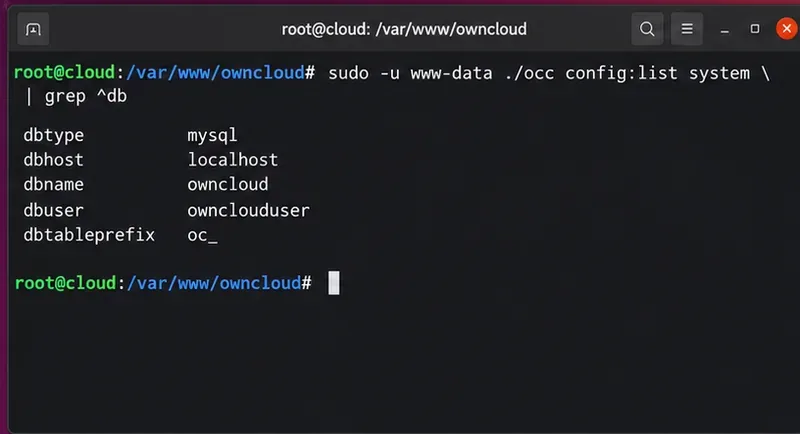
Before writing a backup command, identify the database type, host, database name, and user. On a classic ownCloud installation, these values are normally available in config/config.php. You can also inspect system configuration with the ownCloud command-line tool. For example, from the ownCloud directory:
sudo -u www-data ./occ config:list system
On a Docker Compose deployment, the current documentation uses commands such as:
docker compose exec owncloud occ config:list system
Look for values such as dbtype, dbhost, dbname, and dbuser. ownCloud Server 11.0 officially supports MySQL/MariaDB and PostgreSQL, with MySQL or MariaDB recommended for normal deployments.
Example terminal view of the database settings you need before building a backup command.
Step 2: Create a protected backup location
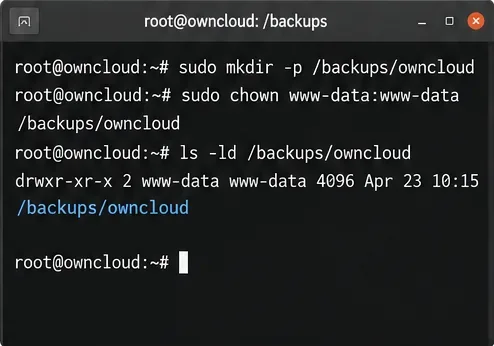
Create a dedicated directory that is not web-accessible. Root ownership is a sensible default when the scheduled task runs from root's crontab:
Check free space with df -h /var/backups/owncloud-db. A backup job that silently fills the system disk can create a second outage while trying to protect against the first one.
A dedicated backup directory keeps database dumps separate from the web root and easier to protect.
Step 3: Keep database credentials out of the cron command
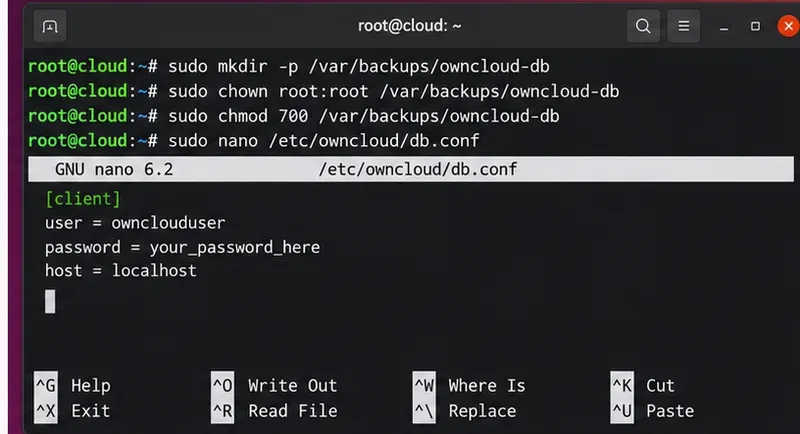
Do not put a database password directly in the crontab line. For MySQL or MariaDB, a root-readable client option file is simple and works well with unattended jobs. Create /etc/owncloud/db-backup.cnf:
Use the real values from your ownCloud configuration. If your database is remote, set the appropriate host. The MySQL manual documents option files for client programs, and this approach avoids exposing the password directly in a scheduled command.
Store unattended database credentials in a root-readable client option file instead of typing the password into cron.
Step 4: Run one manual backup in maintenance mode
ownCloud's official backup procedure says to prevent normal access and place the instance in maintenance mode before backing up the database. For a Docker Compose deployment:
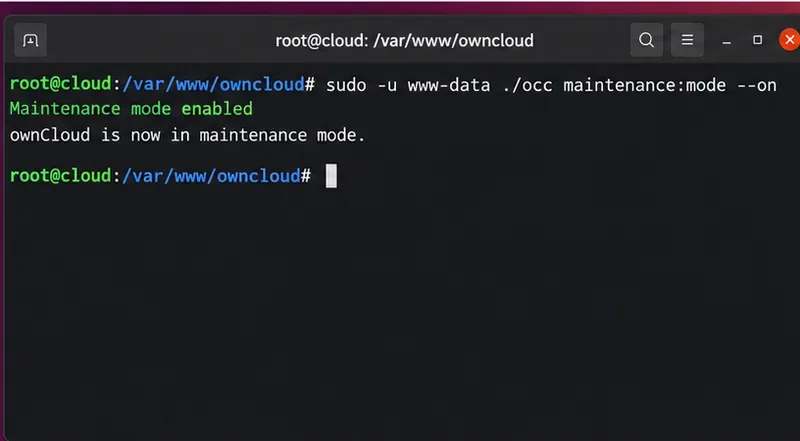
For a traditional installation from the ownCloud directory:
sudo -u www-data ./occ maintenance:mode --on
Maintenance mode blocks normal user activity while the recovery point is being created. That means an automated job should run during a low-traffic period and must always turn maintenance mode off, even if the dump fails.
Enable maintenance mode before creating the recovery point so application activity does not change during the backup window.
The ownCloud documentation uses mysqldump --single-transaction. MySQL's own mysqldump reference explains that --single-transaction creates a consistent snapshot for transactional tables such as InnoDB without holding table locks for the duration of the dump. The --quick option streams rows rather than buffering a large table in memory.
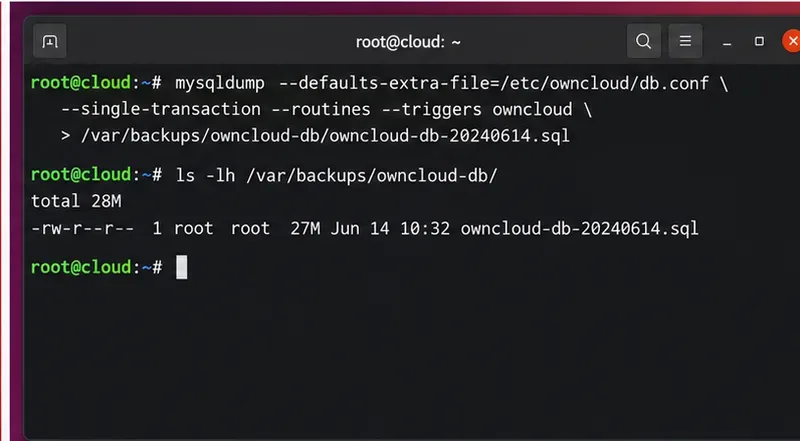
The first manual dump should finish successfully and leave a nonempty file in the backup directory.
When the manual backup is complete, turn maintenance mode off with the matching command:
Step 5: Put the backup logic in a failure-safe script
The script should stop on errors, record a timestamp, enable maintenance mode, create the dump, verify the compressed file, apply retention, and guarantee that maintenance mode is disabled on exit. The following example assumes a classic installation at /var/www/owncloud and a MySQL/MariaDB database named owncloud:
Save it as /usr/local/sbin/owncloud-db-backup.sh, make it executable with chmod 700, then run it manually. If your ownCloud is containerized, replace the two occ lines with the Docker Compose maintenance-mode commands that match your deployment.
Step 6: Schedule it with cron
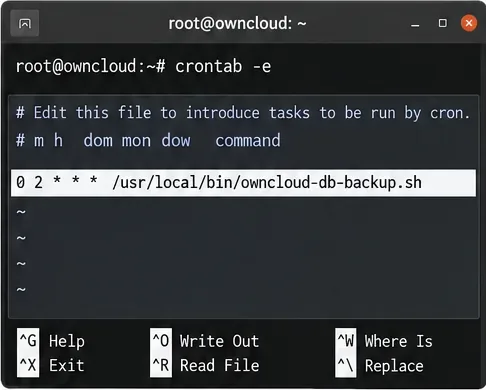
After the manual run succeeds, schedule the script. Open root's crontab:
Choose a time that matches your actual usage pattern. If the database is large, first measure how long the manual run takes because maintenance mode creates a visible service interruption. Also make sure cron has a predictable environment: use absolute paths in the script if the required commands are not in cron's default PATH.
A cron entry can run the tested backup script automatically during a quiet period.
Step 7: Verify every backup instead of trusting the timestamp
A file with today's date is not proof of a recoverable backup. At minimum, verify that the file is nonempty, that gzip reports no corruption, and that the job log has no dump errors:
ls -lh /var/backups/owncloud-db/
gzip -t /var/backups/owncloud-db/owncloud-db-YYYYMMDD-HHMMSS.sql.gz
tail -n 100 /var/log/owncloud-db-backup.log
For a stronger test, restore a recent dump into a disposable database on a non-production system. Do not test restore by overwriting your live database. A real restore drill checks more than file integrity: it confirms credentials, database privileges, dump compatibility, and the recovery procedure your team would actually use.
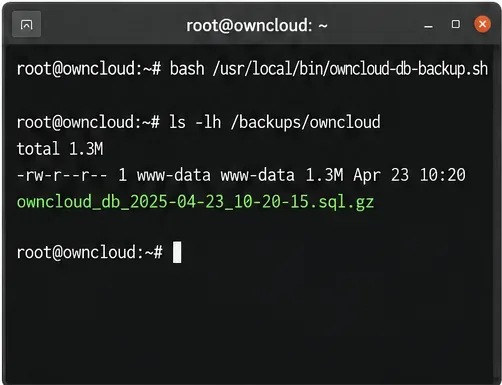
Check for a recent, nonempty backup and confirm that the scheduled job is producing files where expected.
Step 8: Confirm ownCloud returned to normal operation
After the script finishes, maintenance mode should be off and users should be able to sign in normally. Check the web interface and review the backup log. A robust automation is not only one that creates a dump; it is one that fails safely and does not leave the service locked in maintenance mode.
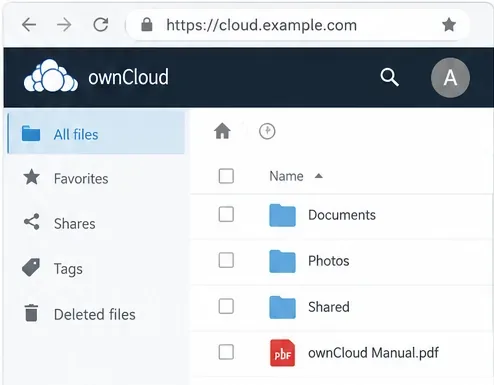
After the backup job, verify that ownCloud is out of maintenance mode and normal file access has returned.
What changes if you use PostgreSQL?
ownCloud's backup documentation uses pg_dump with an archive format for PostgreSQL. PostgreSQL's official pg_dump documentation states that pg_dump creates a consistent export even while the database is being used. The broader PostgreSQL backup and restore chapter also distinguishes logical dumps from file-system backups and continuous archiving.
For automation, prefer PostgreSQL's supported password-file mechanism rather than embedding PGPASSWORD in the script. Keep the same maintenance-mode, retention, logging, and restore-testing principles.
How many backups should you keep?
There is no single retention period that fits every ownCloud server. Match retention to how quickly data changes, how much storage is available, and how far back you may need to recover. Fourteen daily database dumps are a reasonable example for a small server, but they are not a universal requirement.
Situation
Practical approach
Small personal or team server
Daily dump plus 7–14 days of local retention and a second copy on separate storage.
Business server with frequent changes
Daily or more frequent database protection, file snapshots, off-host copies, and regular restore drills.
Large PostgreSQL deployment
Evaluate native PostgreSQL continuous archiving and point-in-time recovery in addition to logical dumps.
Encrypted ownCloud data
Back up the data directory and any custom encryption-key location together with the database and configuration.
Final self-check
Your automated database backup is ready only when all of these statements are true:
You know whether the server uses MySQL/MariaDB or PostgreSQL and have verified the correct database name and host.
The backup directory is protected and has enough free space.
Credentials are not exposed in the crontab command.
A manual backup completes successfully before scheduling is enabled.
The script always exits maintenance mode, including after a failed dump.
The scheduled job writes a log and creates a nonempty backup on time.
Old dumps are removed according to a deliberate retention policy.
A recent backup has been restored successfully to a non-production database.
The database backup is paired with backups of the ownCloud data, configuration, and other required directories.
If any of those checks fail, fix that point before relying on the automation. A backup system is only useful when the recovery path has been tested.