Nextcloud’s Elasticsearch integration is still active in 2026, but there is one compatibility detail worth checking before you begin: the current Full text search - Elasticsearch Platform app supports Elasticsearch 8, not Elasticsearch 9. The project’s official repository states that versions 26.0.0 and later are compatible only with Elasticsearch 8. In addition, Nextcloud 35 now has a matching 35.0.0 Elasticsearch platform release, published September 18, 2026. If you are upgrading an existing server, verify the app version that matches your Nextcloud major release before touching the search index.
This guide shows a practical setup for indexing file content in Nextcloud with Elasticsearch 8. It focuses on the standard three-app stack: the Full text search framework, the Elasticsearch platform connector, and the Files provider. The commands use the Nextcloud occ CLI because it is easier to validate and automate than relying only on the web interface.
Official references: Nextcloud Full text search - Elasticsearch Platform app, Nextcloud Elasticsearch platform repository, Nextcloud Full text search framework, Nextcloud Files full text search provider, and Elastic's single-node Docker installation guide.
What the Nextcloud full-text search stack actually contains
Nextcloud full-text search is not a single app. The core Full text search app provides the framework. A platform app connects that framework to a search engine, and one or more provider apps extract searchable content. For file content, the provider is Full text search - Files. Elasticsearch stores the resulting index and answers queries.
- Full text search: the core framework and search orchestration layer.
- Full text search - Elasticsearch Platform: the connector that sends documents and queries to Elasticsearch.
- Full text search - Files: the provider that exposes users' files to the framework for indexing.
- Elasticsearch 8: the external search engine that stores the index.
The separation matters when troubleshooting. A working Elasticsearch HTTP endpoint does not prove that Nextcloud can extract file content, and an enabled Files provider does not prove that the platform connector can reach Elasticsearch. The built-in fulltextsearch:test command is useful because it checks the configured chain rather than only one component.
Before you start
You need administrator access to Nextcloud, shell access to the server or container that runs Nextcloud, and an Elasticsearch 8 instance reachable from that environment. The examples below assume a Linux server and use Docker for Elasticsearch because it keeps the search service isolated. If you already run a managed or dedicated Elasticsearch 8 cluster, use its existing HTTPS endpoint instead.
For production, do not expose port 9200 directly to the public Internet. Elastic's current Docker documentation recommends binding the HTTP port to a controlled interface and retaining security features. Elastic also documents host requirements such as vm.max_map_count for production Docker deployments. Treat any security-disabled single-node command as a local lab shortcut, not a production template.
Step 1: Install the three required Nextcloud apps
From the Nextcloud Apps page, install and enable Full text search, Full text search - Elasticsearch Platform, and Full text search - Files. You can also install them with occ, which is often simpler on headless servers:
sudo -u www-data php /var/www/nextcloud/occ app:install fulltextsearch
sudo -u www-data php /var/www/nextcloud/occ app:install fulltextsearch_elasticsearch
sudo -u www-data php /var/www/nextcloud/occ app:install files_fulltextsearch
If your Nextcloud files live somewhere else, adjust the path to occ. In the official Nextcloud Docker image, the path is commonly /var/www/html/occ. After installation, use occ app:list to confirm that all three apps appear under Enabled.
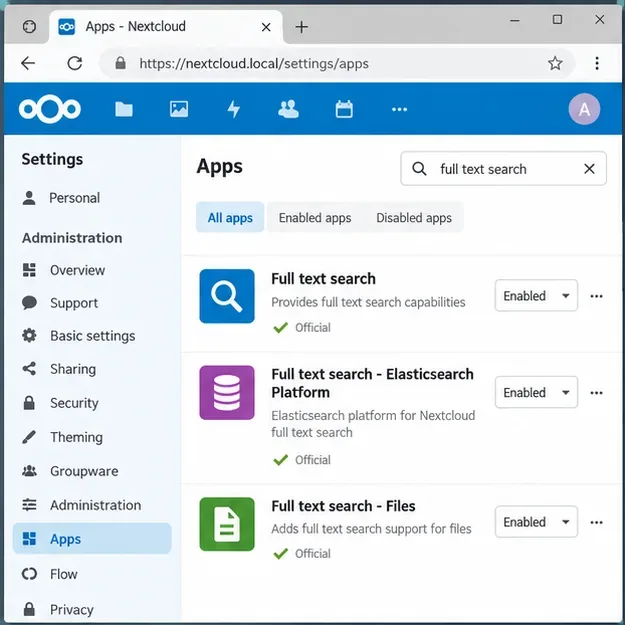
Caption: The Nextcloud Apps page with the core full-text framework, Elasticsearch platform connector, and Files provider enabled.
Step 2: Start Elasticsearch 8 and verify that Nextcloud can reach it
The Elasticsearch connector has required Elasticsearch 8 since the Nextcloud app's 26.0.0 generation. Do not substitute Elasticsearch 9 unless the official compatibility statement changes for the app version you are using.
For a local lab, Elastic documents a single-node Docker approach. A minimal test instance can be started on a private interface. In a production deployment, keep authentication and TLS enabled and follow Elastic's current installation guidance instead of disabling security.
docker run --name es01 --net elastic -p 127.0.0.1:9200:9200 -it -m 6GB docker.elastic.co/elasticsearch/elasticsearch:<ELASTICSEARCH_8_VERSION>
Elastic's secure default startup prints the password for the built-in elastic user and creates HTTP TLS certificates. You can then verify the node using the CA certificate and credentials as described in the official guide. If Nextcloud is in another Docker container, remember that 127.0.0.1 points to the Nextcloud container itself, not the Elasticsearch container. Put both services on a shared Docker network and use the Elasticsearch service name, such as https://elasticsearch:9200, or route through a private address.
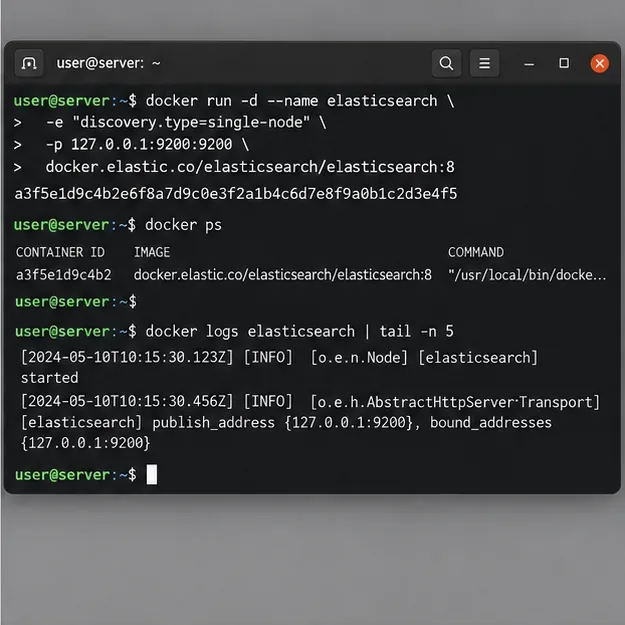
Caption: A terminal view of a single-node Elasticsearch service being started and checked; for production, keep authentication and TLS enabled rather than using an unsecured lab configuration.
Step 3: Configure Nextcloud to use Elasticsearch
You can configure the platform in the administration interface, but the CLI form is precise and reproducible. Nextcloud's own All-in-One integration configures the framework by selecting the Elasticsearch platform class and then passes the Elasticsearch host and index name to the connector.
sudo -u www-data php /var/www/nextcloud/occ fulltextsearch:configure '{"search_platform":"OCA\\FullTextSearch_Elasticsearch\\Platform\\ElasticSearchPlatform"}'

sudo -u www-data php /var/www/nextcloud/occ fulltextsearch_elasticsearch:configure '{"elastic_host":"https://elastic:YOUR_PASSWORD@elasticsearch:9200","elastic_index":"nextcloud_index"}'
Use a host URL that is reachable from the Nextcloud PHP process. If your Elasticsearch endpoint uses a private CA, make sure the Nextcloud environment trusts that CA rather than turning off certificate verification. Avoid placing credentials in shell history on shared systems; use a protected configuration method appropriate to your deployment.
The index name should be lowercase and dedicated to this Nextcloud instance. A name such as nextcloud_index is easy to identify. If several Nextcloud instances share one Elasticsearch cluster, give each instance a unique index name.
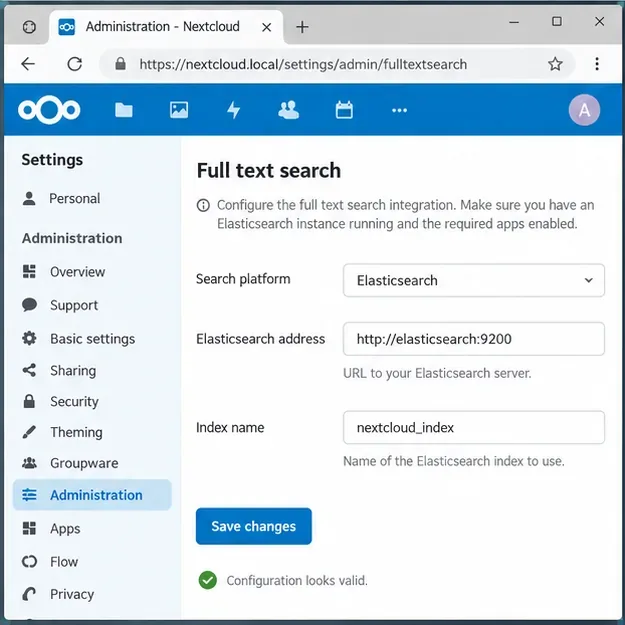
Caption: The Full text search administration screen with Elasticsearch selected as the search platform and a dedicated index name configured.
Step 4: Choose what file content should be indexed
The Files provider controls which categories of file content are sent for indexing. Nextcloud's All-in-One initialization currently enables PDF and office document extraction with this command:
sudo -u www-data php /var/www/nextcloud/occ files_fulltextsearch:configure '{"files_pdf":true,"files_office":true}'
Your available provider options may differ by app version, so inspect the current configuration before copying settings from an older tutorial. Also remember that text extraction quality depends on the source file. A normal PDF with embedded text is much easier to index than a scanned image-only PDF. Full-text search does not automatically make poor OCR accurate.
Step 5: Test the complete search configuration
Before indexing a large library, run the framework test:
sudo -u www-data php /var/www/nextcloud/occ fulltextsearch:test
A successful test should show that the platform is reachable and the configured provider/platform combination can operate. If it fails, fix the connection before starting the initial index. Typical causes include using localhost from the wrong container, certificate trust problems, authentication failures, an incompatible Elasticsearch major version, or an index configuration that Elasticsearch rejects.
Step 6: Build the initial index
Once the test passes, create the initial index:
sudo -u www-data php /var/www/nextcloud/occ fulltextsearch:index
On a large server this can take time and consume CPU, memory, storage I/O, and Elasticsearch heap. Run the first crawl during a low-traffic window and watch both Nextcloud and Elasticsearch logs. The framework also supports an error-reset form used by Nextcloud All-in-One during initial setup:
sudo -u www-data php /var/www/nextcloud/occ fulltextsearch:index '{"errors":"reset"}' --no-readline
Do not repeatedly reset and rebuild a healthy index without a reason. For upgrades, first read the release notes for the three search apps and check whether a reindex is actually required.
Step 7: Keep the index current
An initial index is only a snapshot. New uploads and edits need ongoing indexing. The Full text search framework includes a fulltextsearch:live command for continuous processing. If you use it, run it under a process supervisor or another service manager so it is restarted after failures or host reboots.
sudo -u www-data php /var/www/nextcloud/occ fulltextsearch:live
Do not launch an unmanaged foreground process in an SSH session and assume indexing will continue after logout. Container deployments can run the live worker as a dedicated supervised process; traditional servers can use systemd or a supervisor. Monitor it like any other background service.
Step 8: Verify search from both the CLI and the Nextcloud interface
After the initial crawl completes, search for a phrase that appears inside a known document rather than only in its filename. This confirms that content extraction and indexing are working. Recent Full text search versions also support search through occ, which is useful when separating a backend indexing problem from a browser or unified-search problem.
In the web interface, use Nextcloud's search field and look for a distinctive phrase from a PDF, DOCX, or text file that you know was indexed. If filename searches work but document-body searches do not, inspect the Files provider settings and the type of source document.
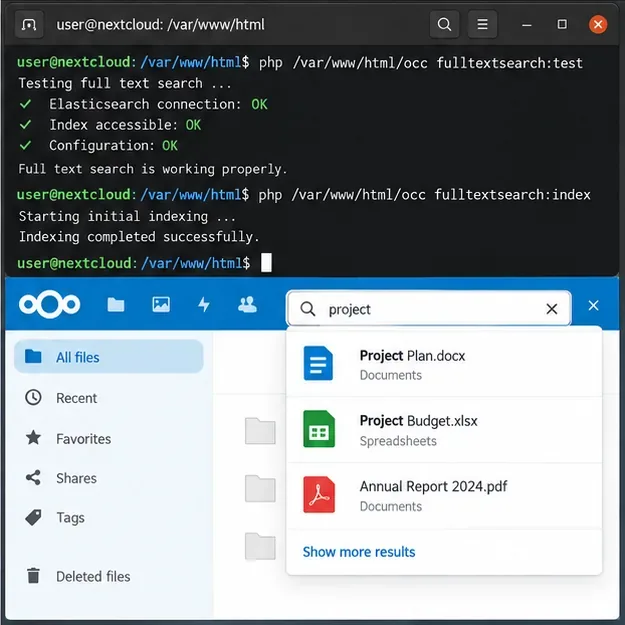
Caption: A successful framework test and initial index followed by a Nextcloud search that returns indexed documents.
Troubleshooting common failures
Elasticsearch works with curl, but Nextcloud cannot connect
Test from the same network namespace as the Nextcloud PHP process. In Docker, a successful request from the host does not prove that the Nextcloud container can resolve or reach the Elasticsearch service. Check DNS, container networks, firewall rules, TLS trust, and the exact scheme in the configured URL.
The connector reports an Elasticsearch version problem
Check the actual Elasticsearch major version, not just the image tag you intended to deploy. The current official connector repository still states Elasticsearch 8 compatibility for app version 26.0.0 and later. At the time of writing, an open upstream request exists for Elasticsearch 9 support, so Elasticsearch 9 should not be assumed compatible.
Indexing uses too much memory
Watch Elasticsearch heap, container memory limits, and host memory together. Elastic's Docker production documentation also calls out host-level settings such as vm.max_map_count. If the JVM is being killed, increasing only the Nextcloud PHP memory limit will not solve the Elasticsearch side of the problem.
Some shared or external files are missing
Search behavior can depend on provider support and app version. The Files provider project continues to track issues involving shared folders, group folders, and external storage. If one storage type behaves differently from ordinary local files, reproduce the problem with a small controlled example and check the provider's official issue tracker before rebuilding the entire index.
How to know the setup is complete
A healthy deployment has four observable signs: Elasticsearch 8 is reachable from Nextcloud, fulltextsearch:test passes, the initial fulltextsearch:index completes without unresolved errors, and searching for text inside a known document returns that file for an authorized user. Keep the index endpoint private, preserve Elasticsearch security in production, and upgrade the three Nextcloud search apps in step with your Nextcloud major release.
For version-sensitive details, use the official Nextcloud Elasticsearch platform release list and the official Elastic production Docker guidance. Those sources are the safest place to confirm compatibility and host requirements before a major upgrade.









