Home
» NETWORK ADMIN
»
How to Set Up Nextcloud Office with CODE Docker in 10 Minutes
How to Set Up Nextcloud Office with CODE Docker in 10 Minutes
Current note for 2026: Nextcloud 35 documentation now separates Nextcloud Office, which is powered by Euro-Office, from Collabora Online, which remains a supported alternative and can still be self-hosted with the official CODE Docker image. This guide uses that external Collabora/CODE path. The naming matters because older guides often describe CODE as if it were the only server behind “Nextcloud Office.” See the current Nextcloud Office overview before applying instructions written for older releases.
If your Nextcloud site already works over HTTPS, Docker is installed, and you have a DNS name such as office.example.com ready for Collabora, the integration itself can be completed in about 10 minutes. DNS propagation, certificate issuance, firewall changes, or troubleshooting a reverse proxy can take longer and are not included in that estimate.
What you need before starting
The fast path assumes one existing Nextcloud instance, one Linux host that can run Docker, and a dedicated HTTPS hostname for CODE. Nextcloud's current Docker example recommends a separate subdomain and a valid TLS certificate. CODE listens on port 9980 internally, while a reverse proxy exposes it securely to browsers and to Nextcloud.
A working Nextcloud server reachable at a URL such as https://cloud.example.com.
Docker Engine on the host that will run CODE.
A DNS record such as office.example.com pointing to your reverse proxy.
A valid HTTPS certificate for the office hostname.
Administrator access to Nextcloud and root or sudo access to the Docker host.
Nextcloud's current installation documentation says the built-in CODE server is easiest for personal or small-team use, but recommends a dedicated Collabora Online installation for better performance. The official collabora/code image on Docker Hub is the image used below.
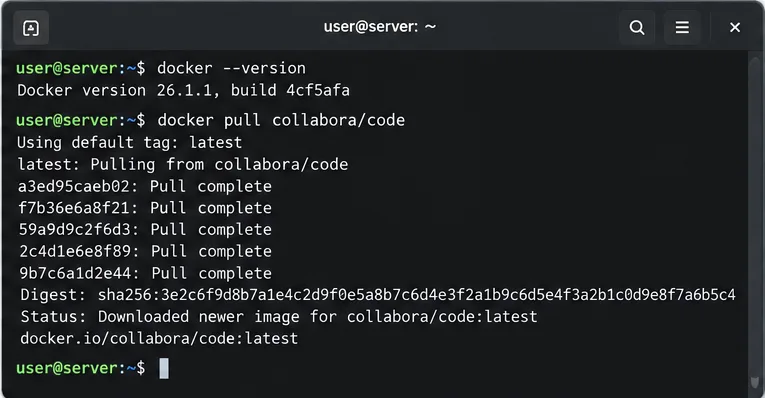
Verify Docker first, then pull the official Collabora CODE image. The exact Docker version shown is illustrative; use a currently supported Docker release on your host.
Step 1: Pull the CODE Docker image
On the Docker host, confirm that Docker is available and pull the official image:
The latest tag is convenient for a short setup guide because Collabora publishes updates frequently. For a production environment, consider pinning a specific version that you have tested, then schedule deliberate upgrades instead of allowing an unexpected image change during a rebuild.
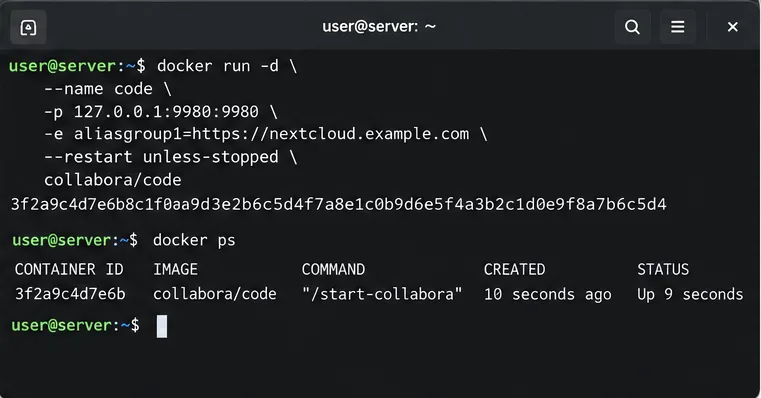
Step 2: Start CODE for your Nextcloud host
The current Nextcloud Docker example uses aliasgroup1 to tell CODE which Nextcloud host is allowed to integrate with it. Replace the example hostname with your real Nextcloud URL:
Binding to 127.0.0.1 keeps port 9980 from being directly exposed to the Internet when the reverse proxy runs on the same server. If your proxy runs on another machine, design the network rules so only the proxy can reach CODE; do not simply publish port 9980 to everyone.
Run CODE on 127.0.0.1:9980 when a reverse proxy on the same host will provide the public HTTPS endpoint.
Step 3: Put HTTPS and a reverse proxy in front of CODE
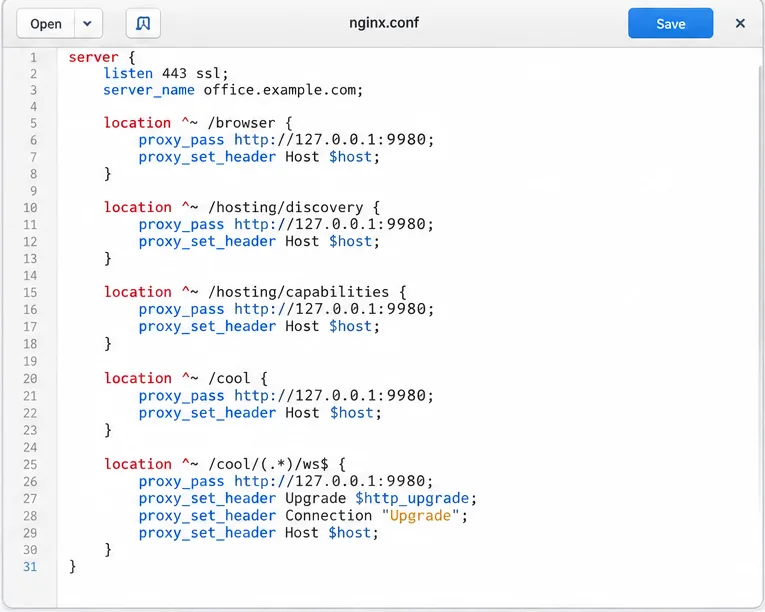
Nextcloud documents the required Collabora paths as /browser, /hosting/discovery, /hosting/capabilities, /cool/adminws, /cool, plus WebSocket traffic under /cool/.../ws. That is why a generic “proxy everything except WebSockets” configuration often produces an editor that opens partially and then disconnects.
Your reverse proxy must forward the Collabora browser, discovery, capabilities, /cool, and WebSocket endpoints. Match the upstream protocol to the SSL mode of your CODE container.
For Nginx, the following compact example keeps CODE's default internal HTTPS and terminates public TLS at Nginx. Use your own certificate paths:
This is intentionally a minimal routing example, not a complete Nginx security baseline. If you run CODE with internal TLS disabled instead, the upstream becomes http://127.0.0.1:9980 and the container must be configured consistently. Do not mix an HTTP proxy target with a CODE container still expecting HTTPS.
Step 4: Verify the public CODE endpoint
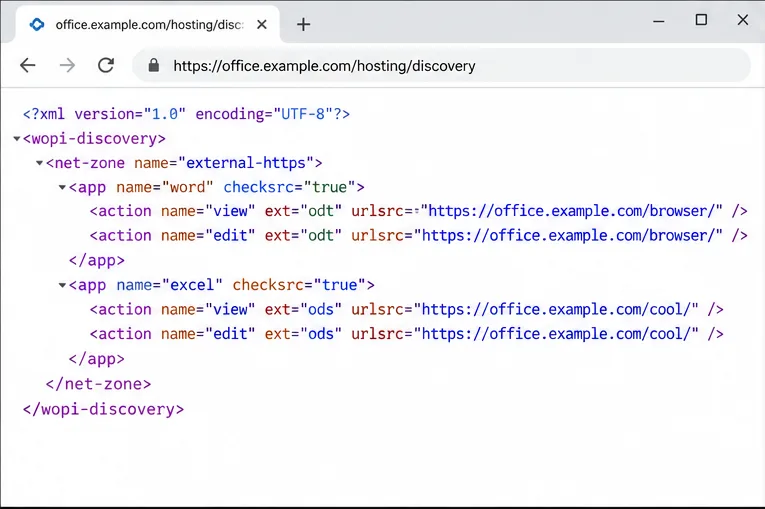
Before touching Nextcloud settings, open this URL in a browser:
https://office.example.com/hosting/discovery
A valid response from /hosting/discovery is a quick way to confirm that the public CODE endpoint and reverse proxy are responding.
You should receive WOPI discovery XML rather than a proxy error, certificate warning, or blank connection failure. You can also test from the command line:
curl -fsS https://office.example.com/hosting/discovery | head
If this fails, fix DNS, TLS, the proxy, or the container first. Connecting Nextcloud to a broken endpoint only adds another layer to troubleshoot.
Step 5: Enable the Nextcloud office integration
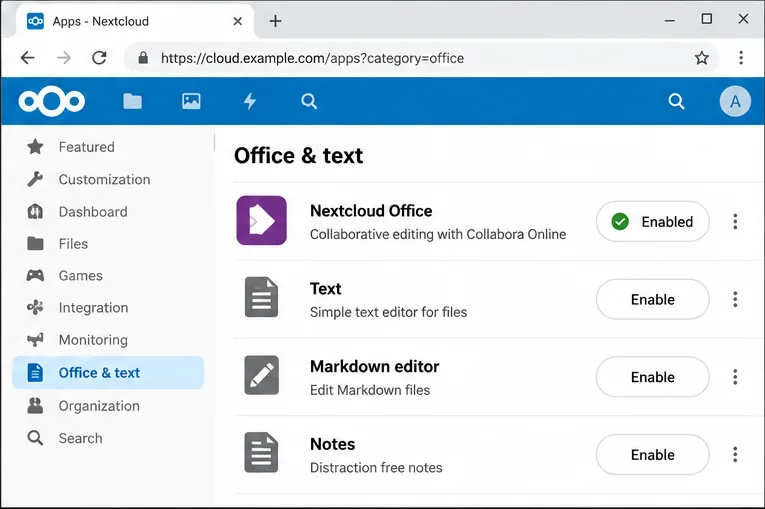
Sign in to Nextcloud as an administrator, open Apps, go to Office & text, and enable the office integration app available for your installation. The current Nextcloud Collabora Docker example still directs administrators to install the “Nextcloud Office” app and then configure the external server under the Office administration settings, even though the Nextcloud 35 overview now distinguishes the Euro-Office and Collabora products.
Enable the office integration app in Nextcloud before entering the external CODE server address.
If your Nextcloud release uses slightly different labels, follow the product names shown in your own administration interface rather than assuming an older screenshot matches exactly.
Step 6: Point Nextcloud at the external CODE server
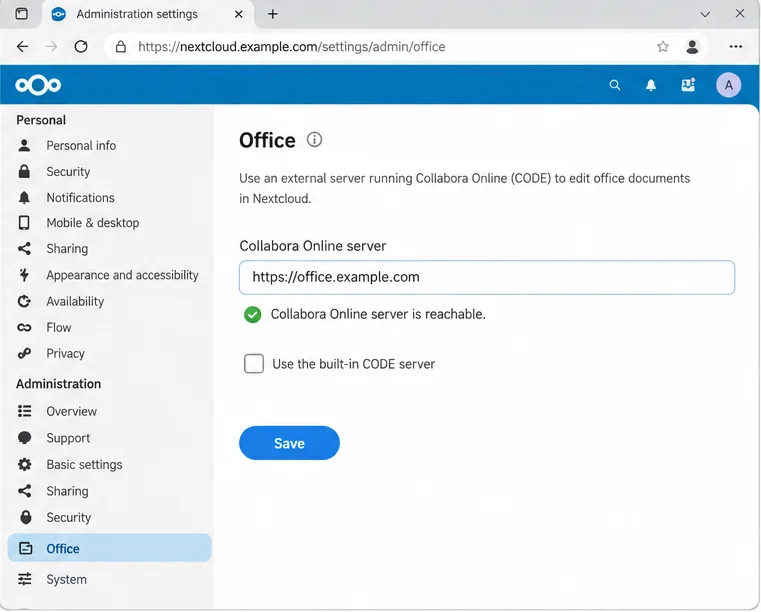
Open Administration settings → Office. Choose the external Collabora/office server option and enter:
https://office.example.com
The Office administration page is where the external Collabora URL is entered after the proxy is reachable.
Save the setting and wait for Nextcloud's connection check. Nextcloud recommends using the same protocol on both sides, with HTTPS preferred. A successful check means Nextcloud can reach the Collabora endpoint, but it does not yet prove that every browser WebSocket route and WOPI request will work during a real editing session.
Step 7: Restrict WOPI requests
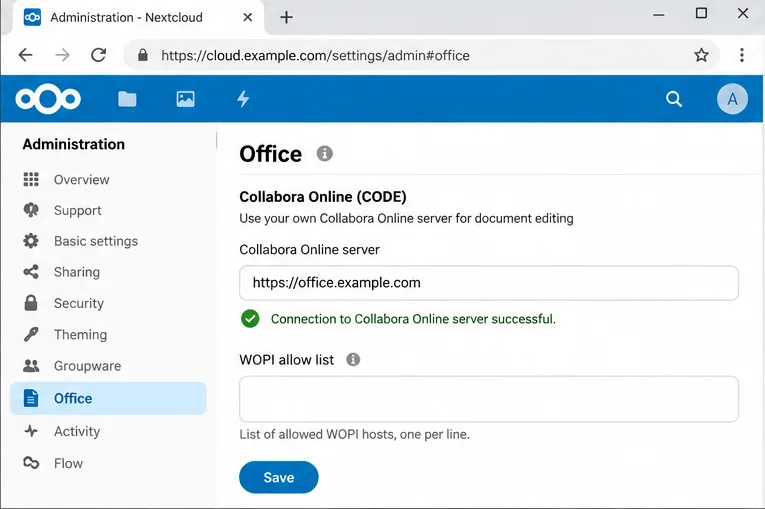
After the basic connection works, tighten the WOPI configuration. Nextcloud's current configuration guide highly recommends restricting WOPI requests to the IP addresses of the Collabora servers that are expected to request files. In Administration settings → Office, use the Allow list for WOPI requests field where available.
After the connection succeeds, review the WOPI allow list so only expected Collabora server addresses can request files.
This is an important security control because the WOPI flow is how Collabora retrieves and writes documents on behalf of Nextcloud users. Use IP addresses or networks that actually represent your CODE server path as required by your deployment; do not paste a hostname into an IP allow-list field merely because it looks similar to the server URL field. Review Nextcloud's Collabora configuration and WOPI guidance for the current options.
Step 8: Open a real document and confirm saving
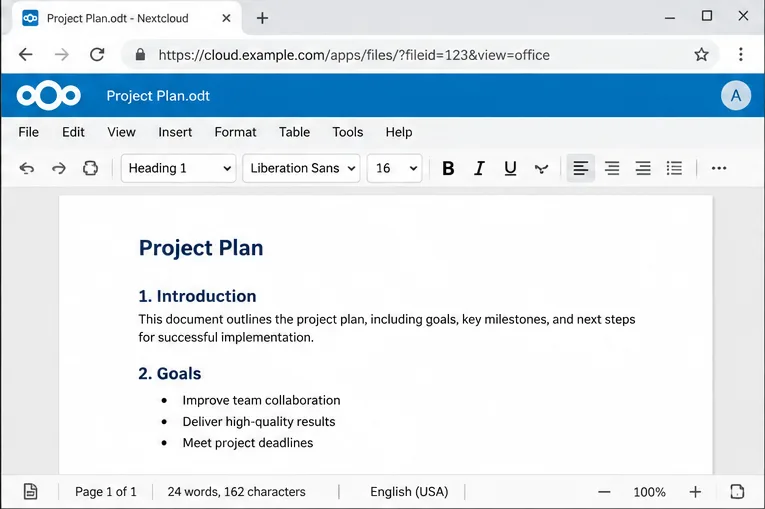
Create a small ODT or DOCX file in Nextcloud, open it, type a sentence, close the editor, and reopen the file. This checks the complete chain: browser → public CODE hostname → reverse proxy → CODE → WOPI request to Nextcloud → save back to storage.
The final test is practical: create or open a document and confirm that the editor loads, accepts changes, and saves them back to Nextcloud.
A setup is not finished just because the Office settings page says the server is reachable. A healthy result is that the editor loads without a connection warning, the document can be changed, and the saved change remains after reopening. If the editor shell loads but editing disconnects, focus first on the /cool/.../ws WebSocket route. If the editor cannot load the file at all, check the CODE logs, Nextcloud logs, DNS resolution between both servers, and WOPI allow-list rules.
Quick troubleshooting checklist
Symptom
First check
Nextcloud says the office server is unreachable
Open /hosting/discovery over HTTPS from the Nextcloud host.
Browser gets 502 or 504
Confirm the container is running and the proxy can reach 127.0.0.1:9980.
Editor opens, then disconnects
Verify WebSocket upgrade headers and the /cool/(...)/ws route.
Certificate error
Fix the public certificate chain and make sure the configured URL uses the correct hostname.
WOPI access denied
Review Nextcloud's WOPI allow list and CODE's allowed Nextcloud host configuration.
Works on one network but not another
Check split DNS, firewall rules, and whether both Nextcloud and CODE can resolve each other's public names.
Keep CODE updated without turning upgrades into surprises
Collabora publishes CODE updates frequently. The official Docker Hub page shows actively maintained tags, and Nextcloud's upgrade guidance says Docker deployments are updated by pulling a newer image and recreating the container. For a home server, tracking latest can be reasonable. For business use, pin a tested tag, read release notes, back up your configuration, then upgrade during a maintenance window.
Also keep the scope of CODE in mind. Docker Hub describes CODE as the development edition aimed at home users, while Nextcloud documentation points larger or reliability-sensitive deployments toward supported enterprise options. A 10-minute Docker setup is excellent for a personal cloud, lab, or small team, but it is not a substitute for capacity planning, monitoring, backups, or enterprise support.
Final result
Once the container is running, HTTPS proxying is correct, /hosting/discovery responds, the Nextcloud integration points to https://office.example.com, WOPI is restricted, and a real document opens and saves, the integration is complete. The most important detail is not the number of commands; it is keeping the network path consistent. Nextcloud, CODE, the reverse proxy, and users' browsers must all be able to reach the expected HTTPS hostnames with the correct WebSocket and WOPI routes.