Home
» NETWORK ADMIN
»
How to Set Up Two-Factor Authentication (2FA) in the Zimbra Admin Console
How to Set Up Two-Factor Authentication (2FA) in the Zimbra Admin Console
The most important point: in current Zimbra Daffodil documentation, the Admin Console is where you enable or require two-factor authentication for an account or Class of Service (COS), but an administrator enrolls their own second factor in the Zimbra Web Client. After enrollment, the same administrator is prompted for the second factor when signing in to the Administration Console. Treating those as two separate stages prevents the most common setup mistake.
This guide follows the current Zimbra Daffodil (v10) administrator documentation available in October 2026. Menu labels can differ slightly between Classic and Modern Web App releases, so Zimbra explicitly notes that the enrollment page may appear under Preferences > Accounts or Security. See the Zimbra Daffodil Administrator Guide for the authoritative workflow.
What you are actually configuring
Zimbra separates policy from enrollment. The policy says whether 2FA is available or mandatory and which methods users may use. Enrollment binds a particular administrator account to an authenticator app or, when your deployment allows it, a recovery-email verification method. Zimbra documents 2FA policy at both the individual account level and the COS level.
For a broad rollout, COS is usually the cleaner starting point because it applies consistent settings to every account assigned to that class. For a pilot, a single administrator account can be safer because you can validate login behavior before expanding the policy. If you manage delegated administrators, Zimbra also supports 2FA for those accounts, subject to the appropriate rights.
Before you begin
Use an administrator account that can reach the Admin Console. In a typical installation, Zimbra documents the console at https://server.domain.com:7071/.
Make sure the administrator can also sign in to the Zimbra Web Client, because enrollment is completed there.
If you plan to use TOTP, have a compatible authenticator app available. TOTP means time-based one-time password: the app generates short-lived verification codes from a shared secret.
If you plan to allow email verification, confirm that recovery-email configuration is appropriate for your deployment. Zimbra Daffodil documents email as an additional 2FA factor.
Before forcing 2FA for a large COS, test with at least one administrator and document a recovery path. A bad rollout can lock people out of the console even when the server itself is healthy.
Step 1: Sign in to the Zimbra Administration Console
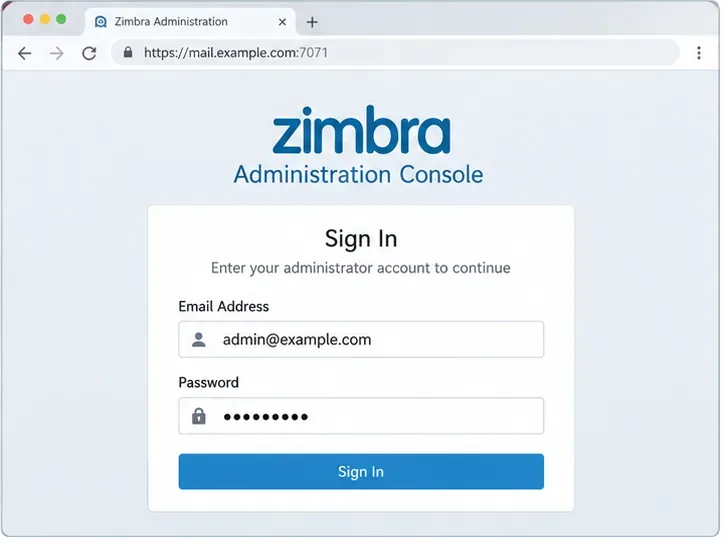
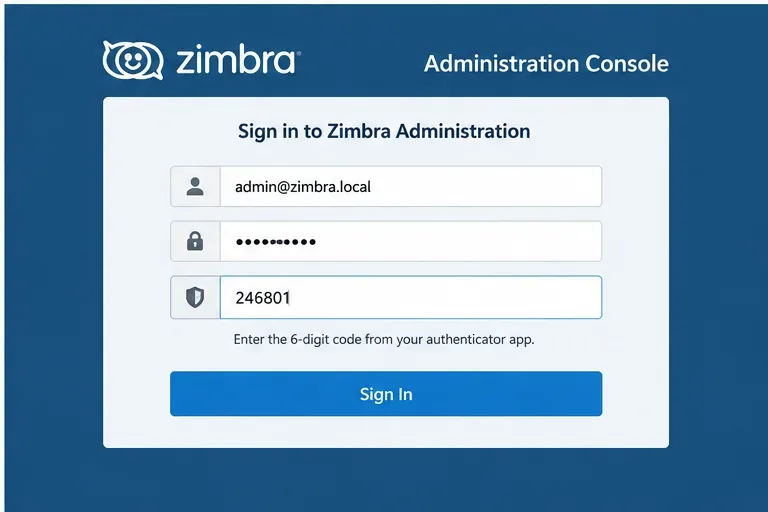
Open the Administration Console over HTTPS and sign in with the full administrator address and password. Zimbra lists port 7071 as the default Admin Console port in a typical installation. Your deployment may be behind a reverse proxy or use another access pattern, so use your organization’s normal administrative URL if it differs.
Administrator sign-in is the starting point for changing the 2FA policy. The exact hostname can differ from this example.
Step 2: Open the Class of Service you want to protect
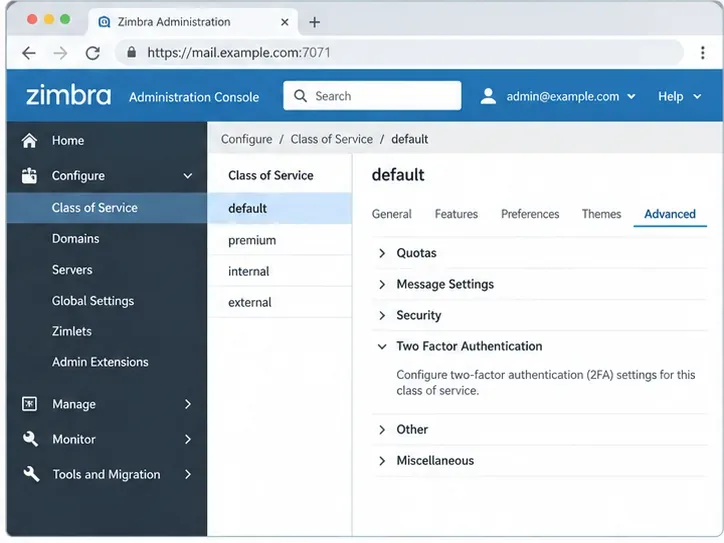
For a COS-wide policy, go to Configure > Class of Service, select the relevant COS, open Advanced, and find Two Factor Authentication. The official guide gives this path as Home > Configure > Class of Service > COS > Advanced > Two Factor Authentication.
If you only want to protect one existing account, use Manage > Accounts, edit the account, open Advanced, and scroll to the Two Factor Authentication section instead. Starting with one account is a sensible way to validate the behavior before enforcing it for an entire class.
The COS Advanced page is where Zimbra exposes policy settings for two-factor authentication.
Step 3: Enable 2FA availability before you require it
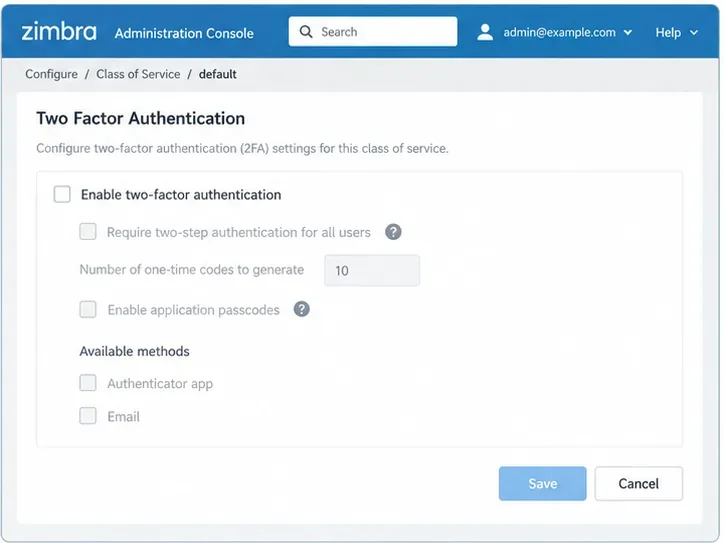
Check Enable two-factor authentication. This makes the feature available for the selected account or COS. Do not confuse that setting with Require two-step authentication: enabling makes enrollment possible; requiring makes it mandatory.
That distinction matters during a staged deployment. For example, you can first enable 2FA for an administrator COS, enroll and test two or three administrator accounts, and only then turn on the requirement. Zimbra’s official 2FA documentation describes both controls separately.
Before activation, the dependent 2FA options are unavailable. Enable the feature first, then choose the policy you actually need.
Step 4: Choose methods and related policy settings
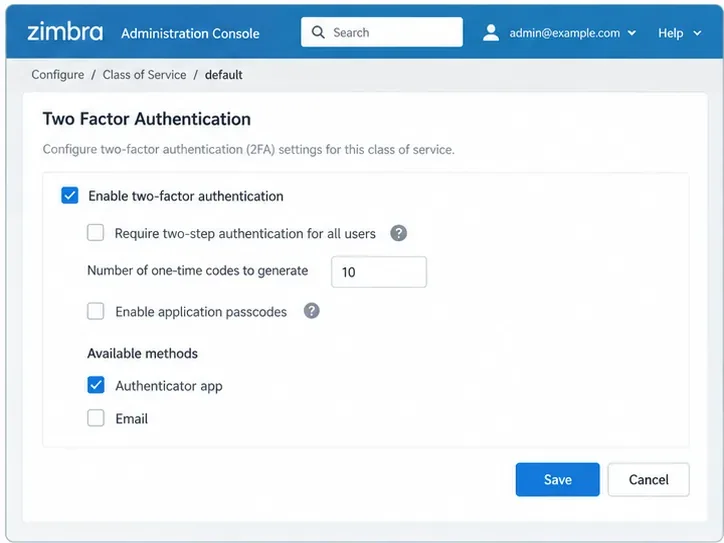
After enabling the feature, choose the 2FA methods allowed by your version and deployment. Current Zimbra Daffodil documentation lists an Authenticator app and Email as supported methods when enabled. The official 2024 Zimbra guidance also shows that administrators can allow the authenticator app, email, or both.
The same policy area can include Require two-step authentication, the number of one-time recovery codes to generate, and Enable application passcodes. Application passcodes are intended for legacy clients that cannot complete an interactive 2FA flow. Do not enable them automatically just because they exist; use them only when you have a client requirement and an operational process for revoking them.
Save the configuration when the settings match your rollout plan. For current command-line equivalents and method controls, see Zimbra’s official 2FA administrator guidance.
An example policy enables 2FA and allows an authenticator app. Requiring 2FA is a separate decision and can be phased in later.
Step 5: Enroll the administrator in the Zimbra Web Client
Now leave the Admin Console and sign in to the Zimbra Web Client with the same administrator account. This is the part that is easy to miss: Zimbra’s Daffodil guide says administrator accounts must configure their own 2FA from the Web Client interface.
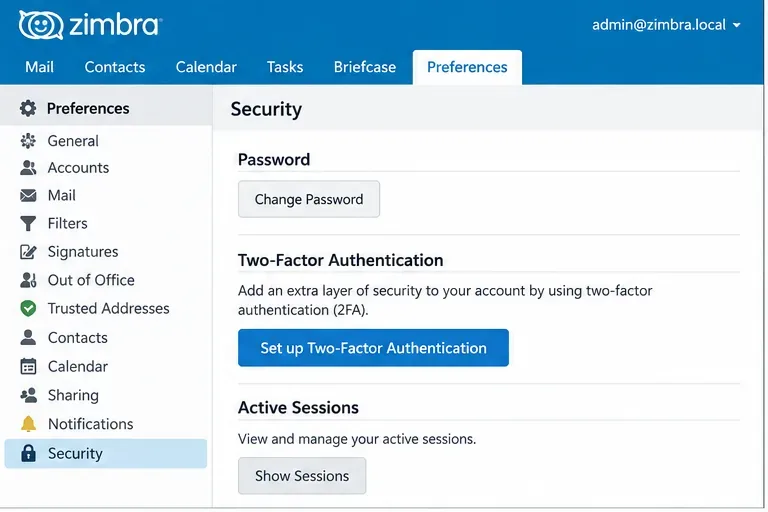
Open Preferences, then Accounts or Security depending on the UI version, find Two-Factor Authentication, and start setup. If no setup option appears, first confirm that 2FA has actually been made available for that account through its account settings or inherited COS policy.
Administrator enrollment happens in the Web Client, not entirely inside the Admin Console.
Step 6: Select a verification method
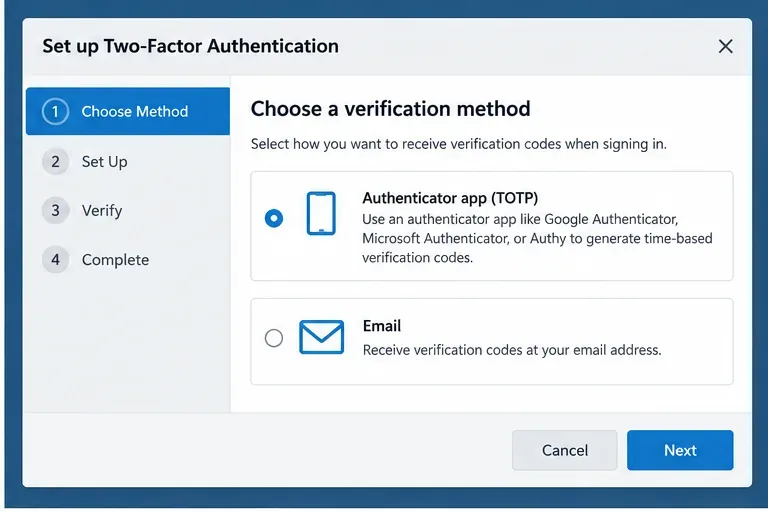
Choose the method your policy permits. An authenticator app uses TOTP codes and does not depend on receiving a message at login time. Email-based verification uses a recovery email as the additional factor when that method has been enabled and configured. If your organization permits both, decide which method fits your recovery and operational requirements rather than assuming they are interchangeable.
For privileged administrator accounts, also think about what happens if the second factor becomes unavailable. A method is only useful if you can recover access without weakening the account or creating an unsafe workaround.
Choose a method that the administrator policy allows. Available options can vary with Zimbra version and deployment settings.
Step 7: Complete authenticator setup and verify a code
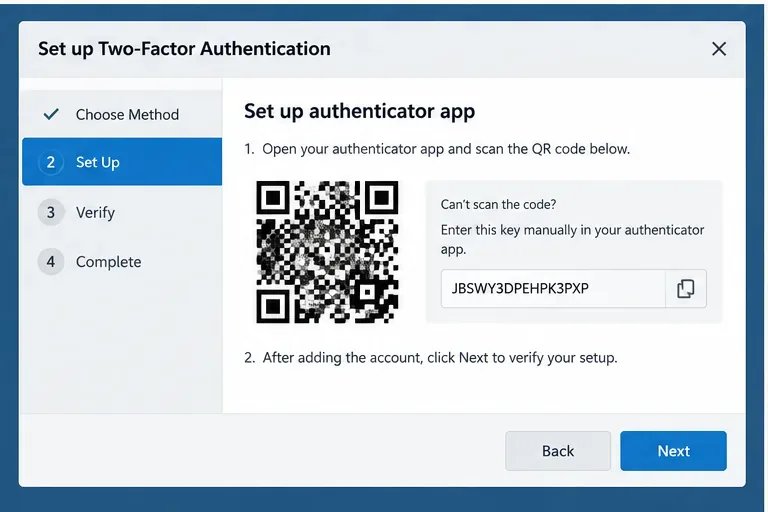
If you choose an authenticator app, follow the on-screen setup process, add the Zimbra account to the app, and enter the verification code requested by Zimbra. The interface may present a QR code or a manual secret, depending on the client version. Treat the setup secret as sensitive credential material; anyone who obtains it may be able to generate valid TOTP codes.
After enrollment, store the one-time recovery codes securely if your configuration provides them. The current Modern Web App guide explains that each recovery code can be used once and recommends keeping the codes in a safe place. The same guide documents app passcodes for email programs that cannot prompt for the second factor: Zimbra Daffodil Modern Web App User Guide.
Authenticator enrollment pairs the Zimbra account with a TOTP app, after which Zimbra asks for a code to confirm setup.
Step 8: Test a fresh Admin Console login
Sign out of the Admin Console and Web Client, then start a fresh Admin Console session. Enter the administrator username and password. A correctly enrolled administrator should then be required to complete the additional verification step. Zimbra’s administrator guide states that once 2FA is enabled for the administrator account, the code is required for both Web Client and Administration Console login.
Do not consider the change complete until this test succeeds. If the password alone still signs in, re-check whether you changed the intended account or COS, whether the account has actually completed enrollment, and whether the account inherits the expected COS. If login fails after the password stage, use your documented recovery process rather than repeatedly changing unrelated settings.
The success condition is a fresh Admin Console login that requires the enrolled second factor after the password.
Should you enable or require 2FA?
Setting
What it does
When it fits
Enable two-factor authentication
Makes 2FA available to the account or COS.
Pilots, staged rollout, voluntary enrollment before enforcement.
Require two-step authentication
Makes the second factor mandatory for the selected scope.
After administrators have enrolled and recovery procedures are tested.
Authenticator app
Uses time-based one-time codes.
Good when administrators can maintain a dedicated authenticator method.
Email
Uses a configured recovery email as an additional factor.
Only when your Zimbra version, recovery-email setup, and security policy support it.
Application passcodes
Provides credentials for clients that cannot perform the interactive 2FA flow.
Legacy client compatibility, with controlled issuance and revocation.
What to check if the 2FA options are missing
First verify the actual Zimbra version and edition you are running rather than assuming screenshots from another release apply. Then check whether 2FA is available to the account through its COS or account-level settings and whether the administrator has the required rights. Zimbra also documents licensing and feature entitlements in Daffodil, so an environment with missing security features should be checked against its activated license and official support information instead of forcing attributes blindly.
Older Zimbra wiki material also notes that 2FA was introduced in the 8.7 era and that older mailbox servers were not compatible. That is mainly relevant to legacy or mixed-version environments; for a current deployment, follow the documentation that matches your installed Daffodil release.
How to know the setup is finished
You are done when all four conditions are true: the intended account or COS has 2FA enabled; the administrator has enrolled an allowed method in the Web Client; recovery codes or approved fallback procedures are documented where applicable; and a fresh Administration Console login cannot proceed with the password alone.
If your goal is only to protect one highly privileged administrator, use account-level settings and test that account. If your goal is organization-wide enforcement, validate a pilot COS first, then expand the policy deliberately. The core setup is straightforward; the part that deserves care is rollout sequencing, recovery, and compatibility with clients that cannot complete the normal second-factor flow.