Home
» NETWORK ADMIN
»
How to Set Up Two-Factor Authentication in ownCloud Infinite Scale
How to Set Up Two-Factor Authentication in ownCloud Infinite Scale
To require two-factor authentication (2FA) for ownCloud Infinite Scale sign-ins, configure it in the OpenID Connect identity provider (IDP) that authenticates your users. For many deployments, that means enabling time-based one-time passwords (TOTP) in Keycloak, then requiring users to enroll before they can finish signing in. Infinite Scale does not provide a general-purpose TOTP enrollment screen of its own. Its built-in IDP is minimal; ownCloud recommends using an external OpenID Connect provider for broader identity needs, and its documentation points to Keycloak for 2FA.
Hypothetical example: Northstar Design is a fictional 40-person company with ownCloud Infinite Scale already connected to a Keycloak realm named files. Staff currently sign in with a password. The administrator wants them to enroll an authenticator app and use a code when they next authenticate. This example is illustrative, not a report of a real installation or test. The steps below assume Keycloak is already the IDP used by Infinite Scale; if it is not, first follow the official deployment guidance for connecting the two services.
The interface images in this guide are conceptual examples, not screenshots from a live Northstar or ownCloud system. Menu wording and layout may differ across Keycloak versions. The instructions were checked against the ownCloud Infinite Scale 8.2 documentation and Keycloak Server Administration Guide 26.8 on October 6, 2026.
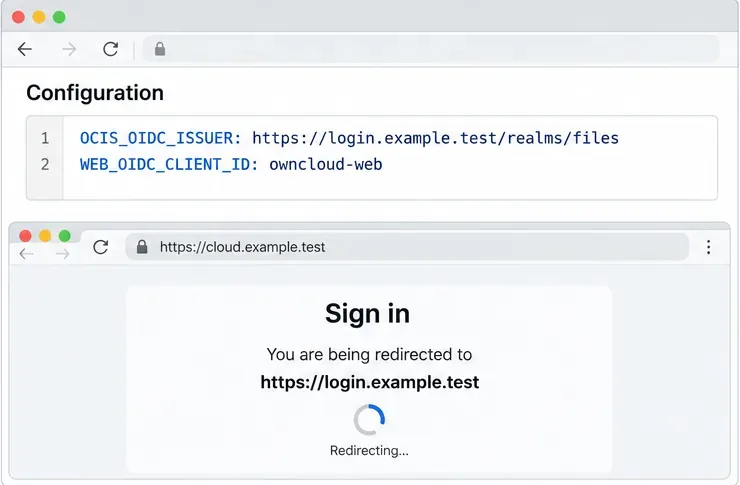
For this fictional setup, Infinite Scale sends users to the configured Keycloak issuer; the exact OIDC settings depend on the existing deployment.
What 2FA changes in an Infinite Scale deployment
OpenID Connect (OIDC) is the sign-in protocol that lets Infinite Scale rely on an IDP rather than authenticate each password itself. Keycloak asks for the primary credential and, when its authentication flow requires it, a second factor such as TOTP. Infinite Scale then receives the resulting OIDC authentication. A TOTP is a short-lived code generated from a shared secret and the current time; an authenticator app stores the secret when a user scans the enrollment QR code.
That separation matters. Setting an OTP policy in Keycloak changes how Keycloak authenticates users. Setting an ownCloud MFA option does not enroll a phone or create a TOTP credential. In particular, the ownCloud OCIS_MFA_ENABLED option is for step-up authentication on specific protected routes when the IDP supports the OpenID Connect Authentication Context Class Reference (ACR) claim. It is not a switch that adds a universal TOTP prompt to every login.
Before changing the realm
Confirm which IDP and realm the production Infinite Scale clients actually use. Compare the OIDC issuer and client IDs with the deployment configuration rather than guessing from the browser address bar.
Have an administrator account for the correct Keycloak realm, a supported authenticator app for each user, and a recovery process for users who lose a device.
Check that the Keycloak login page and Infinite Scale are available over HTTPS with valid certificates. Keep an existing administrator session open while making authentication changes, and test with a non-administrator account first.
Inventory all sign-in paths. The browser flow controls browser-based OIDC authentication; API credentials, service accounts, app passwords, or other authentication flows may be governed separately.
1. Confirm that Infinite Scale uses Keycloak
In the Northstar example, the administrator confirms that the web client is already redirected to the files realm at https://login.example.test/realms/files. The ownCloud deployment example uses settings such as OCIS_OIDC_ISSUER, WEB_OIDC_CLIENT_ID, and, in its Keycloak setup, PROXY_OIDC_REWRITE_WELLKNOWN. These are deployment configuration values, not fields that ordinary users change in the Infinite Scale web interface.
If your instance still uses the embedded IDP, plan the Keycloak integration separately before enforcing OTP. Connecting an external IDP involves more than entering an issuer URL: client registration, redirect and web-origin configuration, token claims, HTTPS, and the desktop or mobile clients in use all need to agree. Use ownCloud's maintained Keycloak deployment example as a starting point for your exact version and topology.
2. Select a time-based OTP policy in Keycloak
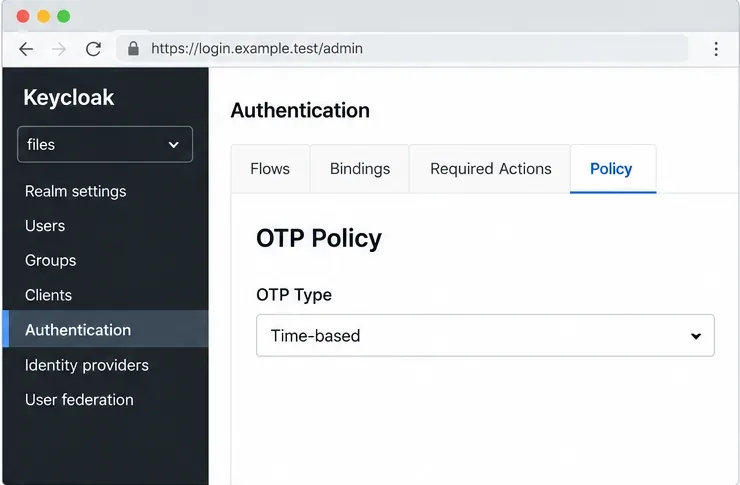
Open the files realm in Keycloak Admin Console and go to Authentication, then Policy, then OTP Policy. Choose a time-based policy (TOTP) for authenticator apps. Keycloak also supports counter-based HOTP, but TOTP is the usual fit for phone authenticator apps because codes change with time.
Review the policy before rollout. Keycloak exposes settings such as the hash algorithm, code length, clock-drift window, token period, and whether a code can be reused. Start with values supported by the authenticators your users have. A larger clock window can help with clock drift, but it also extends the interval in which a code may be accepted. Keep the server clock synchronized and avoid widening that window as a substitute for fixing time synchronization.
Choose a time-based OTP policy in the realm so users can enroll compatible authenticator apps.
3. Require OTP enrollment for new users
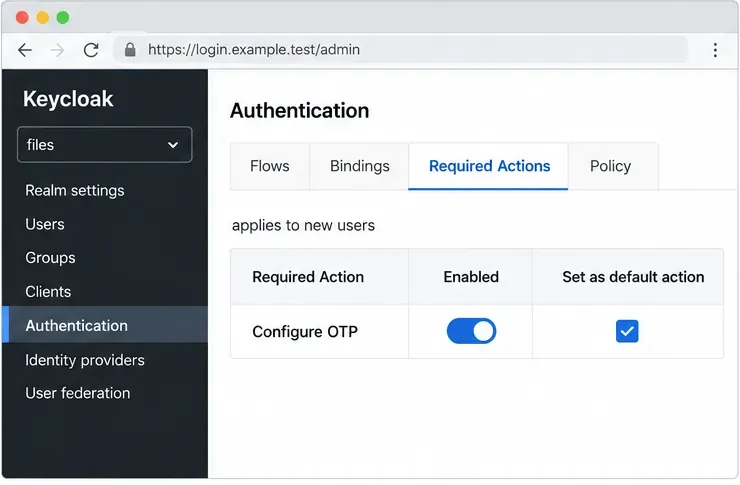
In Authentication > Required Actions, ensure Configure OTP is enabled and mark it as a default action. Keycloak's documentation says a default required action applies when a new user logs in for the first time. This creates an enrollment requirement; the user still has to complete setup before a TOTP credential exists.
Check the browser authentication flow as well. In the standard Keycloak browser flow, the conditional 2FA subflow prompts for OTP when that user has an OTP credential configured. If users are not required to configure OTP, they may continue without a second-factor prompt. Preserve the normal password or first-factor step, and test the flow carefully before binding a custom flow. Authentication-flow changes affect the whole realm and can lock out administrators if misconfigured.
Mark Configure OTP as a default required action so newly created accounts are asked to enroll at first login.
4. Add the enrollment requirement to existing users
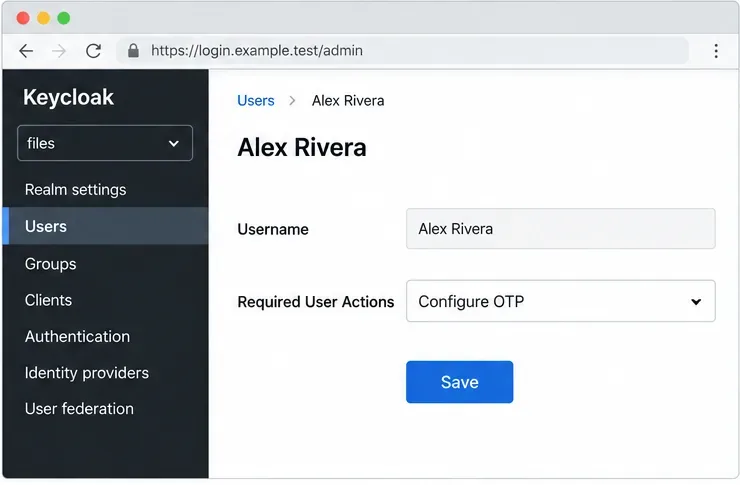
A default action is not retroactive for accounts that already exist. For Northstar's current staff, the administrator opens each user in the Keycloak realm and adds Configure OTP under that user's required actions, then saves the change. Keycloak also documents an option under a user's Credentials tab to send a credential-reset email that directs the user to OTP setup. Choose the method that fits your account-management process and verify that users can receive the email if you use it.
For a large directory, plan a controlled bulk process using a supported Keycloak administrative interface or automation. Do not assume that enabling the default action enrolled everyone. Create a test user and inspect the expected first-login behavior before applying the policy broadly.
For an existing account, assign Configure OTP as a required user action and save the account change.
5. Have each user enroll an authenticator
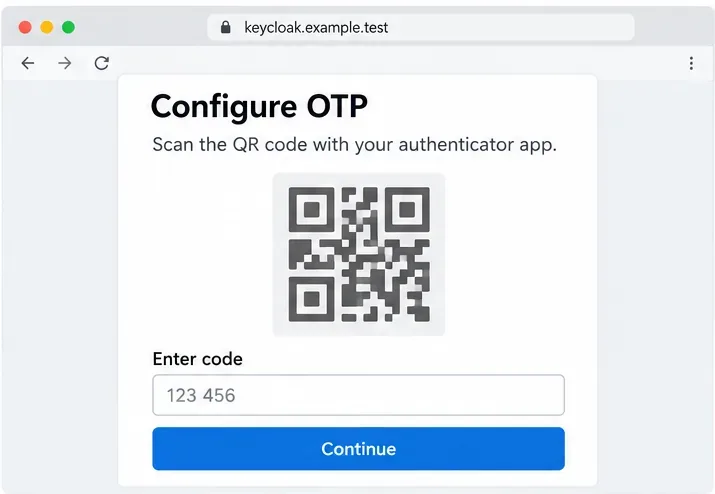
When Alex, a fictional Northstar employee, next signs in to ownCloud and is redirected to Keycloak, Keycloak asks Alex to configure OTP. Alex opens an authenticator app, scans the QR code shown by Keycloak, and enters the current code from the app to confirm enrollment. The QR code contains the TOTP secret, so users should treat it like a credential: do not send it to an administrator by email, save it in a shared ticket, or scan it into an untrusted device.
If the app cannot scan the code, Keycloak's setup page may offer the underlying key as a manual entry. Users should store that key only in the authenticator. They should complete the verification step before closing the setup page. A code that fails validation may be stale, mistyped, or generated by an app with an incorrect device clock.
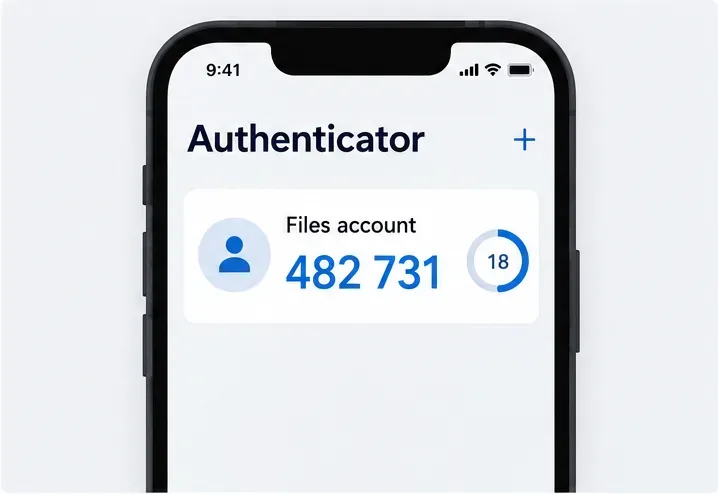
The Keycloak enrollment page displays a QR code and asks the user to enter a code from the authenticator; the image is a conceptual UI example.An authenticator app generates a changing code for the account; the displayed digits are only an example, not a usable credential.
6. Prepare recovery before enforcing the policy
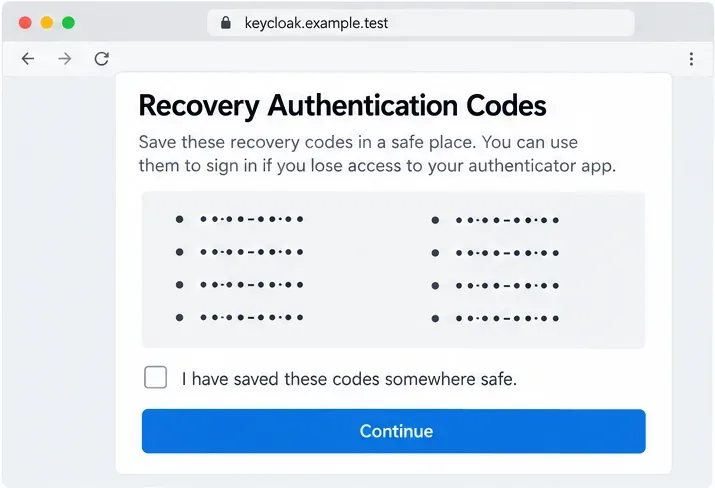
Users need a way to recover access if a phone is lost, replaced, or wiped. Keycloak 26.8 documents Recovery Authentication Codes as an additional credential that can be enabled and added as an alternative in the browser flow. If your Keycloak version and realm use this feature, enable and test it deliberately. Users should store recovery codes in an approved password manager or other protected offline location, and treat each code as sensitive. Do not store them in the same phone app that holds the TOTP secret.
If recovery codes are not enabled in your realm, document an administrator-led recovery procedure. Require identity verification before resetting or removing an OTP credential. Keep a break-glass administrator account under a separate, tightly controlled process so that a user enrollment problem does not become a realm-wide lockout.
Recovery codes, when enabled for the realm, should be saved somewhere protected before the user finishes enrollment.
7. Test the complete ownCloud sign-in path
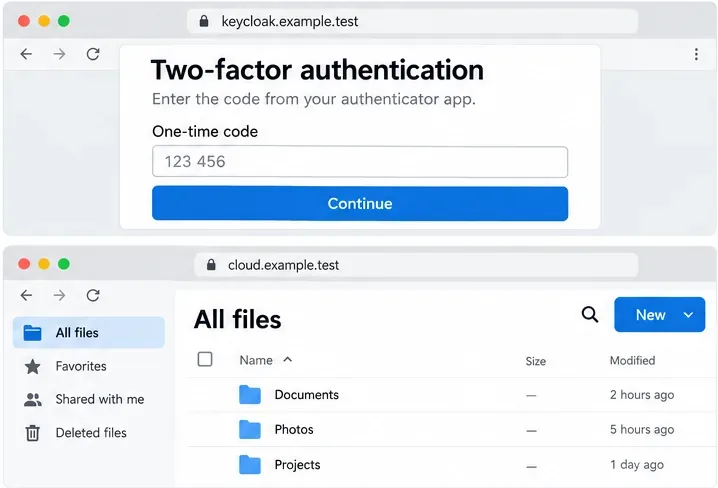
After enrollment, sign out of the test account and sign in again at the normal Infinite Scale address. Confirm that the browser reaches the expected Keycloak realm, accepts the account's password, requests the time-based code, and returns the user to ownCloud after successful authentication. Then test the supported desktop and mobile clients, shared links, and any operational tools that rely on the same identity provider.
A successful browser test does not prove that every client or protocol uses the same flow. Keycloak's browser flow may not cover a separate direct-grant flow, and an existing Keycloak single sign-on (SSO) session can satisfy a later ownCloud login without showing another OTP prompt. That is expected session reuse, not proof that the factor is broken. If policy requires a fresh factor more often, review Keycloak's SSO and authentication-level settings as part of a deliberate session policy.
The expected browser path asks for a one-time code at the identity provider and then returns to the cloud file interface; this is an example flow, not a test result.
Optional: require step-up MFA only for protected routes
Some deployments want a second factor only when users open a sensitive resource. Infinite Scale supports route-level step-up authentication through OIDC ACR claims. In the 8.2 documentation, OCIS_MFA_ENABLED enables enforcement and OCIS_MFA_AUTH_LEVEL_NAMES names the ACR level that signifies MFA. The IDP must support step-up authentication and issue the matching ACR value in the token. Keycloak has authentication-level and ACR configuration for this pattern, but its flow, requested level, and token mapping must match the value configured in Infinite Scale.
This example is only a starting point: use advanced only if Keycloak is actually configured to return that ACR value after the required factor. If a protected route is requested without the needed level, Infinite Scale can deny access and return a 403 response with an X-OCIS-MFA-Required header. Route-level step-up is distinct from requiring TOTP during every new Keycloak browser authentication.
Common problems and fixes
Symptom
What to check
No OTP prompt appears
Confirm that the account has completed OTP enrollment, that the browser flow invokes the OTP step for configured users, and that a pre-existing SSO session is not reusing authentication.
A new user is not asked to enroll
Confirm Configure OTP is enabled and marked as a default action in the correct realm. Default actions apply to new users; existing accounts need an assigned required action.
The code is rejected
Confirm the user chose TOTP, not HOTP, and check the device and server clocks. Ask the user to wait for the next code interval and enter the fresh code.
Desktop, mobile, or automation login fails
Check which OIDC or other authentication flow the client uses. Test each supported client and ensure the change did not rely on a browser-only flow for a non-browser sign-in.
Users are locked out after changing the flow
Use the documented administrator recovery process and the protected break-glass account. Review the realm's last flow change before altering the default flow again.