Home
» NETWORK ADMIN
»
How to Upgrade Zimbra 9 to Zimbra 10 (Daffodil) Step-by-Step
How to Upgrade Zimbra 9 to Zimbra 10 (Daffodil) Step-by-Step
Zimbra 9 is no longer a supported destination for a production mail platform. As of October 2026, Zimbra 9.0 has reached end of life, Zimbra 10.0 has also passed its support window, and the active Daffodil branch is Zimbra 10.1. For that reason, a current Zimbra 9 upgrade plan should normally target a supported Zimbra 10.1 release rather than stop at 10.0. At the time of writing, Zimbra 10.1.21 was released on September 24, 2026. Check the official Zimbra 10.1.21 release notes before scheduling production work because patch requirements and known issues can change.
The upgrade itself can be straightforward on a standard installation, but the right method depends on your operating system, topology, NG modules, custom authentication, licensing, and tolerance for downtime. This guide focuses on those choices as much as the commands, so you can select a path that fits the environment rather than forcing every deployment through the same procedure.
Choose the Upgrade Strategy Before Touching Production
Approach
Advantages
Trade-offs
Best fit
In-place upgrade
Keeps the existing server identity, data paths, and most configuration in place. Official Zimbra documentation supports in-place upgrades for single-node and multi-node deployments.
Requires a maintenance window and leaves less room to redesign an old operating system or storage layout.
A healthy, supported OS with a conventional Zimbra 9 configuration.
Rolling multi-server upgrade
Can reduce broad service interruption by upgrading roles in a controlled order.
More coordination is required. Mixed-version mailstore behavior and proxy login-server configuration need extra attention.
Larger multi-node environments where service continuity matters.
Fresh Zimbra 10.1 installation plus migration
Lets you move to a newer supported OS, new storage, or redesigned topology without carrying every legacy dependency forward.
Needs migration planning, temporary capacity, DNS/cutover work, and more validation.
Older operating systems, major hardware refreshes, substantial customizations, or deployments you do not want to upgrade in place.
Zimbra's current documentation lists in-place and rolling upgrade paths, including environments with NG modules, but it directs NG-module users to the dedicated migration resources. If the installer detects NG modules, do not casually bypass that check: the installer warns that continuing can remove NG packages and associated data. Review the official Daffodil upgrade instructions and the applicable NG migration guide first.
Step 1: Record the Current Zimbra Version and Service State
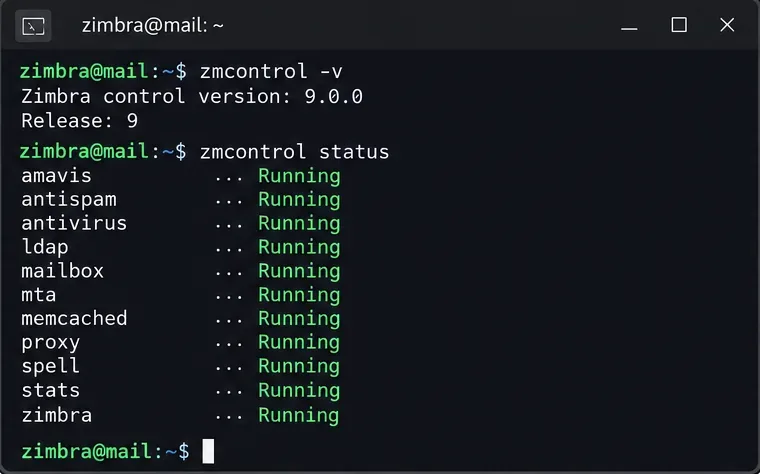
Start by establishing a baseline. Log in as the zimbra user and record the installed release plus current service state:
su - zimbra
zmcontrol -v
zmcontrol status
Record the current release and service state before changing packages. The terminal shown is an illustrative command view, not a captured production server.
If services are already failing, resolve that problem before the major upgrade. An upgrade is a poor time to discover that LDAP, mailbox, MTA, or proxy problems predate the maintenance window. Also inventory custom Zimlets, external authentication, integrations, certificates, relay rules, scripts, and any local changes under /opt/zimbra.
Step 2: Run the Database Integrity Check and Confirm Backups
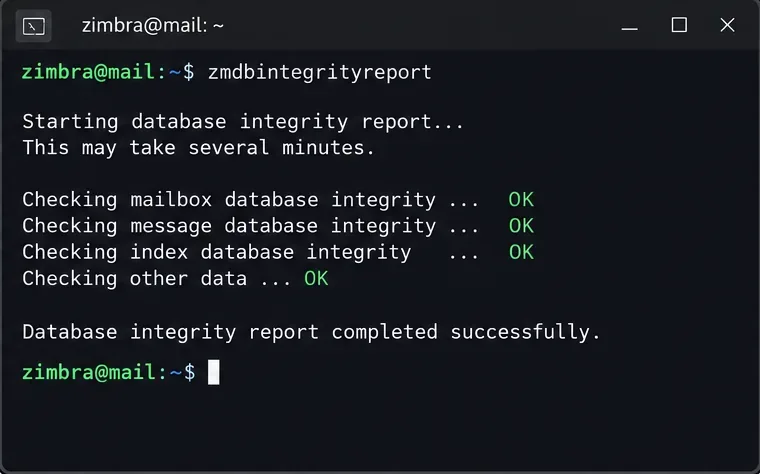
Zimbra specifically calls out zmdbintegrityreport as a useful pre-upgrade check because pre-existing MariaDB corruption can become more difficult to diagnose during a major-version change. Run it as the zimbra user on store nodes:
su - zimbra
zmdbintegrityreport
Run the database integrity report before the upgrade and investigate errors instead of treating the upgrade as a repair procedure.
Zimbra notes that this report can take from minutes to an hour depending on database size and storage performance. Do not schedule it at the last minute on a large mailstore.
Next, make a full, restorable backup using the backup method appropriate to your edition and environment. A backup is only useful if you know where it is, it completed successfully, and you have a practical restore plan. Zimbra recommends a full backup before major upgrade work and another full backup after the upgrade because database schema changes may occur.
Also back up SAML and SPNEGO customizations separately. Zimbra warns that those customizations can be overwritten during the upgrade. If you depend on custom salocal.cf.in, custom SpamAssassin rules, or other locally maintained files, compare current release notes for files that may be replaced and save copies before starting.
Step 3: For Multi-Server Deployments, Follow the Role Order
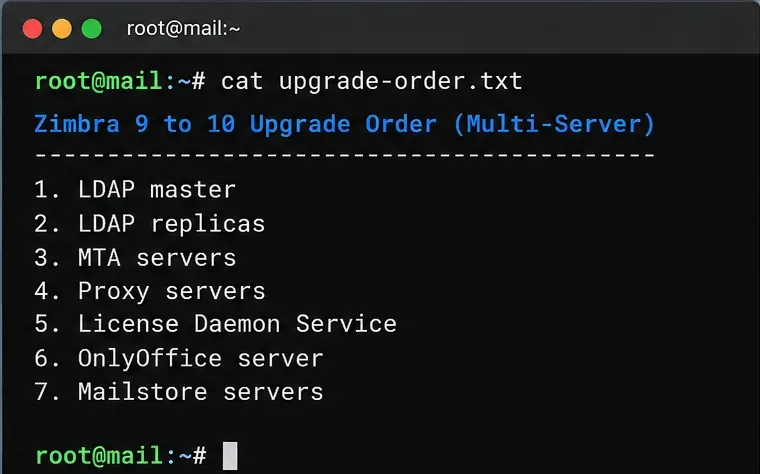
A single-server installation can move directly to the installer after prechecks. Multi-server deployments need ordering discipline. Zimbra's documented sequence is LDAP master first, then LDAP replicas, MTA servers, proxy servers, License Daemon Service, OnlyOffice server, and finally mailstore servers.
For multi-server environments, keep the documented role order visible during the maintenance window so dependent services are not upgraded out of sequence.
LDAP masters must be upgraded and running before you proceed to the other roles. During rolling upgrades, Zimbra also warns that when Zimbra 10 and older mailstores coexist, zimbraReverseProxyUpstreamLoginServers should contain only Zimbra 10 mailbox servers; otherwise, users on Zimbra 10 mailstores can encounter Modern Web App login problems.
Step 4: Check the Operating System, Free Space, and License
Do not assume that a Zimbra 9 server's operating system is still a good target in 2026. Current Zimbra documentation shows newer supported platforms including RHEL/Rocky/Oracle Linux 9 and Ubuntu 22.04, while Ubuntu 24.04 support became generally available with Zimbra 10.1.17. The Zimbra 10.1.21 release notes also state that Ubuntu 18.04 support is being deprecated starting with the next release. If your Zimbra 9 host is on an old platform, a fresh-install-and-migrate approach may be more sensible than combining a major Zimbra change with an operating-system transition.
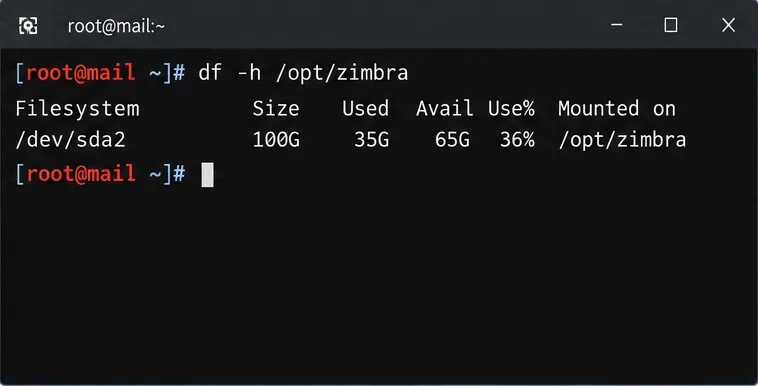
Confirm free storage before running the installer. Zimbra's installer checks available space and stops if the system does not have enough.
Check available storage on the filesystems that hold Zimbra data and software; the numbers shown are illustrative, not sizing guidance.
Zimbra 10.1 also changed licensing. The old license.xml format is not supported by 10.1. You need the newer 18-26 character alphanumeric license key before installation or upgrade. Obtain the correct key from Zimbra before the maintenance window. The official Zimbra download page explicitly warns customers to have the new v10.1 license before starting.
Step 5: Download the Correct Zimbra 10.1 Build
Download the package that matches your supported operating system and CPU architecture from Zimbra's official download area. Do not reuse a package built for another distribution. Keep the archive in a working directory such as /var/tmp.
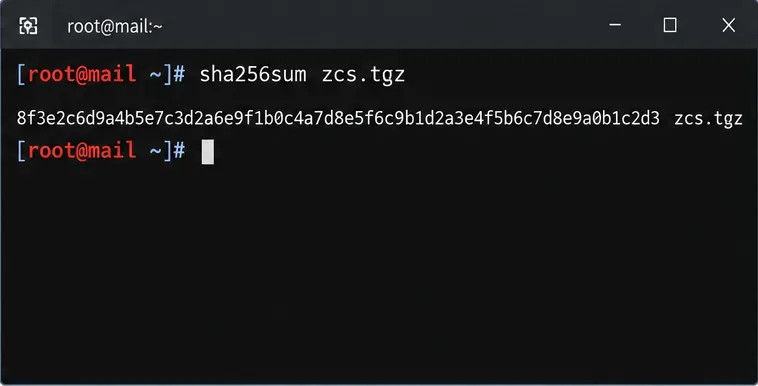
If Zimbra publishes a checksum for the package you download, verify it before extracting the archive. A local checksum calculation looks like this:
sha256sum zcs.tgz
Calculate the package checksum locally and compare it with the value published for the exact download you selected.
The checksum shown in the illustration is not a release checksum. Use only the checksum supplied for your actual package.
Step 6: Extract the Archive and Start the Upgrade Installer
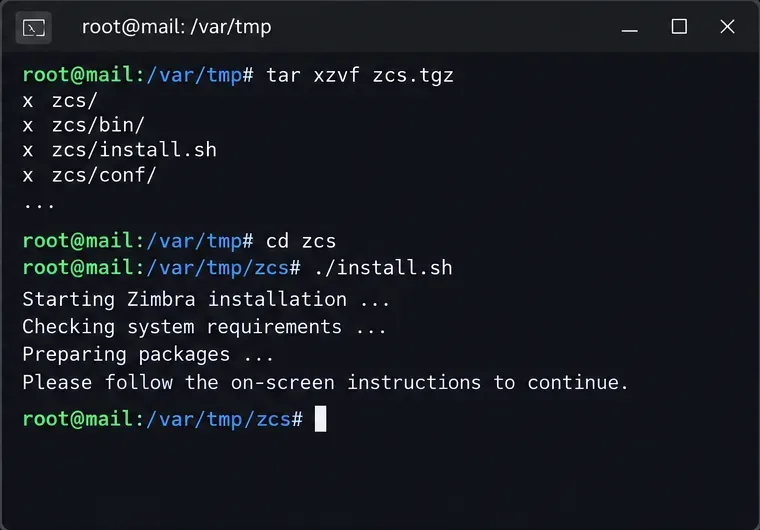
Zimbra's documented in-place process does not require you to stop services manually before the upgrade. The installer stops and starts services as needed. As root, extract the downloaded archive, enter the expanded directory, and run install.sh:
cd /var/tmp
tar xzvf zcs.tgz
cd <expanded-directory>
./install.sh
Extract the Zimbra archive, enter its directory, and launch install.sh as root. Directory names vary by downloaded build.
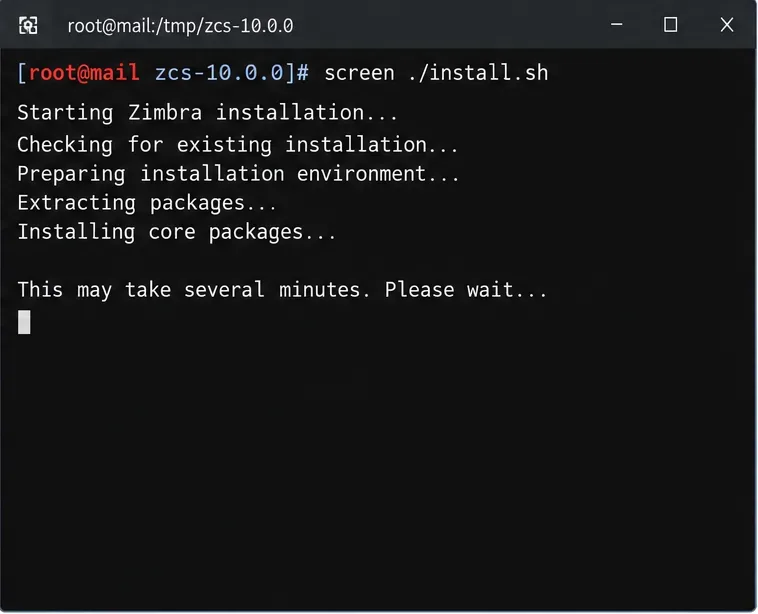
Zimbra recommends running the upgrade inside a terminal multiplexer such as screen, especially on remote SSH sessions, so a dropped connection does not terminate a long upgrade:
screen ./install.sh
A screen session reduces the risk that an SSH disconnect will terminate the upgrade process.
Step 7: Answer Installer Prompts Deliberately
The installer detects the existing Zimbra installation and presents the upgrade path. Zimbra's current instructions say to accept use of the Zimbra package repository when prompted, then confirm that you want to upgrade. On a single-node 10.1 upgrade, the zimbra-license-daemon package is required; declining it prevents the upgrade from continuing.
Before answering the final prompt, review the package list. At The system will be modified. Continue? [N], enter Y only when you are satisfied that backups, license, package source, storage, and maintenance communications are in place. The installer then stops the old services, replaces packages, restores configuration, performs upgrade work, and restarts services. Large environments can take considerably longer than small test systems.
If you use an offline/manual license, follow the specific activation path in Zimbra's current upgrade guide. Do not copy instructions for online licensing into an offline environment. Likewise, mailbox-node guidance differs when activation checks are involved, so use the version-specific documentation rather than an old command copied from a previous release.
Step 8: Verify Services, Version, Mail Flow, and Client Access
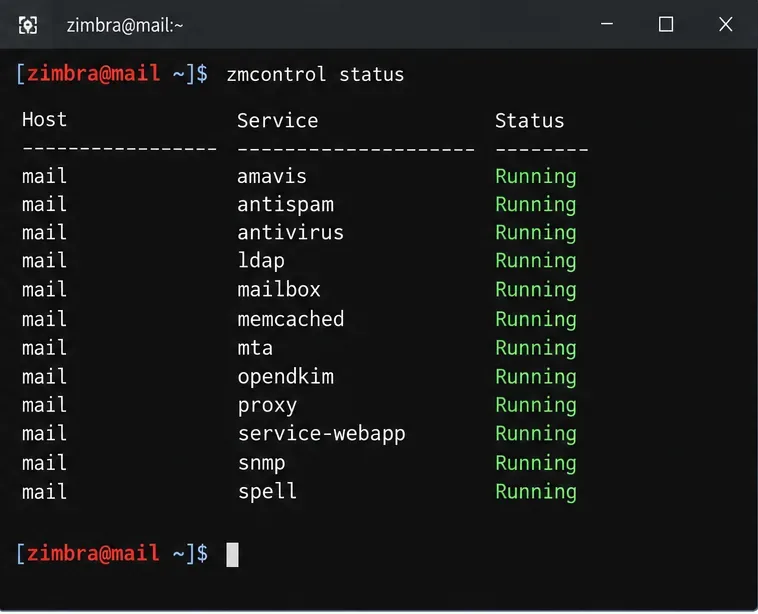
After the installer completes, switch back to the zimbra user and check the service state and installed release:
su - zimbra
zmcontrol status
zmcontrol -v
Post-upgrade validation starts with service status, but a green service list is only the first check.
Then test behavior that users actually depend on: inbound and outbound SMTP, internal delivery, IMAP/POP if enabled, Modern and Classic Web App logins, delegated mailboxes, calendar operations, mobile synchronization, Outlook connectivity if licensed, external authentication, Zimlets, backups, monitoring, and any application that uses Zimbra SOAP or EWS interfaces.
Do not skip release-specific post-upgrade actions. Zimbra 10.1.19 and later release notes call out an updated SNMP mitigation for customers upgrading from 10.0.x, 9.0.x, or 8.8.15. For a 2026 production upgrade, read the current patch notes and apply any required mitigation after the major upgrade. Zimbra 10.1.21 also includes security fixes affecting Classic Web Client, WebDAV authentication, password recovery, OpenJDK, NGINX, and integrations, which is another reason not to stop at an obsolete 10.0 build.
When Should You Change Course Instead of Continuing In Place?
An in-place upgrade is attractive because it changes fewer moving parts, but it is not automatically the lower-risk choice. Reconsider the plan when any of these conditions apply:
The current operating system is deprecated or near the end of Zimbra support.
The database integrity check reports errors you cannot explain.
You have NG modules and have not validated the supported migration procedure.
SAML, SPNEGO, Zimlets, antivirus/antispam customization, or third-party integrations are business-critical and have not been tested against 10.1.
You are also changing storage architecture, hostnames, network design, or hardware at the same time.
You cannot obtain the required 10.1 license before the maintenance window.
In those cases, a parallel Zimbra 10.1 environment with a controlled migration may require more preparation but offers cleaner rollback boundaries and a better opportunity to modernize the underlying platform.
Practical Upgrade Checklist
Confirm the exact Zimbra 9 version and current service health.
Review the latest 10.1 release notes and the official upgrade guide.
Run zmdbintegrityreport on store nodes and resolve errors.
Create and verify a full backup; save custom authentication and filtering configuration.
Confirm the destination OS is supported for the target 10.1 release.
Obtain the new 10.1 license key; do not rely on an old license.xml.
Check disk capacity and download the correct platform package.
For multi-server deployments, follow the documented role sequence.
Run the installer in screen or an equivalent persistent terminal session.
Verify services, version, mail flow, web clients, authentication, integrations, and monitoring.
Apply version-specific post-upgrade mitigations and create a new full backup.
Bottom Line
For a healthy Zimbra 9 server on a supported operating system with conventional configuration, an in-place upgrade to the current Zimbra 10.1 Daffodil branch is usually the most direct route. For an aging OS, a complex NG-module deployment, or a server that also needs major infrastructure changes, a fresh installation and migration may provide a cleaner operational boundary even though it requires more work.
The key quality check is not simply whether install.sh reaches the end. A successful upgrade means the server is on a supported 10.1 patch, all required services are healthy, mail flow and user access work as expected, custom integrations have been retested, licensing is active, version-specific mitigations are complete, and you have a fresh post-upgrade backup. Keep the official Zimbra Daffodil upgrade guide, the current 10.1.21 release notes, and the official multi-server documentation open during planning because those sources should take precedence over older command snippets.