MyIPTV Player for Windows 10: How to Set Up and Use It

Learn how to install MyIPTV Player on Windows 10, add an M3U playlist and EPG, refresh channels, and fix common setup or playback problems.
If Thunderbird on Windows 11 downloads an update but reports “Software Update Failed,” or keeps offering the same update after restart, the goal is to complete one update and confirm Thunderbird opens with your accounts and messages intact. Start with Thunderbird’s built-in updater and close any extra Thunderbird processes. If that fails, check who installed the app and whether an organization manages updates, then use Mozilla’s official installer over the existing installation as a last resort.
Mozilla’s current help pages describe manual updates through Help > About Thunderbird, update controls under Settings > General > Thunderbird Updates, and an optional background service on Windows. The dedicated “Thunderbird Software Update Failed” article was last updated in 2016, so its Windows 7 and Vista elevation steps should not be copied directly to Windows 11. The steps below prioritize current controls and use that older article only for still-relevant advice about duplicate processes and installing over an existing copy. Information checked October 6, 2026.
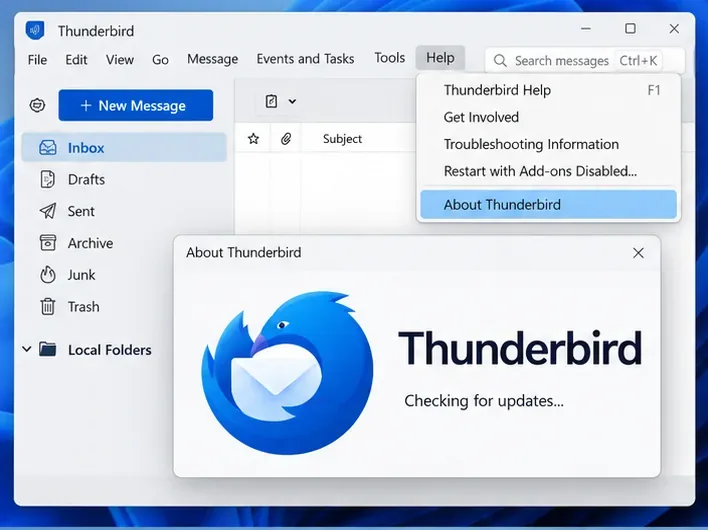
Open Thunderbird, select Help > About Thunderbird, and let the About window finish checking. If it downloads an update and shows a restart option, choose Restart Thunderbird to Update. Do not force-close the app while it is installing. If Thunderbird says it is up to date, compare the version shown in About with the release channel and version your organization or IT team expects; a managed or Extended Support Release installation may not receive the same build on the same schedule as a standard release.
If the About window stays on “Checking for updates” or never begins downloading, confirm that the PC has an internet connection and can reach Mozilla’s update services. On a work or school device, a proxy, firewall, endpoint security policy, or centrally managed update setting may control that connection. Avoid turning off Windows security or a firewall as a general fix. If a policy is blocking the update, ask the administrator to confirm the approved update route.
The failed-update message can appear when another Thunderbird process—or another signed-in Windows user’s copy—is still running. Save any unsent message first. The simplest cleanup is to restart Windows, sign back in to the account that normally uses Thunderbird, and try the About check again.
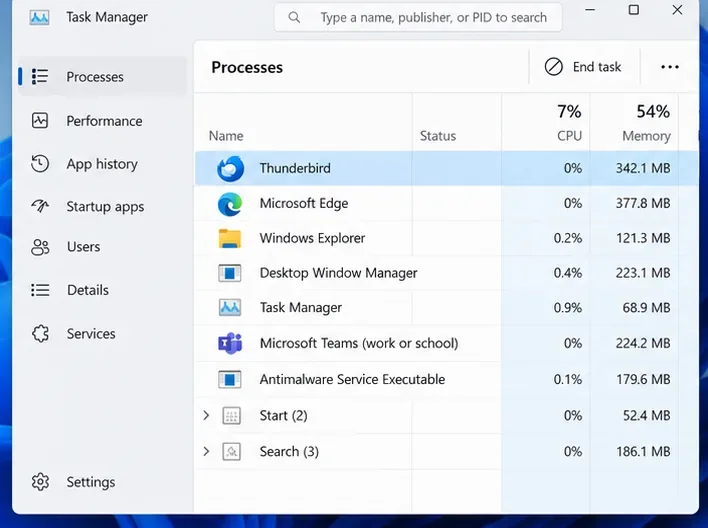
If you cannot restart right away, press Ctrl+Shift+Esc to open Task Manager. Under Processes, select Thunderbird and choose End task. If more than one Thunderbird entry is visible, close each only after confirming that no one has an unsent message or another open session. Then reopen Thunderbird and check for the update again.
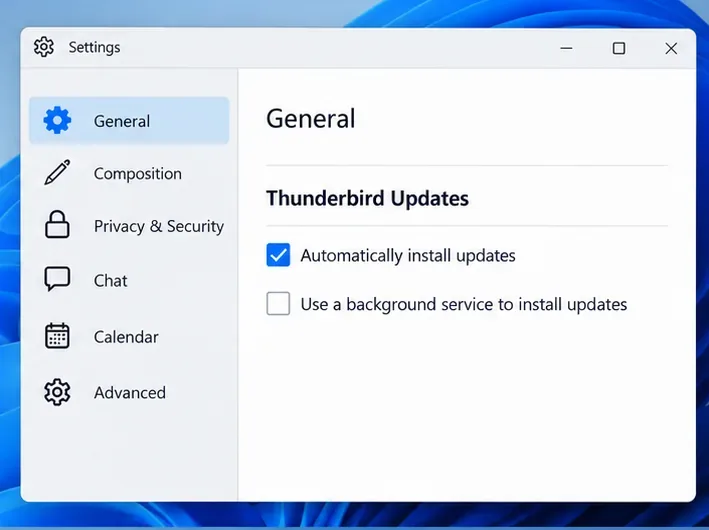
Open the app menu ☰ > Settings > General and scroll to Thunderbird Updates. Choose Automatically install updates if you want Thunderbird to install updates by default. If you prefer to approve them, choose the manual-check option when it is shown and remember to check regularly so security updates are not missed.
On Windows, the optional Use a background service to install updates setting uses Mozilla Maintenance Service to authorize an update without a separate User Account Control approval each time. It is not a repair switch for every update failure. If the setting is unavailable, continue with the normal update route rather than trying to start, remove, or reconfigure the service manually.
Updates can also fail when the current Windows account cannot write to the folder where Thunderbird was installed. If Thunderbird was installed for all users under a protected Program Files folder, use the Windows account that installed it or obtain the required administrator approval when Windows asks. Do not leave Thunderbird set to always run as administrator. For a company-managed installation, ask IT whether policy or a managed installer controls updates; the visible update setting may not override that policy.
If the built-in updater still fails after a restart and settings check, download Thunderbird from the official Thunderbird website and install the new version over the current installation. Mozilla’s update guidance says the installer should pick up existing Thunderbird data. Do not uninstall first unless Mozilla or your administrator specifically instructs you to do so.
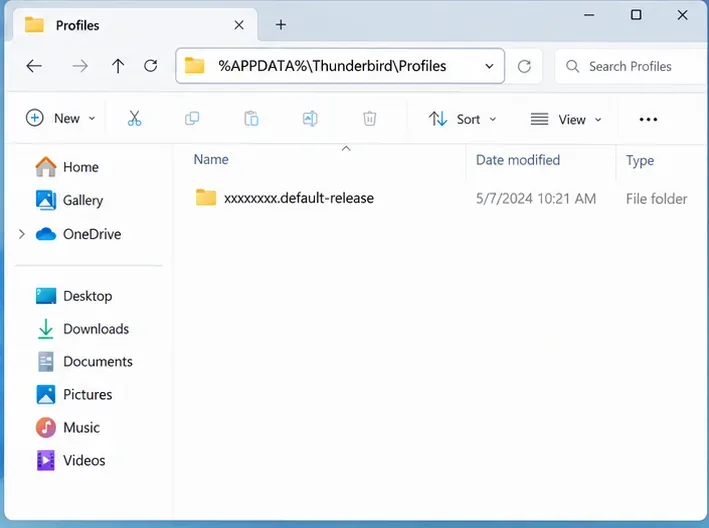
Before running the installer, close Thunderbird and make a separate profile backup if your mail or settings are important. Thunderbird keeps profile data—accounts, messages, passwords, and preferences—in a location separate from the application files, but Mozilla notes that a profile stored on the same PC is not itself a backup. You can use ☰ > Tools > Export, or close Thunderbird and copy the profile folder from %APPDATA%\Thunderbird\Profiles\ to another location. The built-in Export tool currently supports ZIP backups up to 2 GB; for a larger profile, use Mozilla’s manual copy instructions.
Use the official Windows installer that matches your setup. If the machine is managed, uses an enterprise MSI deployment, or is intentionally pinned to an ESR channel, check with IT before installing a different channel or package over it.
After the installer finishes, open Thunderbird and return to Help > About Thunderbird. Confirm that the expected version is shown, the update check no longer offers the same failed update, and Thunderbird restarts without an update error. Then confirm that your accounts, folders, and recent messages appear. If practical, send a test message to an address you control and confirm that it arrives.
If the same failure returns, stop repeating the installer. Record the exact error text, Thunderbird version and channel, whether the app was installed per-user or for all users, and whether this is a managed PC. These details help Mozilla Support or your IT team distinguish a stuck process from a permissions, policy, or network issue. Do not share passwords or a profile backup when asking for help.
A manual reinstall can replace damaged application files, but it will not override an organization’s update policy or repair every Windows permission problem. If the official installer also fails, use the error details and installation information to identify the owner of the restriction before making broader system changes.
Learn how to install MyIPTV Player on Windows 10, add an M3U playlist and EPG, refresh channels, and fix common setup or playback problems.
HP Print and Scan Doctor was retired by HP on May 27, 2025. Learn what replaced it, how to run Diagnose & Fix, and how to remove old copies safely.
Is Segurazo a virus? Learn how to remove Segurazo or SAntivirus safely, scan for leftovers, and avoid risky registry-cleanup advice.
Learn what Glarysoft Registry Repair does, how to use its scan and backup tools, and why Microsoft recommends caution with registry cleaners.
Download Wise Registry Cleaner safely from the official site, learn the safest scan settings, backup options, and whether this free Windows tool is worth using.
Download and install 7-Zip for Windows 10, then learn how to compress, extract, test, and password-protect archives safely.
Learn how to download and install Bandicam 2027, record your screen, find saved videos, adjust key settings, and understand the free version limits.
Download and install SharpKeys on Windows 10, then remap, disable, swap, or restore keyboard keys safely using the Windows Scancode Map.
Hextech Repair Tool is now Riot Repair Tool. Learn where to download it safely, collect League of Legends logs, run repairs, and contact Riot Support.
Download and install HD Tune Pro on Windows 10, choose the supported version, run benchmarks, check S.M.A.R.T. health, and scan drives for errors.








