MyIPTV Player for Windows 10: How to Set Up and Use It

Learn how to install MyIPTV Player on Windows 10, add an M3U playlist and EPG, refresh channels, and fix common setup or playback problems.
If Thunderbird becomes slow or shows “Not Responding” while compacting folders, the safest first move is to let the operation finish if its progress is still changing. Compacting rewrites mailbox storage to reclaim space, so it can cause heavy disk activity and temporarily delay message lists. Repeatedly clicking Compact, closing Thunderbird mid-write, or immediately compacting again can make a recoverable index problem worse.
Mozilla’s current support guidance describes compacting as routine maintenance for accounts using the Mbox storage format. Deleted or moved messages are marked for removal but remain in the mailbox file until compacting cleans up the unused space. Maildir stores each message in a separate file and does not need this compacting process. This guide focuses on a freeze during Mbox compacting and explains how to protect the profile, repair a folder index, and isolate other causes. Menu wording can vary slightly by operating system and Thunderbird release; the paths below match the current desktop support documentation, checked October 6, 2026.
In Mbox storage, a folder’s messages are held in one large file. Deleting or moving messages does not immediately shrink that file. During compacting, Thunderbird reads the mailbox, copies messages that are still present into a replacement file, and rebuilds its index. That creates substantial disk input and output. While a folder is being rewritten, its message list may temporarily appear empty or unresponsive; Mozilla says messages may reappear when compacting completes.
A slow operation is not automatically a damaged mailbox. Large folders, limited free disk space, slow or failing storage, profile-folder access being interrupted by a backup scan, cloud synchronization, or antivirus scanning can all complicate the process. If Thunderbird was interrupted, the folder index may be empty even though the underlying messages remain. Less commonly, the mailbox file itself may be corrupt, and another compaction can write a truncated result. Use the symptom to choose the next step instead of treating every hang the same way.
Look at Thunderbird’s status bar for compacting progress and check your operating system’s activity monitor for ongoing disk use. If progress continues, wait and avoid opening or repeatedly selecting the folder being compacted. Do not start a second compact operation. If the status remains unchanged for a long time and there is no meaningful disk activity, treat it as a possible stalled operation, but do not immediately force-quit while the drive is still writing.
If you must close Thunderbird because the application is completely stuck, avoid repeatedly launching it and re-triggering compacting. Start it once after the system is stable and check the affected folder before taking further action. If messages appear missing after an interruption, skip to the folder-repair step below rather than compacting that folder again.
A Thunderbird profile contains account settings, messages, address books, and other data. Back it up before repairing or repeating a failed compact operation. In current Thunderbird desktop builds, open the application menu and choose Tools > Export, then use the export dialog to save a profile backup. Mozilla’s Export tool currently supports ZIP backups up to 2 GB. For a larger profile, use the export tool’s Open profile folder link, exit Thunderbird fully, and copy the entire profile folder to a separate location with your file manager. Do not copy an actively changing profile as your only backup.
Before trying again, make sure the drive containing the profile has enough free space for Thunderbird to rewrite the mailbox and create temporary data. Check that a cloud-sync client or backup job is not simultaneously synchronizing or locking files inside the live profile. Mozilla specifically warns that profile-folder scans, cloud syncing, and antivirus scans can interrupt compacting. Do not broadly turn off security software; review its activity or quarantine history and follow your organization’s security policy before changing any exclusion.
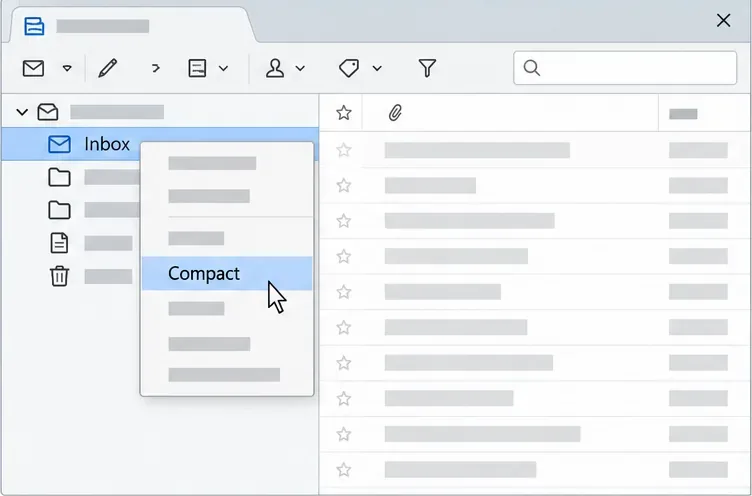
Once Thunderbird is responsive, use the folder context menu and choose Compact for one affected folder. Observe whether the status bar advances and whether disk activity continues. Avoid File > Compact Folders during diagnosis because it runs the operation across an account’s folders and makes it harder to identify which mailbox causes the problem. If the single-folder test finishes and the messages remain visible, compact other folders separately when convenient.
If one folder repeatedly stalls, stop testing that folder. A very large or damaged Mbox file may need additional recovery work. Do not delete files named nstmp while Thunderbird is running, and do not remove the mailbox file or its .msf index as a first-line fix. Back up first, because the correct response depends on whether the problem is only the index or the underlying message file.
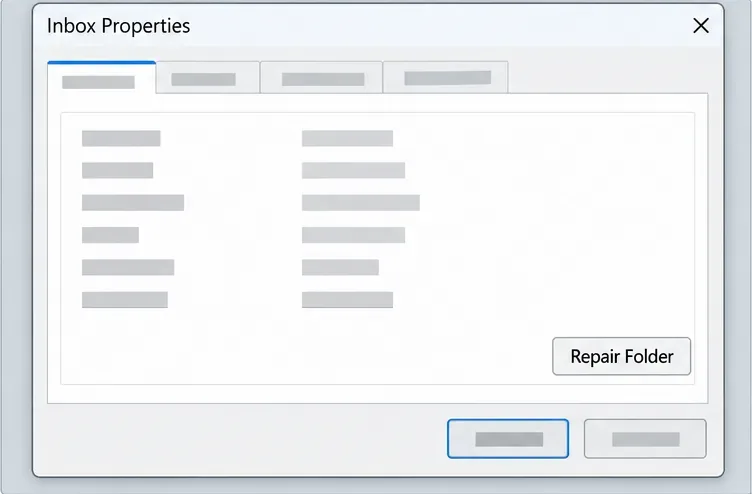
If the compact operation was interrupted and a folder now looks empty, rebuild its index before assuming the messages are gone. Right-click the affected folder, select Properties, and choose Repair Folder. This rebuilds the folder’s .msf index, which Thunderbird uses to display the message list. It does not repair physical damage to the underlying Mbox file, so keep the profile backup and do not run another compact if messages still appear missing.
For an IMAP folder, the mail server may hold the authoritative copy and Thunderbird can synchronize the folder again. Check the same folder in your provider’s webmail before making additional local changes. For POP accounts and Local Folders, some messages may exist only in the local profile; confirm that your backup is readable before trying any more recovery steps. If folder contents return after the index repair, verify several older and newer messages rather than relying only on the displayed count.
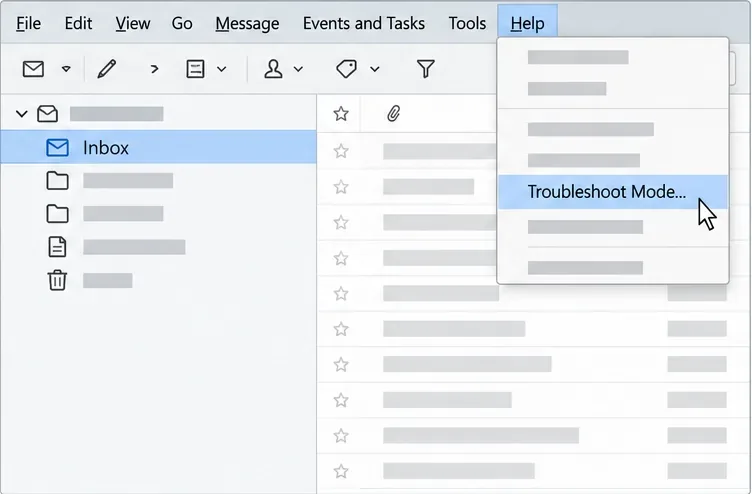
If Thunderbird freezes during compacting and also behaves erratically at other times, test in Troubleshoot Mode. Open Help > Troubleshoot Mode, restart when prompted, and continue in that mode. Mozilla says Troubleshoot Mode temporarily disables extensions, themes, and hardware acceleration without changing your data.
If compacting works in Troubleshoot Mode, restart normally and disable extensions one at a time from Add-ons and Themes > Extensions, restarting between tests. Also try the default theme and, if needed, turn off hardware acceleration under Settings > General. Re-enable or remove only the item that reproduces the issue. If the freeze persists in Troubleshoot Mode, the cause is less likely to be an extension or theme; check available disk space, drive health, operating-system activity, provider synchronization, and security-software logs.
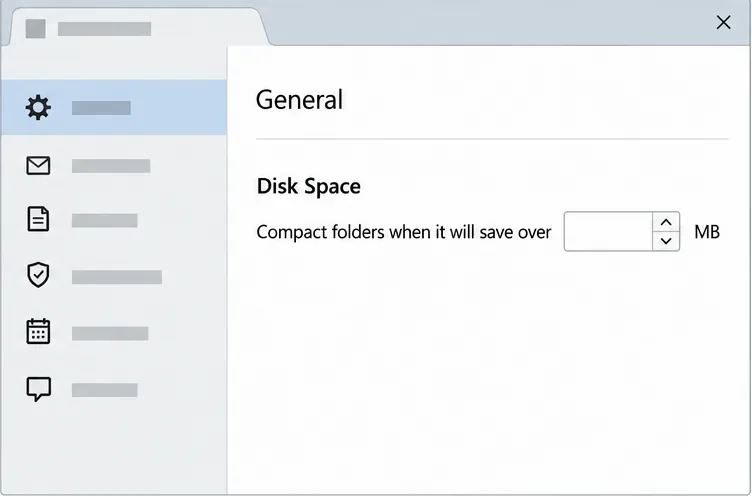
Thunderbird’s automatic compact threshold is under Settings > General > Disk Space. Raising the threshold can make compaction happen less often, which may suit accounts that handle large messages or high message volume. It also allows deleted-message gaps to occupy more space before cleanup. Disabling automatic compacting entirely is not a good permanent workaround because Mbox folders will continue to accumulate space marked for deletion. If a particular folder is corrupt or consistently stalls, changing the threshold does not repair it; back up the profile and address the folder itself.
If messages are missing after Repair Folder, message bodies contain fragments of other messages, deleted mail unexpectedly reappears, or Thunderbird repeatedly stops responding before displaying a folder, stop compacting that mailbox. Mozilla lists these as possible symptoms of Mbox corruption. Preserve the original profile and seek help with a copy of the profile, not the only copy. If you have a verified backup, restore to a separate test profile and compare the mailbox before replacing your working profile. When messages exist on an IMAP server, confirm server-side copies first; never assume the server has a full copy of mail stored in a POP account or Local Folders.
Thunderbird Export can back up and restore supported profiles, but its built-in ZIP export is limited to 2 GB. Larger profiles need a full file-manager copy while Thunderbird is closed. Keep backups on a separate drive or other protected location so a disk failure, synchronization mistake, or corrupted mailbox does not damage both the live data and its only backup.
Learn how to install MyIPTV Player on Windows 10, add an M3U playlist and EPG, refresh channels, and fix common setup or playback problems.
HP Print and Scan Doctor was retired by HP on May 27, 2025. Learn what replaced it, how to run Diagnose & Fix, and how to remove old copies safely.
Is Segurazo a virus? Learn how to remove Segurazo or SAntivirus safely, scan for leftovers, and avoid risky registry-cleanup advice.
Learn what Glarysoft Registry Repair does, how to use its scan and backup tools, and why Microsoft recommends caution with registry cleaners.
Download Wise Registry Cleaner safely from the official site, learn the safest scan settings, backup options, and whether this free Windows tool is worth using.
Download and install 7-Zip for Windows 10, then learn how to compress, extract, test, and password-protect archives safely.
Learn how to download and install Bandicam 2027, record your screen, find saved videos, adjust key settings, and understand the free version limits.
Download and install SharpKeys on Windows 10, then remap, disable, swap, or restore keyboard keys safely using the Windows Scancode Map.
Hextech Repair Tool is now Riot Repair Tool. Learn where to download it safely, collect League of Legends logs, run repairs, and contact Riot Support.
Download and install HD Tune Pro on Windows 10, choose the supported version, run benchmarks, check S.M.A.R.T. health, and scan drives for errors.








