MyIPTV Player for Windows 10: How to Set Up and Use It

Learn how to install MyIPTV Player on Windows 10, add an M3U playlist and EPG, refresh channels, and fix common setup or playback problems.
When Thunderbird reports that an IMAP server has disconnected, first find out whether the failure is limited to Thunderbird or affects the mailbox from other devices too. If webmail also fails, the cause is likely outside Thunderbird. If webmail works but Thunderbird repeatedly drops, check its server settings and reduce the number of cached IMAP connections one step at a time.
A useful fix should do more than make the error disappear once. The account should stay connected through several mail checks, folder changes, and message opens, without repeated password prompts or missing folders. The steps below help isolate what is failing and keep each change reversible. Interface labels and placement can vary slightly by operating system and Thunderbird version.
Open your provider’s webmail in a browser and sign in. If webmail cannot connect or shows a service notice, check the provider’s status page or contact its support team before changing Thunderbird. A password reset, service outage, account restriction, or server-side connection limit can affect multiple mail clients.
If webmail works, check whether another computer or phone can use the same account. Record when Thunderbird disconnects and whether it happens while checking mail, opening a folder, moving a message, or leaving the account idle. A repeatable pattern is more useful than changing several settings at once.
IMAP keeps messages on the mail server and synchronizes them with clients. Phones, tablets, desktop apps, and Thunderbird can all access the same mailbox. If the failure happens only in Thunderbird, continue with the local settings. If every client disconnects, ask the provider to check service health, access limits, and server logs.
In Thunderbird, open the application menu and select Account Settings. Choose the affected account, then open Server Settings. Confirm the server name, port, connection security, and authentication method against the exact values supplied by your email provider. Do not copy settings from another provider or switch between SSL/TLS and STARTTLS as a guess.
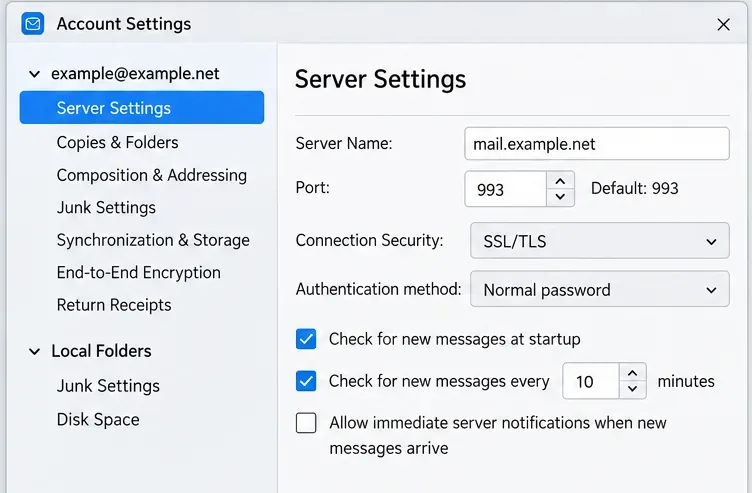
The values in the image are examples, not universal IMAP settings. Mozilla’s account configuration guide explains that the provider supplies the server name and port, and that connection security and authentication must match the provider’s requirements. Review Mozilla’s Thunderbird account configuration options. Its receiving-mail troubleshooting guide also recommends comparing Thunderbird’s settings with the provider’s configuration. See Mozilla’s steps for connection and incoming-mail checks.
If the settings are correct, avoid deleting saved passwords or removing the account as an early step. First establish whether the failure is caused by simultaneous connections, a network filter, or an add-on. Removing and recreating an account can trigger a large resynchronization and may not correct a server-side problem.
Some servers or account plans drop connections when a mail client keeps too many IMAP channels open. Mozilla documents a specific setting for this case: Maximum number of server connections to cache. In Account Settings, select the account’s Server Settings, click Advanced, and lower the connection value by one step. For example, if it is set to 5, try 3, click OK, and restart Thunderbird. The number 3 is a diagnostic example; the right limit depends on your provider and the other clients using the account.
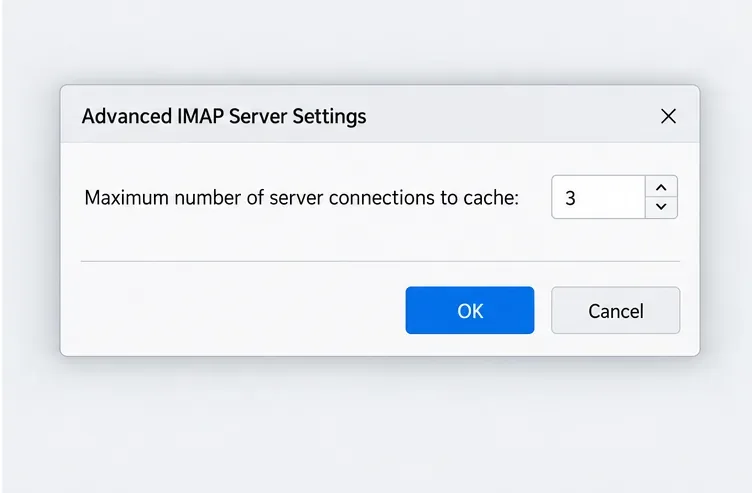
Change this setting only for the affected account, then use Thunderbird normally and note whether the disconnect returns. If the error continues, you can test a lower value such as 1. Fewer cached connections can reduce parallel folder activity, so compare both stability and responsiveness. Restore the previous value if it makes no difference and your provider does not advise a lower limit.
Close other mail clients on the account briefly while testing. Some services count connections across devices, not just connections from Thunderbird. If reducing the cache helps only while a phone or another computer is offline, ask the provider what limit applies before changing settings on every device.
Mozilla’s configuration reference specifically recommends lowering this cache setting when server connections are dropped. See the Advanced IMAP Settings section in Mozilla’s guide.
If disconnections happen mainly after Thunderbird sits idle, try one temporary test. In the same Server Settings panel, clear Allow immediate server notifications when new messages arrive. For IMAP accounts, Thunderbird uses the IMAP IDLE command for immediate new-message notifications. With the option off, rely on the account’s scheduled mail check instead.
Keep the test long enough to see whether the idle disconnect pattern changes, then decide whether immediate notifications are worth keeping. This test may delay new-mail alerts until the next scheduled check; it does not increase the provider’s connection limit. If the connection still drops during active folder use, restore the notification setting and continue with the network checks.
A VPN, proxy, antivirus mail scanner, firewall rule, or unstable Wi-Fi connection can interrupt access to the incoming server. Try Thunderbird on another trusted network, such as a personal hotspot, if your organization’s policies allow it. If the problem disappears there, investigate the original network path rather than repeatedly changing the mailbox password.
Do not leave antivirus or firewall protection turned off. If a security tool is blocking Thunderbird, update its application rule to allow the current Thunderbird installation, or ask your IT administrator to review the block. If you use a VPN or proxy, test with the network administrator’s guidance and restore the expected secure connection afterward. Mozilla lists firewalls, VPNs, proxies, antivirus software, and internet service providers among possible causes of incoming-mail access problems. Consult Mozilla’s connection-blocking checks.
If the server settings and network appear correct, run Thunderbird in Troubleshoot Mode. Open the application menu, choose Help, then Troubleshoot Mode…, restart, and select Continue in Troubleshoot Mode. Test the same account and repeat the action that normally causes the disconnect.
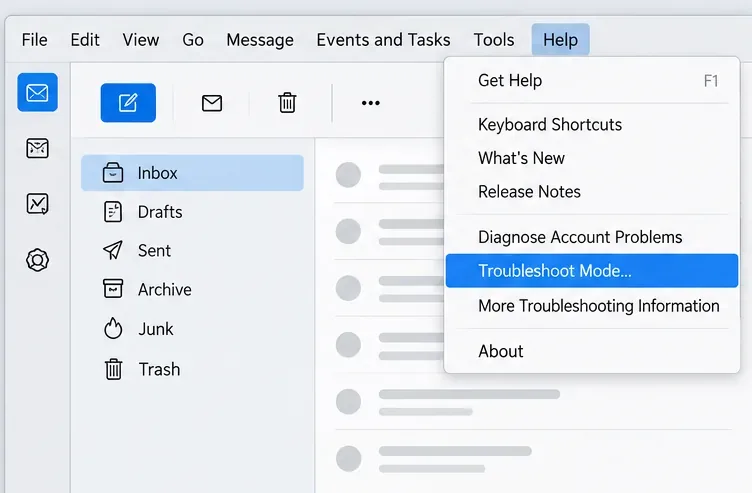
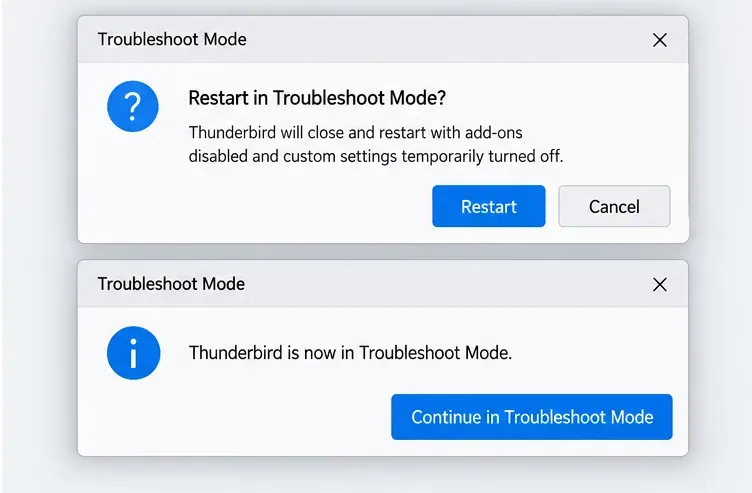
The Mozilla Troubleshoot Mode guide, updated January 8, 2026, says this mode temporarily disables add-ons and themes and hardware acceleration; it does not affect your data. If the disconnect stops in this mode, return to normal mode and disable extensions one at a time until the cause is clear. If it continues, an extension or theme is less likely to be responsible. Follow Mozilla’s current Troubleshoot Mode instructions.
After making one change, use Thunderbird through several normal mail checks. Open and switch between folders, read a few messages, and confirm that syncing completes without a disconnect alert, recurring password prompt, or folders disappearing. If you tested the idle notification option, verify that mail still arrives within the scheduled check interval you chose.
If the problem returns, note the time, network, account, and action that triggers it. Tell your provider whether webmail works and whether other devices stay connected. Include Thunderbird’s version, operating system, server name and port, and the exact error text; redact your email address, public IP, and message details from any public post. Ask the provider to check current IMAP service status, access limits, and idle-session handling.
If Thunderbird disconnects only on one network, focus on that network’s VPN, proxy, firewall, or filtering rules. If all mail clients disconnect, escalate to the mail provider. If Thunderbird alone still disconnects in Troubleshoot Mode after checking the provider’s server values and connection limits, gather troubleshooting information and seek Thunderbird support. These tests narrow the cause; they cannot guarantee that a provider-side outage or policy change can be fixed from the desktop client.
Learn how to install MyIPTV Player on Windows 10, add an M3U playlist and EPG, refresh channels, and fix common setup or playback problems.
HP Print and Scan Doctor was retired by HP on May 27, 2025. Learn what replaced it, how to run Diagnose & Fix, and how to remove old copies safely.
Is Segurazo a virus? Learn how to remove Segurazo or SAntivirus safely, scan for leftovers, and avoid risky registry-cleanup advice.
Learn what Glarysoft Registry Repair does, how to use its scan and backup tools, and why Microsoft recommends caution with registry cleaners.
Download Wise Registry Cleaner safely from the official site, learn the safest scan settings, backup options, and whether this free Windows tool is worth using.
Download and install 7-Zip for Windows 10, then learn how to compress, extract, test, and password-protect archives safely.
Learn how to download and install Bandicam 2027, record your screen, find saved videos, adjust key settings, and understand the free version limits.
Download and install SharpKeys on Windows 10, then remap, disable, swap, or restore keyboard keys safely using the Windows Scancode Map.
Hextech Repair Tool is now Riot Repair Tool. Learn where to download it safely, collect League of Legends logs, run repairs, and contact Riot Support.
Download and install HD Tune Pro on Windows 10, choose the supported version, run benchmarks, check S.M.A.R.T. health, and scan drives for errors.








