MyIPTV Player for Windows 10: How to Set Up and Use It

Learn how to install MyIPTV Player on Windows 10, add an M3U playlist and EPG, refresh channels, and fix common setup or playback problems.
If Thunderbird’s Unified Inbox shows what looks like the same email twice, first check whether the message is duplicated in the mailbox or merely included twice in the combined view. Unified Folders collect selected folders into one virtual view; they do not create a second copy of each message. The safest fix depends on where the extra row appears.
Checked October 6, 2026: Thunderbird 157.0 was released on September 30. Its release notes list several fixes but do not identify a Unified Inbox duplicate-email fix, so the steps below address folder selection, local indexing, and account setup. Read Thunderbird 157.0 release notes.
In the folder pane, compare the combined Inbox with each account’s own Inbox. A message shown in the Unified Inbox and again when you open its source Inbox is normally the same mailbox message viewed from two places. That is expected. A message shown twice in the Unified Inbox, while appearing only once in its source Inbox, points to the folders included in the unified view or to a stale folder index. If both copies also appear in the provider’s webmail, the duplication is likely in the mailbox or account delivery setup.
| What you see | Likely cause | Start here |
|---|---|---|
| One row in Unified Inbox and one in an account’s Inbox | The same source message is visible in two views | No cleanup is needed |
| Two rows in Unified Inbox, one in each source Inbox | Two source folders or duplicate account entries are included | Review Unified Inbox folder selection |
| Two rows in the same account Inbox and in webmail | The mailbox provider received or retained two messages | Check rules, forwarding, and account configuration |
| Old or inconsistent rows appear only in Thunderbird | A local folder index may be out of sync | Repair that source folder |
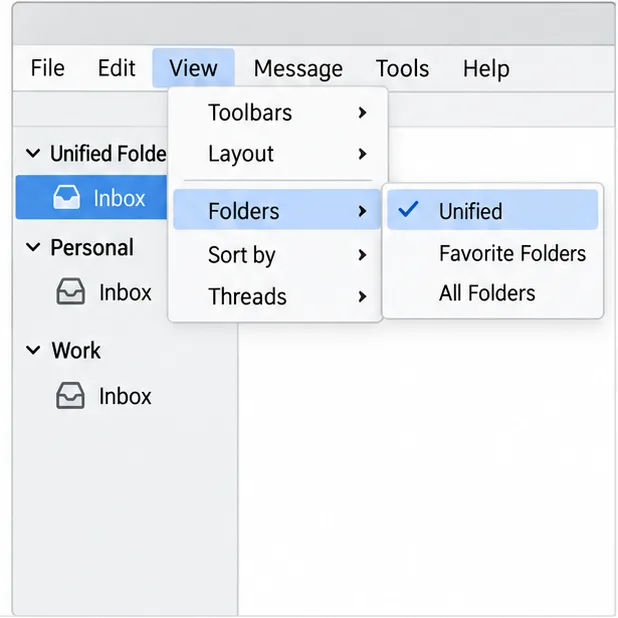
Thunderbird’s folder-pane modes can be changed from View > Folders. If the menu bar is hidden, press Alt on Windows or Linux to reveal it; on macOS, use the application’s menu bar. The exact menu presentation can vary slightly by operating system and Thunderbird version. Mozilla’s folder-pane guide explains the available views.
Do not uncheck an account’s Inbox simply because its messages also appear in the combined view: that is the purpose of a unified folder. Remove only a redundant source-folder selection. A Mozilla Support answer describes the same Properties > Choose control for selecting which account folders feed the unified view.
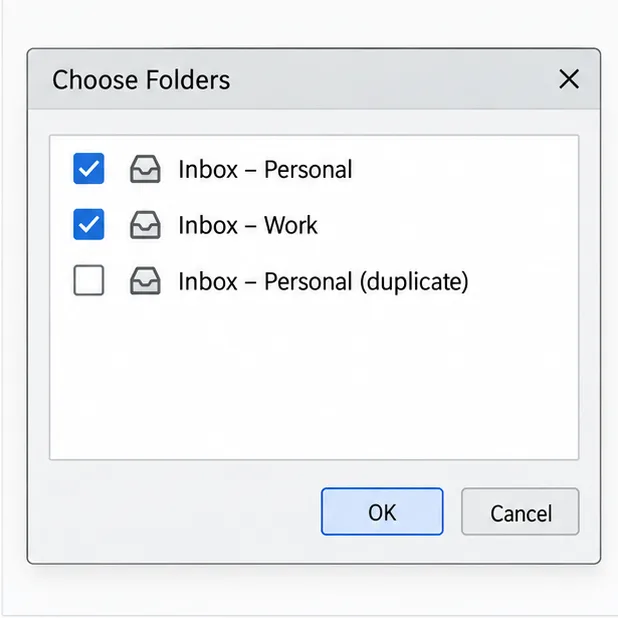
If the repeated row remains, open each contributing account’s regular Inbox and compare the sender, subject, received time, and message content. Then check the same mailbox through its provider’s webmail or another trusted mail app. Seeing the message in Unified Inbox and the regular Inbox is not proof of duplication; seeing two messages in the same source Inbox is a stronger signal.
Also open Account Settings and verify that the same email address has not been added twice using separate account entries. If two entries point to the same server mailbox, both can feed the unified view. Do not remove an account until you know whether it contains local-only mail, particularly if it is a POP account. Back up the Thunderbird profile before changing account definitions; Mozilla’s profile export instructions include accounts, messages, address books, and settings.
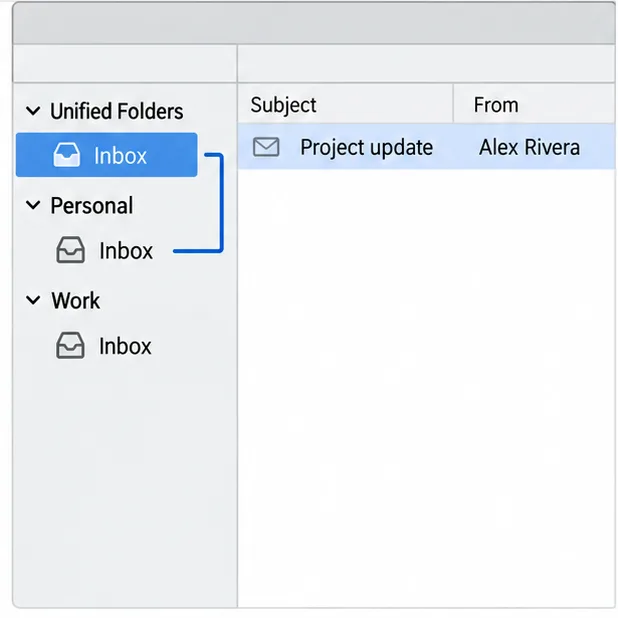
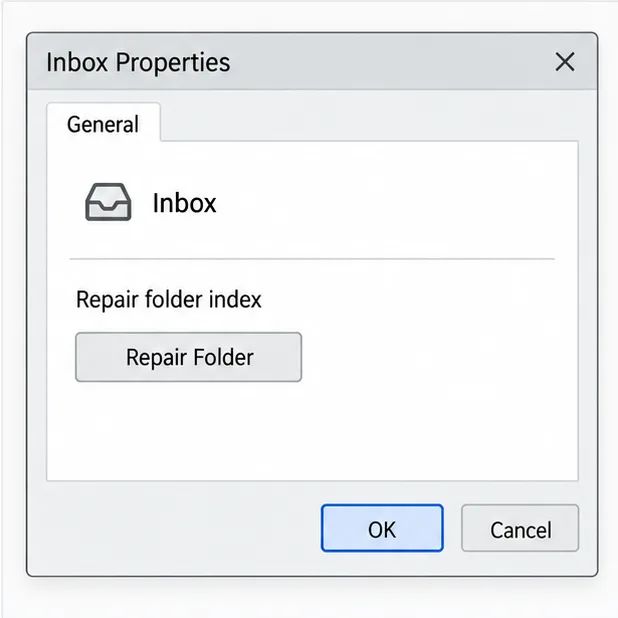
Use folder repair when duplicate-looking rows occur in just one Thunderbird folder, especially if the message list disagrees with what opens, deleted messages return, or webmail shows a different list. Repair rebuilds the folder’s local index. It is not a tool for deduplicating messages that truly exist on the mail server.
Mozilla’s troubleshooting guidance says that Repair Folder forces a new index to be built. If you see message loss or other signs of mailbox-file corruption, stop before compacting or deleting profile files and make a backup first.
If the two copies appear in the provider’s webmail in the same Inbox, Thunderbird’s Unified view is not creating them. Review forwarding rules, filters, aliases, and any other mail clients or services that deliver into that mailbox. Compare the full headers if you need to establish whether the messages were delivered separately. Remove a copy only after confirming which one is redundant and whether your provider synchronizes deletions across devices.
If webmail shows one message but Thunderbird’s same source Inbox shows two after folder repair, temporarily pause changes to that mailbox and check that the correct server, protocol, and username are configured for the account. For persistent IMAP problems, consult the email provider before deleting account data; the provider can confirm whether both items exist on the server.
If the Inbox itself is correct but Thunderbird’s global search returns duplicate-looking results, the message search database may be the issue. This is different from Unified Inbox folder membership. Mozilla’s Global Database instructions describe rebuilding the search index: quit Thunderbird, remove global-messages-db.sqlite from the Thunderbird profile, and restart so it can re-index. Searches may be incomplete while indexing runs. Do not use this procedure as the first fix for duplicate rows in an Inbox.
The most common display-only fix is to remove a repeated source Inbox from Unified Inbox > Properties > Choose. Repair the folder index only when a particular source folder appears stale, and investigate provider-side delivery when the duplicate exists in webmail too.
Sources: Switching the folder pane view; Compacting folders: potential complications; Mozilla Support discussion of choosing folders for Unified view.
Learn how to install MyIPTV Player on Windows 10, add an M3U playlist and EPG, refresh channels, and fix common setup or playback problems.
HP Print and Scan Doctor was retired by HP on May 27, 2025. Learn what replaced it, how to run Diagnose & Fix, and how to remove old copies safely.
Is Segurazo a virus? Learn how to remove Segurazo or SAntivirus safely, scan for leftovers, and avoid risky registry-cleanup advice.
Learn what Glarysoft Registry Repair does, how to use its scan and backup tools, and why Microsoft recommends caution with registry cleaners.
Download Wise Registry Cleaner safely from the official site, learn the safest scan settings, backup options, and whether this free Windows tool is worth using.
Download and install 7-Zip for Windows 10, then learn how to compress, extract, test, and password-protect archives safely.
Learn how to download and install Bandicam 2027, record your screen, find saved videos, adjust key settings, and understand the free version limits.
Download and install SharpKeys on Windows 10, then remap, disable, swap, or restore keyboard keys safely using the Windows Scancode Map.
Hextech Repair Tool is now Riot Repair Tool. Learn where to download it safely, collect League of Legends logs, run repairs, and contact Riot Support.
Download and install HD Tune Pro on Windows 10, choose the supported version, run benchmarks, check S.M.A.R.T. health, and scan drives for errors.








