MyIPTV Player for Windows 10: How to Set Up and Use It

Learn how to install MyIPTV Player on Windows 10, add an M3U playlist and EPG, refresh channels, and fix common setup or playback problems.
A reliable Thunderbird backup should preserve the whole profile, not just a copy of the visible inbox. The profile stores account settings, downloaded messages, address books, filters, and other user data. A scheduled copy of the profile can protect local mail and contacts together, provided Thunderbird is closed while the copy runs. This guide sets up that process on Windows with PowerShell and Task Scheduler, then shows how to check that the backup can be used.
Thunderbird keeps its working data in a profile folder. Mozilla’s profile export tool documents that a profile backup includes accounts, messages, address books, and settings. That makes the profile the practical unit to copy for an automatic local backup. Use the active profile; a computer can contain multiple profiles, and backing up the wrong one can produce a valid-looking folder with none of the mail you expect.
There are two important limits. First, an IMAP account usually represents mail stored on a mail server. A local profile copy includes message bodies only for folders and messages Thunderbird has synchronized for offline use. It is not necessarily an independent archive of every message on the server. Second, remote CardDAV address books, such as contacts hosted by a service, are still controlled by that service. A profile backup can retain Thunderbird’s setup and local address-book data, but it does not replace a separate backup from the contacts provider.
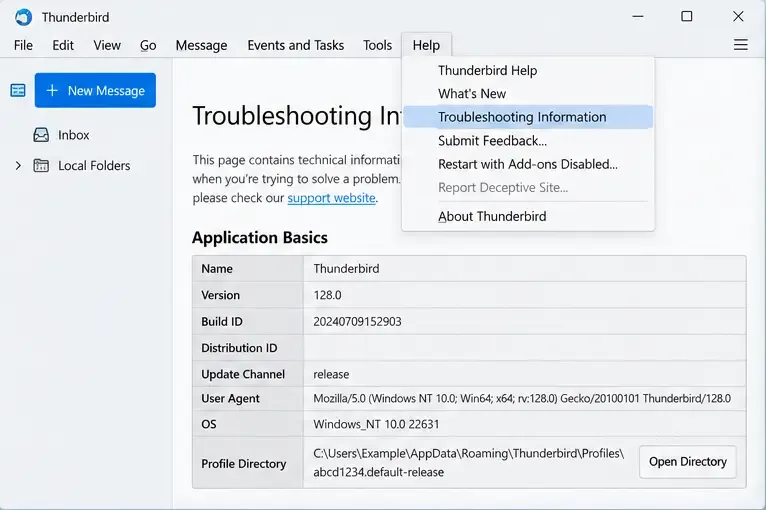
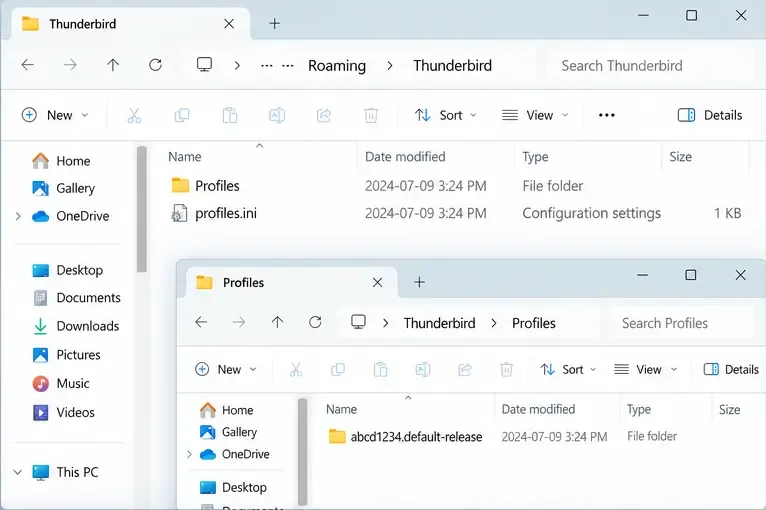
In Thunderbird, open the application menu, choose Help, then Troubleshooting Information. Under Application Basics, locate Profile Directory and select Open Directory. The wording can vary slightly by release. This opens the active profile folder. Go up two levels to the Thunderbird data folder that contains both Profiles and profiles.ini. On a typical Windows installation, it is %APPDATA%\Thunderbird, commonly under the user’s roaming AppData folder.
Use a destination on a different physical disk or a protected network backup location. In this example, create E:\Thunderbird-Backups and keep that drive connected when the scheduled task runs. A second folder on the same failing disk is convenient, but it is not a separate backup if the disk is lost. If your profile is stored outside the default Thunderbird folder, note its custom location and adjust the script to copy that path as well.
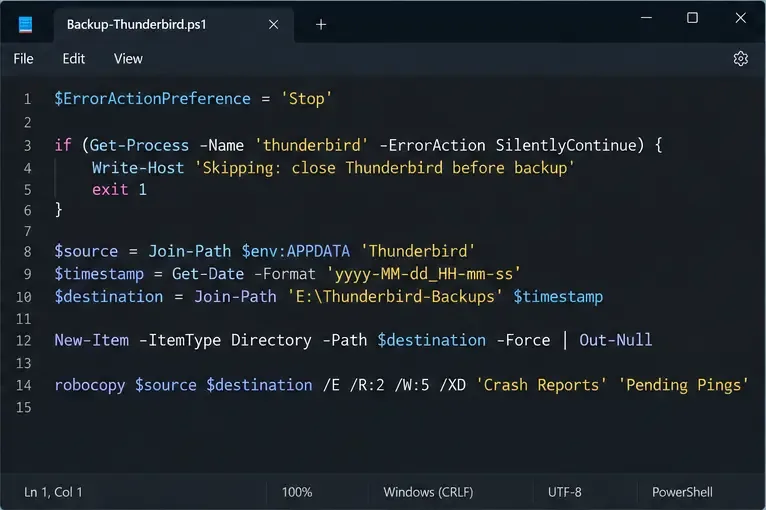
Mozilla recommends closing Thunderbird before copying a profile. Copying while the program is changing mail databases or address books can capture files at different points in time. The script below checks for a running Thunderbird process and skips that run instead of forcing the program to close. It creates a dated snapshot, writes a completion marker only after a successful copy, and keeps the 14 newest completed snapshots.
First create C:\Scripts and E:\Thunderbird-Backups. Save the following as C:\Scripts\Backup-Thunderbird.ps1. Change the destination if your backup drive uses a different letter.
$ErrorActionPreference = 'Stop'
$source = Join-Path $env:APPDATA 'Thunderbird'
$backupRoot = 'E:\Thunderbird-Backups'
$log = Join-Path $backupRoot 'backup.log'

if (-not (Test-Path -LiteralPath $source -PathType Container)) { throw "Source not found: $source" }
if (-not (Test-Path -LiteralPath $backupRoot -PathType Container)) { throw "Backup drive is unavailable: $backupRoot" }

if (Get-Process -Name thunderbird -ErrorAction SilentlyContinue) {
    "$(Get-Date -Format o) Skipped: Thunderbird is still running." | Add-Content -LiteralPath $log
    exit 0
}

$stamp = Get-Date -Format 'yyyyMMdd-HHmmss'
$destination = Join-Path $backupRoot "tb-$stamp"
New-Item -ItemType Directory -Path $destination | Out-Null

& robocopy $source $destination /E /COPY:DAT /DCOPY:DAT /R:2 /W:5 /XJ /XD 'Crash Reports' 'Pending Pings' /NFL /NDL /NP
$copyCode = $LASTEXITCODE
if ($copyCode -ge 8) { throw "Robocopy failed with exit code $copyCode" }

'Completed' | Set-Content -LiteralPath (Join-Path $destination '_backup-complete.txt')
"$(Get-Date -Format o) Completed: $destination" | Add-Content -LiteralPath $log

Get-ChildItem -LiteralPath $backupRoot -Directory -Filter 'tb-*' |
    Where-Object { Test-Path -LiteralPath (Join-Path $_.FullName '_backup-complete.txt') } |
    Sort-Object LastWriteTime -Descending |
    Select-Object -Skip 14 |
    Remove-Item -Recurse -Force
Run the script once by right-clicking it in File Explorer and choosing Run with PowerShell, or run it from a PowerShell window. Close Thunderbird first. Confirm that a new tb-YYYYMMDD-HHMMSS folder appears and contains _backup-complete.txt, profiles.ini, and the expected profile directory. If the copy fails, check that the destination drive is connected and has enough free space. The script does not encrypt the backup; use an encrypted disk or encrypted backup destination if the profile contains sensitive mail or saved credentials.
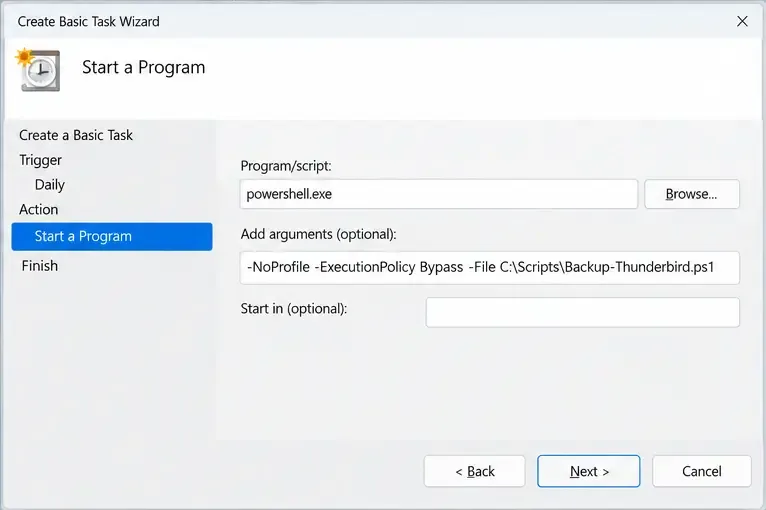
Open Windows Task Scheduler and select Create Basic Task. Name it Thunderbird Profile Backup. Choose a daily trigger at a time you are likely to be away from Thunderbird, such as 2:00 a.m. Choose Start a program, enter powershell.exe as the program, and add these arguments:
-NoProfile -ExecutionPolicy Bypass -File "C:\Scripts\Backup-Thunderbird.ps1"After the wizard finishes, open the task’s properties. On its Triggers tab, edit the daily trigger and set it to repeat every hour for one day. This gives the script another chance after Thunderbird is closed instead of waiting until the next day. On the Settings tab, enable the option to run the task as soon as possible after a scheduled start is missed, and prevent a new instance from starting if the previous one is still running. Run it under the same Windows user account whose profile is being backed up, and keep the backup drive available. If the computer is off or the user is not signed in, a task configured only for that interactive account may not run as expected.
Task Scheduler can also be configured from PowerShell, but the graphical wizard makes it easier to review the action and recurrence. Microsoft documents daily and repeating triggers in the ScheduledTasks module. The key outcome is the same: the task should call the script, not Thunderbird itself, and its history should show attempts at the expected times.
tb-* directory with a completion marker after Thunderbird has been closed.profiles.ini, the profile folder you identified, and mail folders or other expected data. File sizes vary by account and synchronization settings.Do a restore test before relying on the routine. Use a separate Windows account or test computer, close Thunderbird, and restore a copied profile using Mozilla’s profile import or restore instructions. Confirm that local messages and address books appear. Do not test by overwriting the only working profile on your everyday computer.
This script is a simple scheduled copy for a Windows profile that fits on the destination drive. If Thunderbird stays open continuously, its checks may skip every run; choose a regular time to close it or use backup software designed to capture application data safely. If the profile is very large, plan storage for 14 full snapshots or change the retention count and schedule after considering how much history you need. Mozilla’s built-in profile Export tool is convenient for a one-time ZIP, but its current documented limit is 2 GB, so it is not a fit for every large profile or an unattended recurring job.
For macOS and Linux, the same principles apply: identify the active profile using Thunderbird’s troubleshooting page, copy it only after Thunderbird closes, and schedule the copy with the operating system’s scheduler. Default data locations differ by platform, and Snap, Flatpak, portable, and custom-profile installations may use different paths. Do not point a live Thunderbird profile at a synchronized cloud folder or open it concurrently on multiple computers. Mozilla warns that simultaneous access through cloud storage or file sharing can corrupt profile data. Upload completed, closed snapshots as backups instead, and protect them with encryption.
For current instructions, see Mozilla’s Thunderbird profile locations and backup guide, profile export and import guidance, and IMAP synchronization guide. Microsoft’s Task Scheduler trigger documentation explains daily and repeating schedules. Menu names, profile paths, and scheduler settings can change by Thunderbird release or installation type, so verify the active profile on the computer you are backing up.
Learn how to install MyIPTV Player on Windows 10, add an M3U playlist and EPG, refresh channels, and fix common setup or playback problems.
HP Print and Scan Doctor was retired by HP on May 27, 2025. Learn what replaced it, how to run Diagnose & Fix, and how to remove old copies safely.
Is Segurazo a virus? Learn how to remove Segurazo or SAntivirus safely, scan for leftovers, and avoid risky registry-cleanup advice.
Learn what Glarysoft Registry Repair does, how to use its scan and backup tools, and why Microsoft recommends caution with registry cleaners.
Download Wise Registry Cleaner safely from the official site, learn the safest scan settings, backup options, and whether this free Windows tool is worth using.
Download and install 7-Zip for Windows 10, then learn how to compress, extract, test, and password-protect archives safely.
Learn how to download and install Bandicam 2027, record your screen, find saved videos, adjust key settings, and understand the free version limits.
Download and install SharpKeys on Windows 10, then remap, disable, swap, or restore keyboard keys safely using the Windows Scancode Map.
Hextech Repair Tool is now Riot Repair Tool. Learn where to download it safely, collect League of Legends logs, run repairs, and contact Riot Support.
Download and install HD Tune Pro on Windows 10, choose the supported version, run benchmarks, check S.M.A.R.T. health, and scan drives for errors.








