MyIPTV Player for Windows 10: How to Set Up and Use It

Learn how to install MyIPTV Player on Windows 10, add an M3U playlist and EPG, refresh channels, and fix common setup or playback problems.
Thunderbird can identify likely spam, train its adaptive filter from your corrections, and move messages it marks as spam into a Spam folder. For mail from a specific sender or a reliably repeated pattern, a message filter can move matching messages to a review folder automatically. Use the adaptive spam controls for broad spam detection; reserve message filters for narrow rules you can explain and verify.
Thunderbird’s interface illustrations below are conceptual guides, not screenshots. Button names and folder labels can differ by release and account. Mozilla’s current support guidance says Thunderbird changed references from “Junk” to “Spam” starting with version 145, so older versions may still show “Junk.”
| What you need | Best fit | What to expect |
|---|---|---|
| Catch changing, unsolicited messages | Adaptive spam controls | Learns from messages you mark as spam and not spam; results improve with regular corrections, but are not guaranteed. |
| Move one known sender or a narrow repeated pattern | Message filter | Runs on new mail in the Inbox when enabled; a broad rule can catch wanted mail too. |
| Stop spam before Thunderbird downloads or syncs it | Your mail provider’s spam controls | Server-side filtering can work across devices; exact controls depend on the provider. |
Mozilla recommends its spam controls over ordinary message filters for general junk because the adaptive filter is designed for this purpose. Thunderbird also cautions that its local filtering alone is not enough to block modern spam. Your email provider’s filtering may need to work alongside it.
In Thunderbird, open the application menu and choose Account Settings. Select the email account, then open its Spam Settings page. Enable the account’s adaptive spam controls and choose the option to move detected spam to the account’s Spam folder. If the page offers a delete option, avoid selecting it while you are still training the filter: you want a recoverable folder where you can check for false positives.
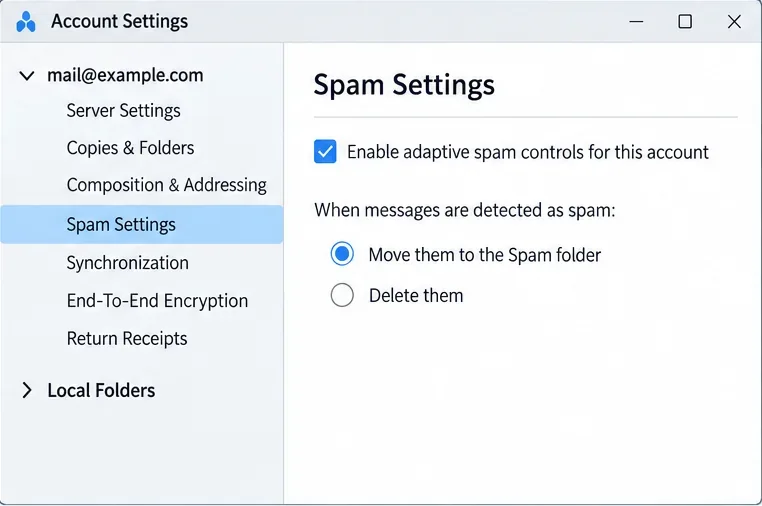
Account-level spam settings can override the global settings. For a quick check across accounts, open Settings > Privacy & Security, scroll to the Spam section, and review what Thunderbird does with messages marked as spam. Then return to each account’s Spam Settings to confirm its own choice. If your interface still says “Junk,” use the corresponding Junk settings.
When an unsolicited message remains in the Inbox, select it and click Mark as Spam (or the Spam/Junk icon). Thunderbird’s help also documents the J shortcut for marking selected messages as spam. Mark it before deleting it: deletion alone does not provide training feedback.
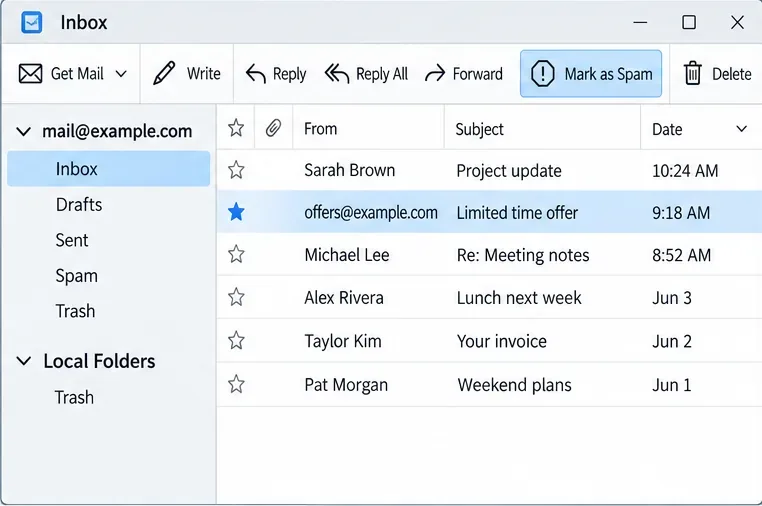
Check the Spam folder regularly, especially during the first weeks. If a legitimate message lands there, mark it Not Spam to restore it and teach Thunderbird that similar mail may be wanted. The Shift+J shortcut is documented for marking selected messages as not spam. Repeatedly correcting both errors and missed spam helps the adaptive filter learn your decisions. It does not make classification infallible.
If messages from important contacts should be protected from automatic spam classification, use the account’s whitelist option for an address book you maintain. Whitelisting reduces one kind of false positive, but it does not prevent you from manually marking an individual message as spam.
Use a message filter when you have a stable, specific rule, such as a confirmed abusive sender address or a recurring subject phrase that should be reviewed. First create a destination folder such as Spam Review using File > New > Folder. A review folder is safer than automatically deleting messages: you can catch mistakes and adjust the rule.
Open the application menu, choose Tools > Message Filters, select the correct account in the account selector, and click New. Give the filter a name that describes what it matches. Under Apply filter when, leave Getting New Mail selected so it runs on incoming messages. Choose whether it should run before or after spam classification. For a simple sender rule, either order can work; if a filter depends on body text, Mozilla recommends trying after classification when body matching does not work as expected.
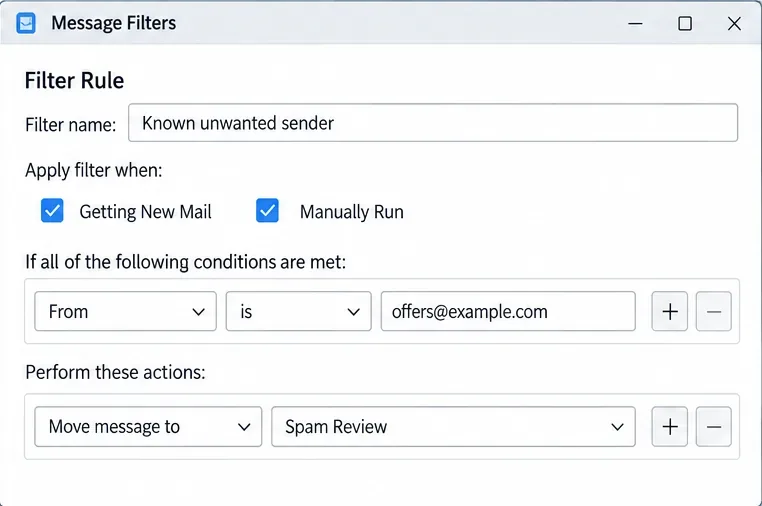
Set the condition to From | is | offers@example.com, replacing the example with the exact address you verified. Use Match all when every condition must be true. Use Match any only when any listed condition should trigger the action; for spam-like rules, that can widen the match unexpectedly. Select the action Move Message to and choose Spam Review, then save the filter.
A sender display name can be forged, so avoid rules based only on a familiar-looking name. Likewise, avoid broad terms such as “free,” “invoice,” or “urgent” unless you have confirmed they will not match wanted mail. A filter that moves everything matching a broad word can hide legitimate messages without teaching the adaptive spam classifier.
New filters do not automatically process every old message. In Message Filters, confirm the right account is selected, highlight the filter, and use Run Now. Choose the Inbox as the folder to process if Thunderbird asks which folder to use. Automatic filters apply to the Inbox; running a filter manually lets you choose a folder. Check the destination folder afterward and restore any messages the rule matched incorrectly.
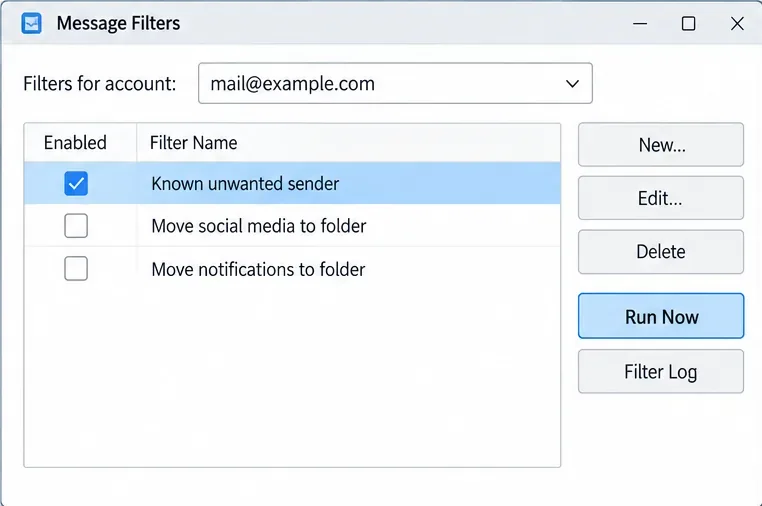
Message filters are client-side Thunderbird rules: automatic execution is limited to new messages in the Inbox. A filter will not automatically patrol arbitrary folders. Use Run Now for existing mail, or use the provider’s server-side rules if messages must be handled while Thunderbird is closed or across multiple clients.
The adaptive filter classifies mail rather than enforcing an exact sender block. If you need a more predictable result, make a narrow filter and move messages to a review folder. If spam keeps reaching every device, use your email provider’s spam report or block controls as well. Folder synchronization, provider rules, and server-side classifications vary by account, so verify behavior in webmail and on another device if those matter.
Learn how to install MyIPTV Player on Windows 10, add an M3U playlist and EPG, refresh channels, and fix common setup or playback problems.
HP Print and Scan Doctor was retired by HP on May 27, 2025. Learn what replaced it, how to run Diagnose & Fix, and how to remove old copies safely.
Is Segurazo a virus? Learn how to remove Segurazo or SAntivirus safely, scan for leftovers, and avoid risky registry-cleanup advice.
Learn what Glarysoft Registry Repair does, how to use its scan and backup tools, and why Microsoft recommends caution with registry cleaners.
Download Wise Registry Cleaner safely from the official site, learn the safest scan settings, backup options, and whether this free Windows tool is worth using.
Download and install 7-Zip for Windows 10, then learn how to compress, extract, test, and password-protect archives safely.
Learn how to download and install Bandicam 2027, record your screen, find saved videos, adjust key settings, and understand the free version limits.
Download and install SharpKeys on Windows 10, then remap, disable, swap, or restore keyboard keys safely using the Windows Scancode Map.
Hextech Repair Tool is now Riot Repair Tool. Learn where to download it safely, collect League of Legends logs, run repairs, and contact Riot Support.
Download and install HD Tune Pro on Windows 10, choose the supported version, run benchmarks, check S.M.A.R.T. health, and scan drives for errors.








