MyIPTV Player for Windows 10: How to Set Up and Use It

Learn how to install MyIPTV Player on Windows 10, add an M3U playlist and EPG, refresh channels, and fix common setup or playback problems.
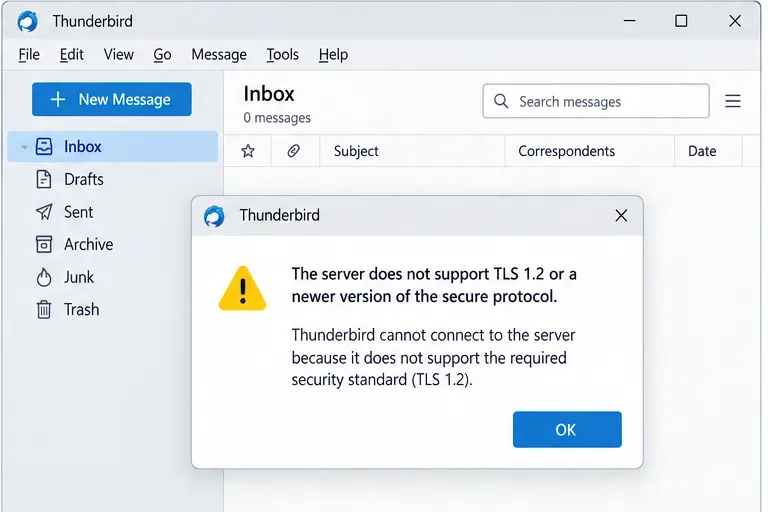
If Thunderbird says your mail server does not support TLS 1.2, the safest fix is usually not to weaken Thunderbird. First confirm that the incoming and outgoing server names, ports, and connection-security choices match the settings published by your email provider. If those settings are correct and the warning remains, the server itself may still be limited to obsolete TLS 1.0 or TLS 1.1 and needs to be upgraded by the provider or administrator.
TLS, or Transport Layer Security, is the protocol that encrypts the connection between Thunderbird and a mail server. Thunderbird 78, released July 17, 2020, disabled TLS 1.0 and TLS 1.1 by default. Mozilla’s current support guidance still treats lowering the minimum TLS requirement as a temporary diagnostic measure that reduces security, not as the preferred permanent fix. See the Thunderbird 78 release notes and Mozilla’s Thunderbird 78 FAQ.
Have the email provider’s current setup instructions open in a browser. You need the exact incoming server name, outgoing SMTP server name, port numbers, connection security, and authentication method. Do not assume that a port you used years ago is still correct.
Three terms matter here:
If this is a company, school, or self-hosted mailbox, ask the mail administrator for the supported TLS versions and the approved IMAP/POP and SMTP endpoints. A security warning can be caused by the server itself, but it can also appear when Thunderbird is pointed at an old hostname, legacy proxy, or outdated gateway.
Notice whether the problem happens when receiving mail, sending mail, or both. If receiving fails, focus first on the incoming IMAP or POP settings. If sending fails, inspect SMTP. If both fail immediately after a provider migration or a Thunderbird update, check both because they may use different hostnames and ports.
Mozilla’s current troubleshooting pages recommend comparing Thunderbird with the provider’s documented settings before changing anything else. The official guides for receiving problems and sending problems both call out outdated TLS as one possible cause.
Open Thunderbird’s application menu and choose Account Settings. Select the affected account, then open Server Settings. Compare the server name, port, connection security, authentication method, and username with your provider’s current instructions.
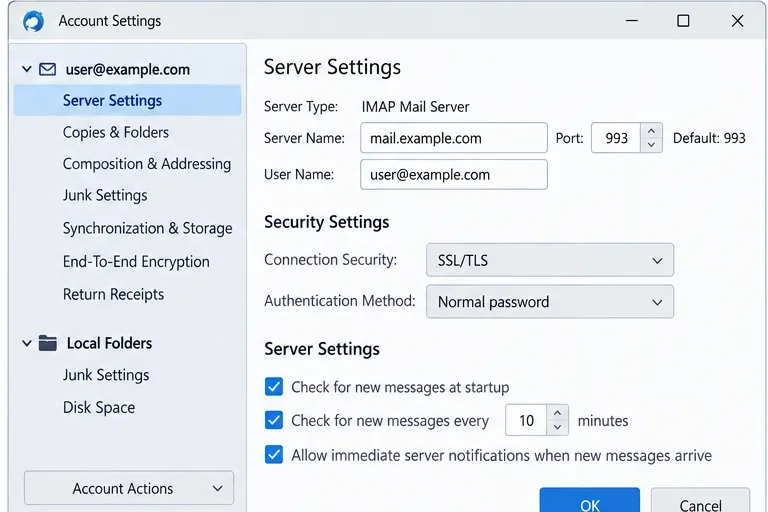
Do not change a working secure setting to None just to make the warning disappear. That can remove transport encryption and may expose credentials or message traffic. Mozilla’s account-settings documentation describes SSL/TLS as the recommended encrypted option when available and explains STARTTLS as an upgrade from an initially unencrypted connection. See Configuration Options for Accounts.
In Account Settings, select Outgoing Server (SMTP), choose the server assigned to your email account, and edit it. Compare the SMTP hostname, port, connection security, authentication method, and username with the provider’s published values.
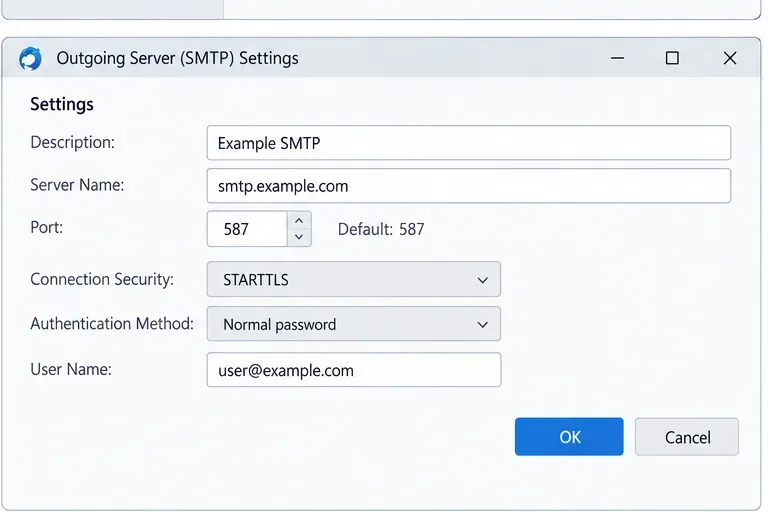
Port 587 is commonly paired with STARTTLS and port 465 is commonly used for implicit TLS, but these are not universal rules you should force onto an account. The provider’s documentation is the source of truth. Also verify that the right SMTP server is assigned to the right identity; Thunderbird’s official sending guide notes that using another account provider’s SMTP service can fail.
Save the corrected account settings and restart Thunderbird. Try receiving mail, then send a short test message to an address you control. If one direction works and the other does not, you have narrowed the problem to incoming mail or SMTP.
If the TLS warning still appears, contact the provider or administrator and ask a direct question: Does this specific mail endpoint support TLS 1.2 or later? Give them the hostname and port Thunderbird is using. This avoids a common dead end where support confirms that “the service supports TLS 1.2” but a particular legacy IMAP, POP, SMTP, proxy, or load-balancer endpoint does not.
Thunderbird includes an advanced preferences page called Config Editor, also known as about:config. Mozilla explicitly says this tool is intended for advanced use and that non-default changes are unsupported because they can break Thunderbird or complicate troubleshooting. The current path is Menu > Settings > General, scroll to the bottom, then choose Config Editor. See Mozilla’s official Config Editor documentation.
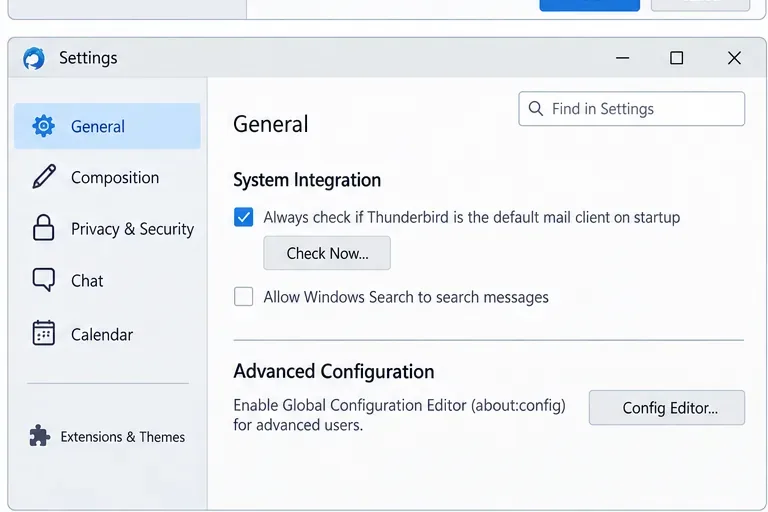
For older servers, Mozilla’s Thunderbird 78 FAQ documents changing security.tls.version.min to a lower value as a way to test whether obsolete TLS is the cause. If doing that suddenly makes mail work, you have confirmed a server-side compatibility problem. It does not mean the weaker setting is a good long-term solution.
After the test, restore the preference to its default value. In current Thunderbird, changed preferences are shown in bold and the revert control can return them to default. Then ask the provider to enable TLS 1.2 or later, move the mailbox to a supported endpoint, or give you updated connection settings.
TLS 1.0 and TLS 1.1 are obsolete protocols. Thunderbird disabled them by default for a reason. Leaving an old protocol enabled increases exposure to protocol weaknesses and makes the client accept security that modern software no longer considers appropriate. If the mailbox is business-critical and the server cannot be upgraded immediately, treat any temporary compatibility change as an exception with a defined end date, not a normal configuration.
For a personal mailbox hosted by a third party, the practical decision may be to move to the provider’s modern mail endpoint or choose a provider that supports current TLS. For an internal server, the durable fix belongs on the mail server, reverse proxy, load balancer, or TLS-terminating gateway.
A successful repair has three signs: Thunderbird receives new mail without the TLS warning, a test message sends successfully through the configured SMTP server, and you did not need to leave insecure TLS compatibility enabled. If only one direction works, revisit the corresponding incoming or outgoing settings. If neither direction works and the provider confirms the hostname supports TLS 1.2 or later, investigate firewall, VPN, proxy, antivirus, certificate, or network-path issues next.
Stop changing Thunderbird settings when the account matches the provider’s published configuration and the provider confirms that the exact endpoint is limited to TLS 1.0 or 1.1. At that point the client is doing what it is designed to do: refusing a connection below its security floor. The durable resolution is a server upgrade or migration.
If you manage the server yourself, verify the TLS configuration on the service that actually terminates the connection, not only on the mail application. In some deployments a proxy or gateway handles encryption in front of IMAP or SMTP. Upgrading the back-end mail software alone will not help if the TLS-terminating layer still offers only obsolete protocol versions.
For a Thunderbird “Server does not support TLS 1.2” warning, start with the provider’s current IMAP/POP and SMTP settings, correct any outdated hostnames, ports, or security modes, and retest. Use Thunderbird’s advanced TLS preference only as a short diagnostic for a legacy server. If the test confirms obsolete TLS, restore the default and fix the server side. That approach resolves the real problem without silently trading away connection security.
Learn how to install MyIPTV Player on Windows 10, add an M3U playlist and EPG, refresh channels, and fix common setup or playback problems.
HP Print and Scan Doctor was retired by HP on May 27, 2025. Learn what replaced it, how to run Diagnose & Fix, and how to remove old copies safely.
Is Segurazo a virus? Learn how to remove Segurazo or SAntivirus safely, scan for leftovers, and avoid risky registry-cleanup advice.
Learn what Glarysoft Registry Repair does, how to use its scan and backup tools, and why Microsoft recommends caution with registry cleaners.
Download Wise Registry Cleaner safely from the official site, learn the safest scan settings, backup options, and whether this free Windows tool is worth using.
Download and install 7-Zip for Windows 10, then learn how to compress, extract, test, and password-protect archives safely.
Learn how to download and install Bandicam 2027, record your screen, find saved videos, adjust key settings, and understand the free version limits.
Download and install SharpKeys on Windows 10, then remap, disable, swap, or restore keyboard keys safely using the Windows Scancode Map.
Hextech Repair Tool is now Riot Repair Tool. Learn where to download it safely, collect League of Legends logs, run repairs, and contact Riot Support.
Download and install HD Tune Pro on Windows 10, choose the supported version, run benchmarks, check S.M.A.R.T. health, and scan drives for errors.








