MyIPTV Player for Windows 10: How to Set Up and Use It

Learn how to install MyIPTV Player on Windows 10, add an M3U playlist and EPG, refresh channels, and fix common setup or playback problems.
You are trying to install a package, follow a server guide, add a repository, or troubleshoot a driver, and the instructions suddenly ask: “Which version of Ubuntu are you running?” That question matters more than it may seem. Ubuntu releases use different package versions, kernels, support timelines, and sometimes different installation instructions. If you give someone the wrong version—or mistake your Linux kernel version for your Ubuntu release—you can end up following the wrong fix.
The quickest answer depends on where you are working. On Ubuntu Desktop, you can check the version in Settings without opening a terminal. On Ubuntu Server, a remote SSH session, WSL, a cloud VM, or a minimal installation, a terminal command is usually faster. This guide starts with the easiest methods, then moves to system files and troubleshooting, and ends with a simple way to verify that you read the result correctly.
If you have a desktop interface, open Settings → System → About and look for the operating system information. Canonical's current Ubuntu Desktop documentation identifies this as the graphical way to determine the installed release. See the official Ubuntu Desktop release guide.
If you are in a terminal, run:
lsb_release -aThis normally shows the distributor, description, release number, and codename. The Ubuntu manpage documents -a as the option that displays all of that distribution-specific information. See the official Ubuntu lsb_release manpage.
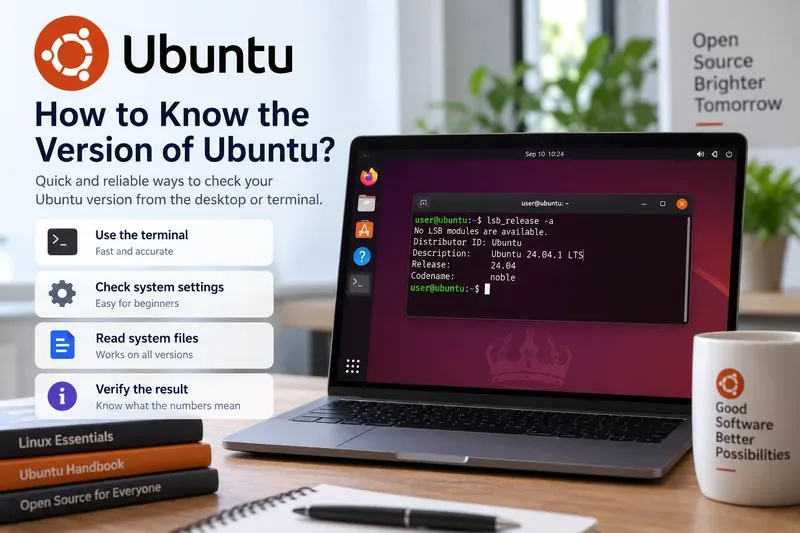
This is the easiest option if you are using Ubuntu Desktop and do not want to type commands.
Depending on the Ubuntu Desktop version, the exact labels can vary slightly. Canonical's user help also describes opening Settings, going to System, then About and System Details to see the OS name and other system information. The important part is the release identifier, such as Ubuntu 24.04 LTS or Ubuntu 26.04 LTS.
This method is best when you are sitting at the machine and need a quick human-readable answer. It is less useful on a headless server, in automation, or when you need to copy only the release number into a script.
For most interactive terminal sessions, lsb_release gives the most readable output.
lsb_release -aAn example can look like this:
No LSB modules are available.
Distributor ID: Ubuntu
Description:    Ubuntu 24.04.1 LTS
Release:        24.04
Codename:       noble
If the first line says No LSB modules are available. but the Ubuntu information appears underneath it, the command has still given you the distribution details you need. The fields to pay attention to are:
| Field | What it tells you | Example |
|---|---|---|
| Description | A readable release name | Ubuntu 24.04.1 LTS |
| Release | The main Ubuntu release series | 24.04 |
| Codename | The release codename used by some repositories and documentation | noble |
You do not always need all fields. For only the release number, use:
lsb_release -rsFor only the codename:
lsb_release -csFor a short description:
lsb_release -dsThese shorter commands are useful when copying the value into documentation or a shell script.
If lsb_release is unavailable, the most useful fallback is the operating-system identification file:
cat /etc/os-releaseYou may see fields similar to these:
PRETTY_NAME="Ubuntu 26.04 LTS"
NAME="Ubuntu"
VERSION_ID="26.04"
VERSION="26.04 LTS (Resolute Raccoon)"
VERSION_CODENAME=resolute
ID=ubuntu
The exact fields vary by release, but PRETTY_NAME, VERSION_ID, and VERSION_CODENAME are the most useful for this task. Ubuntu's current os-release documentation explains that /etc/os-release contains operating-system identification data and takes precedence over /usr/lib/os-release when it exists. It also recommends ID and VERSION_ID for programmatic OS identification and PRETTY_NAME for a user-facing label. See the official Ubuntu os-release manpage.
If you want just the readable name without the other variables, a simple command is:
grep '^PRETTY_NAME=' /etc/os-releaseFor scripts, you can read the values directly:
. /etc/os-release
printf '%s\n' "$ID"
printf '%s\n' "$VERSION_ID"
This is usually a better machine-readable approach than parsing a long formatted command output.
On Ubuntu systems using systemd, hostnamectl can provide a broader system summary:
hostnamectlIts output can include the operating system, kernel, architecture, hostname, and virtualization information. That makes it useful when a support technician asks for more than just the Ubuntu release.
However, hostnamectl is not the best choice for every environment. Containers, minimal environments, chroots, or systems where the relevant systemd services are not available may behave differently. If your only goal is the Ubuntu release, lsb_release or /etc/os-release is simpler.
A common mistake is to run:
uname -rand assume the result is the Ubuntu version. It is not. The Ubuntu uname manpage defines -r as the option that prints the kernel release. For example, a value such as 6.8.0-xx-generic describes the Linux kernel you are running, not whether the operating system is Ubuntu 22.04, 24.04, or 26.04. See the official Ubuntu uname manpage.
The distinction matters because an Ubuntu LTS release can receive newer kernels over its lifetime, especially through hardware-enablement updates or cloud-specific kernels. Two machines on the same Ubuntu release can therefore report different kernel versions.
If someone asks for troubleshooting information, it is often useful to provide both values:
lsb_release -ds
uname -r
The first line identifies the Ubuntu release; the second identifies the running kernel.
Inside Ubuntu on Windows Subsystem for Linux, use lsb_release -a or cat /etc/os-release to identify the Ubuntu user-space release. If you run uname -r, you may see a Microsoft/WSL-related kernel string. That is expected: the kernel information and the Ubuntu distribution version answer different questions.
Canonical documents Ubuntu as an officially available environment for WSL in its Ubuntu releases documentation.
When you run cat /etc/os-release inside a container, you are normally identifying the operating system of the container image, not the host operating system. A container based on Ubuntu 24.04 can be running on a host that uses another Ubuntu release—or even another Linux distribution.
Similarly, uname -r inside a typical container reflects the kernel shared with the host. That is why the two commands can appear to “disagree”: they are describing different layers.
After you SSH into a server, run the version command on the remote shell. Do not rely on the Ubuntu version of your local laptop. A useful one-line check is:
printf 'Ubuntu: '; lsb_release -ds 2>/dev/null || grep '^PRETTY_NAME=' /etc/os-release; printf 'Kernel: '; uname -rThis gives you both the distribution and kernel context before you make package or configuration changes.
Do not assume the operating system is broken. Some minimal images may not include every convenience command. First, use the system file that already exists on normal modern Ubuntu installations:
cat /etc/os-releaseIf you specifically need lsb_release for an existing script, you can check whether the package is installed and install the appropriate Ubuntu package through APT. But for a one-time version check, installing another package is usually unnecessary because /etc/os-release already provides the release identification.
Ubuntu's official release format is YY.MM[.POINT-RELEASE] [LTS]. The first two digits represent the year, and the next two represent the month of the initial release. For example, Ubuntu 26.04 was released in April 2026. Canonical normally publishes a new Ubuntu series every six months, and an LTS release every two years in April. See the official Ubuntu release-cycle documentation.
A number such as 24.04.1 is a point release of the 24.04 LTS series. Canonical explains that point releases bundle updates made since the initial LTS release so that fresh installations start from a more current image. In most software compatibility checks, the important base series is still 24.04, although the point-release level can matter when discussing installation media, hardware enablement, or a specific system snapshot.
The LTS label means Long Term Support. Current Canonical documentation states that LTS releases receive five years of standard security maintenance for packages in the main component, while interim releases are supported for nine months. That is why knowing the exact Ubuntu version is also important when checking whether a machine is still within its normal support window.
| Situation | Best method | Why |
|---|---|---|
| Ubuntu Desktop beginner | Settings → System → About | No commands required |
| Normal terminal or SSH session | lsb_release -a | Readable release, description, and codename |
| Minimal server or missing lsb_release | cat /etc/os-release | Uses the standard OS identification file |
| Shell script | Read ID and VERSION_ID from /etc/os-release | Structured values are easier to test reliably |
| Support request needing more system context | hostnamectl plus uname -r | Adds kernel, architecture, hostname, and other details |
| WSL or container | /etc/os-release plus uname -r | Separates user-space distribution from kernel information |
Before you install software or follow version-specific instructions, verify the result with two independent pieces of information. Run:
lsb_release -ds
grep '^VERSION_ID=' /etc/os-release
uname -r
The first two lines should identify the same Ubuntu release series. The third line will normally look different because it is the kernel release, and that is expected.
For example, if the description says Ubuntu 24.04.1 LTS and VERSION_ID says 24.04, you are on the Ubuntu 24.04 LTS series. A separate kernel value such as 6.x.x-...-generic does not contradict that result.
Once those values agree, you can safely use documentation, repositories, package instructions, and support guidance intended for that Ubuntu series. When sharing system information with someone else, the most useful concise answer is usually the Ubuntu release plus the kernel version—for example, “Ubuntu 24.04 LTS, kernel 6.x”—rather than only one of the two.
Learn how to install MyIPTV Player on Windows 10, add an M3U playlist and EPG, refresh channels, and fix common setup or playback problems.
HP Print and Scan Doctor was retired by HP on May 27, 2025. Learn what replaced it, how to run Diagnose & Fix, and how to remove old copies safely.
Is Segurazo a virus? Learn how to remove Segurazo or SAntivirus safely, scan for leftovers, and avoid risky registry-cleanup advice.
Learn what Glarysoft Registry Repair does, how to use its scan and backup tools, and why Microsoft recommends caution with registry cleaners.
Download Wise Registry Cleaner safely from the official site, learn the safest scan settings, backup options, and whether this free Windows tool is worth using.
Download and install 7-Zip for Windows 10, then learn how to compress, extract, test, and password-protect archives safely.
Learn how to download and install Bandicam 2027, record your screen, find saved videos, adjust key settings, and understand the free version limits.
Download and install SharpKeys on Windows 10, then remap, disable, swap, or restore keyboard keys safely using the Windows Scancode Map.
Hextech Repair Tool is now Riot Repair Tool. Learn where to download it safely, collect League of Legends logs, run repairs, and contact Riot Support.
Download and install HD Tune Pro on Windows 10, choose the supported version, run benchmarks, check S.M.A.R.T. health, and scan drives for errors.








