MyIPTV Player for Windows 10: How to Set Up and Use It

Learn how to install MyIPTV Player on Windows 10, add an M3U playlist and EPG, refresh channels, and fix common setup or playback problems.
If Thunderbird shows an empty Inbox, duplicate message headers, messages that open with the wrong content, or a folder count that no longer matches what you can see, the safest first fix is to rebuild that folder's index. In Thunderbird, right-click Inbox, choose Properties, and click Repair Folder. This recreates the folder's .msf index without asking you to delete the actual mail store.
If the built-in repair does not work, you can close Thunderbird completely, locate the active profile, delete only Inbox.msf, and restart Thunderbird. Thunderbird will create a fresh index. The important distinction is that Inbox.msf is an index or summary file; it is not the file you should treat as your message archive. For an mbox account, the extensionless file named Inbox is the message store and must not be deleted.
The instructions below were checked against Mozilla's Thunderbird support documentation available in October 2026. Mozilla documents the profile-location workflow and explains that folder maintenance recreates index files such as Inbox.msf. See Profiles - Where Thunderbird stores your messages and other user data and Compacting folders.
Use Repair Folder first. It is the lower-risk option because Thunderbird performs the index rebuild for the selected folder from inside the application. Manual deletion is mainly useful when the normal repair command does not resolve the problem, the index cannot be opened correctly, or Thunderbird cannot display the folder well enough for the repair to complete.
| Situation | Best first action | Why |
|---|---|---|
| Inbox headers are missing, duplicated, stale, or mismatched | Repair Folder | These are classic index symptoms, and rebuilding the index is targeted and reversible. |
| Repair Folder completes but the same display problem returns | Back up the profile, then manually remove only Inbox.msf with Thunderbird closed | This forces a clean index recreation on the next start. |
| Messages are missing from webmail and from the local message store | Do not assume the .msf file is the cause | An index rebuild cannot restore message data that no longer exists. |
| Message bodies contain pieces of other messages, dates are nonsensical, or the underlying mbox appears damaged | Stop and make a backup before further maintenance | Those symptoms can point to mail-store corruption, not merely an index problem. |
In the folder pane, right-click Inbox and choose Properties. On macOS, Control-click can be used where appropriate. The exact visual styling can differ by operating system and Thunderbird release, but the key command is the folder's Properties dialog.
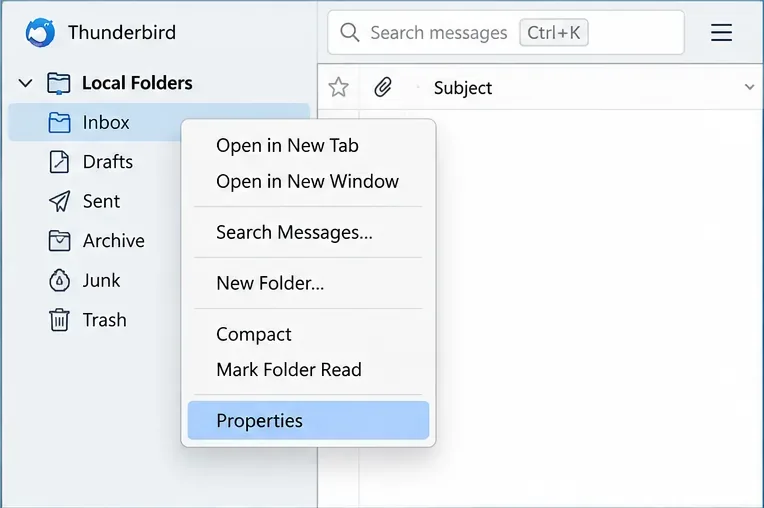
This step is appropriate when Thunderbird still starts and the Inbox remains selectable. If several folders are affected, test one folder first rather than changing every index at once; that makes it easier to confirm whether indexing is actually the problem.
In the Inbox Properties window, click Repair Folder. A Mozilla Support response from Thunderbird staff describes this action as rebuilding the folder index and notes that it often fixes missing or duplicate message-list entries. You can review that guidance on the Mozilla Support discussion about repairing a Thunderbird Inbox.
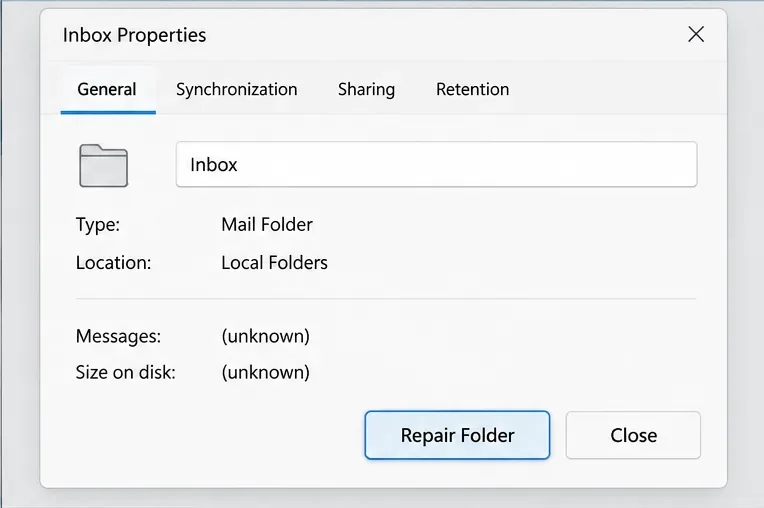
After the rebuild, wait for the message list to settle before judging the result. Large local folders and IMAP folders with substantial synchronized content can take time to repopulate. If the account is IMAP, Thunderbird may also need to synchronize information from the server, so confirm the server is reachable before concluding that the repair failed.
The next step is a manual index reset, but make a backup first. Mozilla recommends regular profile backups and explains that Thunderbird's built-in Export tool can save the profile to a ZIP file, with a documented size limit of 2 GB for the built-in ZIP export. For larger profiles, Mozilla recommends copying the profile contents with the file manager. See Export your Thunderbird Profile.
If the Inbox is important and you use POP or Local Folders, this backup is especially important because locally stored messages may be the only copy you have. For IMAP, the server often holds the authoritative messages, but a profile backup can still preserve local-only folders, settings, filters, address books, and unsynchronized data.
Open Thunderbird's menu, go to Help > Troubleshooting Information, find Profile Folder under Application Basics, and choose Open Folder, Show in Finder, or Open Directory depending on the operating system. This is the method documented by Mozilla and is safer than guessing which profile is active when multiple profiles exist.
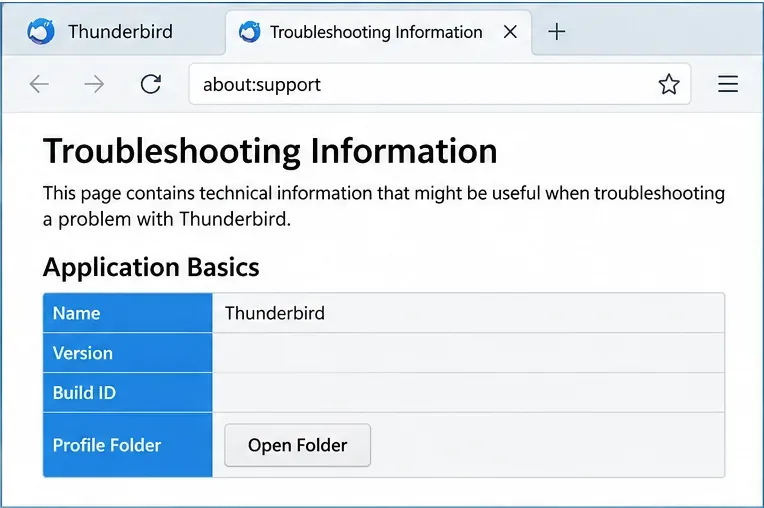
Once the profile directory is open, close Thunderbird completely before deleting or renaming an index file. Do not leave the application running in the background while modifying profile files.
The exact subdirectory depends on the account and storage arrangement. POP and Local Folders are commonly found under the profile's Mail area, while IMAP account data is commonly under ImapMail. Subfolder names vary by account and server, so use the active profile and the account's folder structure rather than blindly copying a path from another computer.
Look for Inbox.msf. If you use mbox storage, you may also see a separate file named simply Inbox with no extension. Delete or rename only Inbox.msf; do not delete the extensionless Inbox file. Restart Thunderbird and open Inbox. Thunderbird should recreate the index.
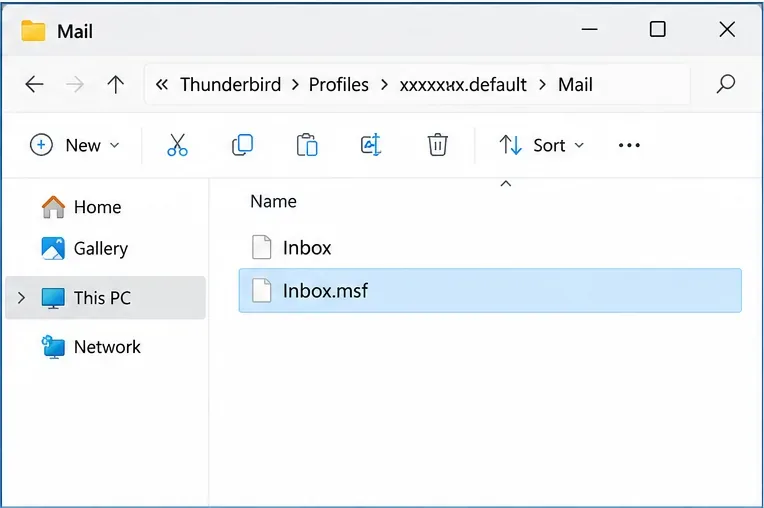
The .msf file is used as an index so Thunderbird can quickly present folder contents. In a traditional mbox setup, the message data is stored separately. Mozilla's documentation on compacting explains that Thunderbird can create a new index such as Inbox.msf after processing the underlying mail store. That separation is why rebuilding an index can repair display problems without intentionally removing the message store.
However, an index can sometimes make damaged or stale data appear better than the underlying store really is. After a rebuild, Thunderbird may show fewer messages because the newly generated index reflects what it can actually read from the current mail store or synchronize from the IMAP server. That is not proof that the repair command deleted healthy messages. If important mail disappears after a rebuild, stop modifying the folder and compare against your backup or server copy.
An index problem is more likely when message headers are wrong, counts are inconsistent, messages appear duplicated in the list, or selecting one message displays another. A rebuild is a reasonable test in those cases.
Real mail-store corruption is more serious. Mozilla lists symptoms such as old deleted messages reappearing, dates around 1969, message bodies containing fragments of other messages, or a message list that does not correspond to the selected message. Mozilla also warns that if the underlying mbox is corrupt, a compact operation can produce a truncated result. Read Compacting folders - Potential complications before using compacting as a recovery technique for a folder that already looks damaged.
Not automatically. Repairing an index and compacting a folder solve different problems. Repairing rebuilds the folder index. Compacting is routine maintenance for mbox storage that removes space left behind by messages that were deleted or moved. Mozilla states that compacting is normal maintenance, but it also involves rewriting the mbox file. If you suspect actual storage corruption, create a backup first and address the corruption rather than treating compacting as an index repair.
If the repaired Inbox works normally and you simply need regular mbox maintenance, compacting can be appropriate afterward. If the account uses maildir storage, Mozilla notes that maildir stores each message separately and does not need mbox-style compacting.
Check the source of truth before repeating repairs. For an IMAP account, sign in to the provider's webmail interface and verify whether the messages still exist on the server. If they do, focus on synchronization, account configuration, and local cache issues. If the server is also empty, rebuilding Inbox.msf cannot recreate messages that are absent from the server.
For POP or Local Folders, inspect your backup before making additional changes. If the underlying extensionless mbox file is unexpectedly tiny, missing, or unreadable, the issue is beyond the index. Restore from a known-good backup or seek recovery help before compacting or overwriting the folder.
For a suspected corrupted Thunderbird Inbox index, the correct first move is simple: right-click Inbox, open Properties, and use Repair Folder. If that fails, back up the profile, close Thunderbird, remove only Inbox.msf, and restart so Thunderbird can recreate it. The central safety rule is to distinguish the disposable index from the actual message store. Once you do that, most index-only problems can be handled without risking the underlying mail.
Learn how to install MyIPTV Player on Windows 10, add an M3U playlist and EPG, refresh channels, and fix common setup or playback problems.
HP Print and Scan Doctor was retired by HP on May 27, 2025. Learn what replaced it, how to run Diagnose & Fix, and how to remove old copies safely.
Is Segurazo a virus? Learn how to remove Segurazo or SAntivirus safely, scan for leftovers, and avoid risky registry-cleanup advice.
Learn what Glarysoft Registry Repair does, how to use its scan and backup tools, and why Microsoft recommends caution with registry cleaners.
Download Wise Registry Cleaner safely from the official site, learn the safest scan settings, backup options, and whether this free Windows tool is worth using.
Download and install 7-Zip for Windows 10, then learn how to compress, extract, test, and password-protect archives safely.
Learn how to download and install Bandicam 2027, record your screen, find saved videos, adjust key settings, and understand the free version limits.
Download and install SharpKeys on Windows 10, then remap, disable, swap, or restore keyboard keys safely using the Windows Scancode Map.
Hextech Repair Tool is now Riot Repair Tool. Learn where to download it safely, collect League of Legends logs, run repairs, and contact Riot Support.
Download and install HD Tune Pro on Windows 10, choose the supported version, run benchmarks, check S.M.A.R.T. health, and scan drives for errors.








