How to Set Up an Email Signature in Outlook.com
Create a reusable Outlook.com email signature, choose when it appears automatically, and insert it manually when you need a different sign-off.
To improve Windows 7 performance, first identify the bottleneck, then reduce unnecessary startup and background work. Freeing disk space or adjusting visual effects can help, but no tweak fixes failing hardware. Windows 7 support ended on January 14, 2020, so Microsoft no longer provides routine security updates. If the PC connects to the internet, plan to move to a supported operating system or isolate it. Performance changes do not close that security gap. Read Microsoft’s Windows end-of-support guidance.
Back up important files and create a restore point before changing drivers or Windows components. Try one change at a time.
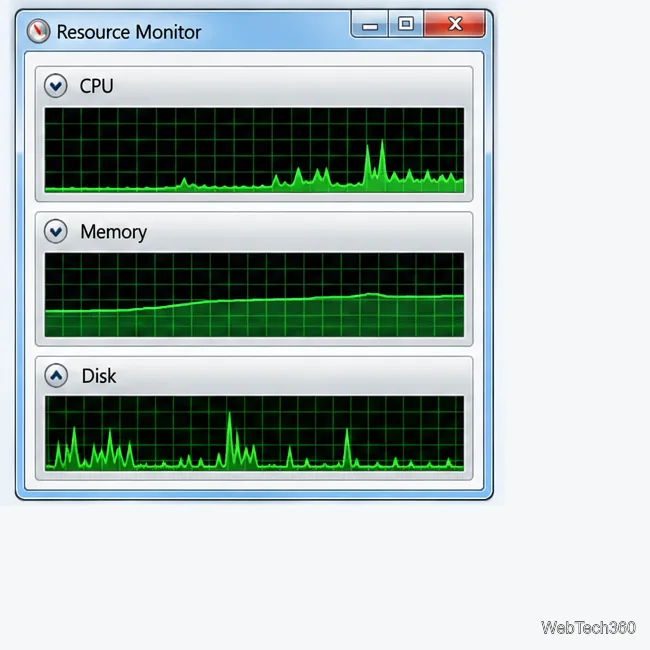
Open Start, type resmon, and press Enter. During a slowdown, compare CPU, Memory, Disk, and Network activity. Look for sustained use rather than a brief spike; it points to the next fix.
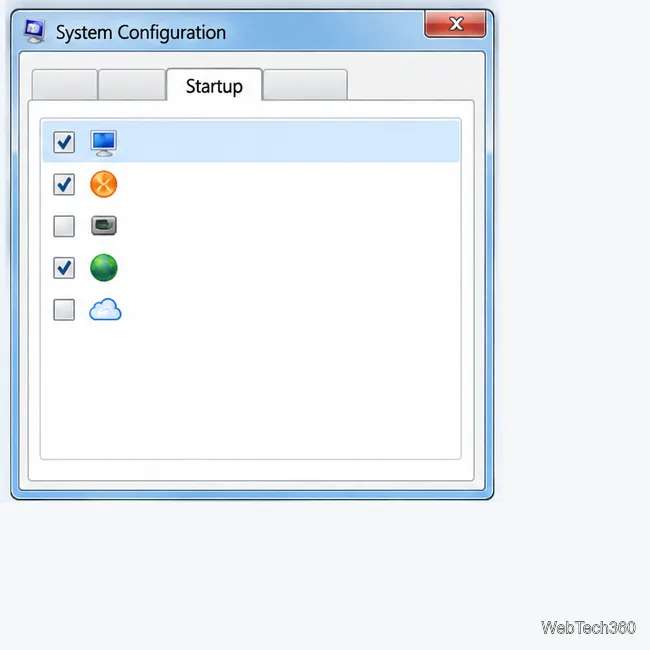
Type msconfig in Start and open System Configuration. On Startup, clear only entries you recognize and do not need at sign-in. Leave security tools, hardware drivers, and unfamiliar entries enabled. Restart, then restore a selection if an app stops working. An app’s own startup setting may be easier to manage.
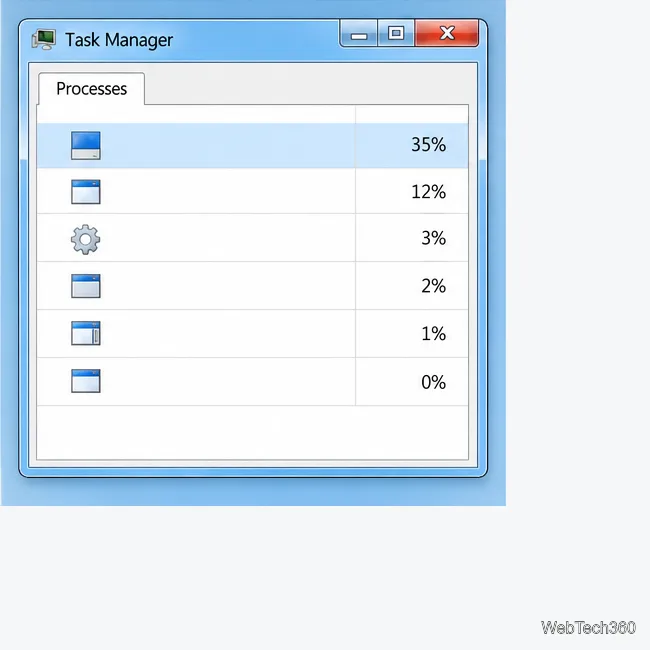
Press Ctrl+Shift+Esc for Task Manager. On Processes, sort by CPU or memory and close an app you opened but are not using. Save your work first. Do not end unfamiliar Windows processes; that can interrupt tasks or destabilize the system.
Open Control Panel > Programs > Programs and Features. Remove only software you recognize and no longer need. It can free storage and reduce background activity. Keep hardware drivers, Microsoft runtimes, and components required by your apps.
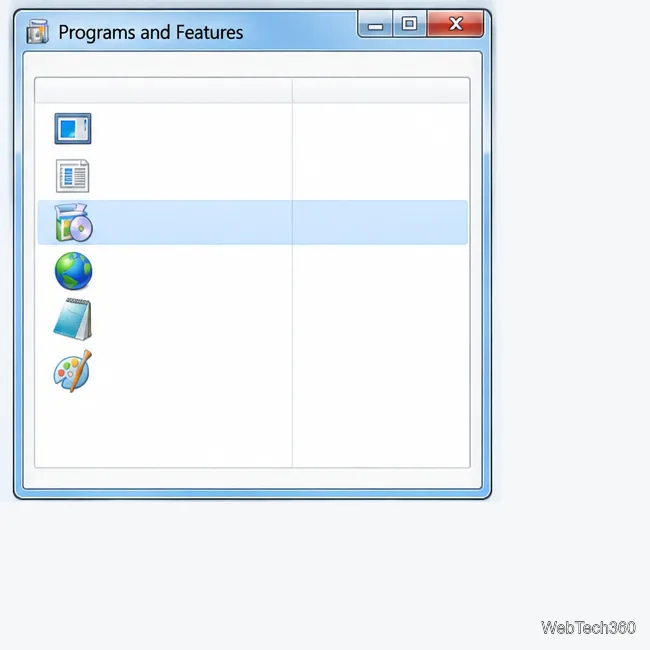
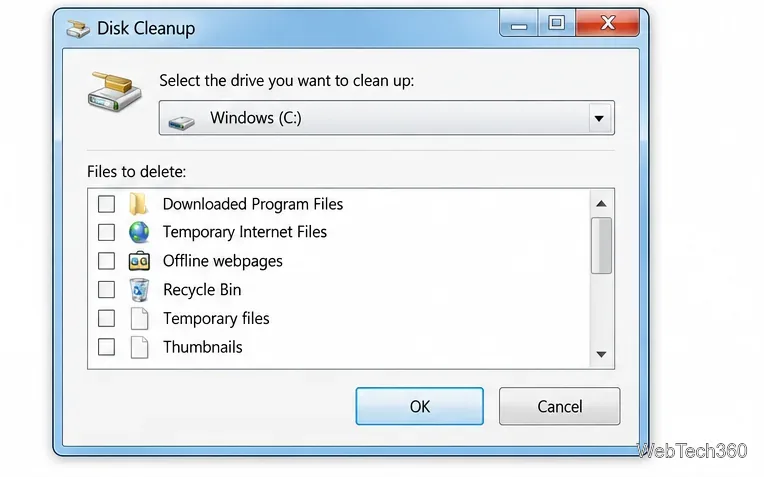
Open Start > All Programs > Accessories > System Tools > Disk Cleanup. Choose the Windows drive and review the categories before removing files. Check the Recycle Bin carefully. Move personal files you want to keep to backed-up storage instead of deleting them to make room.
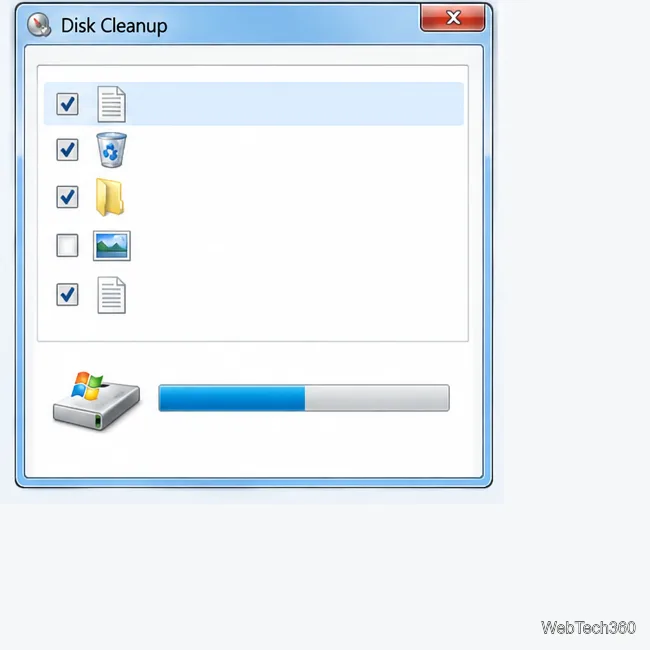
In Control Panel, open Indexing Options and select Modify. Keep folders you search often and exclude only locations you do not need in search. Indexing can add disk activity, but turning it off entirely may make searches slower.
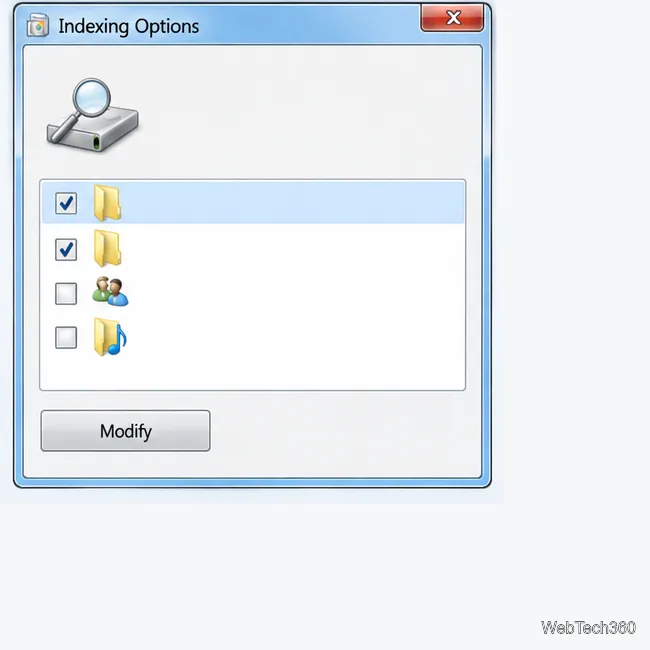
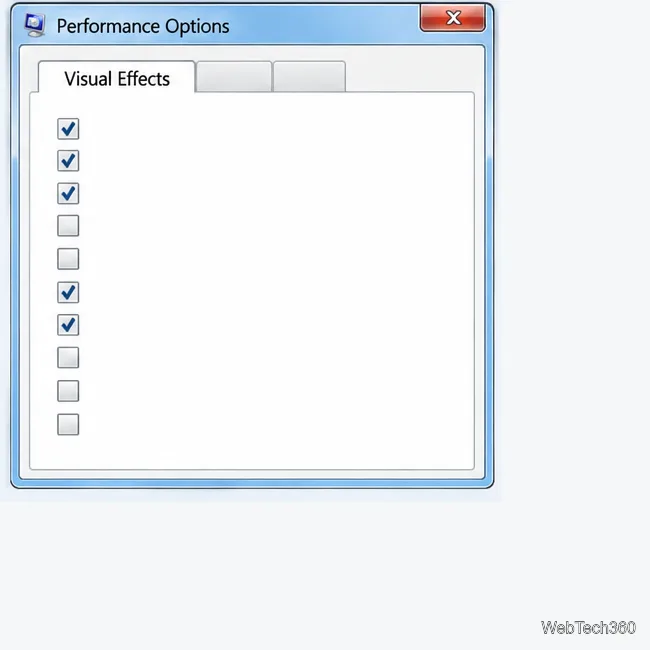
Right-click Computer > Properties > Advanced system settings. Under Performance, select Settings > Visual Effects. Try turning off fades or animations first; keep font smoothing if you prefer it. Compare before switching to a Basic theme, since some PCs handle Aero efficiently.
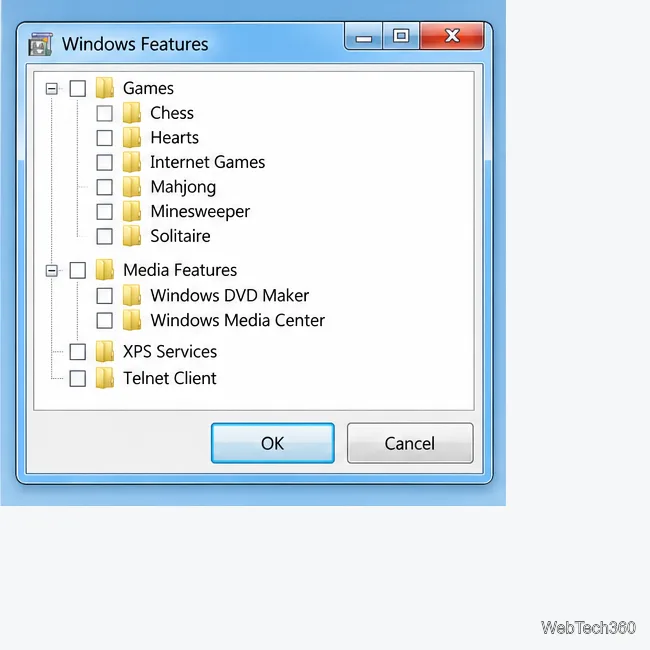
In Control Panel > Programs and Features, select Turn Windows features on or off. You can clear an optional component you recognize and never use. Most optional features are not continuously running, so this may not noticeably improve speed. Leave components your apps or network depend on.
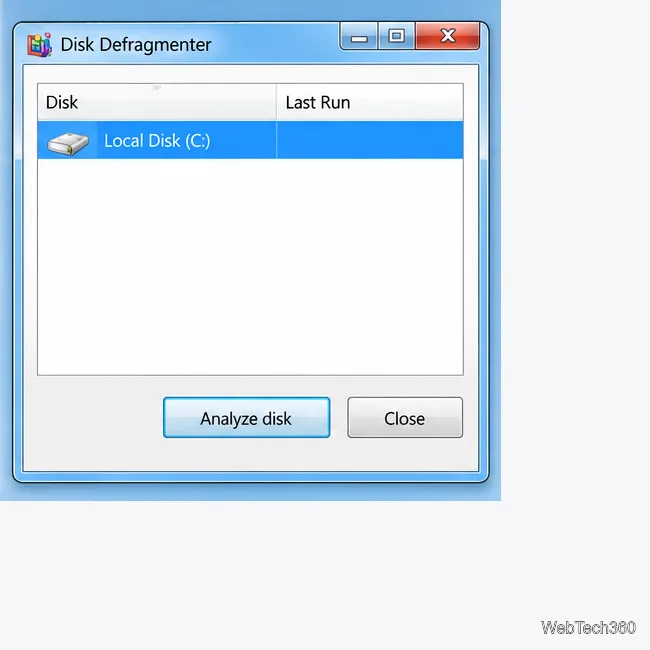
For a mechanical hard drive, open Start, type Disk Defragmenter, select the drive, and choose Analyze disk. Defragment only if it needs attention. Do not manually defragment an SSD; it uses a different maintenance process. Microsoft’s drive-optimization overview explains the HDD/SSD distinction; its menus are for newer Windows.
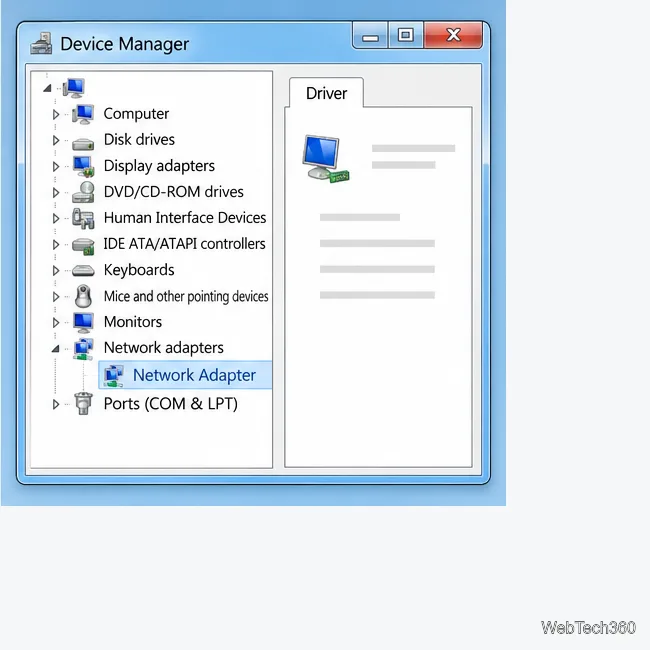
A newer driver is not automatically faster. If a device has a problem, check the PC or device maker’s official support page for the exact model and a Windows 7-compatible driver. Avoid driver-updater utilities and leave a stable driver alone. Windows 7 driver availability is limited.
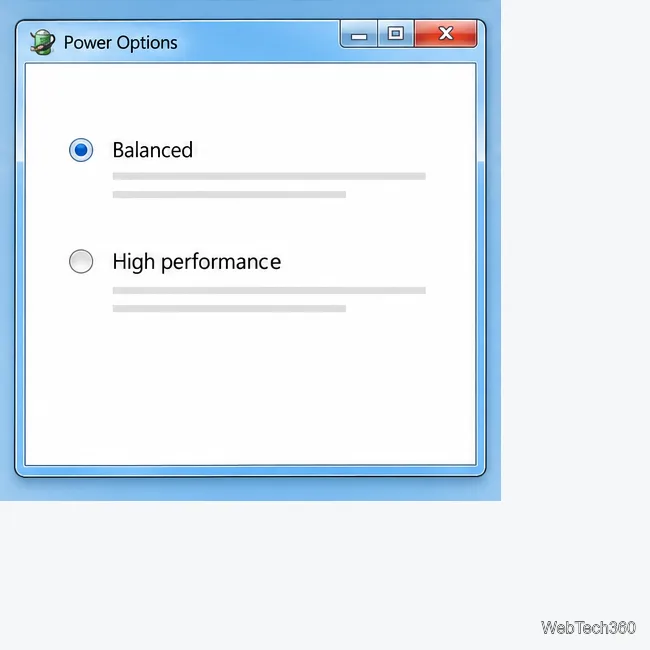
Open Control Panel > Power Options. High performance may keep a plugged-in PC more responsive, but can use more electricity and create more heat. On a laptop it can shorten battery life. Balanced remains a sensible default when those tradeoffs matter.
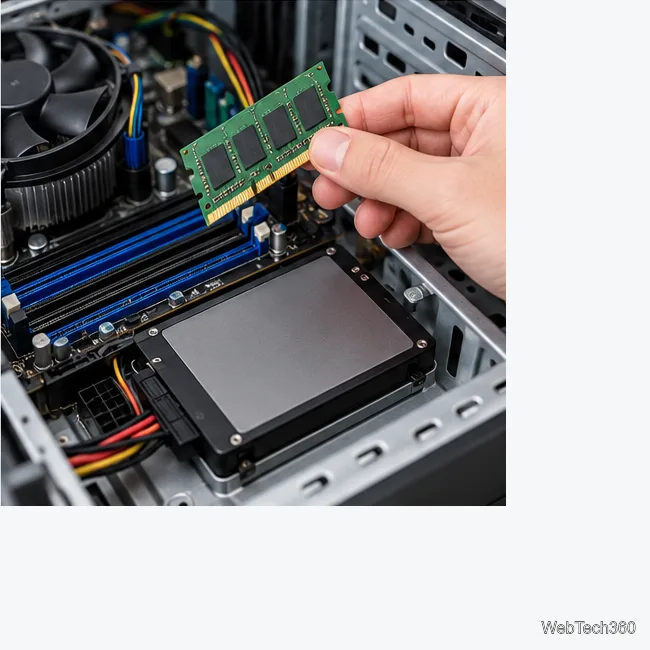
If memory pressure persists or the PC still uses a mechanical drive, compatible RAM or an SSD may help more than cosmetic tweaks. Check the manufacturer’s specifications, back up the drive, and ask a technician if you are unsure about installation. Hardware upgrades do not make Windows 7 secure.
Skip old registry recipes for EnablePrefetcher or EnableSuperfetch, routine process-priority changes, and disabling random Windows services. They can cause problems without fixing the bottleneck. Do not rely on the old article’s Microsoft Security Essentials, AVG 9, or Avast 5 recommendations; those are outdated products, and antivirus cannot replace operating-system security updates.
Microsoft’s general PC performance guide discusses common causes such as low storage and background apps. Its steps target newer Windows versions, so the menus above are specific to Windows 7.
Create a reusable Outlook.com email signature, choose when it appears automatically, and insert it manually when you need a different sign-off.
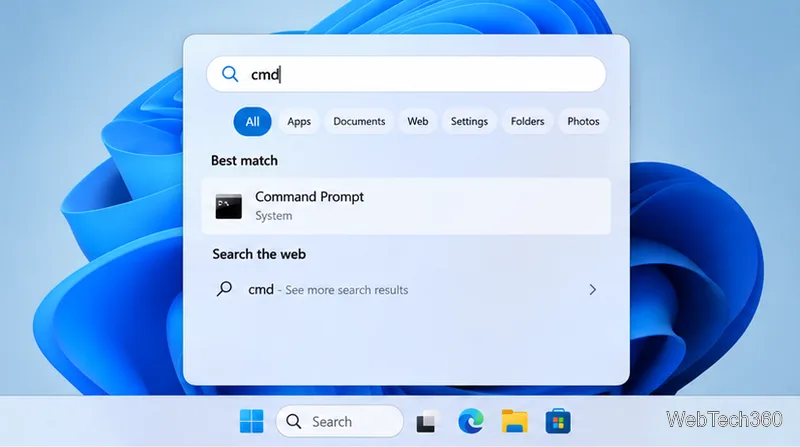
Open Command Prompt with Start search, Run, File Explorer, or Windows Terminal. See how to launch it as an administrator and find it on older PCs.
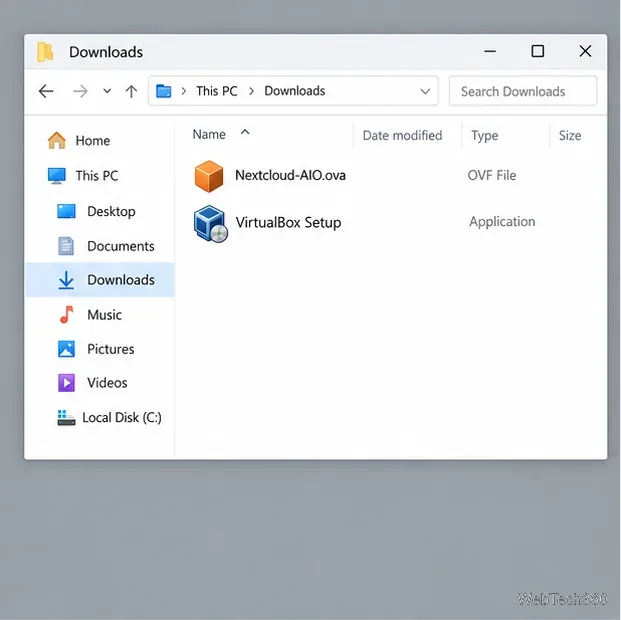
Set up a Nextcloud sync server on Windows Server with the AIO virtual machine, VirtualBox, bridged networking, domain, HTTPS, and backup guidance.
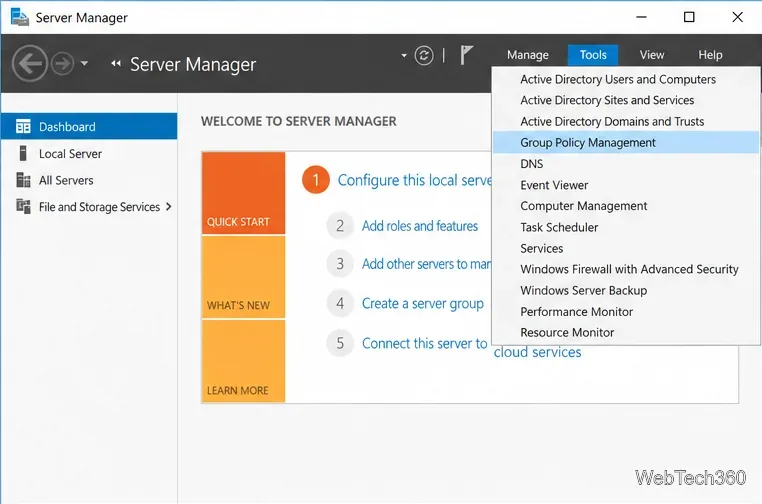
Learn how to create, link, configure, and verify a Windows Server Group Policy Object with a pilot OU, a wallpaper example, and troubleshooting checks.
Learn how Windows 7 Disk Cleanup, Disk Defragmenter, System Restore, and built-in troubleshooters handle common maintenance tasks, with important safety limits.
Speed up a Windows 7 PC by finding bottlenecks, reducing startup load, clearing disk space, adjusting visual effects, and upgrading wisely.
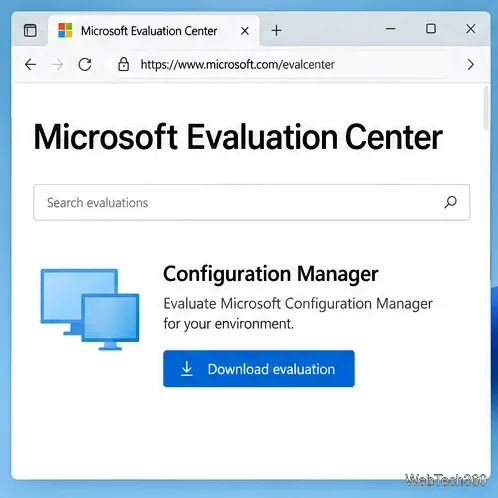
Set up Configuration Manager as a standalone primary site with supported Windows Server, SQL Server, evaluation media, and current setup prerequisites.
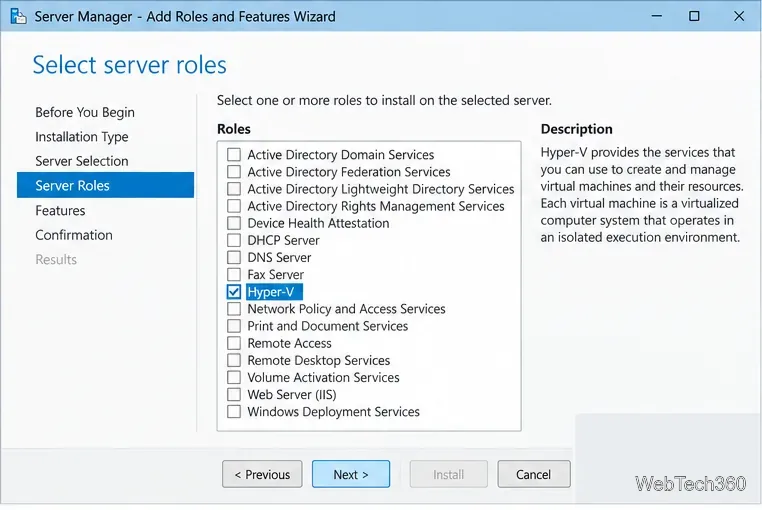
Host GitLab Self-Managed on Windows Server by running Ubuntu Server in Hyper-V, then configure its network, HTTPS address, first login, and backups.
Install Abyss Web Server X1 on Windows Server, create the console login, publish a test page, and configure the service to start at boot.
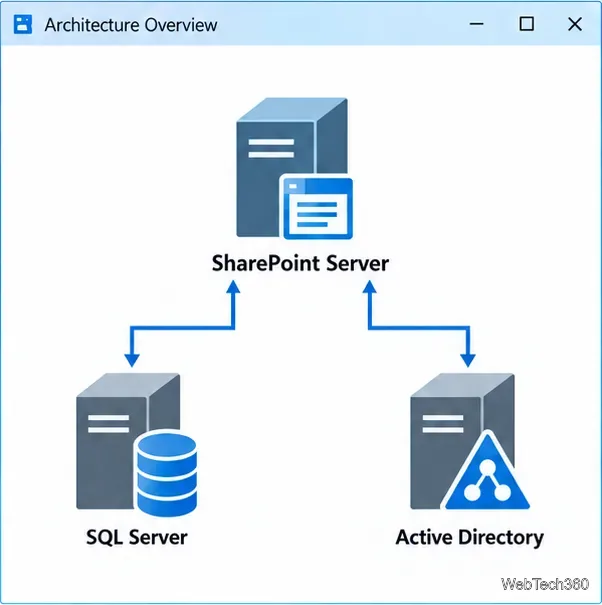
Install SharePoint Server Subscription Edition on Windows Server with current hardware, SQL, prerequisite, setup, and farm-configuration guidance.