How to Set Up an Email Signature in Outlook.com
Create a reusable Outlook.com email signature, choose when it appears automatically, and insert it manually when you need a different sign-off.
Windows 7 includes several useful system maintenance tools: Disk Cleanup can reclaim storage, Disk Defragmenter can reorganize files on a traditional hard drive, System Restore can undo certain recent system changes, and the Control Panel troubleshooter can check routine issues. Each tool has a narrow job; none replaces a backup or fixes every cause of a slow or unstable PC.
Microsoft ended Windows 7 support on January 14, 2020. The PC still runs, but routine security updates and technical support have stopped; these utilities cannot make an unsupported PC secure. See Microsoft’s Windows end-of-support guidance before using it for sensitive or internet-connected work.
| Tool | Use it for | Keep in mind |
|---|---|---|
| Disk Cleanup | Removing selected temporary and unneeded files | Review each category before deleting |
| Disk Defragmenter | Analyzing or defragmenting a traditional hard disk | Do not run traditional defragmentation manually on an SSD |
| System Restore | Reversing some recent system changes | It is not a personal-file backup |
| Troubleshooting and System File Checker | Checking a particular Windows problem | Use the tool that matches the symptom |
Disk Cleanup (cleanmgr.exe) can remove items such as temporary files, downloaded program files, and files in the Recycle Bin. The exact choices vary with the computer. Microsoft documents the utility and its Windows 7 command-line support in its Disk Cleanup reference.
Disk Cleanup in the Start menu search box.C:, and select OK.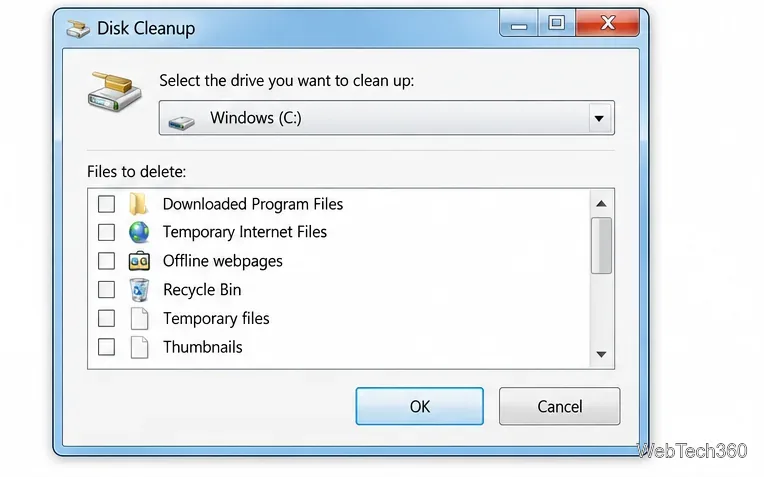
Disk Cleanup frees space, but it does not repair a failing drive or guarantee faster performance.
On a mechanical hard disk, defragmentation rearranges file fragments so files are stored more contiguously. SSDs work differently. Microsoft’s current drive optimization overview explains the HDD and SSD distinction, but its menus are for newer Windows versions.
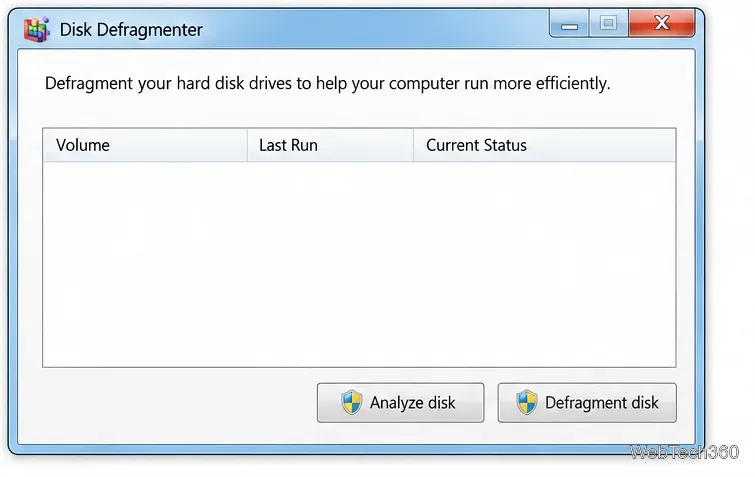
Use the graphical tool one volume at a time. Windows 7 also includes the defrag command, but switches differ by version. Check defrag /? on that PC before using command-line options; the Microsoft reference above covers newer versions.
System Restore can roll back system files, registry settings, drivers, and installed programs to an earlier restore point. It can help when trouble follows a driver or software change, but it does not replace a personal-file backup. See Microsoft’s System Restore guidance.
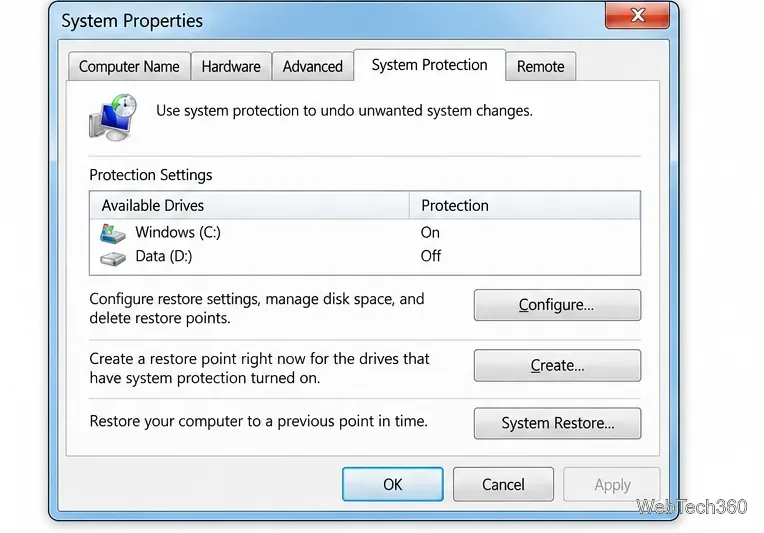
If protection is off for the Windows drive, restore points may not be available; configure it before you need recovery. Restoring can remove programs or drivers installed after the chosen point, so review the confirmation screen and keep a separate backup of important files.
For routine issues, open Control Panel > System and Security > Find and fix problems, then select System Maintenance. In some views, first choose Troubleshooting. It checks selected maintenance conditions and suggests actions; it is not a full hardware diagnostic.
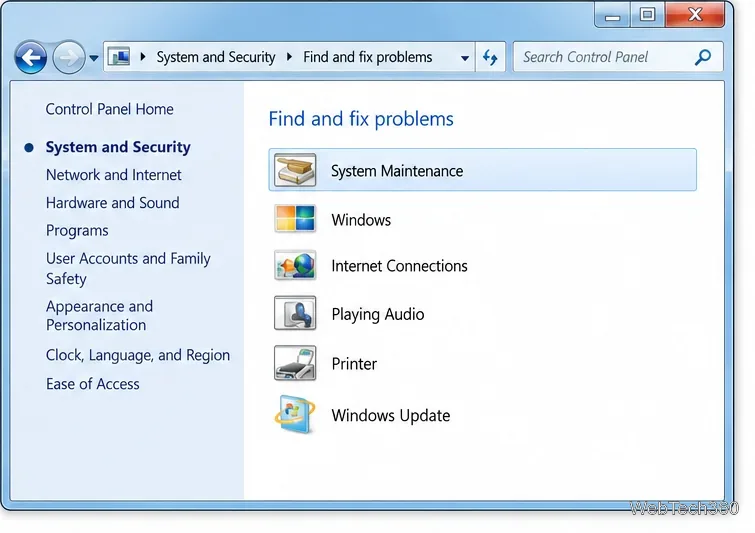
If the menu is hard to find, search for Troubleshooting from the Start menu. Choose a troubleshooter that matches the symptom and review any proposed change before accepting it.
For Windows errors or malfunctioning built-in components, System File Checker scans protected operating-system files. Microsoft’s instructions include Windows 7.
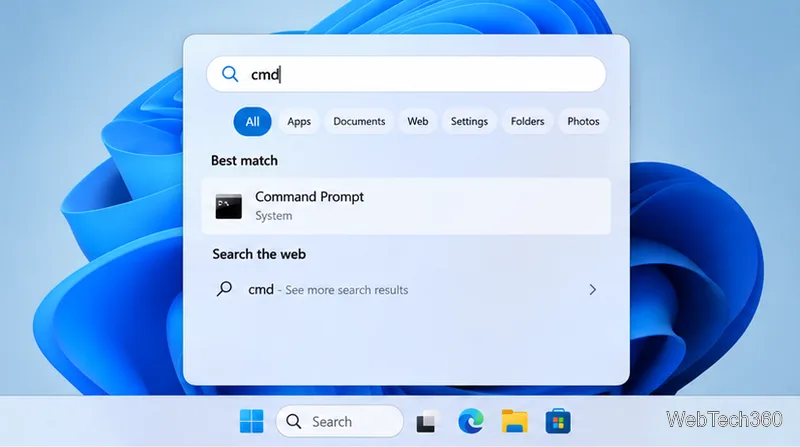
cmd, right-click Command Prompt, and choose Run as administrator.sfc /scannow and press Enter.Use Disk Cleanup when storage is tight, analyze a traditional hard disk if needed, and create a restore point before major system changes. For recurring errors, choose the troubleshooter or System File Checker that matches the symptom. Back up personal files separately and plan to move the PC to a supported operating system; these tools do not provide security updates.
Create a reusable Outlook.com email signature, choose when it appears automatically, and insert it manually when you need a different sign-off.
Open Command Prompt with Start search, Run, File Explorer, or Windows Terminal. See how to launch it as an administrator and find it on older PCs.
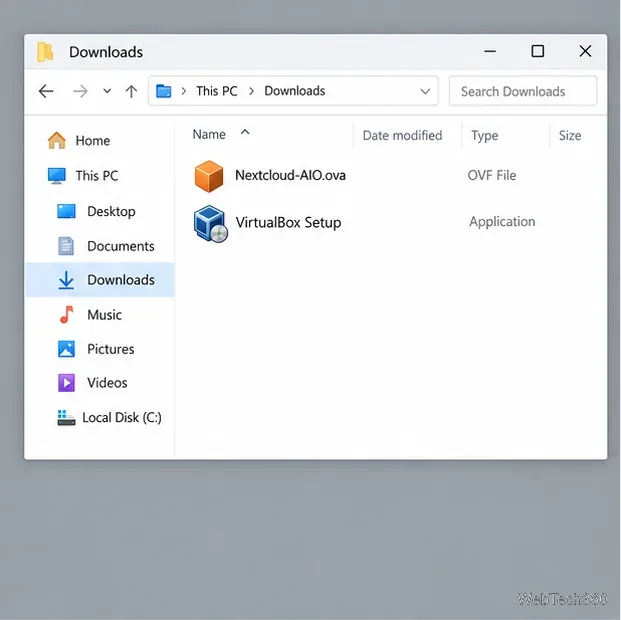
Set up a Nextcloud sync server on Windows Server with the AIO virtual machine, VirtualBox, bridged networking, domain, HTTPS, and backup guidance.
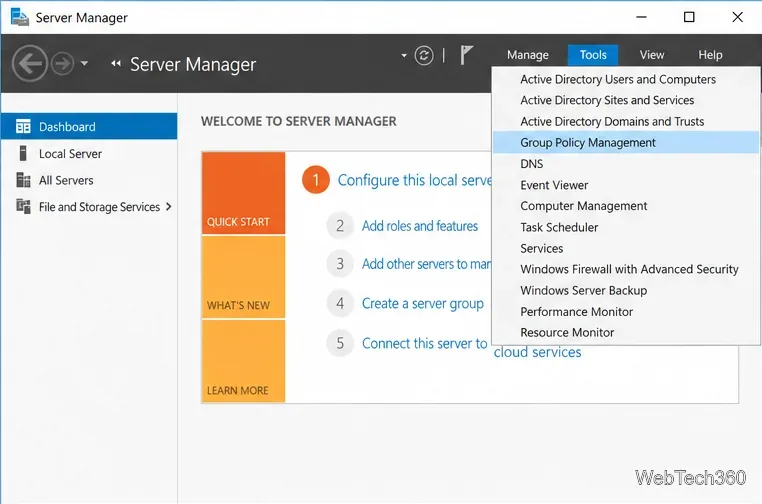
Learn how to create, link, configure, and verify a Windows Server Group Policy Object with a pilot OU, a wallpaper example, and troubleshooting checks.
Learn how Windows 7 Disk Cleanup, Disk Defragmenter, System Restore, and built-in troubleshooters handle common maintenance tasks, with important safety limits.
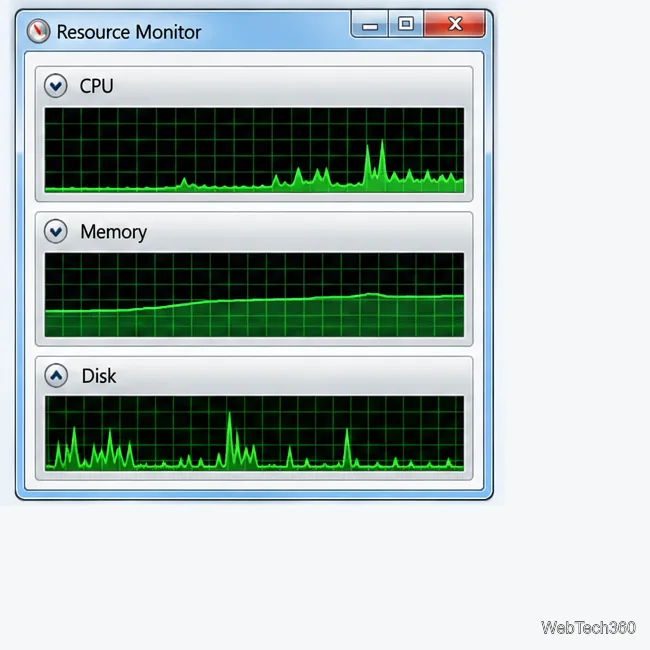
Speed up a Windows 7 PC by finding bottlenecks, reducing startup load, clearing disk space, adjusting visual effects, and upgrading wisely.
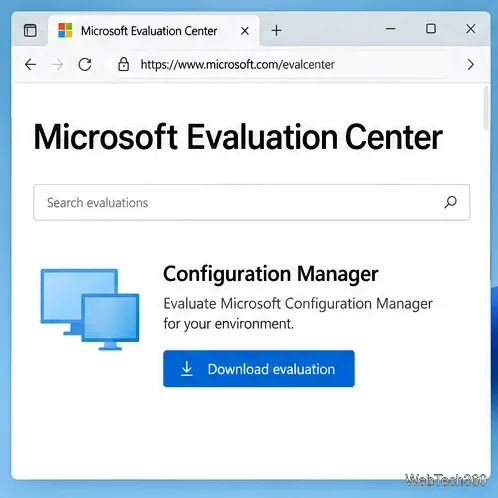
Set up Configuration Manager as a standalone primary site with supported Windows Server, SQL Server, evaluation media, and current setup prerequisites.
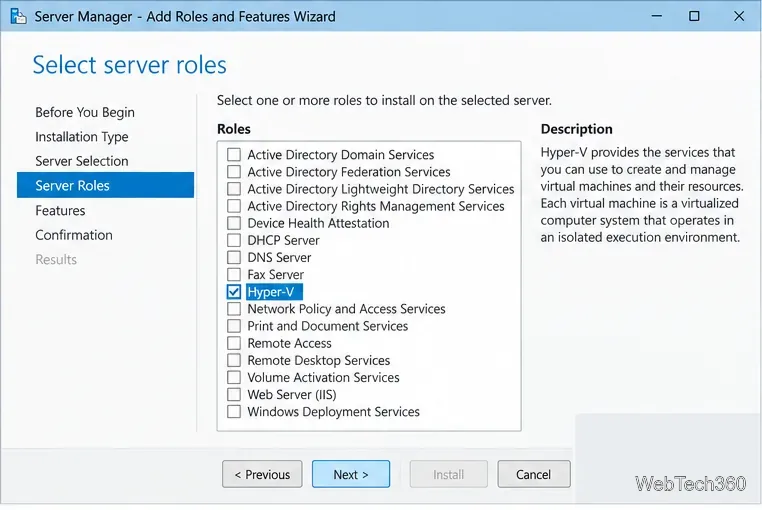
Host GitLab Self-Managed on Windows Server by running Ubuntu Server in Hyper-V, then configure its network, HTTPS address, first login, and backups.
Install Abyss Web Server X1 on Windows Server, create the console login, publish a test page, and configure the service to start at boot.
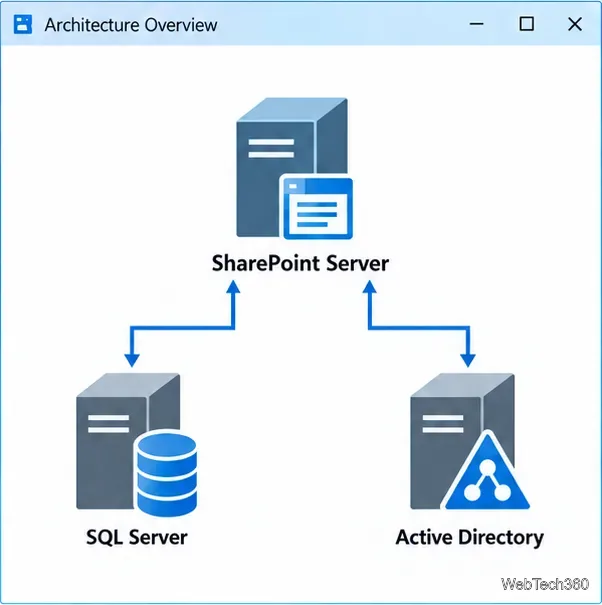
Install SharePoint Server Subscription Edition on Windows Server with current hardware, SQL, prerequisite, setup, and farm-configuration guidance.