How to Set Up an Email Signature in Outlook.com
Create a reusable Outlook.com email signature, choose when it appears automatically, and insert it manually when you need a different sign-off.
Abyss Web Server X1 installs through Aprelium’s Windows package. After setup, complete the browser console’s first-run steps, verify a web page, and decide whether the server should run as a Windows service. Keep the two endpoints straight: the admin console defaults to port 9999, while the website host defaults to port 80. Abyss’s main window displays the actual URLs and ports.
Sign in with a Windows account authorized to install software. Download the current Windows package from Aprelium’s official downloads page; this guide covers X1. If you are upgrading, back up your site and configuration. The Windows installation guide says to decline deletion of the installation directory if the uninstaller asks, since it may hold files you still need.
On Aprelium’s downloads page, find Abyss Web Server X1 and choose the Windows package that matches your server. Save it where you can locate it, such as Downloads. Use the developer’s download rather than an unofficial mirror.
Open the installer, review the license, select the components you want, choose an installation folder, and start setup. The optional Auto Start component launches Abyss when a user session starts; that is different from a Windows service running before anyone signs in. Start Menu shortcuts and local documentation are also optional.
When setup finishes, launch Abyss to configure it. If setup detects an older installation, follow the upgrade prompts and preserve the existing installation directory when asked. On first launch, Abyss creates its configuration file and opens the management console in a browser. See Aprelium’s first-contact guide for the initial setup sequence.
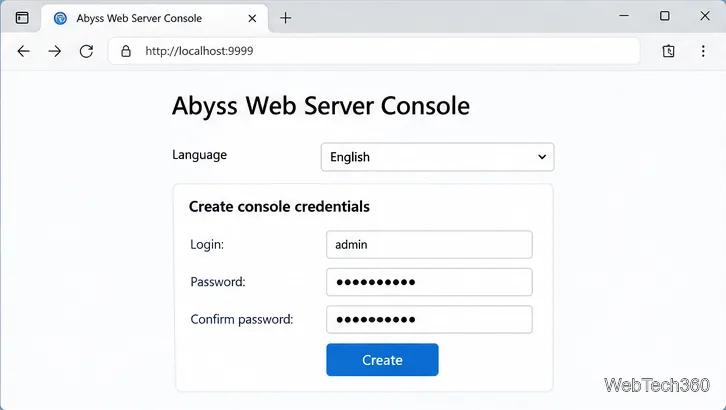
On first visit, choose a console language, create a unique login and strong password, then sign in. Store the credentials in a password manager. The console’s default port is 9999, so the local address is usually http://127.0.0.1:9999 or http://localhost:9999. If you changed the port, use the address shown in Abyss’s main window.
Aprelium’s manual says console access is limited by default to the local computer and local network; access from other networks is disabled. Do not forward port 9999 to the public internet. If administrators need remote access, configure HTTPS with a certificate and restrict allowed addresses first. See Aprelium’s console HTTPS instructions.
Abyss’s main window displays the local web URL and listening port. The website host uses port 80 by default, so the local test address is usually http://127.0.0.1/. Add :<port> if your host uses another port. Port 9999 is for the console, not the website.
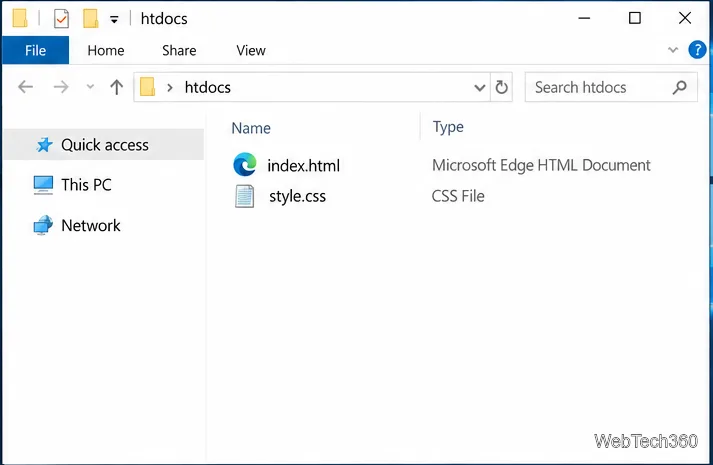
Copy the site’s HTML, stylesheets, and other files into <Abyss Web Server directory>\htdocs, the default website directory. Use index.html or index.htm as the home page. The Windows User’s Guide documents this folder and the default index filenames.
To test from another computer on the same network, use the server name or LAN IP plus the web port shown in Abyss. If the page works locally but not over the network, allow an inbound TCP rule for only the website port and limit its network scope. Microsoft documents how to create an inbound Windows Firewall port rule. Do not open port 9999 for site traffic.
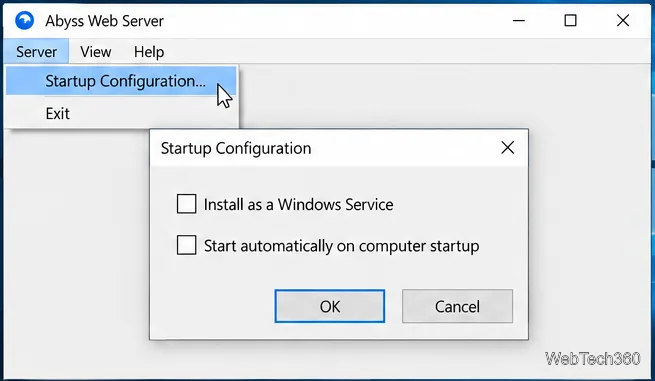
For Abyss to keep running when nobody is signed in, configure its boot-time service mode separately from Auto Start. Open the tray icon’s menu, choose Restore, then select Server > Startup Configuration. Choose Install as a Windows Service and check Start automatically on computer startup. Applying this change may require server-administration rights. These are the options in Aprelium’s Windows service FAQ.
index.html or index.htm file; by default it is htdocs.Create a reusable Outlook.com email signature, choose when it appears automatically, and insert it manually when you need a different sign-off.
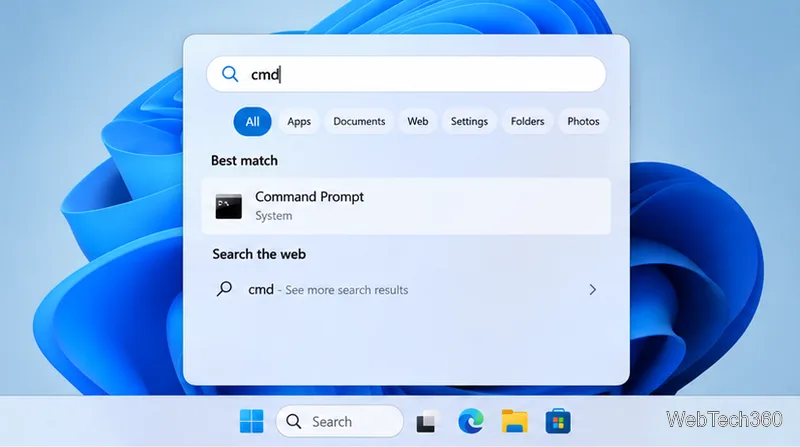
Open Command Prompt with Start search, Run, File Explorer, or Windows Terminal. See how to launch it as an administrator and find it on older PCs.
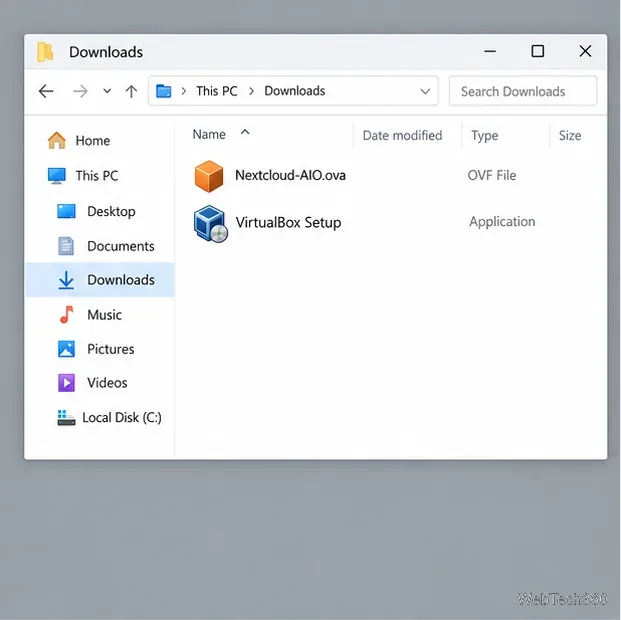
Set up a Nextcloud sync server on Windows Server with the AIO virtual machine, VirtualBox, bridged networking, domain, HTTPS, and backup guidance.
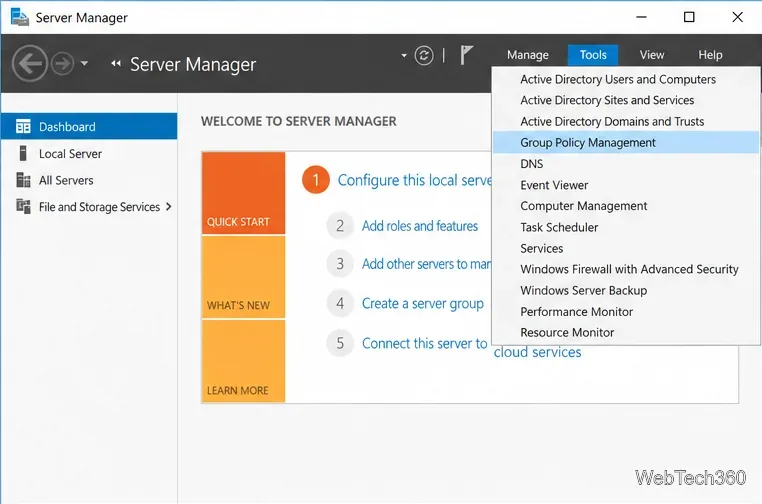
Learn how to create, link, configure, and verify a Windows Server Group Policy Object with a pilot OU, a wallpaper example, and troubleshooting checks.
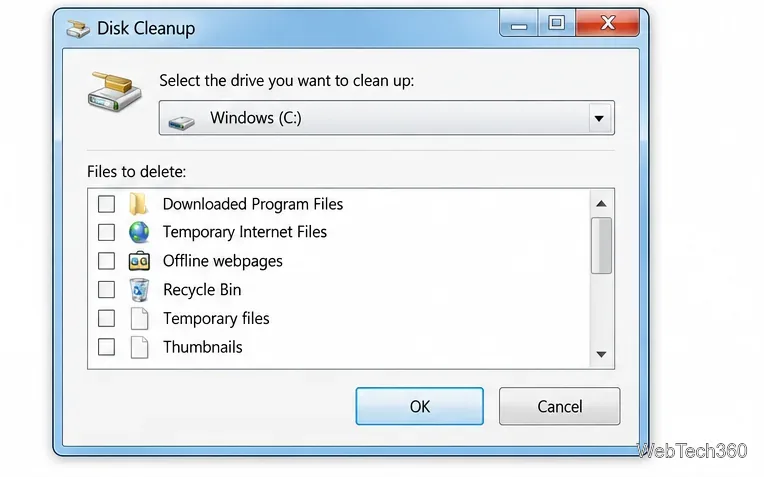
Learn how Windows 7 Disk Cleanup, Disk Defragmenter, System Restore, and built-in troubleshooters handle common maintenance tasks, with important safety limits.
Speed up a Windows 7 PC by finding bottlenecks, reducing startup load, clearing disk space, adjusting visual effects, and upgrading wisely.
Set up Configuration Manager as a standalone primary site with supported Windows Server, SQL Server, evaluation media, and current setup prerequisites.
Host GitLab Self-Managed on Windows Server by running Ubuntu Server in Hyper-V, then configure its network, HTTPS address, first login, and backups.
Install Abyss Web Server X1 on Windows Server, create the console login, publish a test page, and configure the service to start at boot.
Install SharePoint Server Subscription Edition on Windows Server with current hardware, SQL, prerequisite, setup, and farm-configuration guidance.