How to Install Microsoft Configuration Manager (SCCM) on Windows Server

Microsoft System Center Configuration Manager is now called Microsoft Configuration Manager, though many administrators still use the name SCCM. To install it on Windows Server, prepare a supported server and SQL database, extract the current-branch media, and run Configuration Manager Setup to create a primary site. This walkthrough covers a single-site evaluation or deployment.

The figures are conceptual screen illustrations for orientation, not captured screenshots. Labels can vary by release.

Version and prerequisites

As of October 24, 2026, Microsoft’s Evaluation Center lists Current Branch version 2509 evaluation media. The evaluation runs for 180 days and needs no product key. Version 2609 is in the early update ring; opt in only if you intend to test it and follow Microsoft’s checklist.

  • Use a supported Windows Server 2022 or 2025 edition; check Microsoft’s site server support table.
  • Install .NET Framework 4.8, enable .NET Framework 3.5 and Remote Differential Compression, then restart.
  • Prepare a supported 64-bit SQL Server. SQL Server 2022 supports the 2509 baseline; SQL Server 2025 support starts with Configuration Manager 2603. The setup account needs administrator rights on the site and SQL servers and SQL sysadmin rights. Keep the site server computer account as SQL sysadmin after setup.
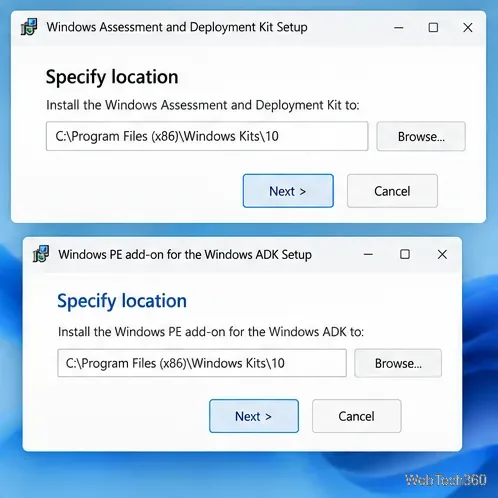
  • Install a supported Windows ADK before site setup. Add its separate WinPE add-on only for OS deployment. Microsoft lists ADK 10.1.26100.x for versions 2509, 2603, and 2609. See the site prerequisites, SQL support table, and ADK support table.

Install Configuration Manager

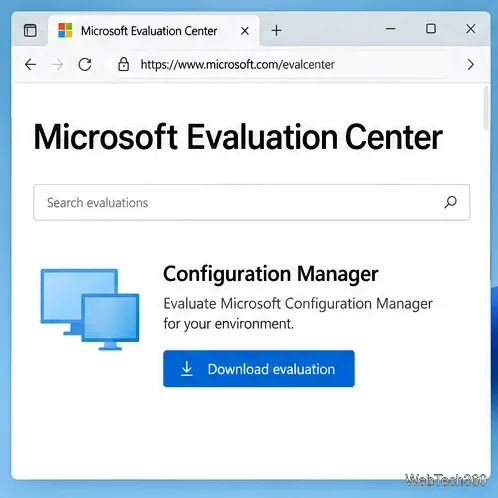
  1. Download the evaluation media. Open Microsoft’s Evaluation Center page, register if asked, and download Configuration Manager Current Branch. Confirm the version on the page; the evaluation lasts 180 days.
    Conceptual Microsoft Evaluation Center page with the Configuration Manager evaluation download
    Find the evaluation package on Microsoft’s download page.
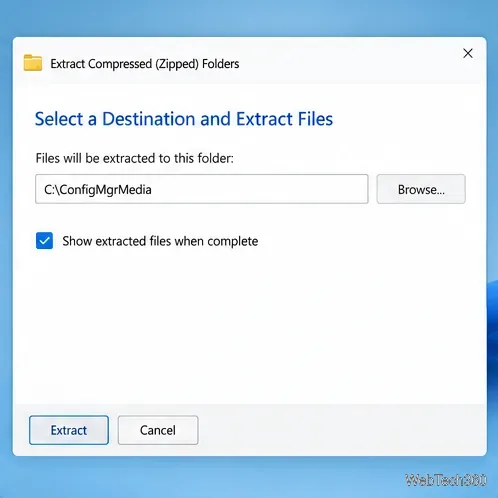
  2. Extract the package. Microsoft says to use 7-Zip or WinRAR to extract the downloaded executable. Choose a dedicated folder with enough free space, such as C:\ConfigMgrMedia. The current install path uses Setup.exe, not the old splash.hta launcher.
    Conceptual archive extraction window choosing a destination folder for Configuration Manager media
    Extract the media into a folder you can find again.
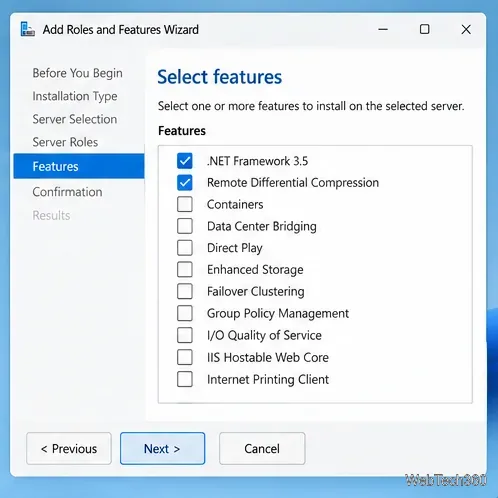
  3. Prepare Windows Server. Add .NET Framework 3.5 and Remote Differential Compression in Server Manager, install .NET Framework 4.8, and restart. Use a supported Windows Server release and an account with the permissions above.
    Conceptual Server Manager feature list with .NET Framework 3.5 and Remote Differential Compression selected
    Enable the required Windows features before setup.
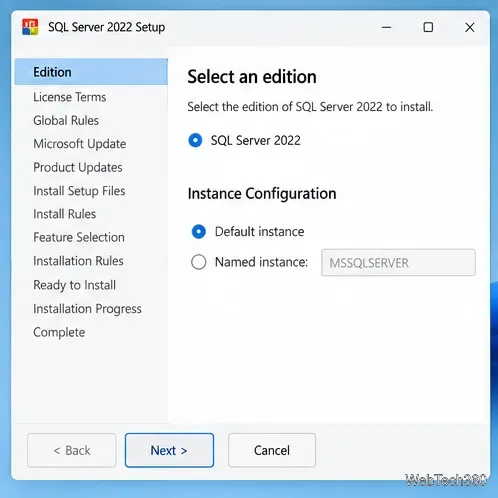
  4. Install SQL Server. Install a supported 64-bit instance and confirm the SQL service is running. SQL Server 2022 is a supported match for the 2509 evaluation baseline. Grant the setup account sysadmin access.
    Conceptual SQL Server 2022 setup showing the default instance option
    Prepare a supported SQL Server instance for the site database.
  5. Install the Windows ADK. Choose an ADK version supported by your Configuration Manager release. Install the separate WinPE add-on if you plan to deploy operating systems. The current support matrix lists ADK 10.1.26100.x for versions 2509, 2603, and 2609.
    Conceptual Windows ADK and separate Windows PE add-on setup windows
    Install the supported ADK; WinPE is a separate add-on.
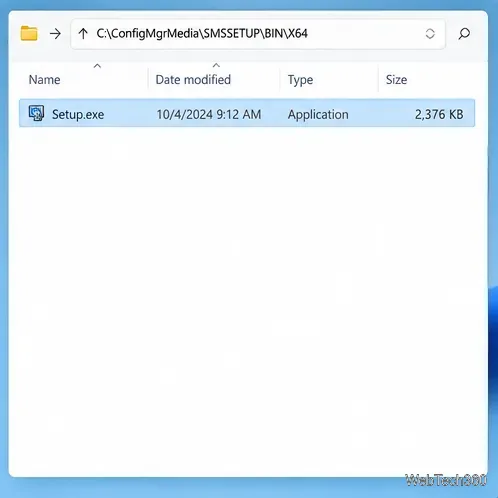
  6. Start Setup. From the extracted media, run SMSSETUP\BIN\X64\Setup.exe as an administrator. This launches the Configuration Manager Setup Wizard.
    Conceptual File Explorer view with Setup.exe selected in the extracted SMSSETUP BIN X64 folder
    Run Setup.exe from the media’s X64 folder.
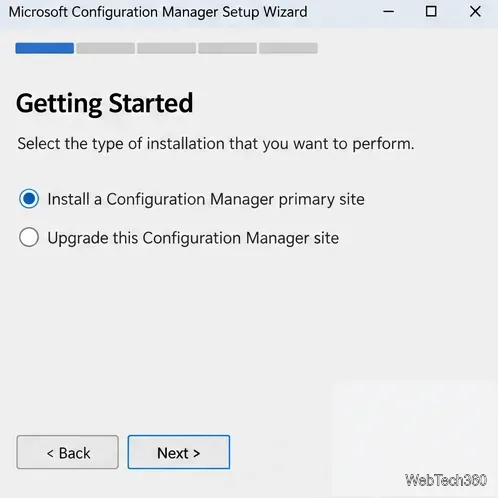
  7. Choose the site type. Select Install a Configuration Manager primary site. For one site, install it as a stand-alone primary site. A central administration site is unnecessary for a single-site hierarchy.
    Conceptual Setup Wizard with Install a Configuration Manager primary site selected
    Select a primary site for a new hierarchy.
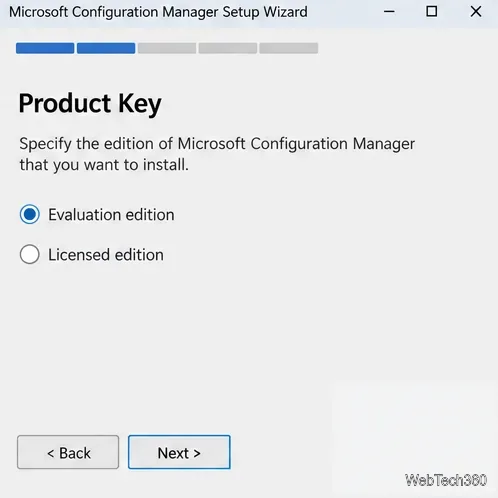
  8. Select evaluation or licensed edition. Choose Evaluation edition for a trial, or Licensed edition if you have the required rights. Read and accept the Configuration Manager and prerequisite software license terms.
    Conceptual Product Key page with Evaluation edition selected
    Choose the evaluation edition for a time-limited test.
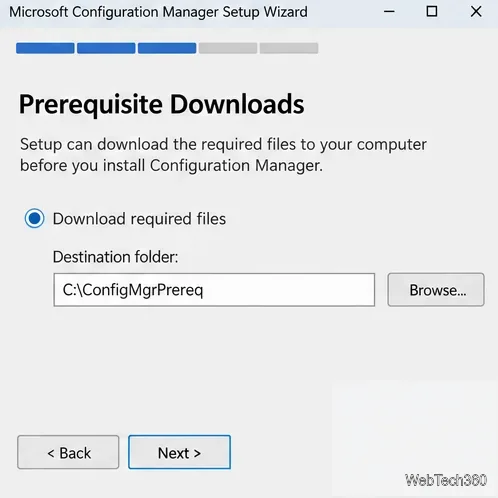
  9. Download prerequisite files. Select Download required files and set a local destination, or use a folder populated by Microsoft’s Setup Downloader. For an isolated network, download the files on a connected computer and transfer them securely.
    Conceptual Prerequisite Downloads page with Download required files selected
    Save the redistributable setup files in a known folder.
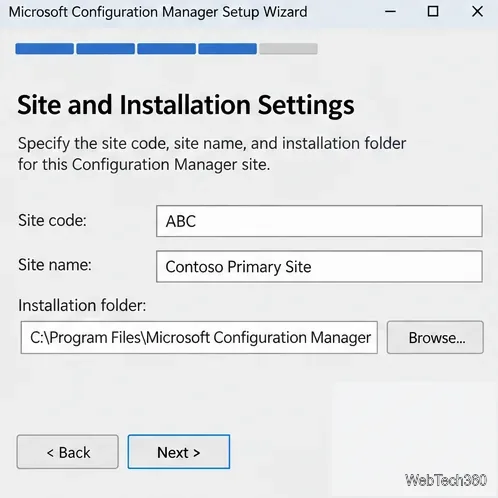
  10. Set the site identity. Select server and client languages. Enter a unique three-character alphanumeric site code and a descriptive name. Choose the installation folder carefully: you can’t change it after setup, and the path can’t contain Unicode characters or end in spaces.
    Conceptual Site and Installation Settings page with a three-character site code, site name, and installation folder
    Choose a unique site code and permanent installation path.
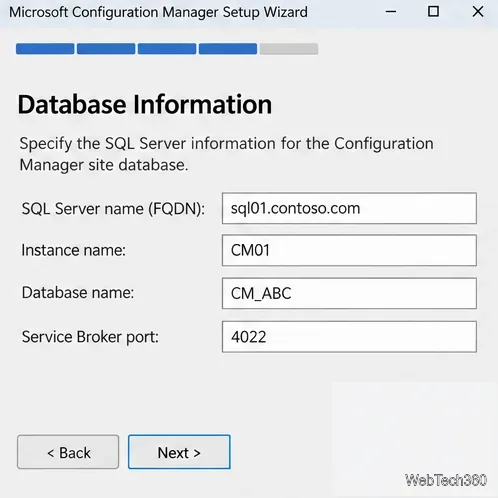
  11. Configure the database and client communication. Enter the SQL Server FQDN and instance. By default, the database name is CM_ plus your site code, and the Service Broker port is 4022. The SMS Provider defaults to the site server. Use HTTPS-only with the required PKI certificates, or per-role configuration, which uses Enhanced HTTP; plain HTTP is deprecated.
    Conceptual Database Information page with SQL Server name, instance, database name, and Service Broker port
    Confirm the SQL host, instance, database, and Service Broker port.
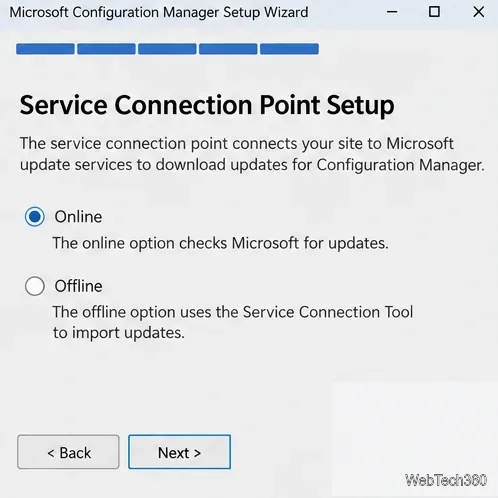
  12. Choose servicing mode and run checks. Set the service connection point to Online if it can reach Microsoft; choose Offline for an isolated site and use the Service Connection Tool. Review the setup summary, run the prerequisite check, fix all Failed items, and rerun it. Use ConfigMgrPrereq.log for details, then select Begin Install. Initial configuration may continue after you close the wizard.
    Conceptual Service Connection Point Setup page with Online and Offline modes
    Choose online or offline servicing based on network access.

After installation

Open the Configuration Manager console and check site status before deploying clients. Use Administration > Updates and Servicing to review updates offered for the site. Version 2609 is an early update-ring release and requires version 2503 or later; follow Microsoft’s 2609 checklist before opting in. See Microsoft’s primary site setup guide for the full wizard reference.

Leave a Comment

How to Set Up an Email Signature in Outlook.com
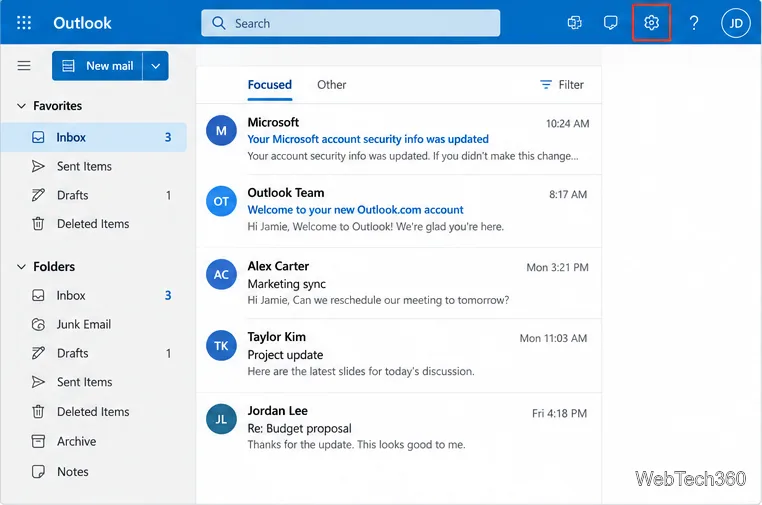
How to Set Up an Email Signature in Outlook.com

Create a reusable Outlook.com email signature, choose when it appears automatically, and insert it manually when you need a different sign-off.

How to Open Command Prompt in Windows 11, 10, and Older Versions

How to Open Command Prompt in Windows 11, 10, and Older Versions

Open Command Prompt with Start search, Run, File Explorer, or Windows Terminal. See how to launch it as an administrator and find it on older PCs.

How to Host a Nextcloud Sync Server on Windows Server

How to Host a Nextcloud Sync Server on Windows Server

Set up a Nextcloud sync server on Windows Server with the AIO virtual machine, VirtualBox, bridged networking, domain, HTTPS, and backup guidance.

How to Create and Apply Group Policies in Windows Server

How to Create and Apply Group Policies in Windows Server

Learn how to create, link, configure, and verify a Windows Server Group Policy Object with a pilot OU, a wallpaper example, and troubleshooting checks.

Windows 7 System Maintenance Tools: What to Use and When

Windows 7 System Maintenance Tools: What to Use and When

Learn how Windows 7 Disk Cleanup, Disk Defragmenter, System Restore, and built-in troubleshooters handle common maintenance tasks, with important safety limits.

12 Simple Ways to Improve Windows 7 Performance

12 Simple Ways to Improve Windows 7 Performance

Speed up a Windows 7 PC by finding bottlenecks, reducing startup load, clearing disk space, adjusting visual effects, and upgrading wisely.

How to Install Microsoft Configuration Manager (SCCM) on Windows Server

How to Install Microsoft Configuration Manager (SCCM) on Windows Server

Set up Configuration Manager as a standalone primary site with supported Windows Server, SQL Server, evaluation media, and current setup prerequisites.

How to Set Up a GitLab Server on Windows Server with Hyper-V

How to Set Up a GitLab Server on Windows Server with Hyper-V

Host GitLab Self-Managed on Windows Server by running Ubuntu Server in Hyper-V, then configure its network, HTTPS address, first login, and backups.

How to Install Abyss Web Server on Windows Server

How to Install Abyss Web Server on Windows Server

Install Abyss Web Server X1 on Windows Server, create the console login, publish a test page, and configure the service to start at boot.

Installing and Configuring SharePoint Server on Windows Server

Installing and Configuring SharePoint Server on Windows Server

Install SharePoint Server Subscription Edition on Windows Server with current hardware, SQL, prerequisite, setup, and farm-configuration guidance.