How to Set Up an Email Signature in Outlook.com
Create a reusable Outlook.com email signature, choose when it appears automatically, and insert it manually when you need a different sign-off.
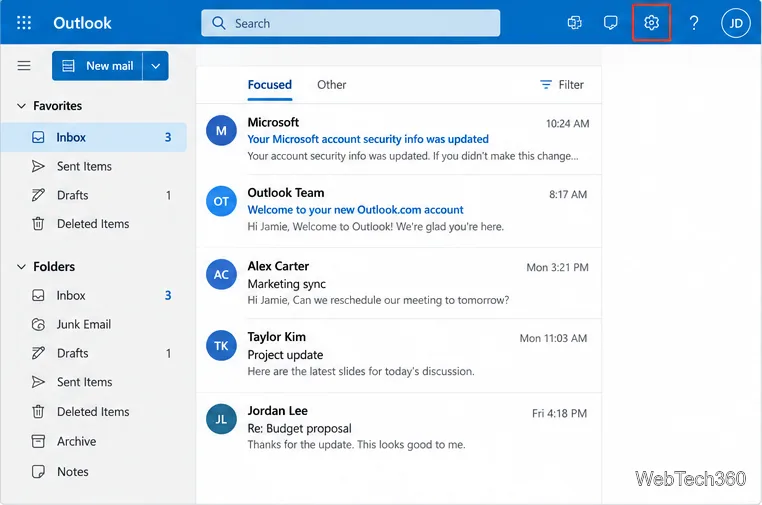
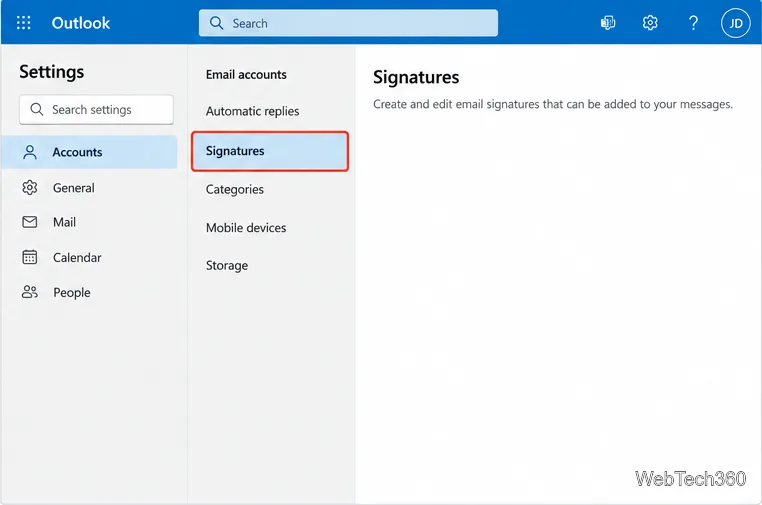
To set up an email signature in Outlook.com, open Settings > Accounts > Signatures, add and name a signature, choose whether it should appear automatically in new messages or replies and forwards, and select Save. You can also leave automatic insertion off and add a saved signature only when you need it.
Outlook.com signatures can include formatted text, links, and images. These steps cover Outlook.com in a web browser; Outlook desktop apps may have different settings. Microsoft’s current web instructions use the Accounts > Signatures path. If your Settings pane looks different, search Settings for “Signatures” and follow the labels shown in your version.
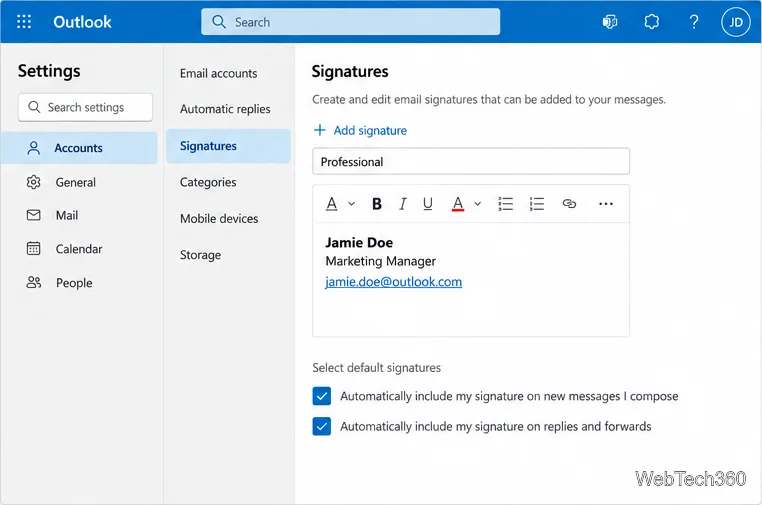
The new-message and reply/forward choices are separate. For example, you can include a full signature on new emails and use no automatic signature on replies, where a shorter sign-off may be more appropriate. You can return to Settings > Accounts > Signatures later to edit the saved text or change these defaults.
If you did not set a default, or you want to choose a different signature for one message, you can insert one from the composer:
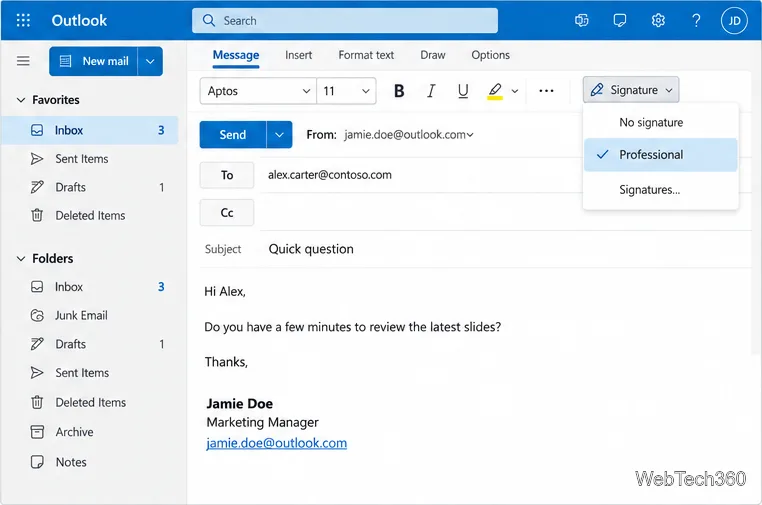
If an automatic signature is already in the draft, do not insert another copy unless you want two. When you have multiple signatures, the menu lets you select the one that fits the recipient or purpose. Review the message before sending, especially if you switch between a new email and a reply.
Include only information that helps someone identify or contact you. A simple personal signature might use your name and email address; a work signature might add your role, organization, and one direct contact method. Link a website or profile using descriptive text instead of pasting a long web address, and use an image only when it adds context, such as a company logo.
Keep the layout simple. Large banners, several font colors, and multiple social icons can make a signature hard to scan or take up too much space in a conversation. After saving, create a test message to yourself and check that the text, links, and image look right. If you selected separate defaults, check both a new message and a reply so you know which signature Outlook adds in each case.
Yes. Add each signature in the same settings area and give each one a distinct name. Choose a default for new messages and replies/forwards, or select the desired entry from the Signature menu as you compose.
Return to Settings > Accounts > Signatures, confirm the correct automatic option is selected, and save the settings. If you left the option unchecked, insert the signature from Message > Signature. Also confirm that you are composing in the Outlook account where you created it.
Not necessarily. Outlook.com in a browser and the installed Outlook apps can have different controls. Microsoft provides version-specific steps for Outlook.com, new Outlook, and classic Outlook; use the section for the app where you want the signature to appear.
For screenshots and steps maintained by Microsoft, see How to add and change an email signature in Outlook and Customize your email message in Outlook.com.
Create a reusable Outlook.com email signature, choose when it appears automatically, and insert it manually when you need a different sign-off.
Open Command Prompt with Start search, Run, File Explorer, or Windows Terminal. See how to launch it as an administrator and find it on older PCs.
Set up a Nextcloud sync server on Windows Server with the AIO virtual machine, VirtualBox, bridged networking, domain, HTTPS, and backup guidance.
Learn how to create, link, configure, and verify a Windows Server Group Policy Object with a pilot OU, a wallpaper example, and troubleshooting checks.
Learn how Windows 7 Disk Cleanup, Disk Defragmenter, System Restore, and built-in troubleshooters handle common maintenance tasks, with important safety limits.
Speed up a Windows 7 PC by finding bottlenecks, reducing startup load, clearing disk space, adjusting visual effects, and upgrading wisely.
Set up Configuration Manager as a standalone primary site with supported Windows Server, SQL Server, evaluation media, and current setup prerequisites.
Host GitLab Self-Managed on Windows Server by running Ubuntu Server in Hyper-V, then configure its network, HTTPS address, first login, and backups.
Install Abyss Web Server X1 on Windows Server, create the console login, publish a test page, and configure the service to start at boot.
Install SharePoint Server Subscription Edition on Windows Server with current hardware, SQL, prerequisite, setup, and farm-configuration guidance.