How to Set Up an Email Signature in Outlook.com
Create a reusable Outlook.com email signature, choose when it appears automatically, and insert it manually when you need a different sign-off.
Install SharePoint Server on Windows Server by preparing supported Windows and SQL systems, running prerequisites and Setup, then creating or joining a farm. For a new deployment, use SharePoint Server Subscription Edition (SE); Microsoft says SharePoint Server 2019 support ended July 14, 2026, on its SharePoint Server 2019 lifecycle page.
These steps use Windows Server with Desktop Experience; Server Core uses a separate command-line procedure. Interface images illustrate documented stages and may differ by build.
SharePoint Server SE supports Windows Server 2019, 2022, and 2025 Standard or Datacenter, with Desktop Experience or Server Core. Plan a domain farm account and setup permissions using Microsoft’s administrative and service accounts guidance and use least privilege rather than making the farm account a routine administrator.
Size hardware for the workload. Microsoft lists four 64-bit cores and 16 GB RAM for a single-server development or evaluation setup with SQL; a pilot server running all services calls for 24 GB. The baseline disk table starts at 80 GB for the system drive and 100 GB for a second drive. Review the full Microsoft’s hardware and topology requirements table for multi-server and production scenarios.
Use SQL Server Standard or Enterprise: Microsoft lists SQL Server 2019 CU5 or later, SQL Server 2022, and future Windows SQL Server versions that support database compatibility level 150; Express is unsupported. A separate SQL server is recommended for performance, though a small test can use the same machine. Set MAXDOP to 1. Check the current SQL Server requirements before choosing a version.
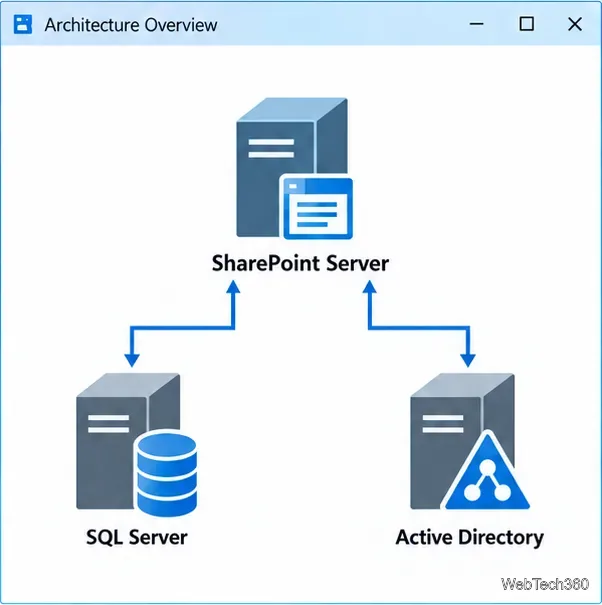
Update Windows and join the SharePoint and SQL servers to the same Active Directory domain. Confirm they can resolve and reach each other. Identify the SQL instance and farm domain account, then store the farm passphrase securely for later server joins.
Check the product’s supported Windows Server versions and prerequisites page for the required components. SharePoint SE uses IIS and .NET Framework 4.8. Versions beginning with 23H1 also require the Visual C++ 2015–2022 Redistributable (x64); the prerequisite tool may not install that runtime itself.
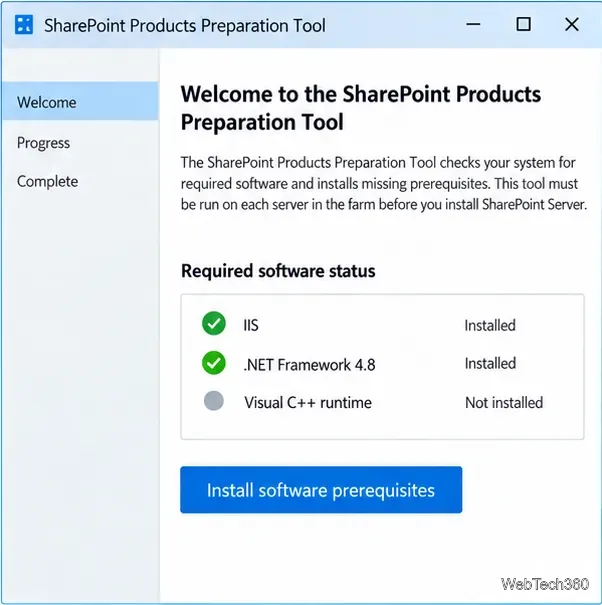
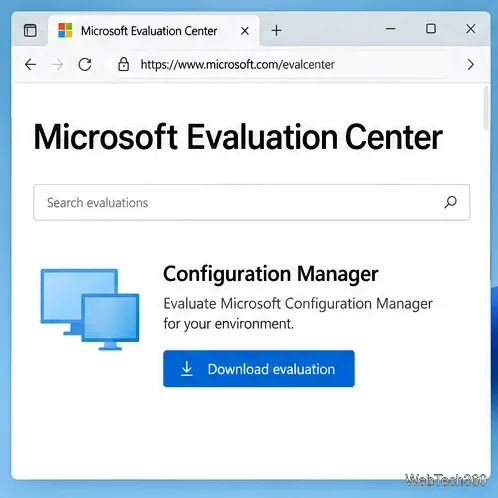
Download licensed or evaluation SharePoint Server Subscription Edition media from the Microsoft Download Center. Mount the ISO, open the drive, and run splash.hta. Choose Install software prerequisites, follow the Preparation Tool prompts, and restart if asked; rerun it after restarting if needed. The tool downloads components, so internet access is required. For offline servers, follow Microsoft’s offline prerequisite installation instructions process to stage the prerequisites.
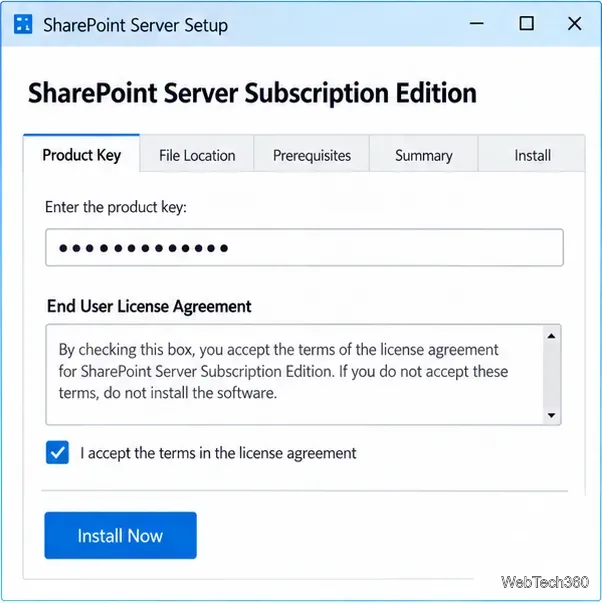
On the ISO splash screen, choose Install SharePoint Server. Enter a licensed key or an evaluation key from the Download Center (a 180-day trial), then accept the license. Keep default file locations unless your design requires otherwise. If this server will host Search, choose the index location now; Microsoft says it can only be set during Setup. Select Install Now, then keep the option to launch the Configuration Wizard.
On the first SharePoint server, choose Create a new server farm. Enter the SQL host and instance, then the farm account as DOMAIN\username and its password. Set and securely save the farm passphrase: SharePoint uses it to protect stored credentials, and new servers need it to join.
Choose a role that matches your design. Microsoft recommends Single Server Farm for a small test installation; assign planned roles in a multi-server farm. Set or accept the Central Administration port, choose authentication, review the summary, and start configuration. Services may restart.
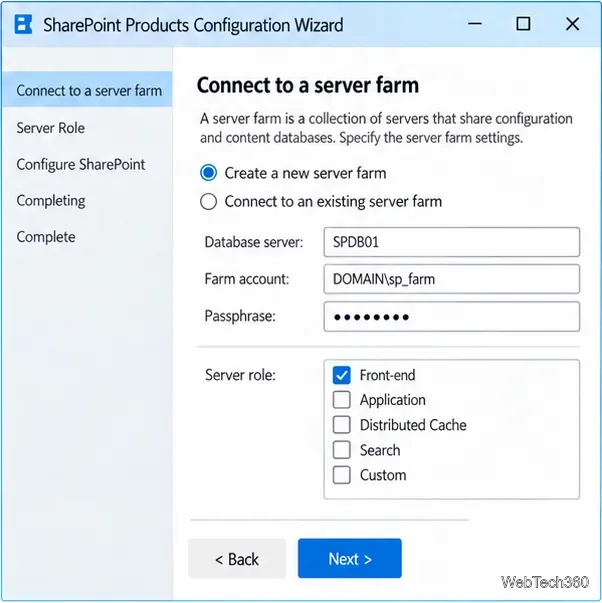
To add a server, install the same SharePoint version and prerequisites, then choose Connect to an existing server farm and enter the SQL host and farm passphrase. After configuration, use Central Administration to select services and create a site collection as needed. Install current supported updates from Microsoft’s SharePoint Server update history page.
Confirm Central Administration opens, the farm reports no configuration errors, and an authorized user can load a test site. If Setup fails, inspect its logs in the installing account’s temporary folder. For configuration errors, review PSCDiagnostics logs in %COMMONPROGRAMFILES%\Microsoft Shared\Web Server Extensions\16\LOGS. Compare the error with Microsoft’s Microsoft’s installation procedure and verify SQL connectivity, account permissions, and pending restarts before retrying.
Create a reusable Outlook.com email signature, choose when it appears automatically, and insert it manually when you need a different sign-off.
Open Command Prompt with Start search, Run, File Explorer, or Windows Terminal. See how to launch it as an administrator and find it on older PCs.
Set up a Nextcloud sync server on Windows Server with the AIO virtual machine, VirtualBox, bridged networking, domain, HTTPS, and backup guidance.
Learn how to create, link, configure, and verify a Windows Server Group Policy Object with a pilot OU, a wallpaper example, and troubleshooting checks.
Learn how Windows 7 Disk Cleanup, Disk Defragmenter, System Restore, and built-in troubleshooters handle common maintenance tasks, with important safety limits.
Speed up a Windows 7 PC by finding bottlenecks, reducing startup load, clearing disk space, adjusting visual effects, and upgrading wisely.
Set up Configuration Manager as a standalone primary site with supported Windows Server, SQL Server, evaluation media, and current setup prerequisites.
Host GitLab Self-Managed on Windows Server by running Ubuntu Server in Hyper-V, then configure its network, HTTPS address, first login, and backups.
Install Abyss Web Server X1 on Windows Server, create the console login, publish a test page, and configure the service to start at boot.
Install SharePoint Server Subscription Edition on Windows Server with current hardware, SQL, prerequisite, setup, and farm-configuration guidance.