How to Set Up an Email Signature in Outlook.com
Create a reusable Outlook.com email signature, choose when it appears automatically, and insert it manually when you need a different sign-off.
Host a Nextcloud sync server on Windows Server by running Nextcloud All-in-One (AIO) in a Linux virtual machine. The prebuilt route in this guide imports the official AIO VM into Oracle VirtualBox.
Nextcloud does not support a native Windows server install; it recommends a VM or Docker image on Windows Server. The prebuilt AIO VM is not suitable behind a reverse proxy, so use the AIO Docker image and reverse-proxy guide for that setup. See the official Nextcloud install page for its Windows Server guidance.
Check that your Windows Server release is supported by the current VirtualBox host requirements, and enable hardware virtualization in firmware. Plan storage for the VM, user files, and backups; reserve a stable LAN address for the guest. Remote access also requires a domain you control.
Before exposing the VM, note its age: the official AIO VM index lists a 1.6 GB OVA last modified September 9, 2024, and a README dated 2022. Read the README and verify the guest OS update process; updating AIO containers does not maintain the Linux VM itself.
Get the Windows host installer from the official VirtualBox downloads page. Install it and check Oracle’s current manual for support on your exact Server release.
From the official AIO VM directory, download Nextcloud-AIO.ova and readme.md. The OVA is a Linux guest, not a Windows installer; allow room for its virtual disk and future files.
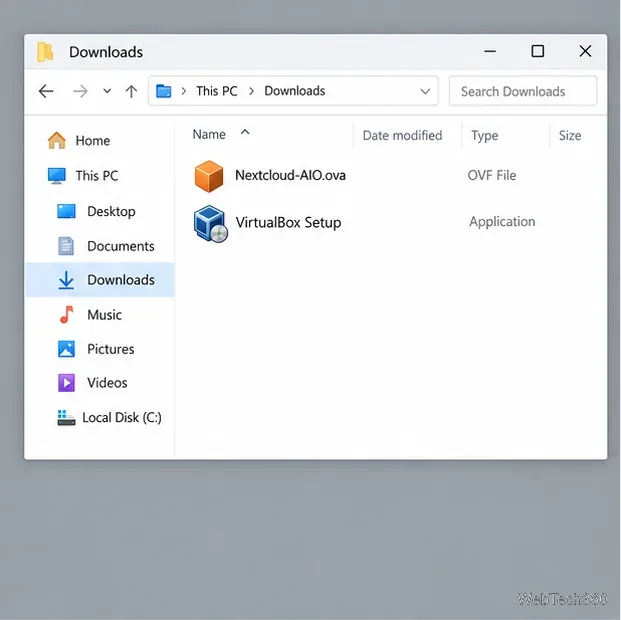
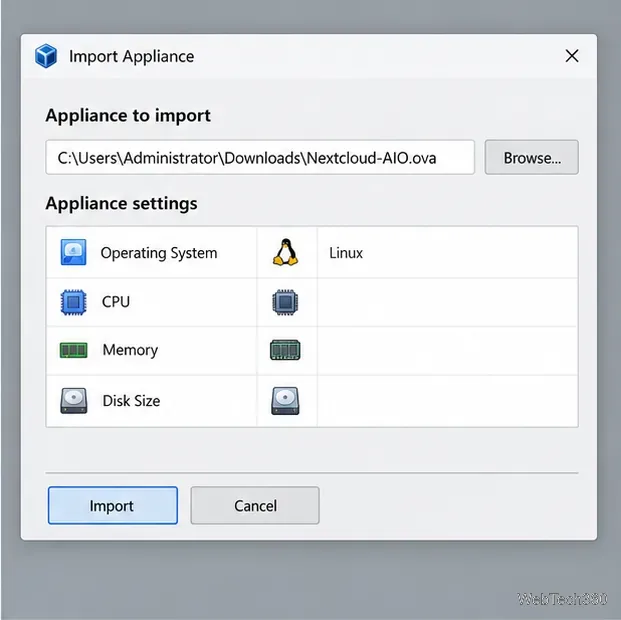
In VirtualBox Manager, choose Home > Import or double-click the OVA. Review its guest OS and resource settings, select a VM folder, and import. Leave enough CPU and memory for Windows Server and its other roles.
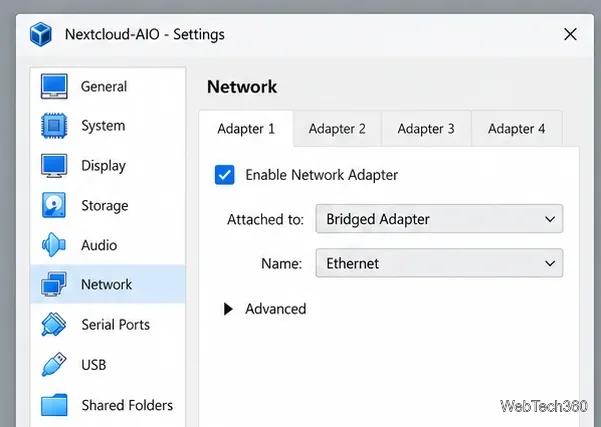
Open the VM’s Settings > Network. Set Adapter 1 to Bridged Adapter and choose the physical interface that reaches your LAN. Bridging gives the guest its own LAN address; reserve that address in your router. NAT requires extra configuration for inbound traffic.
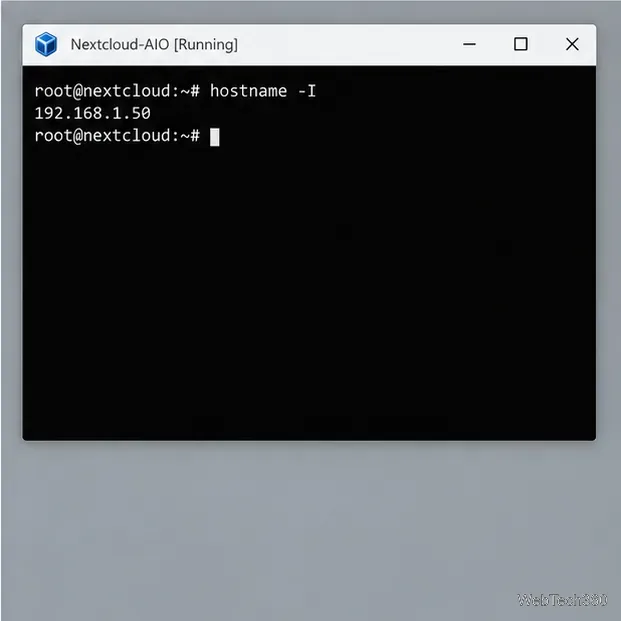
Start the appliance and run hostname -I in its console. Note the guest’s LAN IPv4 address; if you cannot access the console, look for the VM in the router’s DHCP lease list.
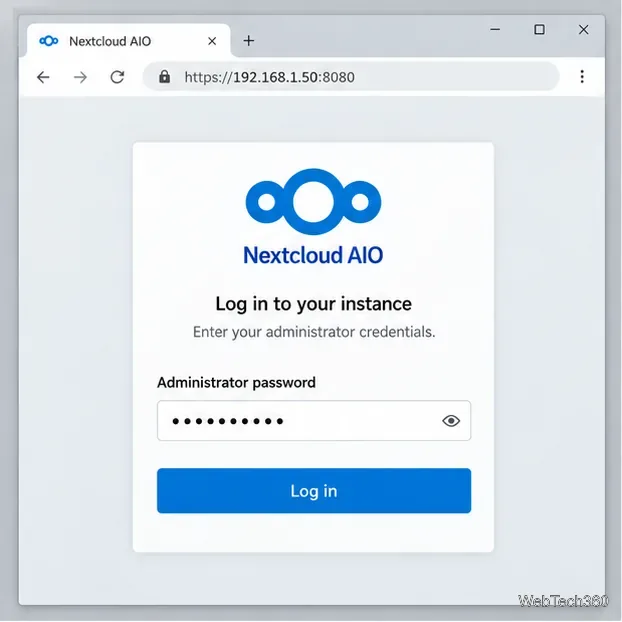
Visit https://<VM-IP>:8080 from a trusted device. A self-signed certificate warning is expected on this local management page; confirm the IP belongs to your VM. Save the first-run AIO administrator password, then sign in using the IP address, not a domain, on port 8080. Keep this port off the public internet.
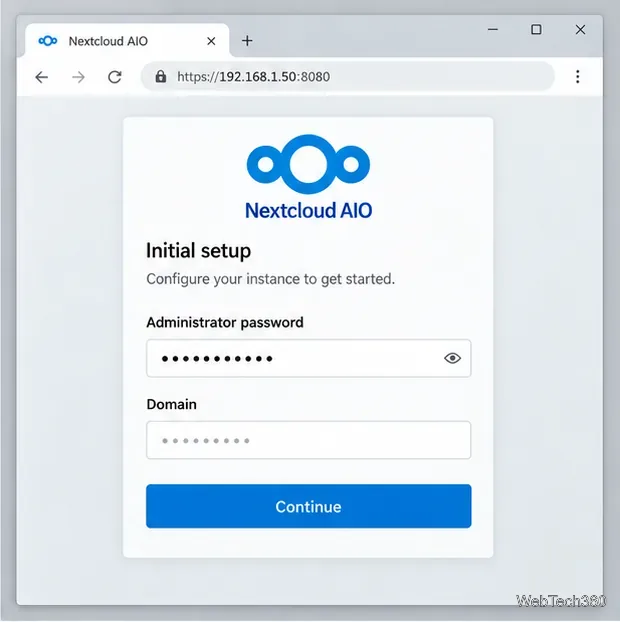
Enter your Nextcloud domain, such as cloud.example.com, and complete AIO’s domain check. For remote access, public DNS must point to your public IP. Forward TCP 80 for certificate validation and TCP 443 to the VM; enable TCP and UDP 3478 only if you use Nextcloud Talk. Keep management ports restricted to trusted administrators.
If validation fails, verify public DNS and firewall forwarding. For LAN-only use, follow AIO’s local-instance instructions instead of using a private IP as the Nextcloud domain.
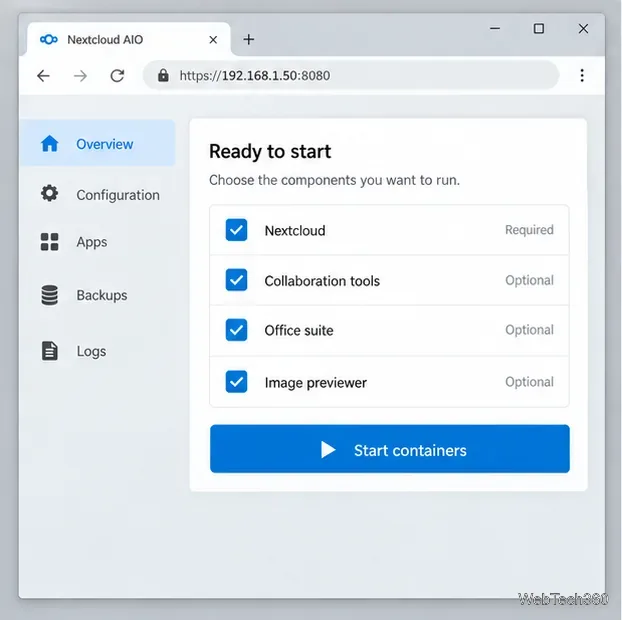
Apply a mastercontainer update if prompted. Select only the optional components you need, then choose Start containers and wait for setup to finish. Keep the AIO password separate from the initial Nextcloud account credentials.
Open https://cloud.example.com, sign in, create user accounts, and install the official desktop or mobile sync clients. Select folders to synchronize. Configure AIO backups on separate or remote storage and test a restore. Finally, verify that the VM starts after Windows Server reboots.
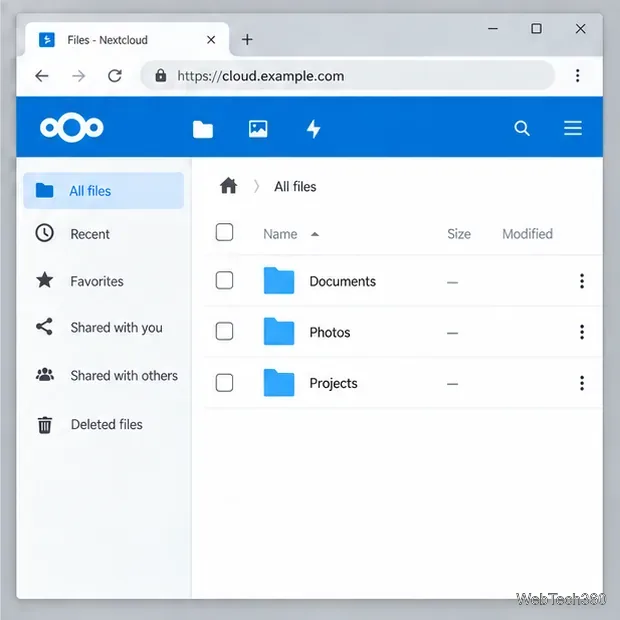
The interface illustrations above are schematic; the exact labels can differ from the bundled VM’s older AIO release. Use the current AIO documentation for any screen that does not match.
Create a reusable Outlook.com email signature, choose when it appears automatically, and insert it manually when you need a different sign-off.
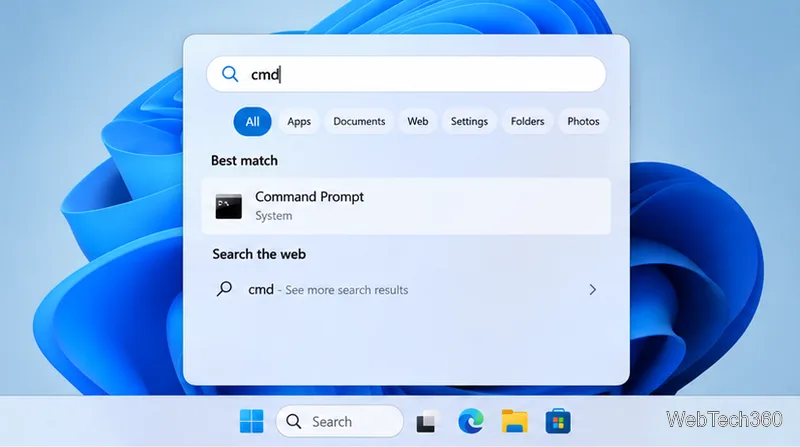
Open Command Prompt with Start search, Run, File Explorer, or Windows Terminal. See how to launch it as an administrator and find it on older PCs.
Set up a Nextcloud sync server on Windows Server with the AIO virtual machine, VirtualBox, bridged networking, domain, HTTPS, and backup guidance.
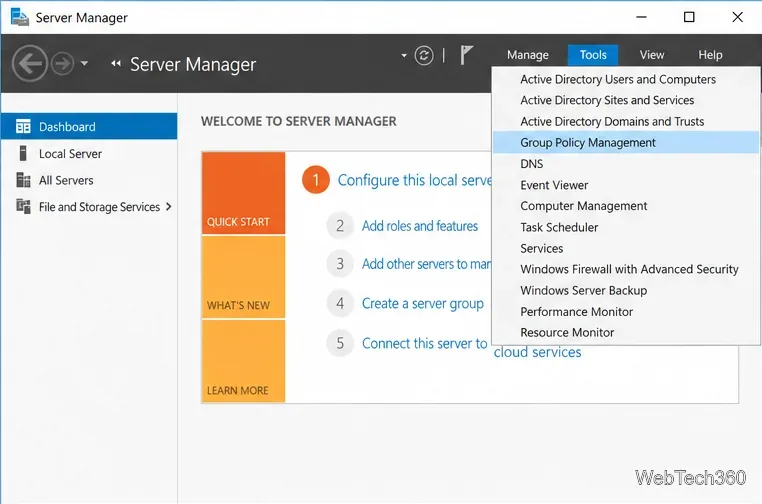
Learn how to create, link, configure, and verify a Windows Server Group Policy Object with a pilot OU, a wallpaper example, and troubleshooting checks.
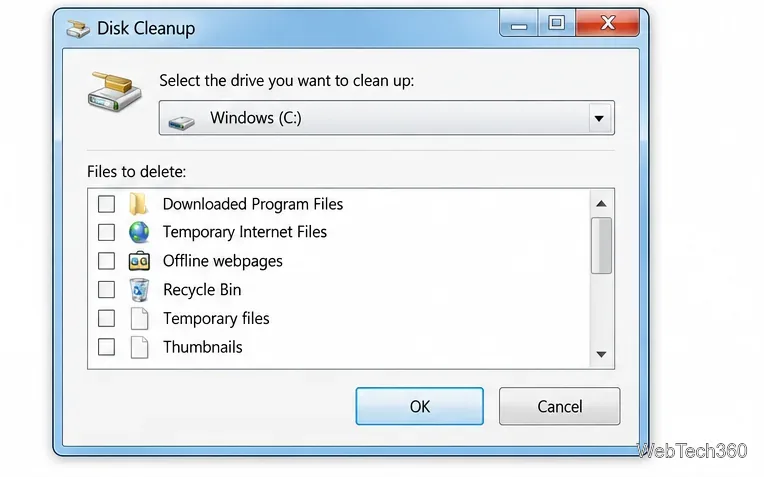
Learn how Windows 7 Disk Cleanup, Disk Defragmenter, System Restore, and built-in troubleshooters handle common maintenance tasks, with important safety limits.
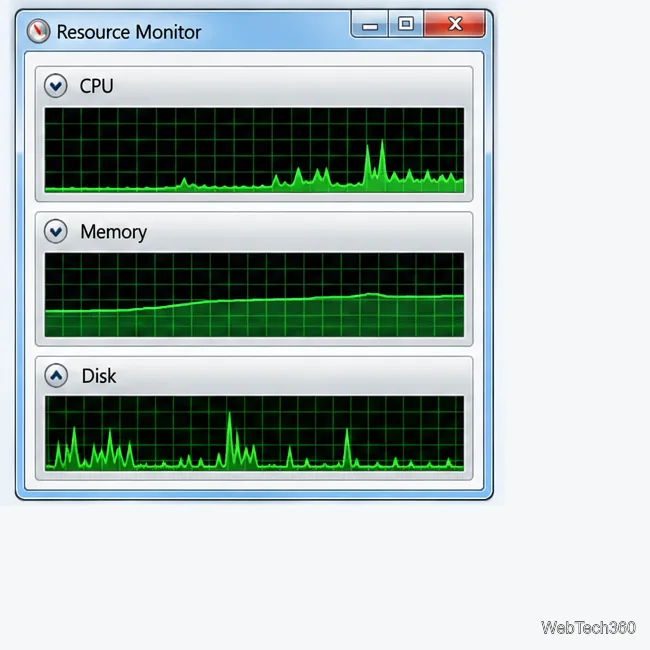
Speed up a Windows 7 PC by finding bottlenecks, reducing startup load, clearing disk space, adjusting visual effects, and upgrading wisely.
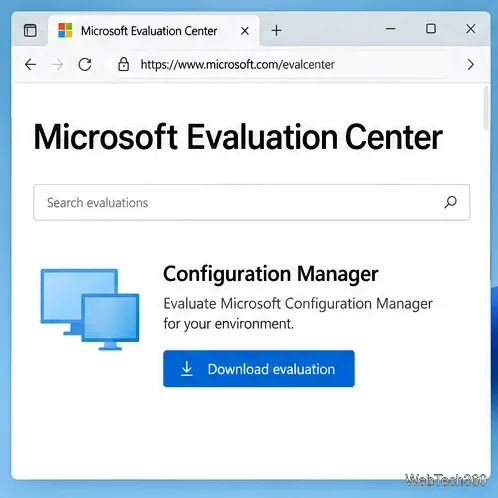
Set up Configuration Manager as a standalone primary site with supported Windows Server, SQL Server, evaluation media, and current setup prerequisites.
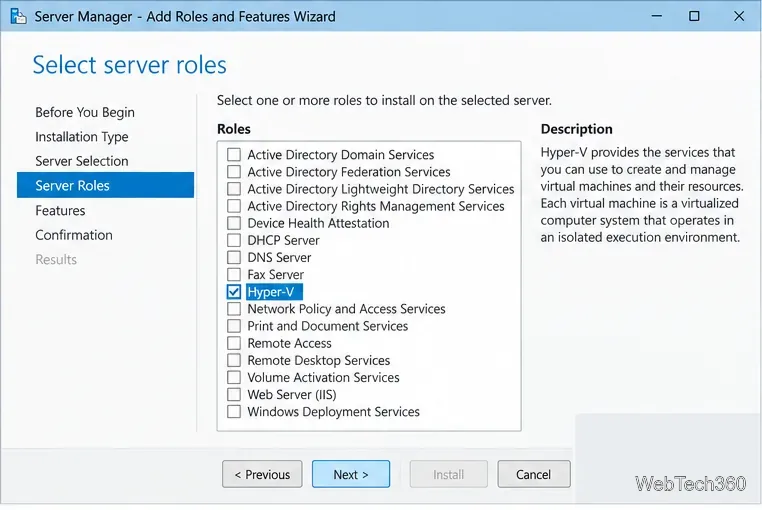
Host GitLab Self-Managed on Windows Server by running Ubuntu Server in Hyper-V, then configure its network, HTTPS address, first login, and backups.
Install Abyss Web Server X1 on Windows Server, create the console login, publish a test page, and configure the service to start at boot.
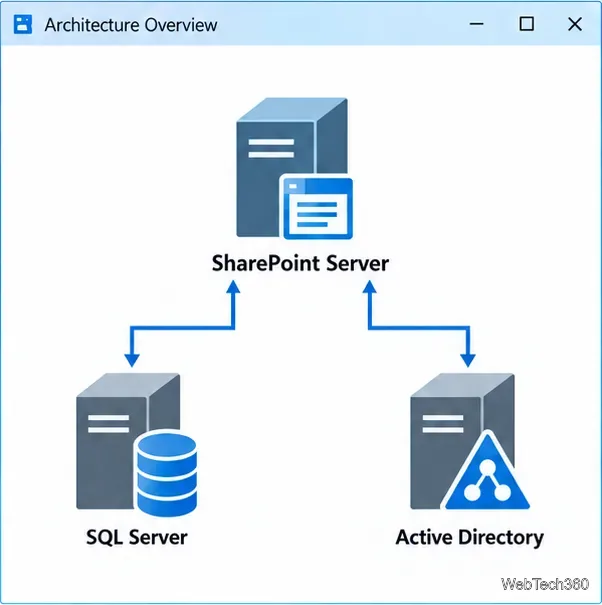
Install SharePoint Server Subscription Edition on Windows Server with current hardware, SQL, prerequisite, setup, and farm-configuration guidance.