How to Set Up an Email Signature in Outlook.com
Create a reusable Outlook.com email signature, choose when it appears automatically, and insert it manually when you need a different sign-off.
Group Policy centrally configures Windows user and computer settings through Active Directory. To create and apply a policy, make a Group Policy Object (GPO) in the Group Policy Management Console (GPMC), link it to the right domain, site, or organizational unit (OU), configure a setting, then verify it on a pilot client. This example uses a pilot users OU and a desktop wallpaper policy.
Links, inheritance, precedence, and filtering affect scope. Review Microsoft’s Group Policy scope guidance before linking above the pilot OU.
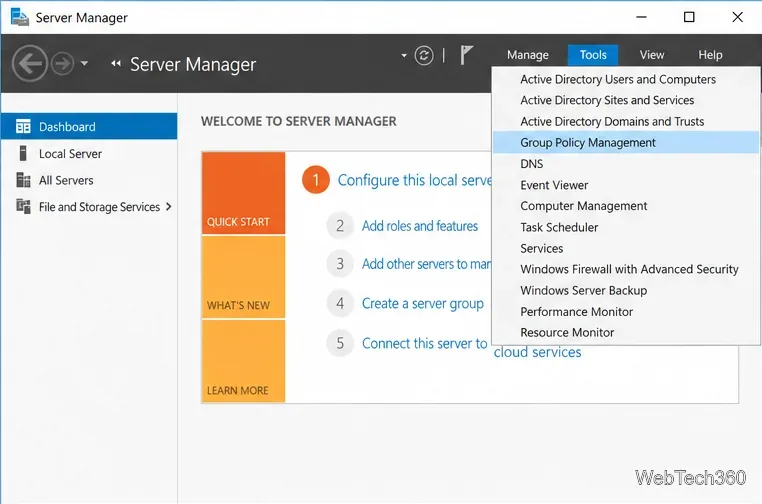
In Server Manager, select Tools > Group Policy Management. You can also search Start on a computer with GPMC installed. Expand Forest, Domains, and your domain to browse its OUs and GPOs.
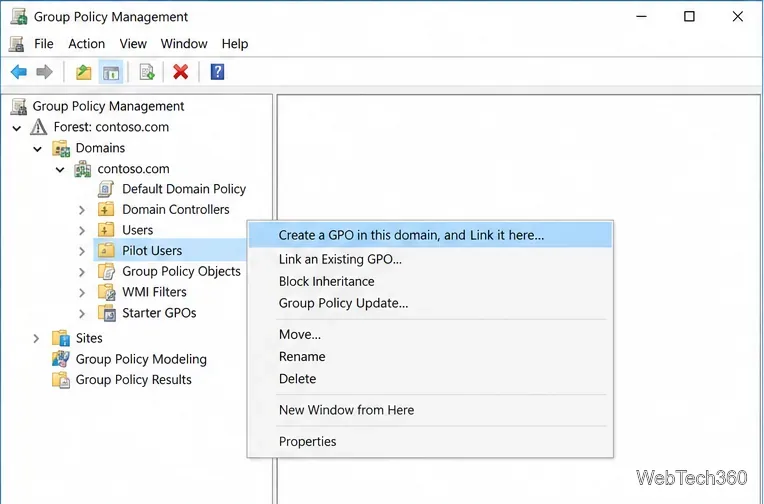
Right-click the pilot users OU and select Create a GPO in this domain, and Link it here…. This creates the GPO and link together. Because the example uses User Configuration, choose the OU containing the pilot users. A domain-root link may affect a much wider group.
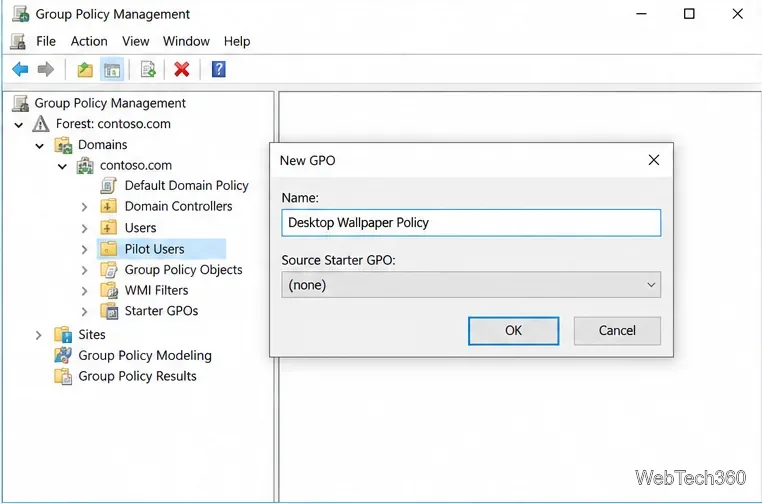
Name the new GPO Desktop Wallpaper Policy and select OK. Use a name that identifies its purpose. If you create an unlinked GPO under Group Policy Objects, link it to the target container afterward.
Select the pilot OU and open Linked Group Policy Objects; confirm the link is present and enabled. If you use Security Filtering, the intended user or group needs both Read and Apply Group Policy permissions. Keep default filtering for an isolated pilot OU, or verify membership and permissions for a pilot group.
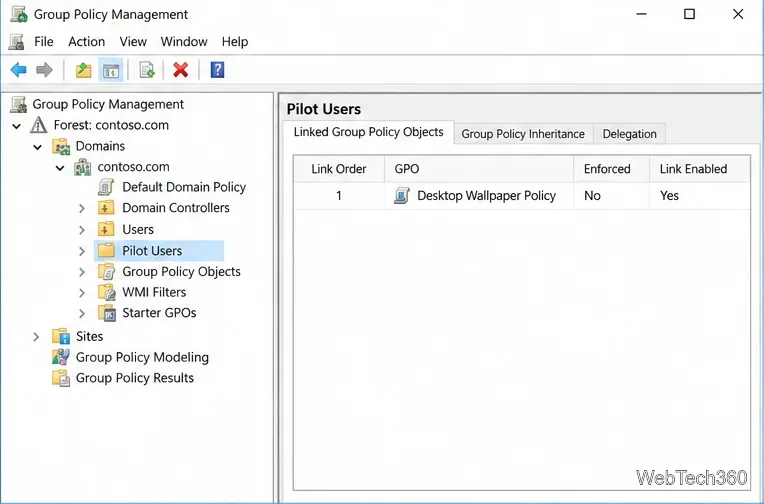
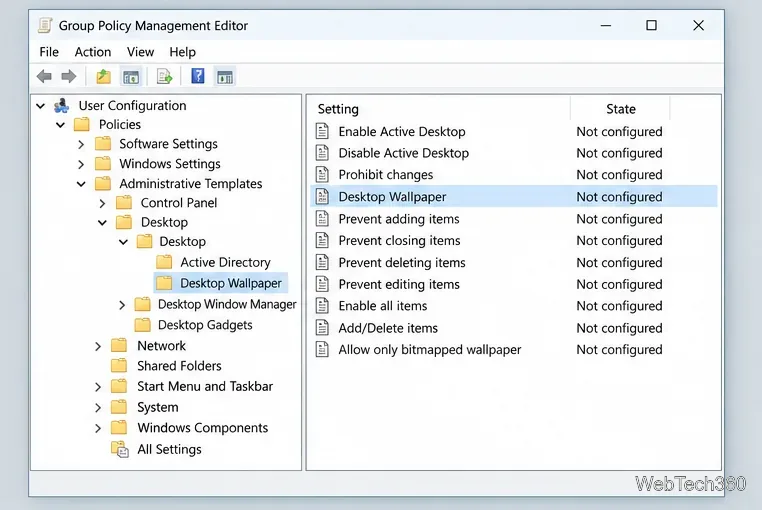
Right-click the GPO and select Edit. In Group Policy Management Editor, open User Configuration > Policies > Administrative Templates > Desktop > Desktop, then select Desktop Wallpaper. Microsoft documents this path in its Windows background configuration guidance.
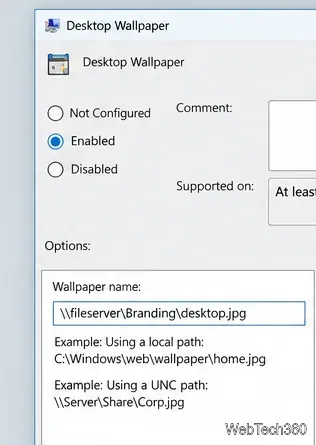
Open the setting, select Enabled, and enter a fully qualified path in Wallpaper name, such as \\fileserver\Branding\desktop.jpg. Confirm users can read the file through both share and file-system permissions. Select OK to save the setting, then close the editor.
Sign in as a pilot user and run gpupdate /target:user /force in Command Prompt. This refreshes user policy and reapplies all settings. See Microsoft’s gpupdate reference. If the wallpaper does not change, sign out and back in, then check access to the shared image.
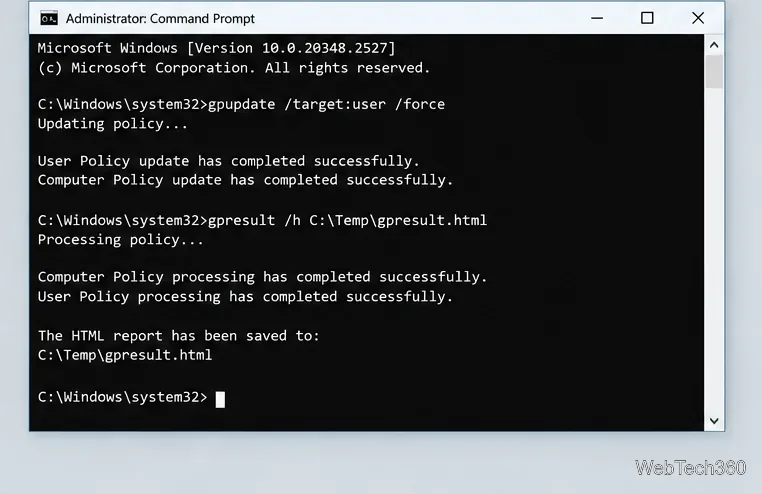
Check the wallpaper, then run gpresult /h "%USERPROFILE%\Desktop\gpresult.html" and open the report. Under Applied Group Policy Objects, confirm the test GPO appears. Microsoft’s gpresult reference explains report options. In GPMC, Group Policy Results shows actual settings, while Group Policy Modeling simulates a rollout.
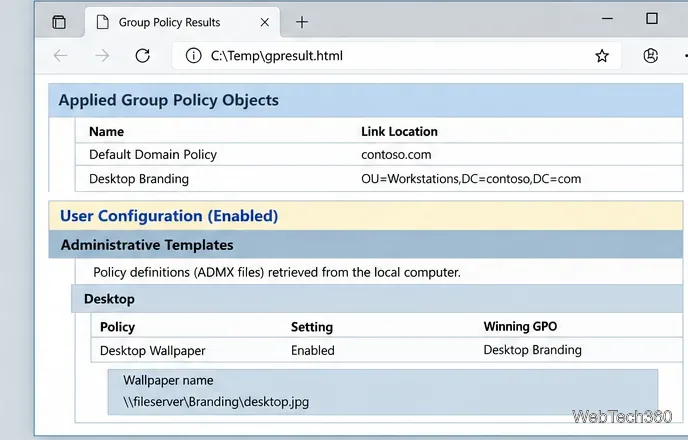
After the pilot works, expand the GPO link or security filter deliberately and verify the next user group with the same checks.
Create a reusable Outlook.com email signature, choose when it appears automatically, and insert it manually when you need a different sign-off.
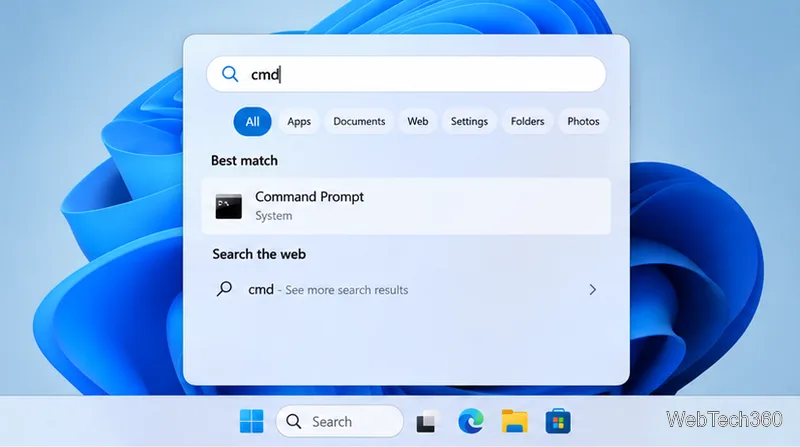
Open Command Prompt with Start search, Run, File Explorer, or Windows Terminal. See how to launch it as an administrator and find it on older PCs.
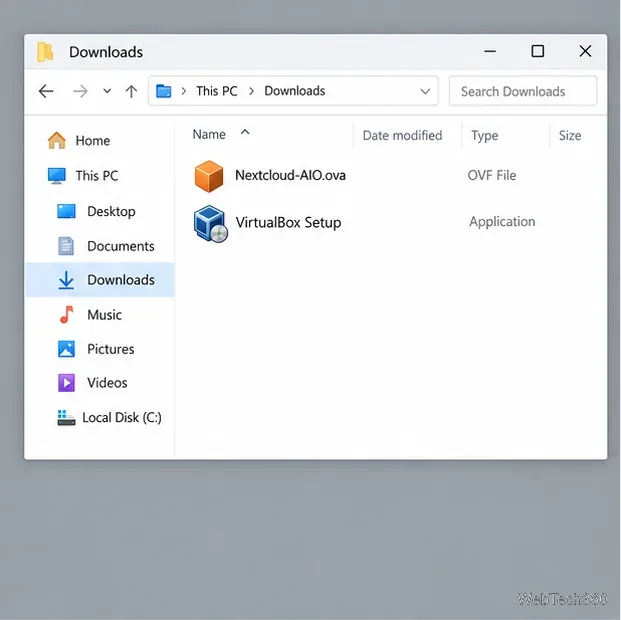
Set up a Nextcloud sync server on Windows Server with the AIO virtual machine, VirtualBox, bridged networking, domain, HTTPS, and backup guidance.
Learn how to create, link, configure, and verify a Windows Server Group Policy Object with a pilot OU, a wallpaper example, and troubleshooting checks.
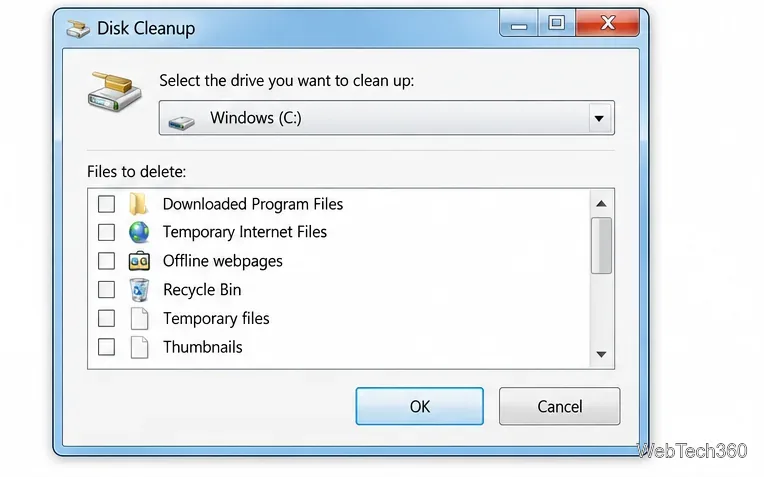
Learn how Windows 7 Disk Cleanup, Disk Defragmenter, System Restore, and built-in troubleshooters handle common maintenance tasks, with important safety limits.
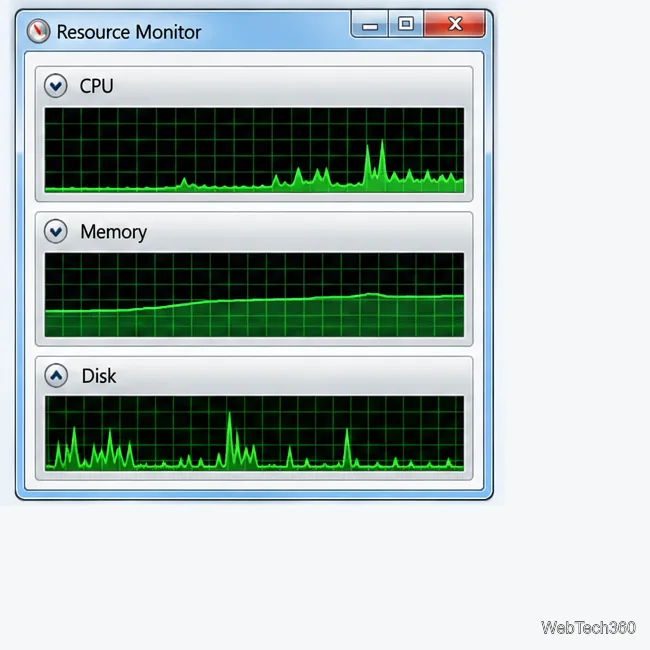
Speed up a Windows 7 PC by finding bottlenecks, reducing startup load, clearing disk space, adjusting visual effects, and upgrading wisely.
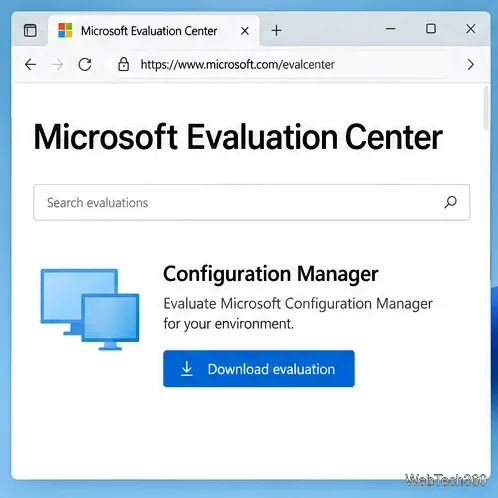
Set up Configuration Manager as a standalone primary site with supported Windows Server, SQL Server, evaluation media, and current setup prerequisites.
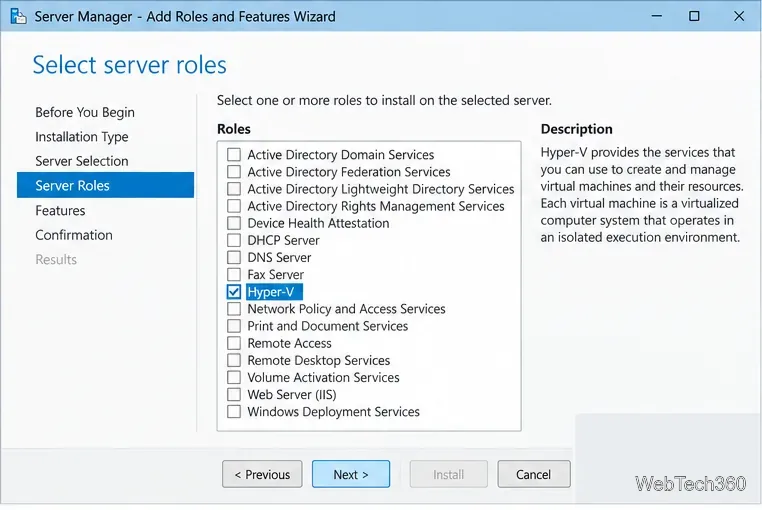
Host GitLab Self-Managed on Windows Server by running Ubuntu Server in Hyper-V, then configure its network, HTTPS address, first login, and backups.
Install Abyss Web Server X1 on Windows Server, create the console login, publish a test page, and configure the service to start at boot.
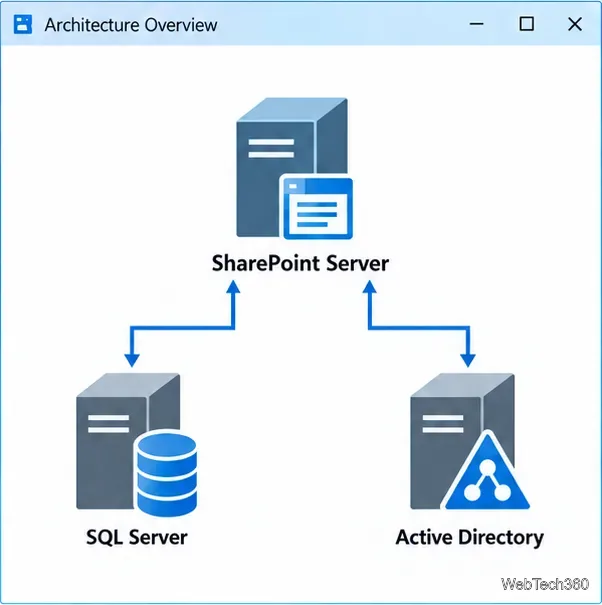
Install SharePoint Server Subscription Edition on Windows Server with current hardware, SQL, prerequisite, setup, and farm-configuration guidance.