How to Set Up an Email Signature in Outlook.com
Create a reusable Outlook.com email signature, choose when it appears automatically, and insert it manually when you need a different sign-off.
To set up GitLab Self-Managed on Windows Server, run a supported Ubuntu Server virtual machine in Hyper-V and install GitLab inside the Linux guest. Windows Server remains the host; GitLab runs from its official Linux package. GitLab’s current Ubuntu package guide lists Ubuntu 22.04 and 24.04, so this walkthrough uses Ubuntu Server 24.04 LTS.
Before you begin, confirm the host can spare CPU, RAM, and disk for the guest. GitLab’s single-node baseline is 8 vCPUs and 16 GB RAM; budget 40 GB for the application, 5–12 GB for the database, plus repository storage. Use SSD-backed disks and leave resources for Windows Server.
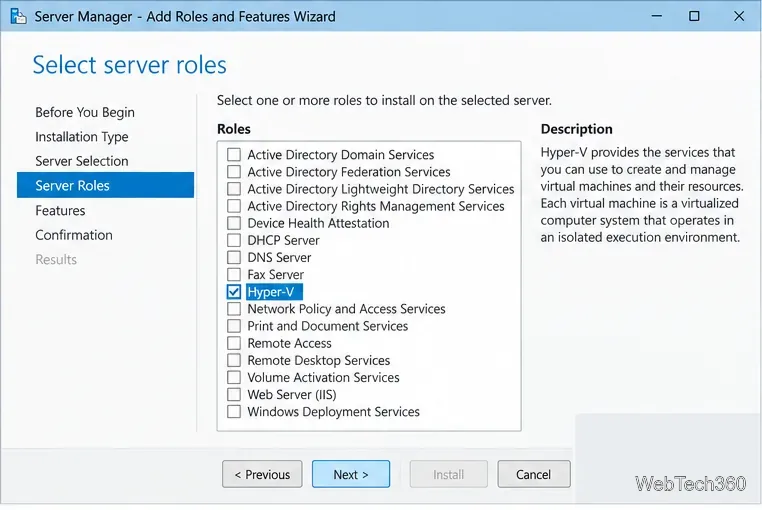
In Server Manager, choose Manage > Add Roles and Features, select the local server, and enable Hyper-V. Include the management tools and allow the required restart. You can also run PowerShell as an administrator and install the local role with:
Install-WindowsFeature -Name Hyper-V -IncludeManagementTools -RestartHyper-V installation restarts the host. Check Microsoft’s Hyper-V installation guide if your server uses a different management setup.
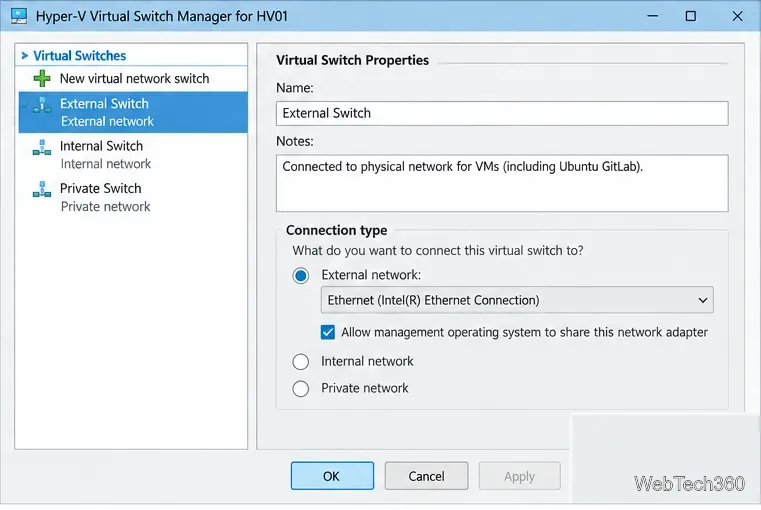
In Hyper-V Manager, open Virtual Switch Manager and create an External switch on the host’s LAN adapter. Choose whether Windows should share it. This gives Ubuntu a LAN address and lets authorized devices reach GitLab. Use a trusted LAN or VPN; follow your network policy before public access. See Microsoft’s virtual switch guide.
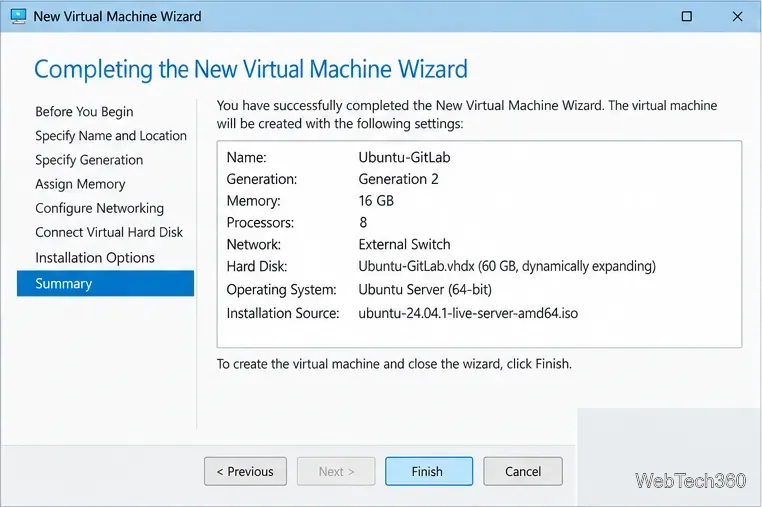
Download Ubuntu Server 24.04 LTS. In Hyper-V Manager, create a VM named GitLab-Ubuntu, choose Generation 2, connect the external switch, and create an SSD-backed VHDX. Use GitLab’s 8-vCPU/16-GB baseline for a single node; a lab can start smaller, with slower performance.
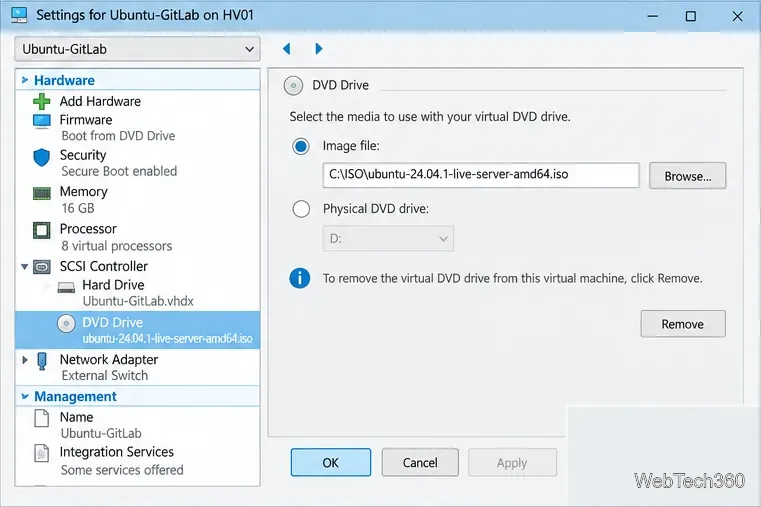
Attach the ISO to the virtual DVD drive. If Ubuntu does not boot, set the Generation 2 VM’s Secure Boot template to Microsoft UEFI Certificate Authority.
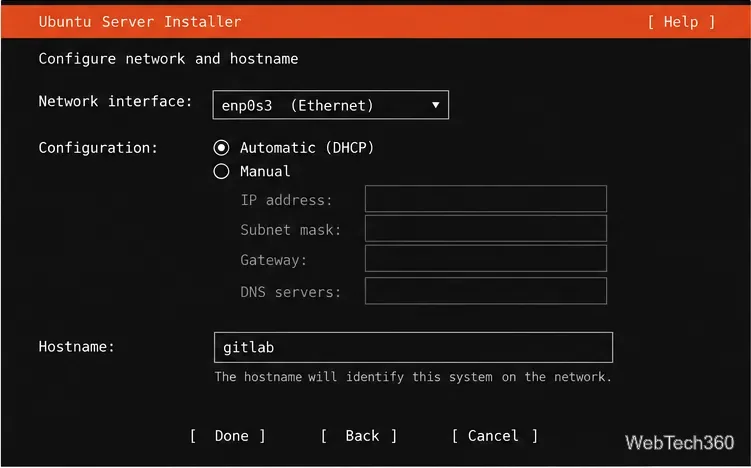
Start the VM and complete the Ubuntu Server installer. Create an administrator account, use a hostname such as gitlab, and enable OpenSSH for remote administration. Give the VM a static IP or DHCP reservation so its address stays stable.
After the first login, install available updates and restart if prompted:
sudo apt update && sudo apt upgrade -y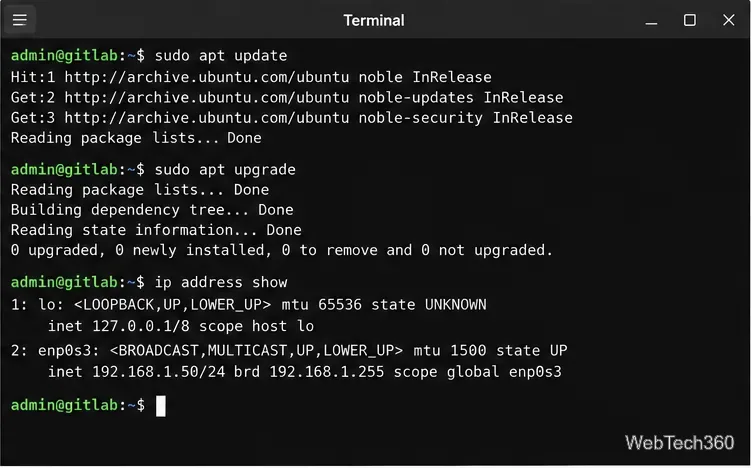
Create a DNS record such as gitlab.example.com that resolves to the VM’s stable address. Allow inbound TCP ports 22 for Git over SSH, 80 for HTTP and Let’s Encrypt certificate validation, and 443 for HTTPS. Apply matching rules in Ubuntu’s firewall, the Windows/network firewall, and any router or cloud firewall in front of the host. Restrict SSH and web access to intended users or networks where possible.
sudo ufw allow 22/tcp
sudo ufw allow 80/tcp
sudo ufw allow 443/tcp
sudo ufw enableThese commands install the Community Edition package. Replace the example hostname with the DNS name you configured. For Enterprise Edition, use the EE option in GitLab’s official Ubuntu installation guide. Review the repository setup script before running it as an administrator.
sudo apt update
sudo apt install -y curl
curl --location "https://packages.gitlab.com/install/repositories/gitlab/gitlab-ce/script.deb.sh" | sudo bash
sudo EXTERNAL_URL="https://gitlab.example.com" apt install gitlab-ce
With a valid public DNS name and inbound HTTP access, GitLab can request a Let’s Encrypt certificate during installation. For an internal-only server, configure a certificate trusted by your organization and follow GitLab’s current TLS instructions. Check the GitLab installation requirements before sizing a production VM.
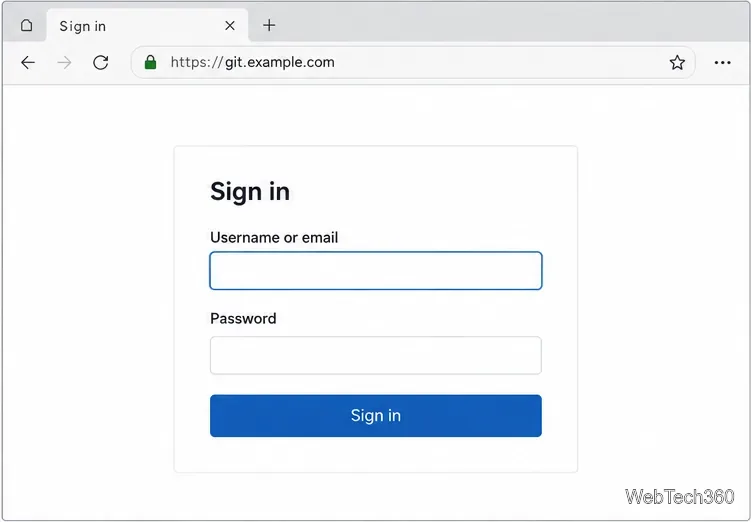
When installation finishes, open https://gitlab.example.com. Sign in as root; retrieve the initial password from /etc/gitlab/initial_root_password on the Ubuntu VM. GitLab removes that file after 24 hours, so change the password immediately and store the new credential securely.
Create a test project, add a README, and clone it over HTTPS or SSH from a client machine to confirm DNS, firewall rules, and authentication work. Before inviting a team, review GitLab’s recommended next steps, enable two-factor authentication, and restrict public sign-ups if the instance is private. Configure scheduled backups and copy them off the VM; the GitLab backup guide explains what the backup command includes and what must be backed up separately.
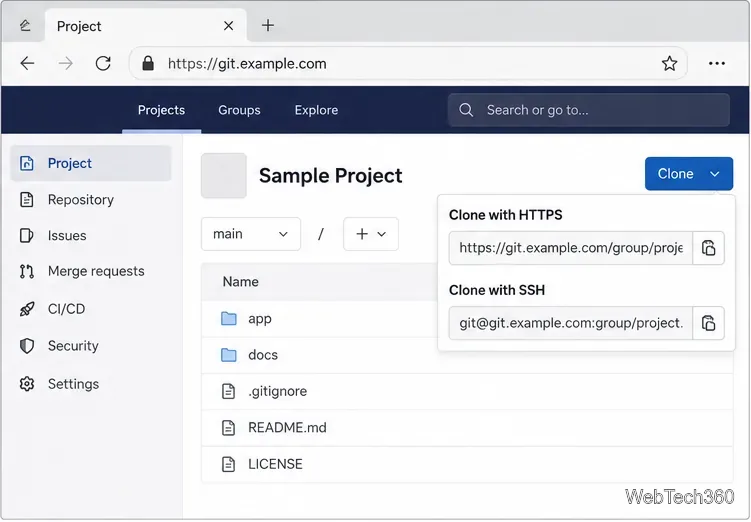
Keep Windows and Ubuntu patched, watch disk growth, and test a backup restore before relying on the instance for important repositories.
Create a reusable Outlook.com email signature, choose when it appears automatically, and insert it manually when you need a different sign-off.
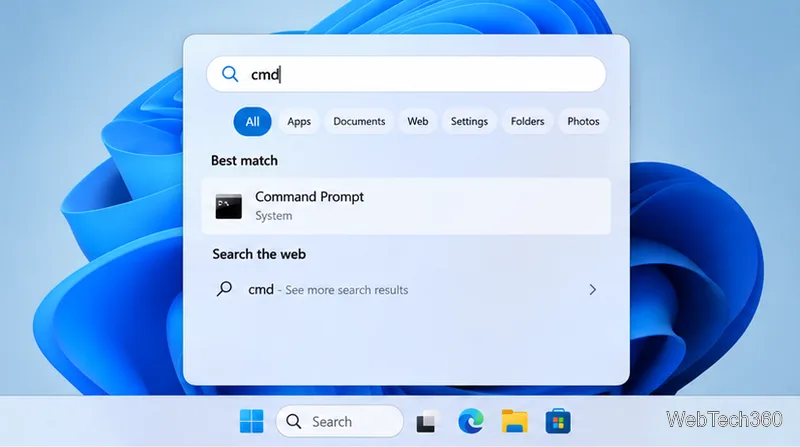
Open Command Prompt with Start search, Run, File Explorer, or Windows Terminal. See how to launch it as an administrator and find it on older PCs.
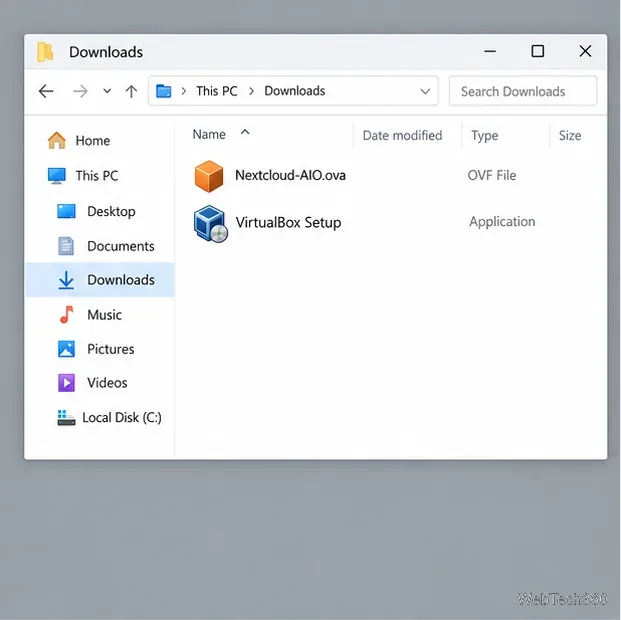
Set up a Nextcloud sync server on Windows Server with the AIO virtual machine, VirtualBox, bridged networking, domain, HTTPS, and backup guidance.
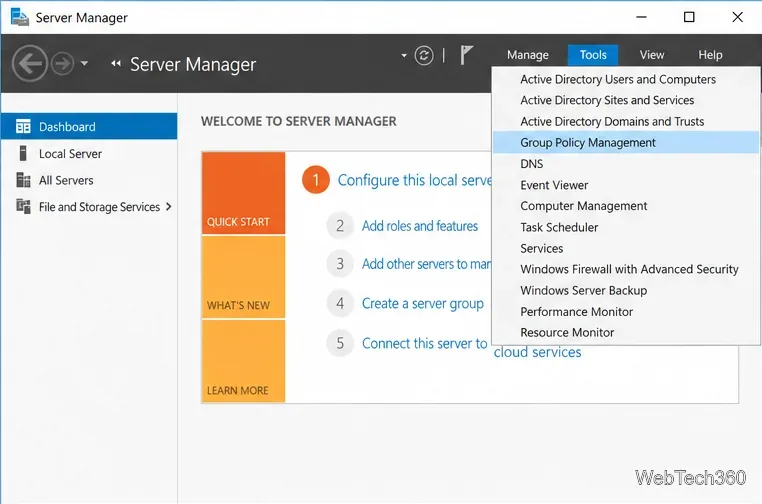
Learn how to create, link, configure, and verify a Windows Server Group Policy Object with a pilot OU, a wallpaper example, and troubleshooting checks.
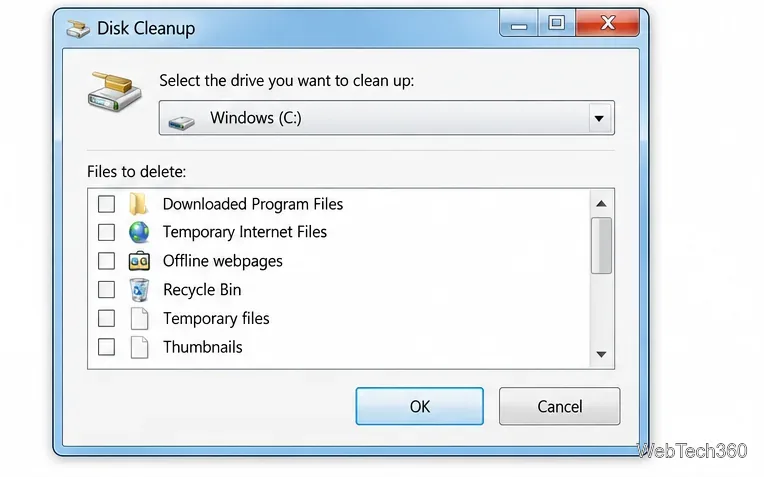
Learn how Windows 7 Disk Cleanup, Disk Defragmenter, System Restore, and built-in troubleshooters handle common maintenance tasks, with important safety limits.
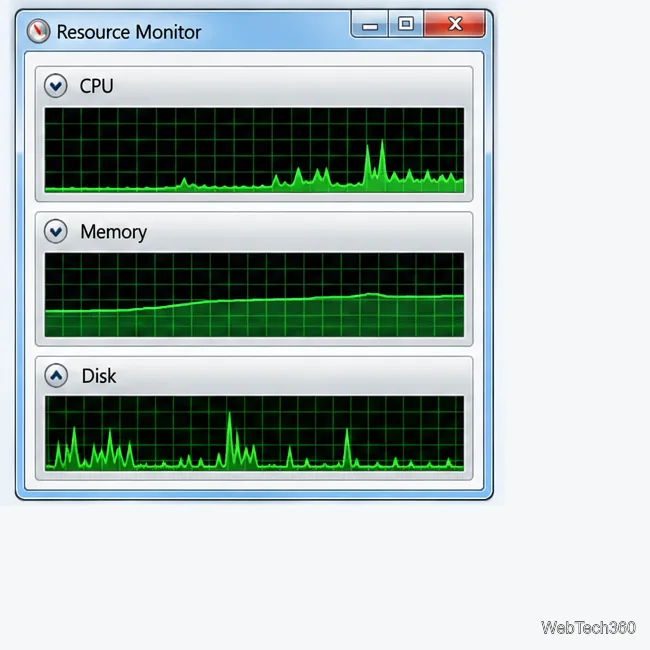
Speed up a Windows 7 PC by finding bottlenecks, reducing startup load, clearing disk space, adjusting visual effects, and upgrading wisely.
Set up Configuration Manager as a standalone primary site with supported Windows Server, SQL Server, evaluation media, and current setup prerequisites.
Host GitLab Self-Managed on Windows Server by running Ubuntu Server in Hyper-V, then configure its network, HTTPS address, first login, and backups.
Install Abyss Web Server X1 on Windows Server, create the console login, publish a test page, and configure the service to start at boot.
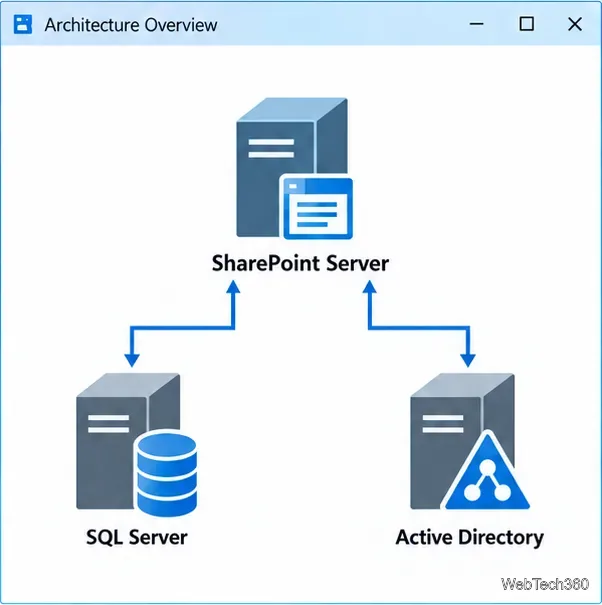
Install SharePoint Server Subscription Edition on Windows Server with current hardware, SQL, prerequisite, setup, and farm-configuration guidance.