How to Fix Lines on a Monitor Screen in Windows 10

Use a screenshot test, cable and port checks, monitor diagnostics, display settings, and driver rollback to pinpoint lines on a Windows 10 monitor.
A 3 monitor setup on Windows 10 works well when the PC and graphics hardware can drive three independent displays. Connect each monitor to a supported video output or compatible dock, press Windows+P, choose Extend, then arrange the screens in Settings > System > Display.
Windows 10 support note: Microsoft ended standard support for Windows 10 Home and Pro on October 14, 2025. The setup steps below still apply to PCs that remain on Windows 10, but Microsoft recommends moving to a supported Windows version for ongoing security updates. See the Windows 10 lifecycle notice.
The number of active screens is limited by your graphics adapter, PC design, dock, ports, and chosen resolution/refresh rate. Three physical video connectors do not always mean three simultaneous independent displays.
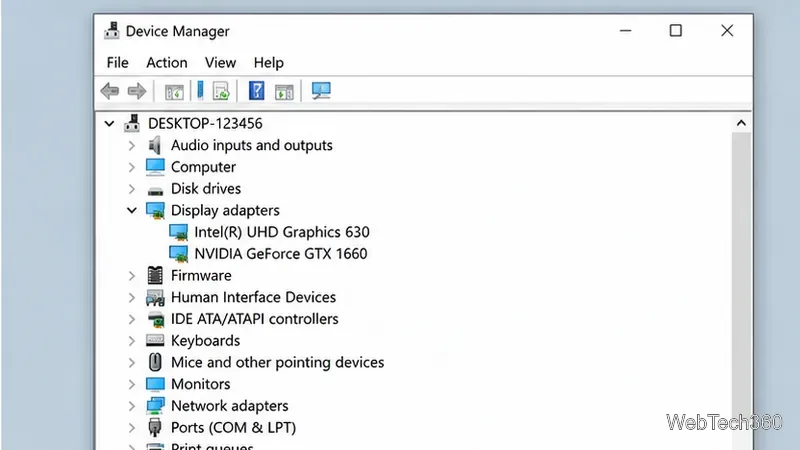
Search for Device Manager, open it, and expand Display adapters. Note every GPU listed, then check the PC or GPU manufacturer's specifications for the maximum number of simultaneous displays. This is more reliable than assuming the port count alone tells the whole story.
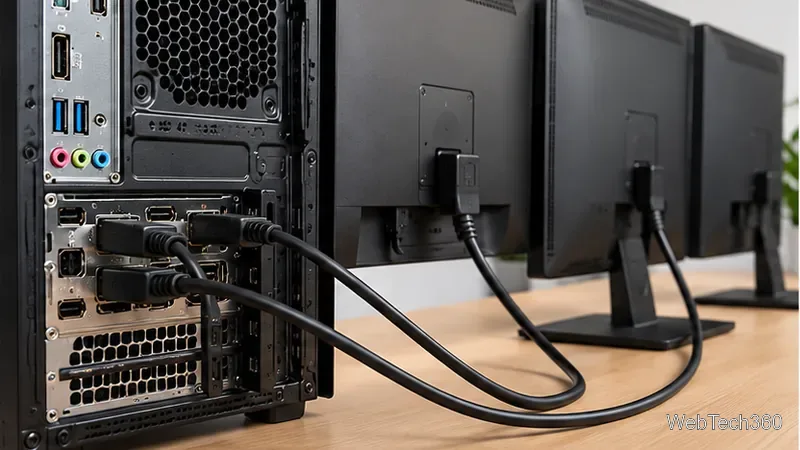
Turn on the monitors, connect each one to a supported output on the PC or dock, and select the correct input on each monitor if it does not switch automatically. If you are using adapters, make sure they support video output rather than data-only USB connections.
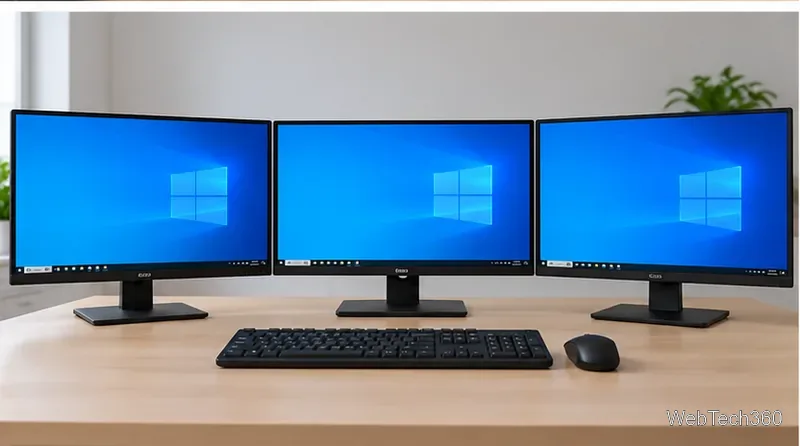
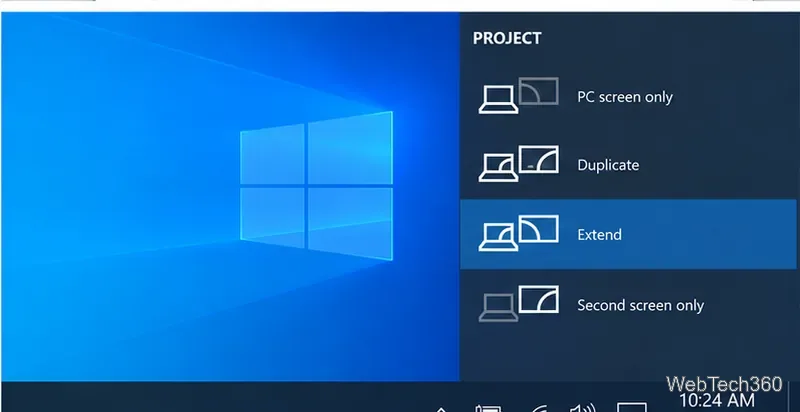
Press Windows+P and choose Extend. Extend gives each monitor its own desktop area; Duplicate shows the same image on multiple screens. Microsoft lists these projection modes in its multiple-monitor guide.
Open Settings > System > Display and click Identify. Windows places a number on each screen. Drag the numbered rectangles so they match the physical left-to-right order and vertical position of your monitors, then click Apply. Correct alignment makes the pointer move naturally between screens.
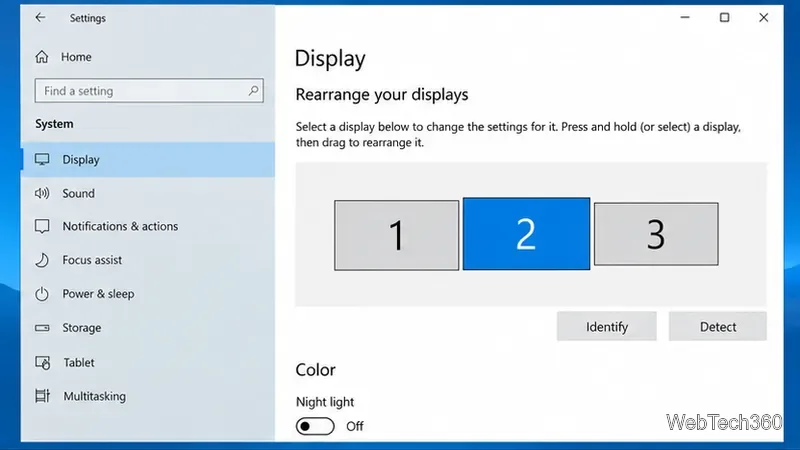
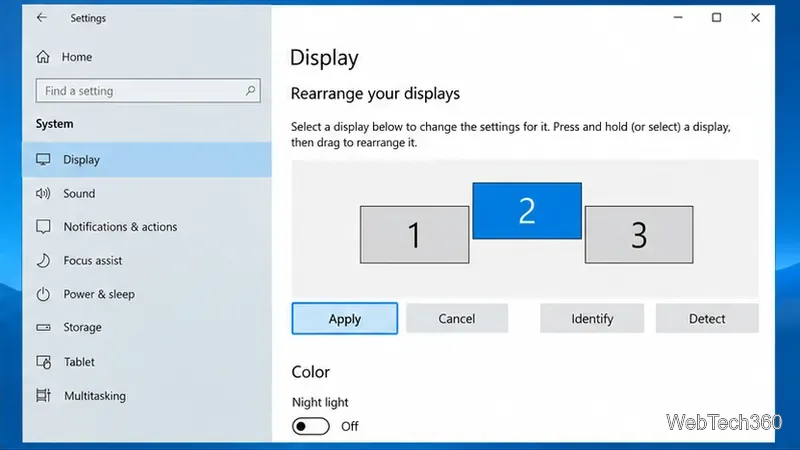
Select a monitor in Display settings and use the available scale and resolution controls for that screen. Keep the recommended native resolution unless you have a specific reason to change it. To choose where Start and most new windows appear, select the desired monitor and enable Make this my main display under Multiple displays.
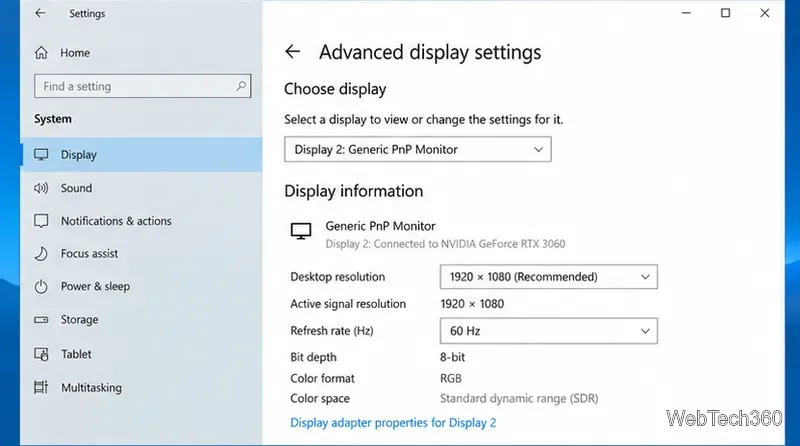
For each display, open Advanced display settings, choose the monitor, and select a refresh rate that the monitor and connection support. Microsoft notes that the available rates depend on the display and hardware. Its refresh-rate guide also warns that mismatched rates can contribute to some video-playback problems.
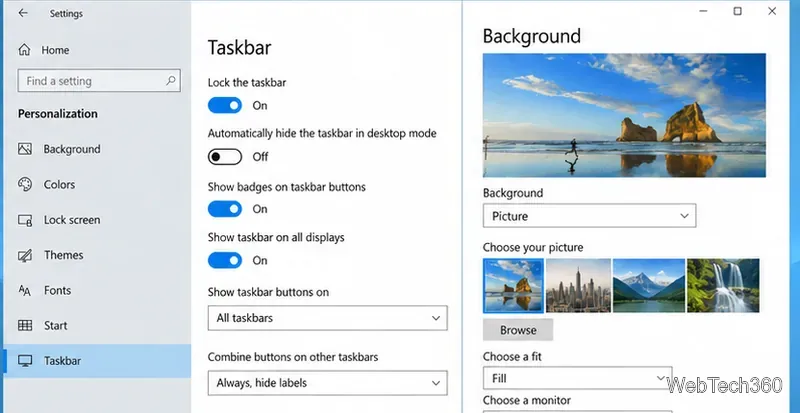
For the taskbar, go to Settings > Personalization > Taskbar and use the Multiple displays options to show the taskbar on all screens and choose where taskbar buttons appear.
For separate wallpapers, open Settings > Personalization > Background, choose Picture, then right-click a recent image and assign it to a specific monitor. You can also use Span when you want one wide image across the whole desktop. Microsoft documents these choices in its desktop-background guide.
If the third screen is missing, first return to Settings > System > Display and use Detect, then confirm Windows+P > Extend. Reseat the cable, try another known-good cable or video port, and test the monitor by itself. Avoid passive splitters when you need an extended desktop.
If a previously working setup suddenly fails, Microsoft also suggests restarting the PC or pressing Windows+Ctrl+Shift+B to reset the graphics driver. If problems continue, update or roll back the display driver and verify the GPU or dock's display limit. See Microsoft's external-monitor troubleshooting guide.
Once Windows detects all three displays and their layout matches the desk, the setup is complete. Extra third-party monitor software is optional; Windows 10 already includes the core controls needed for extending, arranging, scaling, and personalizing three screens.
Use a screenshot test, cable and port checks, monitor diagnostics, display settings, and driver rollback to pinpoint lines on a Windows 10 monitor.
Show two other time zones beside your Windows 10 clock. Set up each additional clock, give it a clear label, and find it in the taskbar calendar.
Find the File Explorer extension that delays right-click menus in Windows 10, test it safely with ShellExView, and restore any menu features you still need.
Stop Windows 10 from powering down a specific network adapter or USB device with plan-level settings and Device Manager controls, plus tips to avoid excess battery drain.
Check whether Windows 10 uses a digital license or product key, find a firmware-stored OEM key, and save license details securely for a reinstall.
Identify a Windows 10 Task Manager process by checking its executable path, file properties, publisher, linked services, and a Microsoft Defender scan.
Create a searchable Windows 10 folder inventory with PowerShell. Save every file and subfolder path as plain text or export details to a sortable CSV.
Add a custom reminder, quote, or label to your Windows 10 desktop with a Rainmeter text skin. Create the INI file, load it, then adjust its font and position.
Use Bluetooth Swift Pair on Windows 10 to pair a compatible accessory from a notification, with setup steps and fixes when the prompt does not appear.
Learn what common laptop function key symbols mean, how Fn and Fn Lock affect them, and how to confirm the right shortcut for your Windows 10 laptop model.








