How to Create a List of All Items in a Folder on Windows 10

Create a searchable Windows 10 folder inventory with PowerShell. Save every file and subfolder path as plain text or export details to a sortable CSV.
Bluetooth Swift Pair on Windows 10 lets you pair a supported accessory from a notification instead of searching for it in Settings. Turn on the Swift Pair notification option, put the accessory into discoverable pairing mode, and select Connect when Windows finds it. The feature only works when both the PC’s Bluetooth hardware and the accessory support Swift Pair; other Bluetooth devices can still be paired through the regular Settings flow.
Swift Pair arrived in Windows 10 version 1803. It detects compatible peripherals through Bluetooth Low Energy signals, so having Bluetooth alone does not guarantee that the feature is available. The accessory must advertise Swift Pair while it is nearby and discoverable, and the PC’s Bluetooth radio must support the required capability. Microsoft’s Swift Pair documentation explains the hardware and peripheral requirements.
If the Swift Pair switch is missing from Settings, the PC’s Bluetooth radio may not support it, or a policy on a managed computer may control the feature. You can still try standard Bluetooth pairing.
Open Start > Settings > Devices > Bluetooth & other devices. Switch Bluetooth to On. Find Show notifications to connect using Swift Pair and turn it on. Keep this page open while you set up the accessory if you want to check its connection afterward.

Use the manufacturer’s instructions to make the accessory discoverable. A power button may not be enough: some devices enter pairing mode only after you hold a dedicated pairing button or choose a pairing option. Keep the accessory close to the PC, and disconnect it from another nearby computer or phone if it keeps reconnecting there. Windows can only show the Swift Pair prompt while the compatible device is nearby and advertising in pairing mode.
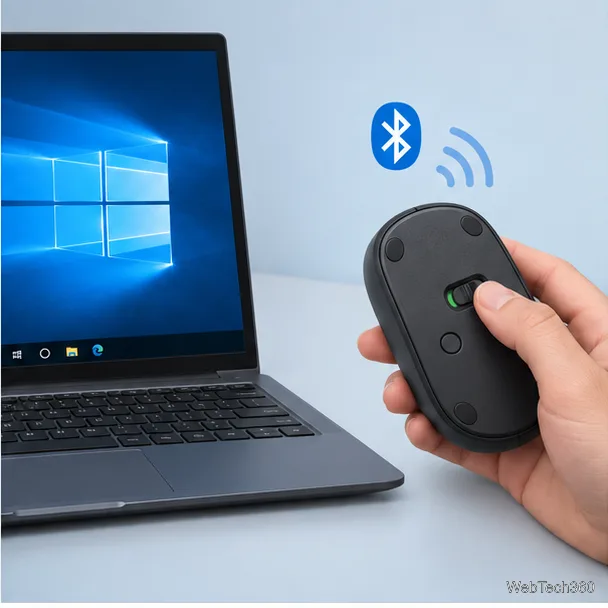
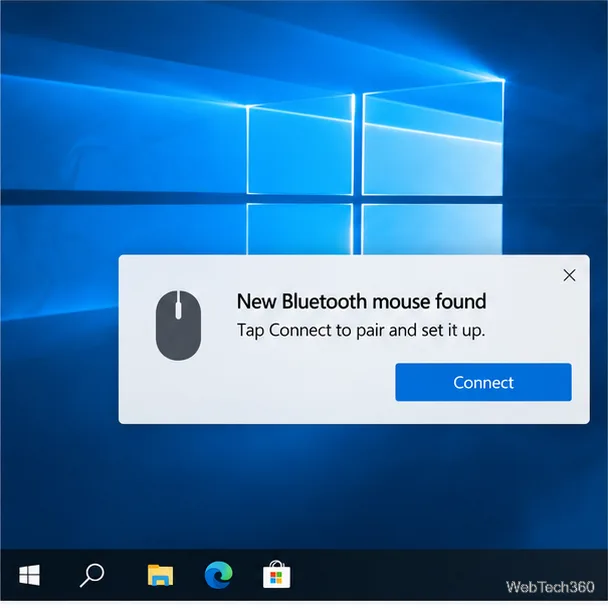
If this is the first time you are using Swift Pair, Windows may ask whether to allow notifications and use the feature. Choose Yes. When Windows shows a notification for the accessory, check that its name or device type is the one you intend to pair, then select Connect. Follow any additional on-screen instructions, such as entering a PIN, if Windows or the accessory requests them.
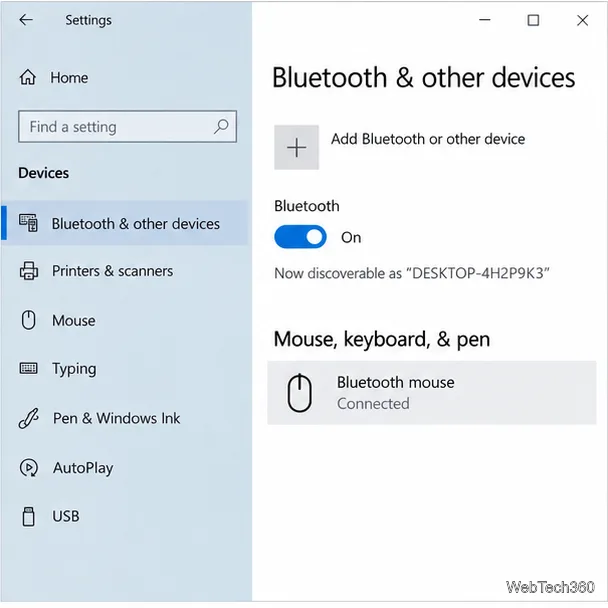
After the pairing completes, select Close if Windows offers that button. In Settings > Devices > Bluetooth & other devices, check the device list for the accessory and its status. Test the mouse, keyboard, or audio device in an app. A device that is already paired may reconnect when it is powered on and in range, but follow its manual if it has a separate power, multipoint, or connection control.
A Swift Pair notification is a shortcut, not the only way to pair. If the accessory is discoverable but no prompt appears, use the manual method below.
In Settings > Devices > Bluetooth & other devices, select Add Bluetooth or other device, choose Bluetooth, and select the accessory when it appears. Complete any pairing prompts and choose Done. This standard route works for Bluetooth devices that do not support Swift Pair as well as compatible devices whose notification did not show. Microsoft’s Bluetooth pairing instructions cover both methods.
Bluetooth pairing steps can still be used on a working Windows 10 PC, but Microsoft ended Windows 10 support on October 14, 2025. Microsoft no longer provides standard free software updates, technical assistance, or security fixes for the operating system after that date. See the Windows 10 end-of-support notice and plan a move to a supported system if you continue using the PC online.
Create a searchable Windows 10 folder inventory with PowerShell. Save every file and subfolder path as plain text or export details to a sortable CSV.
Add a custom reminder, quote, or label to your Windows 10 desktop with a Rainmeter text skin. Create the INI file, load it, then adjust its font and position.
Use Bluetooth Swift Pair on Windows 10 to pair a compatible accessory from a notification, with setup steps and fixes when the prompt does not appear.
Learn what common laptop function key symbols mean, how Fn and Fn Lock affect them, and how to confirm the right shortcut for your Windows 10 laptop model.
Turn off your Windows 10 display instantly with ScreenSleep, set a keyboard shortcut, and see when to use the built-in screen timeout instead.
Fix the “running scripts is disabled on this system” PowerShell error on Windows 10 with a current-user policy, a temporary session option, and safe steps for downloaded scripts.
Change the Windows 10 drag-selection color with a backup-first registry walkthrough, RGB examples, troubleshooting tips, and steps to restore your original values.
Check your router’s connected-device list or scan a local network with Fing Desktop on a supported PC. Learn what each method can show and how to verify unfamiliar entries.
Messenger does not offer a documented per-friend online alert. Learn how Active Status works, where to check the green dot, and which notifications you can enable instead.
Use 7-Zip to find an exact filename or wildcard match inside a ZIP or other supported archive on Windows 10 without unpacking its files.







