How to Create a List of All Items in a Folder on Windows 10

Create a searchable Windows 10 folder inventory with PowerShell. Save every file and subfolder path as plain text or export details to a sortable CSV.
To turn off only the display on a Windows 10 PC right away, use ScreenSleep, a small open-source utility that adds a tray command and keyboard shortcut. Run it, then choose Sleep screen from its notification-area menu or press its default shortcut, Ctrl+Shift+M. The monitors turn off while Windows and your apps keep running.
This is different from putting the whole computer to sleep or locking your account. Choose Start > Power > Sleep to suspend the PC. If you are leaving it unattended and want to protect your session, press Windows+L to lock it; turning off a display is not a security measure.

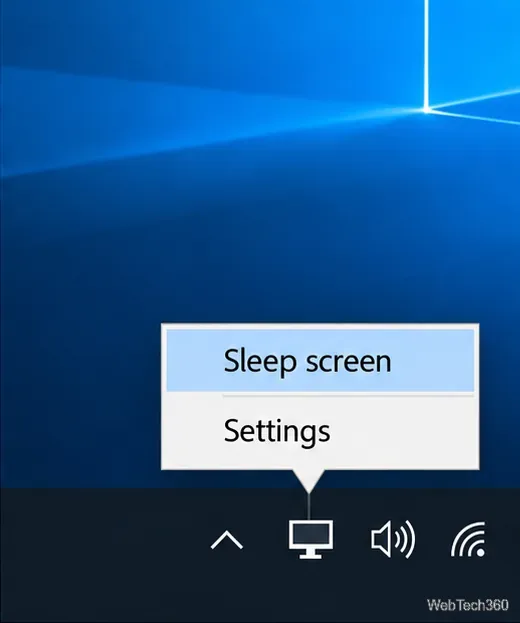
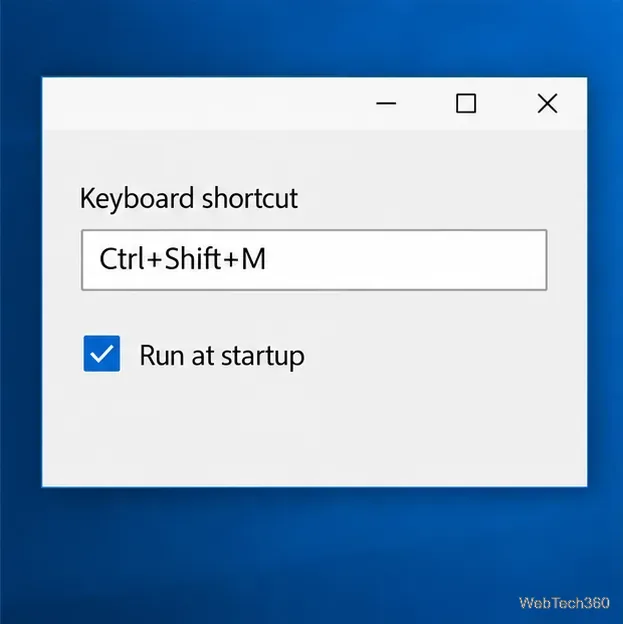
Select the tray icon and open Settings. Click the shortcut field and press the key combination you want to use. Choose a combination that is not already claimed by another app, then test it before relying on it. If your version offers a Run at startup option, enable it to make the tray command available after you sign in. ScreenSleep’s release notes also describe a configurable sleep timer; settings can differ between releases, so check the notes for the build you downloaded.
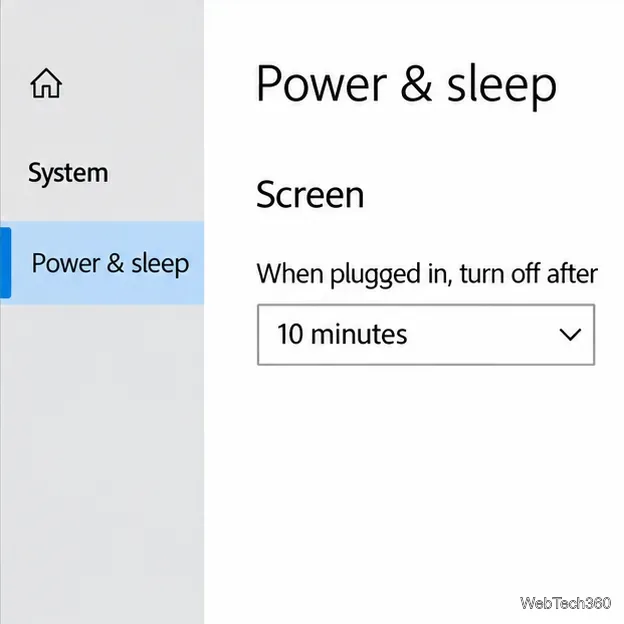
If you only need the display to turn off after a period of inactivity, Windows has a built-in setting and no extra app is needed. Open Start > Settings > System > Power & sleep. In the Screen section, choose how long Windows should wait before turning off the display on battery and when plugged in. The exact labels can vary with the device and Windows build.
This is an automatic idle timer, so it does not turn the screen off immediately when you choose it. The separate Sleep section controls when the PC itself goes to sleep. Set those timeouts independently if you want the computer to keep working after the display turns off. Microsoft’s Windows power and battery guidance describes the screen and sleep settings.
ScreenSleep is useful when you want an immediate display-off command without waiting for an idle timeout. Use Windows’ built-in timer for routine power saving, and lock the PC separately whenever you need to secure your work.
Create a searchable Windows 10 folder inventory with PowerShell. Save every file and subfolder path as plain text or export details to a sortable CSV.
Add a custom reminder, quote, or label to your Windows 10 desktop with a Rainmeter text skin. Create the INI file, load it, then adjust its font and position.
Use Bluetooth Swift Pair on Windows 10 to pair a compatible accessory from a notification, with setup steps and fixes when the prompt does not appear.
Learn what common laptop function key symbols mean, how Fn and Fn Lock affect them, and how to confirm the right shortcut for your Windows 10 laptop model.
Turn off your Windows 10 display instantly with ScreenSleep, set a keyboard shortcut, and see when to use the built-in screen timeout instead.
Fix the “running scripts is disabled on this system” PowerShell error on Windows 10 with a current-user policy, a temporary session option, and safe steps for downloaded scripts.
Change the Windows 10 drag-selection color with a backup-first registry walkthrough, RGB examples, troubleshooting tips, and steps to restore your original values.
Check your router’s connected-device list or scan a local network with Fing Desktop on a supported PC. Learn what each method can show and how to verify unfamiliar entries.
Messenger does not offer a documented per-friend online alert. Learn how Active Status works, where to check the green dot, and which notifications you can enable instead.
Use 7-Zip to find an exact filename or wildcard match inside a ZIP or other supported archive on Windows 10 without unpacking its files.







