How to Create a List of All Items in a Folder on Windows 10

Create a searchable Windows 10 folder inventory with PowerShell. Save every file and subfolder path as plain text or export details to a sortable CSV.
Windows 10 can make a complete inventory of a folder with the built-in Windows PowerShell. The command below saves each file and subfolder path to a plain-text file, including hidden items. You can also export names, item types, sizes, and modified dates to a CSV file that opens in Excel. No extra folder-listing app is required.
Use this method when you want a simple file that is easy to search, share, or open in Notepad. The example scans a folder named Project and saves the result on the Desktop. Replace the sample paths with locations on your PC.
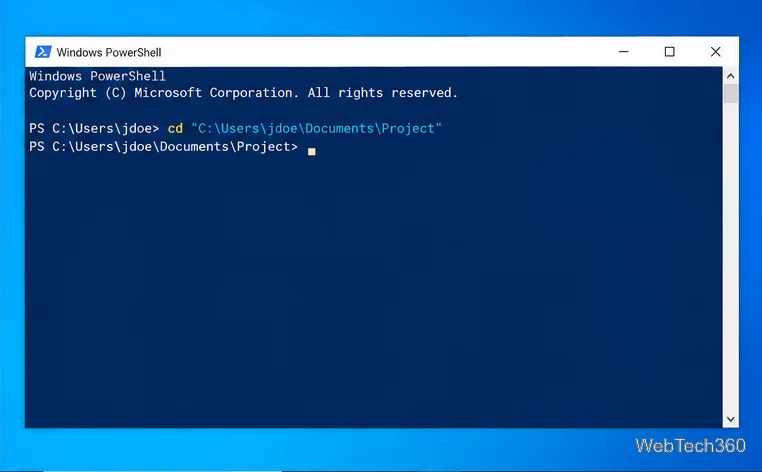
C:\Users\Alex\Documents\Project.Windows PowerShell, and launch the app. You do not need to run it as an administrator for an ordinary folder. Enter this command, replacing the sample path with the one you found in File Explorer:Set-Location -LiteralPath "C:\Users\Alex\Documents\Project"Press Enter. The prompt should now end with the folder name. Keep the quotation marks around the path, especially when it contains spaces.
Get-ChildItem -LiteralPath . -Force -Recurse |
  Sort-Object FullName |
  Select-Object -ExpandProperty FullName |
  Set-Content -LiteralPath "C:\Users\Alex\Desktop\folder-list.txt" -Encoding UTF8
Change the output path if you prefer another destination. Save the list outside the folder you are scanning; otherwise a list file from an earlier run can appear in a later inventory. If folder-list.txt already exists at the destination, Set-Content replaces its contents.
Get-ChildItem finds files and folders. -Recurse includes items in nested folders, while -Force includes hidden and system items that PowerShell normally omits. Sorting by full path makes the output easier to scan, and expanding FullName writes one absolute path per line.
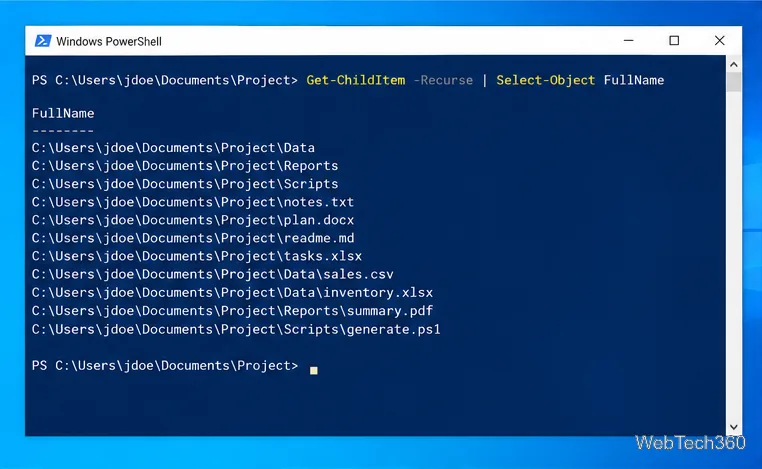
folder-list.txt. Open it in Notepad or another text editor to review or copy the paths. The selected folder itself is not a line in the file; the list contains its contents.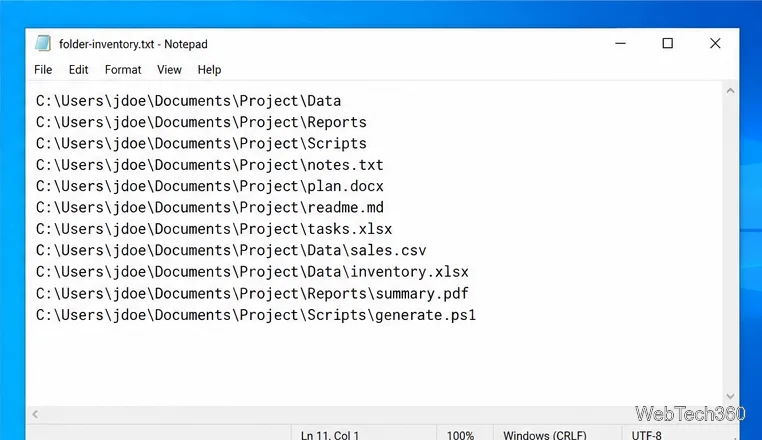
If you want to sort or filter the inventory in Excel, run this command from the same PowerShell location. Use a CSV destination outside the folder being scanned, and change the example path if needed:
Get-ChildItem -LiteralPath . -Force -Recurse |
  Sort-Object FullName |
  Select-Object FullName, Name, @{Name='Type';Expression={if ($_.PSIsContainer) {'Folder'} else {'File'}}}, Length, LastWriteTime |
  Export-Csv -LiteralPath "C:\Users\Alex\Desktop\folder-list.csv" -NoTypeInformation -Encoding UTF8
The CSV has columns for the full path, name, whether the item is a file or folder, its size, and its last modified time. A folder has no file size, so its Length cell may be blank. -NoTypeInformation keeps the CSV header focused on these columns. Double-click the saved CSV to open it in Excel or another spreadsheet app.
-Recurse. The command will still include files and folders directly inside the selected directory.-Force. Without it, hidden items are excluded by default.-File after the path. Leave this switch out when you want folder names included too.The root folder is not included as an item, and recursive enumeration does not follow the contents of directory symbolic links in Windows PowerShell. It can show the link itself without walking through its target, so files reachable only through a linked folder may not appear.
If PowerShell prints an access-denied error, it may not be able to read every subfolder. -Force includes hidden and system entries; it does not bypass Windows permissions. Use an account that has access to the folder, and treat a run with access errors as incomplete.
If PowerShell says it cannot find the folder or destination, check the paths for spelling, drive letter, and quotation marks. The destination folder must already exist. Also check that the inventory file is being saved outside the source folder and that you have permission to write to the destination.
For command details, see Microsoft’s Get-ChildItem reference, Set-Content reference, and Export-Csv reference for Windows PowerShell 5.1.
Create a searchable Windows 10 folder inventory with PowerShell. Save every file and subfolder path as plain text or export details to a sortable CSV.
Add a custom reminder, quote, or label to your Windows 10 desktop with a Rainmeter text skin. Create the INI file, load it, then adjust its font and position.
Use Bluetooth Swift Pair on Windows 10 to pair a compatible accessory from a notification, with setup steps and fixes when the prompt does not appear.
Learn what common laptop function key symbols mean, how Fn and Fn Lock affect them, and how to confirm the right shortcut for your Windows 10 laptop model.
Turn off your Windows 10 display instantly with ScreenSleep, set a keyboard shortcut, and see when to use the built-in screen timeout instead.
Fix the “running scripts is disabled on this system” PowerShell error on Windows 10 with a current-user policy, a temporary session option, and safe steps for downloaded scripts.
Change the Windows 10 drag-selection color with a backup-first registry walkthrough, RGB examples, troubleshooting tips, and steps to restore your original values.
Check your router’s connected-device list or scan a local network with Fing Desktop on a supported PC. Learn what each method can show and how to verify unfamiliar entries.
Messenger does not offer a documented per-friend online alert. Learn how Active Status works, where to check the green dot, and which notifications you can enable instead.
Use 7-Zip to find an exact filename or wildcard match inside a ZIP or other supported archive on Windows 10 without unpacking its files.








