How to Create a List of All Items in a Folder on Windows 10

Create a searchable Windows 10 folder inventory with PowerShell. Save every file and subfolder path as plain text or export details to a sortable CSV.
Windows 10 does not include a built-in desktop widget for displaying a custom reminder or message independently of your open apps. Rainmeter can do that with a small text skin: you write the words and appearance in an INI file, then load the skin onto the desktop. This guide creates a simple “Take a deep breath” reminder that you can replace with your own text.
Rainmeter’s current 5.0 release notes specify 64-bit Windows 10 version 1903 or later, or Windows 11. Check the requirements for the installer you download; older or 32-bit Windows 10 systems may need a compatible earlier Rainmeter release. Get the installer from the official Rainmeter site and review the Rainmeter 5.0 compatibility notes.

Install and open Rainmeter. Its droplet icon appears in the Windows notification area near the clock; if you do not see it, check the hidden icons menu. Left-click the icon to open Manage, then choose Create new skin. Enter a name such as DesktopText and finish the dialog.
Rainmeter creates a skin folder and an INI file, then opens the file in its configured text editor. This keeps the file in Rainmeter’s Skins folder, where the app can find it. The official Create a new skin guide describes the dialog and the files it creates.
Replace the starter content in DesktopText.ini with this example, then save the file:
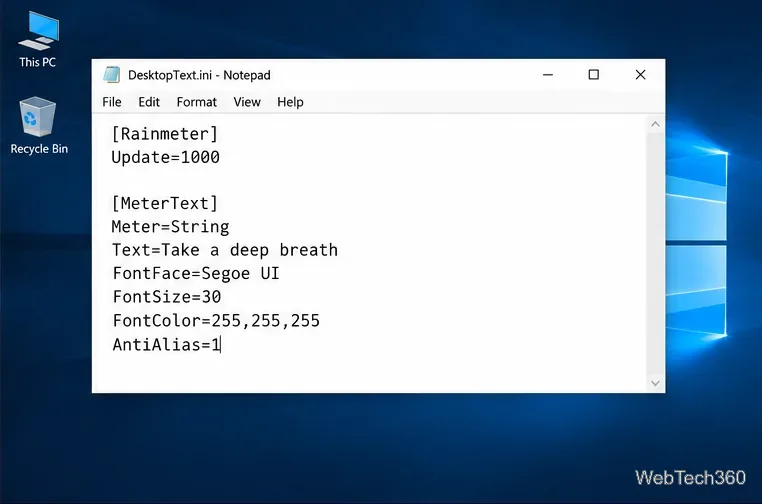
Text option contains the words Rainmeter will display.[Rainmeter]
Update=1000
AccurateText=1
DynamicWindowSize=1
[MeterText]
Meter=String
Text=Take a deep breath
X=0
Y=0
FontFace=Segoe UI
FontSize=30
FontColor=255,255,255,255
AntiAlias=1The String meter displays static text. Change Text to your reminder, quote, or short label. FontFace is the font family, FontSize is measured in points, and FontColor uses red, green, blue, and alpha values; the example uses opaque white. AntiAlias=1 smooths the letter edges. These are documented in Rainmeter’s String meter reference.
Use a font installed in Windows, such as Segoe UI, or add a font just for this skin. For a custom TrueType or OpenType font, put its .ttf or .otf file in the skin’s root-level @Resources\Fonts folder and set FontFace to the font’s family name. Check the font’s license before sharing it. Rainmeter explains the folder and font setup in its @Resources documentation.
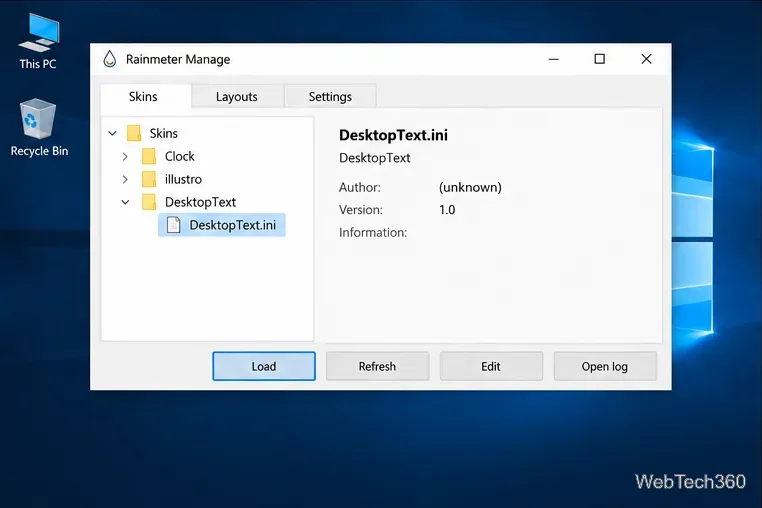
Return to Manage. In the Skins list, expand DesktopText, select DesktopText.ini, and click Load. The text should appear near the upper-left corner of the screen. If it does not, confirm that the file ends in .ini rather than .ini.txt, select the correct skin, and click Refresh or Refresh all.
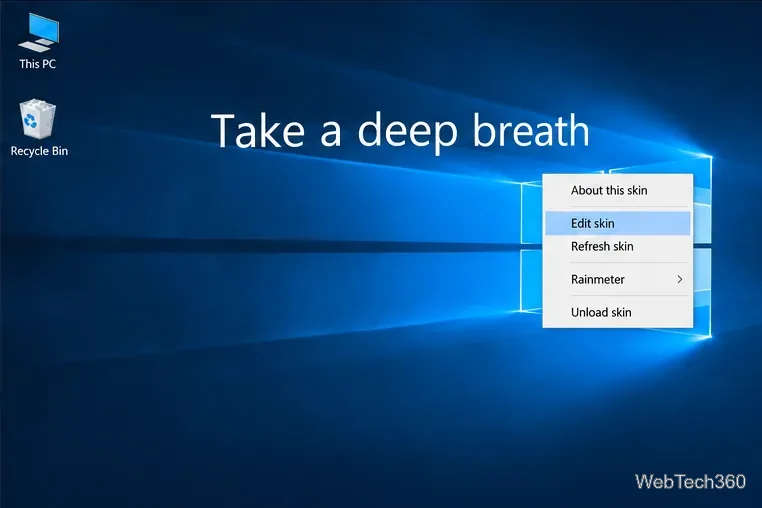
Drag the text with the left mouse button to place it where you want; Rainmeter remembers the skin’s position. Right-click the skin to open its context menu. Under Settings, you can change its position relative to other windows. Stay Topmost keeps it above regular windows, while On Desktop keeps it with the desktop behind other windows. The default Normal position behaves like a regular window. See Rainmeter’s skin arrangement guide for the differences.
To change the words or style later, right-click the skin and choose Edit skin, or select it in Manage and click Edit. Save your edits, then choose Refresh skin or click Refresh in Manage. Increase or reduce FontSize, change FontColor for contrast, or add FontWeight=700 for bold text. If the message is long, add a width and height to the meter and use ClipString=2 to wrap it; DynamicWindowSize=1 lets the skin window adjust to the wrapped text.
No. A skin created this way is ready to use on your computer; you do not need to make an .rmskin package. Packaging is useful if you want to share the skin or install it on another computer. Rainmeter’s Skin Packager instructions explain how to create a proper package that includes the INI file and any fonts or other resources.
For multiple messages, add another uniquely named meter section to the same INI file and give it a different Y position. This keeps each line editable in one skin. If the text is hard to read, adjust its color or size, then refresh the skin to apply the change.
Create a searchable Windows 10 folder inventory with PowerShell. Save every file and subfolder path as plain text or export details to a sortable CSV.
Add a custom reminder, quote, or label to your Windows 10 desktop with a Rainmeter text skin. Create the INI file, load it, then adjust its font and position.
Use Bluetooth Swift Pair on Windows 10 to pair a compatible accessory from a notification, with setup steps and fixes when the prompt does not appear.
Learn what common laptop function key symbols mean, how Fn and Fn Lock affect them, and how to confirm the right shortcut for your Windows 10 laptop model.
Turn off your Windows 10 display instantly with ScreenSleep, set a keyboard shortcut, and see when to use the built-in screen timeout instead.
Fix the “running scripts is disabled on this system” PowerShell error on Windows 10 with a current-user policy, a temporary session option, and safe steps for downloaded scripts.
Change the Windows 10 drag-selection color with a backup-first registry walkthrough, RGB examples, troubleshooting tips, and steps to restore your original values.
Check your router’s connected-device list or scan a local network with Fing Desktop on a supported PC. Learn what each method can show and how to verify unfamiliar entries.
Messenger does not offer a documented per-friend online alert. Learn how Active Status works, where to check the green dot, and which notifications you can enable instead.
Use 7-Zip to find an exact filename or wildcard match inside a ZIP or other supported archive on Windows 10 without unpacking its files.







