How to Create a List of All Items in a Folder on Windows 10

Create a searchable Windows 10 folder inventory with PowerShell. Save every file and subfolder path as plain text or export details to a sortable CSV.
The icon on a laptop's F1-F12 row is a useful clue to its secondary action: speakers suggest audio, suns suggest brightness, and airplane or wireless waves suggest radio controls. The symbol is not a universal standard, however. The exact action depends on the laptop model and its Fn-key mode.
Each top-row key may have two jobs: the printed F-key command and the icon's laptop action. On some laptops, a tap changes volume or brightness and Fn+key sends F1-F12; on others, the default is reversed. Fn Lock switches between modes, and its toggle varies by manufacturer.
Save open work before testing unfamiliar keys. A shortcut could put the laptop to sleep, disable a touchpad or wireless connection, or switch displays. Press one combination at a time and watch for an on-screen indicator.

A speaker with an X or slash usually means mute; sound waves often indicate volume down or up. Triangles and bars commonly mean previous track, play or pause, or next track. Their F-number positions and exact behavior vary by model and media app.
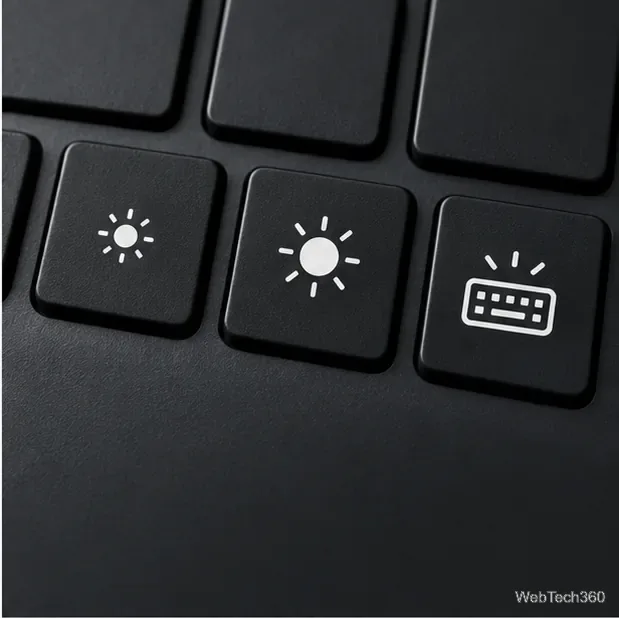
A pair of sun icons usually lowers or raises screen brightness. A keyboard with light rays generally controls the keyboard backlight, cycling through available levels. This works only on models with backlit keys; Dell confirms that keyboards without the feature will not respond to its backlight shortcut.
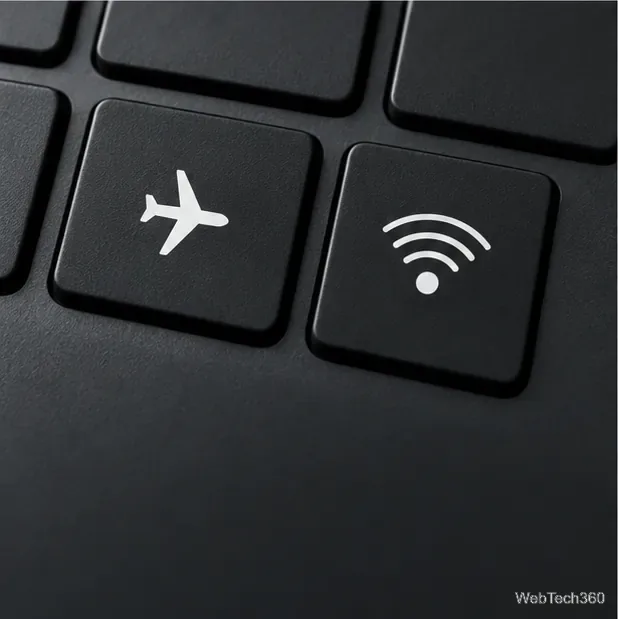
An airplane commonly toggles Airplane mode. Windows 10 can remember Wi-Fi and Bluetooth settings from the previous session, so check the taskbar network controls or Settings > Network & Internet to see which radios are on. A Wi-Fi or antenna icon usually refers to wireless networking; it may not change Bluetooth. See Microsoft's Windows network settings guide.
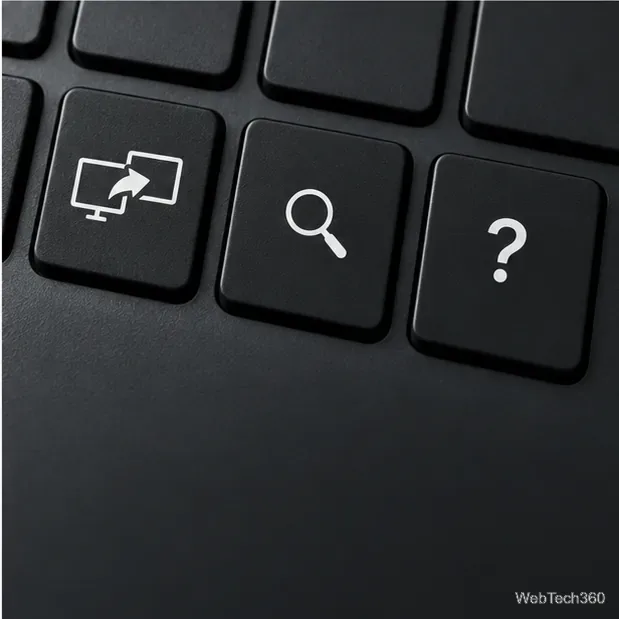
A monitor or two-screen icon often switches the internal and external displays. In Windows 10, Windows key + P opens the display menu for PC screen only, Duplicate, Extend, or Second screen only. Microsoft's multiple-monitor guide describes these modes.
A magnifying glass may launch search or an OEM utility; a question mark may open laptop or app help. Neither promises a Microsoft webpage. Windows key + S opens Windows Search, and F1 is commonly a Help shortcut in apps, but the icon key itself can be assigned differently.
A crossed-out touchpad, microphone, or camera often toggles that device or its privacy control. A crescent, Z, or power-like icon may indicate sleep or power. Makers can also assign keys to screen rotation, keyboard lock, performance modes, or their own control apps. Treat these as clues, then confirm the model-specific meaning.
Use nearby keys to resolve look-alike symbols. A pair of suns usually represents opposite brightness directions; a keyboard outline with rays refers to the keys themselves. An arrow between screen outlines suggests a display switch. Some makers print the Fn action in a second color, but color and placement are not standardized. The F-number alone does not tell you what the icon does.
Confirm the feature exists: not every keyboard has backlighting, for example. Then check Fn Lock and the manufacturer's hotkey utility or driver for your model. Some actions require OEM software. Dell's backlit-keyboard instructions explain how Fn mode affects its light shortcut. If an icon remains unclear, use the relevant Windows Settings page or a documented Windows shortcut instead of guessing.
Create a searchable Windows 10 folder inventory with PowerShell. Save every file and subfolder path as plain text or export details to a sortable CSV.
Add a custom reminder, quote, or label to your Windows 10 desktop with a Rainmeter text skin. Create the INI file, load it, then adjust its font and position.
Use Bluetooth Swift Pair on Windows 10 to pair a compatible accessory from a notification, with setup steps and fixes when the prompt does not appear.
Learn what common laptop function key symbols mean, how Fn and Fn Lock affect them, and how to confirm the right shortcut for your Windows 10 laptop model.
Turn off your Windows 10 display instantly with ScreenSleep, set a keyboard shortcut, and see when to use the built-in screen timeout instead.
Fix the “running scripts is disabled on this system” PowerShell error on Windows 10 with a current-user policy, a temporary session option, and safe steps for downloaded scripts.
Change the Windows 10 drag-selection color with a backup-first registry walkthrough, RGB examples, troubleshooting tips, and steps to restore your original values.
Check your router’s connected-device list or scan a local network with Fing Desktop on a supported PC. Learn what each method can show and how to verify unfamiliar entries.
Messenger does not offer a documented per-friend online alert. Learn how Active Status works, where to check the green dot, and which notifications you can enable instead.
Use 7-Zip to find an exact filename or wildcard match inside a ZIP or other supported archive on Windows 10 without unpacking its files.







