How to Create a List of All Items in a Folder on Windows 10

Create a searchable Windows 10 folder inventory with PowerShell. Save every file and subfolder path as plain text or export details to a sortable CSV.
On Windows 10, the most dependable way to see active devices on the same router is to open the router’s Connected Devices or Clients page in a browser. Windows does not provide one built-in, complete network inventory. Fing Desktop can scan a local network, but check its current requirements before installing: Fing limits Windows support to versions still within Microsoft’s support lifetime, and standard Windows 10 support ended October 14, 2025.
This is usually the best place to see active clients on the router, including phones, TVs, printers, and devices that do not share files with your Windows PC.
cmd, open Command Prompt, and run ipconfig. Under the active Wi-Fi or Ethernet adapter, note Default Gateway. Microsoft’s ipconfig reference explains that this command displays the gateway along with adapter addresses.
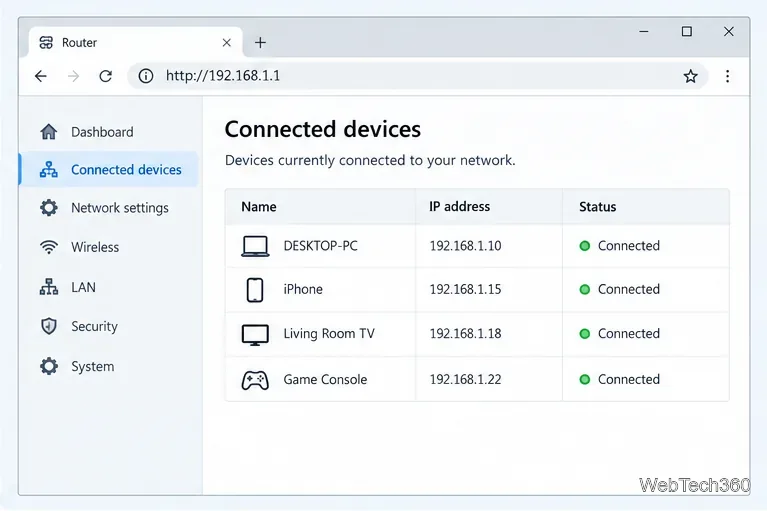
A router may list each device’s name, local IP address, MAC address, connection type, or last-seen status. Mesh systems and separate access points may have their own app or device page. Guest Wi-Fi or client isolation can also keep devices on one network segment from appearing on another. If this is a managed workplace network, ask its administrator for the approved inventory view rather than bypassing access controls.
Fing Desktop can provide a readable local scan without router credentials, but its current compatibility matters. Fing’s Desktop FAQ says it supports Windows versions still within Microsoft’s support lifetime and recommends Windows 11. Microsoft’s Windows support notice says standard Windows 10 support ended October 14, 2025. So do not assume a new Fing Desktop install is supported on a standard Windows 10 PC. If Fing confirms your Windows build is supported, download the app from the official Fing Desktop page. Otherwise, use the router page from Windows 10 or run an approved scanner on a supported device connected to the same network.
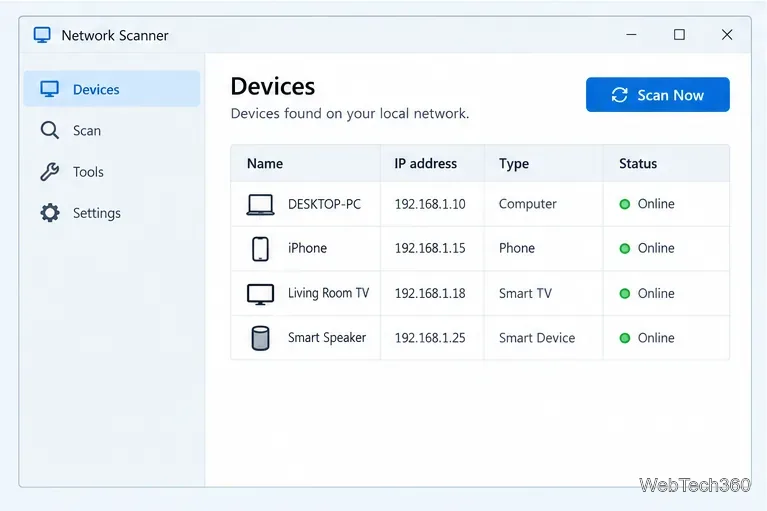
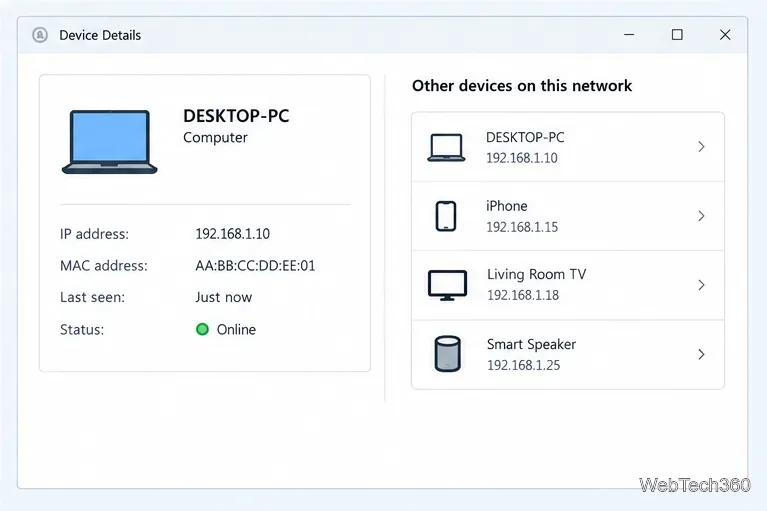
arp -a are incompleteFile Explorer’s Network view is meant to discover devices that advertise file or printer sharing. Microsoft explains that network discovery must be enabled to see devices sharing resources, but the view is not a complete list of router clients. Turning discovery on can make your PC visible to other devices, so use it only on a trusted network when you need sharing.
For a quick technical check, open Command Prompt and run arp -a. It displays entries in Windows’ local ARP cache, which maps some IPv4 addresses to hardware addresses. It does not scan every connected device: a quiet device may not have an entry, and the output can include only neighbors your PC has recently contacted. See Microsoft’s ARP command documentation for details.
An unfamiliar name does not prove a device is unauthorized. Device names may be generic, and automated recognition is best-effort. Fing notes that limited information and randomized MAC addressing can affect recognition; see its device-recognition guidance if a model or brand looks wrong.
For the broadest inventory, start with the router or access-point interface. Use a scanner only when its operating-system requirements and data practices fit your situation.
Create a searchable Windows 10 folder inventory with PowerShell. Save every file and subfolder path as plain text or export details to a sortable CSV.
Add a custom reminder, quote, or label to your Windows 10 desktop with a Rainmeter text skin. Create the INI file, load it, then adjust its font and position.
Use Bluetooth Swift Pair on Windows 10 to pair a compatible accessory from a notification, with setup steps and fixes when the prompt does not appear.
Learn what common laptop function key symbols mean, how Fn and Fn Lock affect them, and how to confirm the right shortcut for your Windows 10 laptop model.
Turn off your Windows 10 display instantly with ScreenSleep, set a keyboard shortcut, and see when to use the built-in screen timeout instead.
Fix the “running scripts is disabled on this system” PowerShell error on Windows 10 with a current-user policy, a temporary session option, and safe steps for downloaded scripts.
Change the Windows 10 drag-selection color with a backup-first registry walkthrough, RGB examples, troubleshooting tips, and steps to restore your original values.
Check your router’s connected-device list or scan a local network with Fing Desktop on a supported PC. Learn what each method can show and how to verify unfamiliar entries.
Messenger does not offer a documented per-friend online alert. Learn how Active Status works, where to check the green dot, and which notifications you can enable instead.
Use 7-Zip to find an exact filename or wildcard match inside a ZIP or other supported archive on Windows 10 without unpacking its files.







