How to Create a List of All Items in a Folder on Windows 10

Create a searchable Windows 10 folder inventory with PowerShell. Save every file and subfolder path as plain text or export details to a sortable CSV.
To search an archive file without extracting it on Windows 10, use 7-Zip’s command-line l (list) command with a filename or wildcard pattern. It displays matching entries from the archive without writing those files to a folder. This searches names and paths; it does not search words inside a PDF, document, or other archived file.
The listing can show an archive’s member names, folder paths, sizes, and dates. That is useful when you need to check whether a download contains a particular installer, document, or image before unpacking anything. 7-Zip supports many common archive formats, but support varies by format; its official page distinguishes formats it can create from formats it can only unpack.
The command used here is l, not x or e. Those are extraction commands. A filtered listing reads the archive directory and prints matching entries; it does not create an extracted copy in the current folder.
cmd, and press Enter. Command Prompt opens at that folder, so you can refer to the archive by its filename.7z.exe in the command. A typical 64-bit installation places it at C:\Program Files\7-Zip\7z.exe. If you installed the 32-bit build, check C:\Program Files (x86)\7-Zip\ instead. Using the full path avoids changing the Windows PATH environment variable.
With Command Prompt open in the archive’s folder, replace archive.zip with the real archive filename and report.pdf with the file you want to locate:
"C:\Program Files\7-Zip\7z.exe" l "archive.zip" "report.pdf" -rFor example, to find report.pdf in project-files.zip, run:
"C:\Program Files\7-Zip\7z.exe" l "project-files.zip" "report.pdf" -rKeep the quotation marks around names or paths that contain spaces. If Command Prompt is not open in the archive’s folder, replace archive.zip with its full path, such as C:\Users\Alex\Downloads\project-files.zip, and keep that path inside quotes.
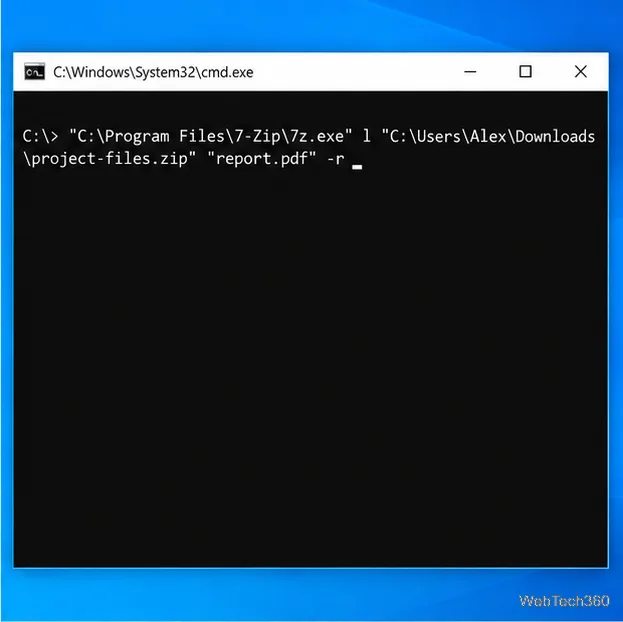
l command lists matching entries, and -r includes files in nested archive folders.7-Zip prints the archive name and a table of matches. The Name column shows the path stored inside the archive, so docs\report.pdf means the file is in an internal docs folder. The summary at the bottom gives the number and total size of matching entries. These are details recorded in the archive, not proof that the file’s contents are safe or intact.
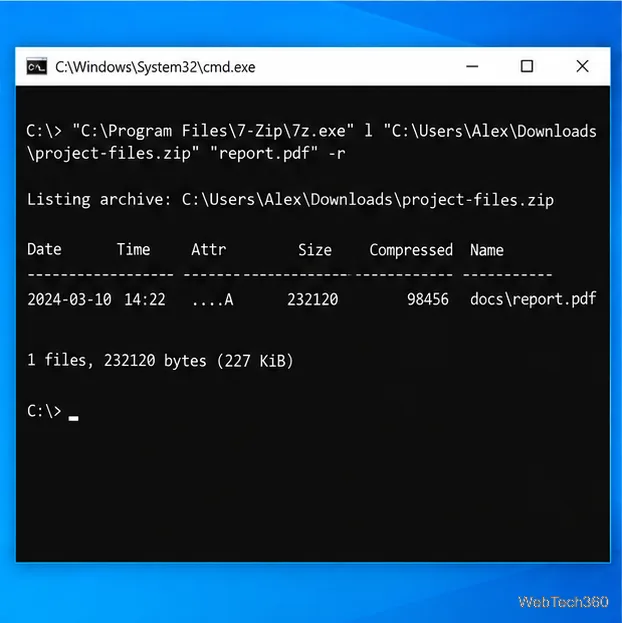
If you know only part of a name, put asterisks around that text. This example finds names containing “report”:
"C:\Program Files\7-Zip\7z.exe" l "project-files.zip" "*report*" -rUse a pattern such as ffmpeg* to find names beginning with “ffmpeg,” or *.pdf to list PDF files. Quote wildcard patterns so they remain one command-line argument. 7-Zip uses its own wildcard rules: in particular, *.* matches names with an extension, not every possible filename. Use * when you want to include files with no extension. The 7-Zip FAQ documents this wildcard behavior and explains the -r switch.
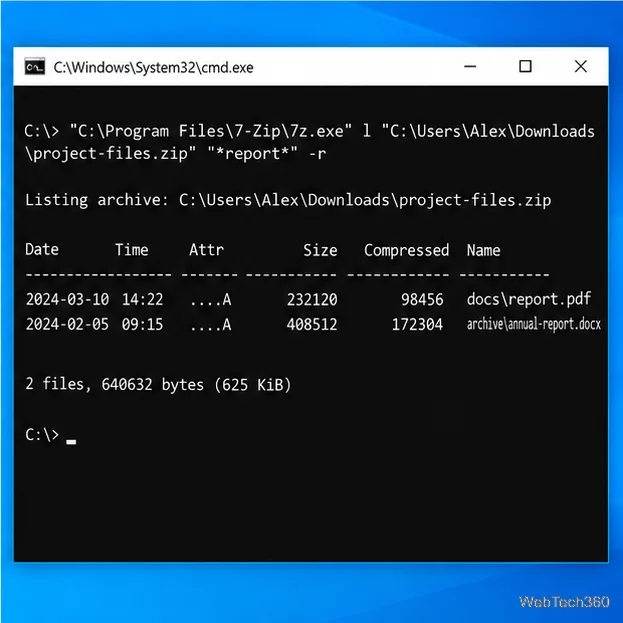
7z.exe matches your installation folder.*report*. A file may have a different extension or sit in a nested folder; -r lets the wildcard search nested entries.This method searches filenames, not file contents. To find a phrase inside a text file or PDF, you must first extract that member and search it with an appropriate local application. You can extract only the matching item to a separate folder instead of unpacking the entire archive.
Some archives encrypt their filenames. In that case, 7-Zip may ask for the password before it can show or filter the names. Enter a password only for an archive you trust. A filename listing is not a malware scan, so use your computer’s security software before opening or extracting files from an unknown source. Avoid uploading private archives to public scanning services.
For installers, backups, and large downloads, listing the archive first is a quick way to check what is included while keeping the archive intact. Use the full-path command and adjust the archive name, target pattern, and 7-Zip installation folder for your PC.
Create a searchable Windows 10 folder inventory with PowerShell. Save every file and subfolder path as plain text or export details to a sortable CSV.
Add a custom reminder, quote, or label to your Windows 10 desktop with a Rainmeter text skin. Create the INI file, load it, then adjust its font and position.
Use Bluetooth Swift Pair on Windows 10 to pair a compatible accessory from a notification, with setup steps and fixes when the prompt does not appear.
Learn what common laptop function key symbols mean, how Fn and Fn Lock affect them, and how to confirm the right shortcut for your Windows 10 laptop model.
Turn off your Windows 10 display instantly with ScreenSleep, set a keyboard shortcut, and see when to use the built-in screen timeout instead.
Fix the “running scripts is disabled on this system” PowerShell error on Windows 10 with a current-user policy, a temporary session option, and safe steps for downloaded scripts.
Change the Windows 10 drag-selection color with a backup-first registry walkthrough, RGB examples, troubleshooting tips, and steps to restore your original values.
Check your router’s connected-device list or scan a local network with Fing Desktop on a supported PC. Learn what each method can show and how to verify unfamiliar entries.
Messenger does not offer a documented per-friend online alert. Learn how Active Status works, where to check the green dot, and which notifications you can enable instead.
Use 7-Zip to find an exact filename or wildcard match inside a ZIP or other supported archive on Windows 10 without unpacking its files.







