How to Create a List of All Items in a Folder on Windows 10

Create a searchable Windows 10 folder inventory with PowerShell. Save every file and subfolder path as plain text or export details to a sortable CSV.
To fix the “running scripts is disabled on this system” error on a personal Windows 10 PC, set PowerShell to RemoteSigned for your user account, then run the script from its folder. Open Windows PowerShell and enter:
Set-ExecutionPolicy -ExecutionPolicy RemoteSigned -Scope CurrentUserConfirm the change when prompted. This applies only to your Windows account and does not require an administrator window. If you only need to run a trusted script once, use the temporary session option below instead.
In the same PowerShell app where you saw the error, run:
Get-ExecutionPolicy -ListThe command lists policies for Group Policy, the current session, your account, and the computer. Restricted allows individual commands but blocks script files; it is the default policy for Windows client computers when no other policy is set. PowerShell uses the most specific applicable setting, with Group Policy settings taking precedence.

Execution policy is a safety feature that helps prevent scripts from running unintentionally, but Microsoft describes it as defense in depth rather than a security boundary. A script can still be harmful, so review its code and verify its source before allowing it to run. See Microsoft’s Windows PowerShell 5.1 execution policy guide.
For scripts you create or otherwise trust, set the user-level policy to RemoteSigned:
Set-ExecutionPolicy -ExecutionPolicy RemoteSigned -Scope CurrentUserWhen PowerShell asks whether you want to change the execution policy, type Y and press Enter if you intend to proceed. The change takes effect immediately; you do not need to restart PowerShell. CurrentUser affects only your account and avoids changing the default LocalMachine scope, which applies to everyone and requires an elevated PowerShell window.
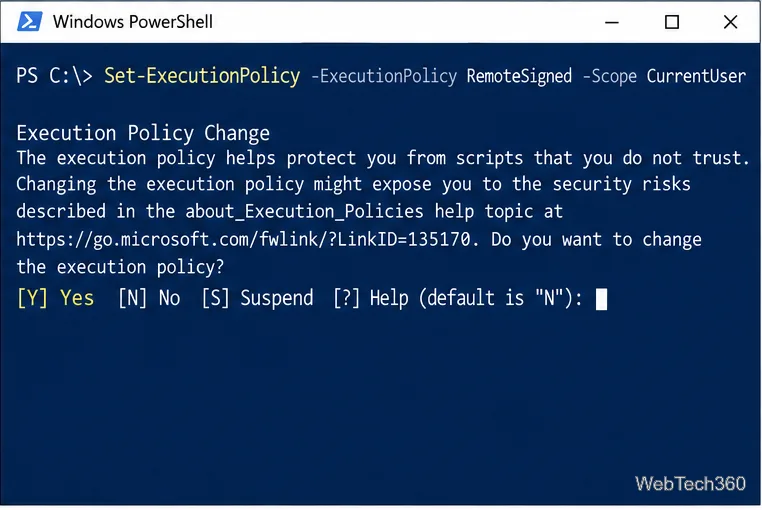
RemoteSigned permits local scripts that are not marked as internet downloads. It requires downloaded scripts to have a trusted digital signature unless you deliberately unblock a specific file. Avoid changing the policy to Unrestricted or Bypass as a general fix: those settings allow more scripts to run with fewer warnings.
Move to the folder containing the .ps1 file, then include ./ (or the Windows-style .\) before its name. For example:
Set-Location 'C:\Scripts'
.\MyScript.ps1
PowerShell does not automatically run a file from the current directory when you type only its name. If the path contains spaces or you are running it from another folder, use the call operator and quote the full path:
& 'C:\Scripts\My Script.ps1'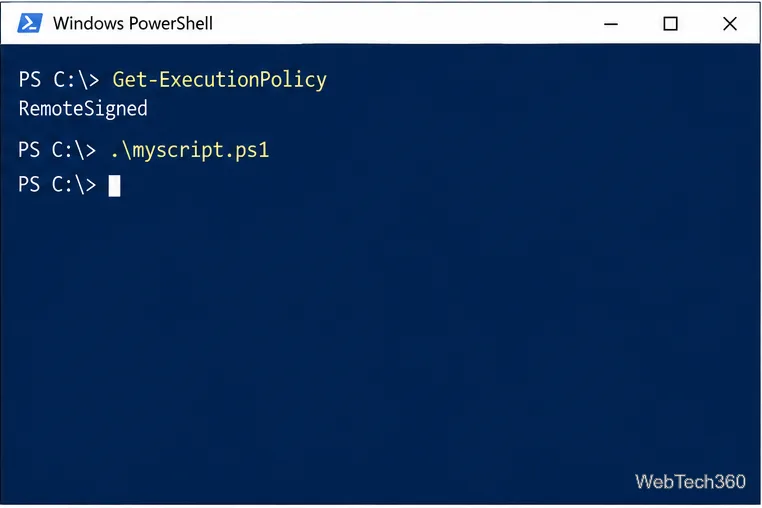
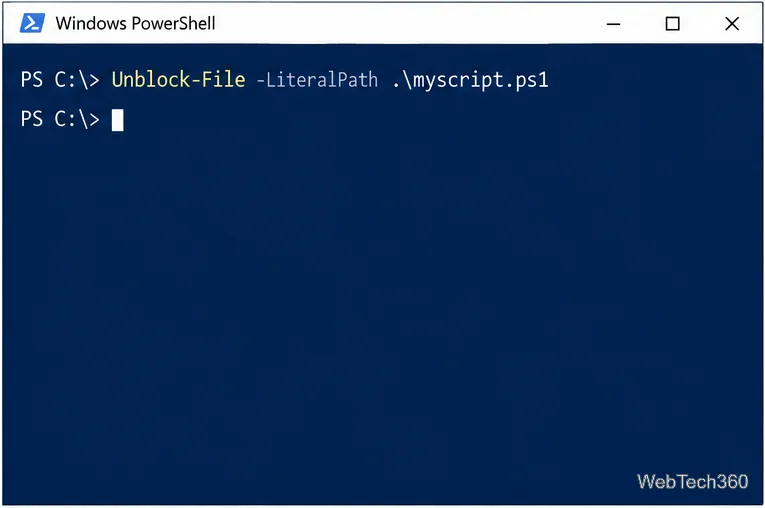
With RemoteSigned, an unsigned script downloaded from the internet can remain blocked even after you change the policy. First inspect the script and verify that you trust its source. If you do, unblock only that file:
Unblock-File -LiteralPath '.\MyScript.ps1'
.\MyScript.ps1
Use the correct path if the file is elsewhere. Unblock-File removes the file’s internet-download marker; it does not inspect the code or make an unsafe script safe. Microsoft documents this behavior in the Windows PowerShell 5.1 Unblock-File reference.
If you do not want a persistent per-user setting, close the current PowerShell window and open a new one. Then run this before the script:
Set-ExecutionPolicy -ExecutionPolicy RemoteSigned -Scope ProcessThe Process scope applies only to that PowerShell session and its child processes; closing the window clears it. This still follows RemoteSigned rules, so a downloaded unsigned file may need to be reviewed and individually unblocked. The Set-ExecutionPolicy reference explains the available scopes and policy values.
Get-ExecutionPolicy to see the effective policy, and Get-ExecutionPolicy -List to check what controls it. If MachinePolicy or UserPolicy is set, an organization’s Group Policy is controlling script execution. Do not try to override it; contact your administrator.powershell.exe) and PowerShell 7 (pwsh.exe) store policy settings separately.Set-ExecutionPolicy -ExecutionPolicy Undefined -Scope CurrentUser. This clears only the CurrentUser setting; the effective policy falls back to another configured scope or, if none exists on Windows 10, to Restricted.For most personal Windows 10 systems, RemoteSigned at CurrentUser is enough to run local scripts while retaining a check for scripts marked as downloaded. Keep the scope narrow, verify unfamiliar code, and leave centrally managed settings to your IT administrator.
Create a searchable Windows 10 folder inventory with PowerShell. Save every file and subfolder path as plain text or export details to a sortable CSV.
Add a custom reminder, quote, or label to your Windows 10 desktop with a Rainmeter text skin. Create the INI file, load it, then adjust its font and position.
Use Bluetooth Swift Pair on Windows 10 to pair a compatible accessory from a notification, with setup steps and fixes when the prompt does not appear.
Learn what common laptop function key symbols mean, how Fn and Fn Lock affect them, and how to confirm the right shortcut for your Windows 10 laptop model.
Turn off your Windows 10 display instantly with ScreenSleep, set a keyboard shortcut, and see when to use the built-in screen timeout instead.
Fix the “running scripts is disabled on this system” PowerShell error on Windows 10 with a current-user policy, a temporary session option, and safe steps for downloaded scripts.
Change the Windows 10 drag-selection color with a backup-first registry walkthrough, RGB examples, troubleshooting tips, and steps to restore your original values.
Check your router’s connected-device list or scan a local network with Fing Desktop on a supported PC. Learn what each method can show and how to verify unfamiliar entries.
Messenger does not offer a documented per-friend online alert. Learn how Active Status works, where to check the green dot, and which notifications you can enable instead.
Use 7-Zip to find an exact filename or wildcard match inside a ZIP or other supported archive on Windows 10 without unpacking its files.







