How to Fix Lines on a Monitor Screen in Windows 10

Use a screenshot test, cable and port checks, monitor diagnostics, display settings, and driver rollback to pinpoint lines on a Windows 10 monitor.
To stop Windows 10 from powering down a particular device, change the setting that controls that device. Start with the active power plan for options such as USB selective suspend or wireless adapter performance. For a network adapter or USB hub, check its individual properties in Device Manager. Windows does not provide one universal switch for every device, and available controls depend on the device and its driver.
Change one setting at a time and test the device. Turning off power saving can increase battery use, heat, or energy consumption, so avoid disabling unrelated options across the whole PC.
Open Start, search for Control Panel, then go to Hardware and Sound > Power Options. You can also press Windows key + R, enter powercfg.cpl, and press Enter. Note which plan is selected, then choose Change plan settings beside it and select Change advanced power settings.

These advanced options belong to the selected plan. If you switch plans later, repeat the adjustment for that plan. Microsoft explains that Windows power modes balance battery life and performance, and that some choices depend on the PC's hardware and manufacturer in its Windows power mode guidance.
In the Power Options dialog, expand the setting that matches the problem. The list differs by computer; do not try to turn off every item just because it mentions power.
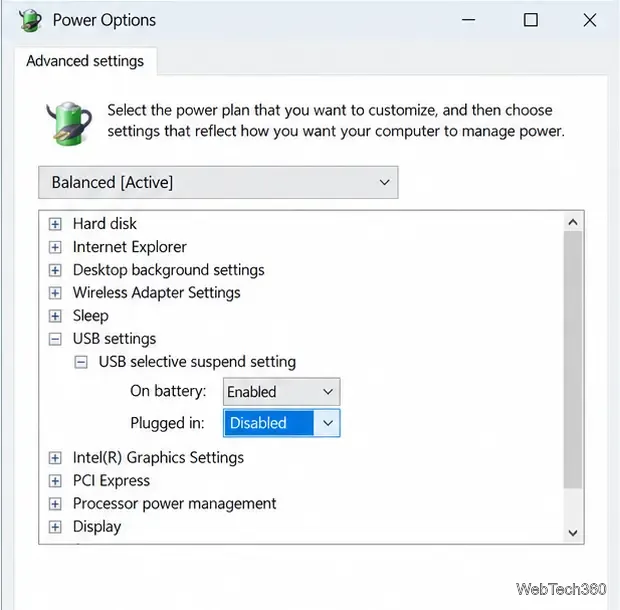
Settings such as Hard disk, PCI Express, and Processor power management affect broader system behavior. Leave them alone unless you have a specific drive or component issue and understand the tradeoff. In particular, disabling USB selective suspend for every situation can waste energy without fixing a fault in a device or driver. Microsoft's USB selective suspend documentation describes why Windows uses it to reduce power use.
For an adapter or hub with its own power control, press Windows key + X and open Device Manager. Expand Network adapters for Wi-Fi or Ethernet, or Universal Serial Bus controllers for a USB hub. Right-click the device related to the problem, choose Properties, and open Power Management. If present, clear Allow the computer to turn off this device to save power, then select OK.
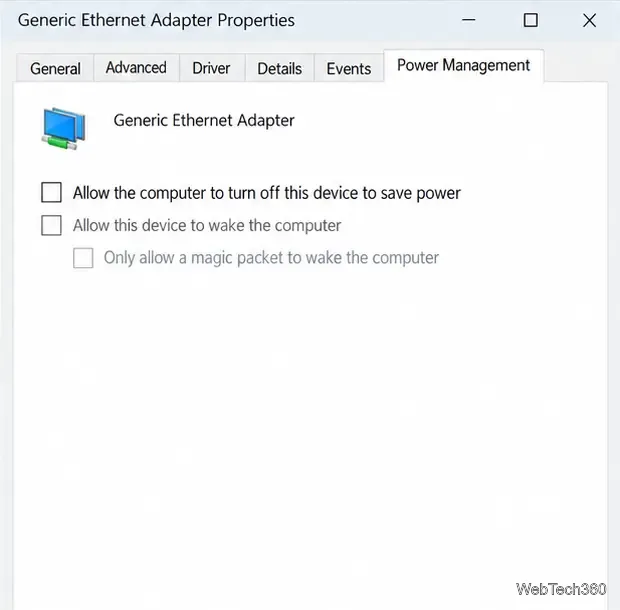
Apply the change only to the affected adapter. For USB, a root hub may serve several ports, so changing its setting can affect more than one connected device. If you see multiple hubs, use the one associated with the problem device rather than clearing the option on every hub.
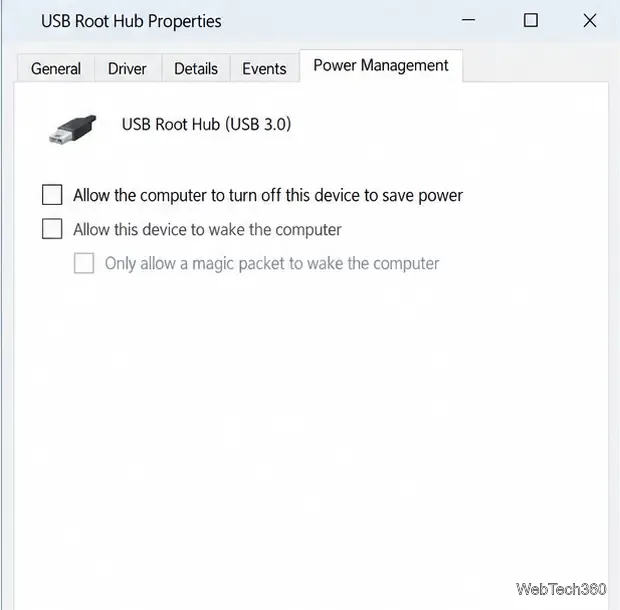
The Power Management tab may be missing or its controls may be unavailable. That can be normal: Windows displays these controls according to the driver’s supported features, and Microsoft cautions that changing them on Modern Standby systems can cause significant battery drain. Check for an updated driver from Windows Update or your PC or device manufacturer, but do not use registry edits to force a hidden tab. See Microsoft's documentation on the Device Manager Power Management tab for the driver-dependent behavior.
Reconnect the device or restart the PC if the device or driver requires it. Test the same action that caused the problem, including on battery or plugged in if the issue only happened in one condition. If the setting made no difference, return it to its previous value. If the device still disconnects, check its cable, port, driver, and manufacturer support guidance; power management may not be the cause.
These steps apply to Windows 10, but Microsoft ended standard Windows 10 support on October 14, 2025. The PC will continue to run, but regular security updates and technical support are no longer provided unless the device is covered by an applicable Extended Security Updates program. For current support options, see Microsoft's Windows 10 end-of-support information.
Use a screenshot test, cable and port checks, monitor diagnostics, display settings, and driver rollback to pinpoint lines on a Windows 10 monitor.
Show two other time zones beside your Windows 10 clock. Set up each additional clock, give it a clear label, and find it in the taskbar calendar.
Find the File Explorer extension that delays right-click menus in Windows 10, test it safely with ShellExView, and restore any menu features you still need.
Stop Windows 10 from powering down a specific network adapter or USB device with plan-level settings and Device Manager controls, plus tips to avoid excess battery drain.
Check whether Windows 10 uses a digital license or product key, find a firmware-stored OEM key, and save license details securely for a reinstall.
Identify a Windows 10 Task Manager process by checking its executable path, file properties, publisher, linked services, and a Microsoft Defender scan.
Create a searchable Windows 10 folder inventory with PowerShell. Save every file and subfolder path as plain text or export details to a sortable CSV.
Add a custom reminder, quote, or label to your Windows 10 desktop with a Rainmeter text skin. Create the INI file, load it, then adjust its font and position.
Use Bluetooth Swift Pair on Windows 10 to pair a compatible accessory from a notification, with setup steps and fixes when the prompt does not appear.
Learn what common laptop function key symbols mean, how Fn and Fn Lock affect them, and how to confirm the right shortcut for your Windows 10 laptop model.







