How to Fix Lines on a Monitor Screen in Windows 10

Use a screenshot test, cable and port checks, monitor diagnostics, display settings, and driver rollback to pinpoint lines on a Windows 10 monitor.
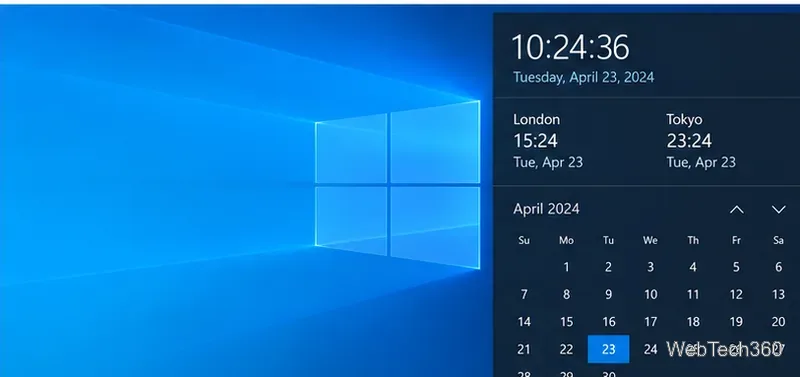
Windows 10 lets you add up to two additional time-zone clocks alongside the PC’s main clock. Open Control Panel, go to Clock and Region > Add clocks for different time zones, enable one or both clock slots, and choose a time zone and display name for each. Then click the taskbar clock to view them. These extra clocks are for checking other locations; they do not change the time zone Windows uses for the PC.

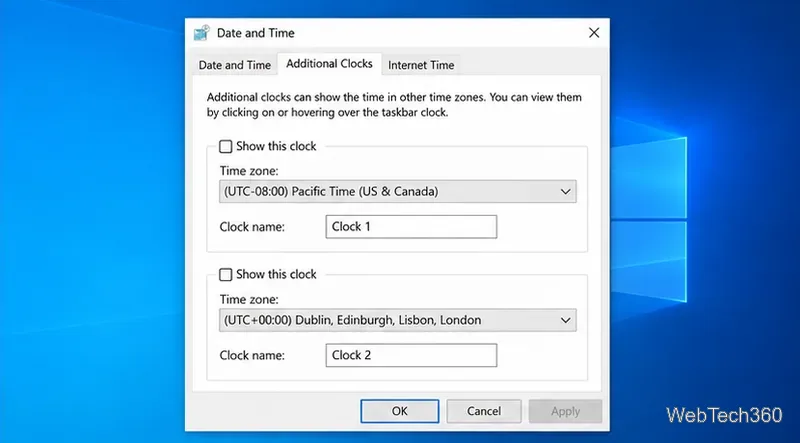
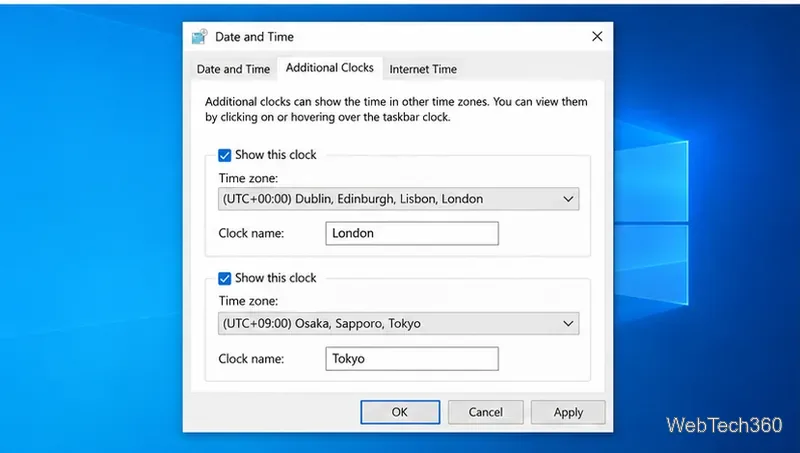
The route can look different depending on Control Panel’s view. In Category view, use Clock and Region. In icon view, open Date and Time directly. You can also press Windows key + R, enter control timedate.cpl, and press Enter to open the Date and Time dialog; then look for Additional Clocks.
If the extra clocks do not appear in the taskbar flyout, reopen the tab and confirm that each desired Show this clock box is checked. Select Apply before closing the dialog, then click the taskbar clock to view the flyout. If the taskbar clock itself is hidden, check the time-and-date display setting in Windows.
Additional Clocks provide quick reference times. They do not create separate system clocks, change your PC’s primary time zone, or alter how Windows timestamps files and scheduled events. If the main clock is wrong, check Settings > Time & language > Date & time and review the PC’s time and time-zone settings. Microsoft explains those controls in its Windows date, time, and time-zone guide.
Choose the time-zone entry for the location you need, rather than treating the displayed UTC offset as a permanent difference. Regions that observe daylight saving time can change their offset during the year, and locations may not switch on the same dates. Windows calculates the clock from the selected time-zone rules. If a location’s time looks unexpected, verify that you picked the intended region and that Windows has current time-zone information.
Windows’ taskbar feature is limited to two additional clocks. For a longer list, use the World clock section in the Clock app: open Start, search for Clock, choose World clock, and add cities. Microsoft also documents how to compare times in that view. Those locations stay inside the Clock app; they are not added to the taskbar calendar flyout. See Microsoft’s World clock instructions.
Windows 10 support note: Microsoft ended standard support for Windows 10 on October 14, 2025. The clock settings described here remain local Windows features, but Microsoft no longer provides free Windows Update software updates, technical assistance, or security fixes for Windows 10 after that date.
Use a screenshot test, cable and port checks, monitor diagnostics, display settings, and driver rollback to pinpoint lines on a Windows 10 monitor.
Show two other time zones beside your Windows 10 clock. Set up each additional clock, give it a clear label, and find it in the taskbar calendar.
Find the File Explorer extension that delays right-click menus in Windows 10, test it safely with ShellExView, and restore any menu features you still need.
Stop Windows 10 from powering down a specific network adapter or USB device with plan-level settings and Device Manager controls, plus tips to avoid excess battery drain.
Check whether Windows 10 uses a digital license or product key, find a firmware-stored OEM key, and save license details securely for a reinstall.
Identify a Windows 10 Task Manager process by checking its executable path, file properties, publisher, linked services, and a Microsoft Defender scan.
Create a searchable Windows 10 folder inventory with PowerShell. Save every file and subfolder path as plain text or export details to a sortable CSV.
Add a custom reminder, quote, or label to your Windows 10 desktop with a Rainmeter text skin. Create the INI file, load it, then adjust its font and position.
Use Bluetooth Swift Pair on Windows 10 to pair a compatible accessory from a notification, with setup steps and fixes when the prompt does not appear.
Learn what common laptop function key symbols mean, how Fn and Fn Lock affect them, and how to confirm the right shortcut for your Windows 10 laptop model.







