How to Fix Lines on a Monitor Screen in Windows 10

Use a screenshot test, cable and port checks, monitor diagnostics, display settings, and driver rollback to pinpoint lines on a Windows 10 monitor.
To identify a process in Task Manager on Windows 10, match its process name to the executable file, check the file’s location and publisher details, and trace any associated service. A name you do not recognize is not proof of malware: Windows and ordinary apps run background processes, helper programs, and multiple instances.
Press Ctrl+Shift+Esc to open Task Manager. If you see the compact window, choose More details. The Processes tab groups many entries by app and shows which ones use CPU, memory, disk, or network resources. Expand an app’s arrow to reveal its child processes.
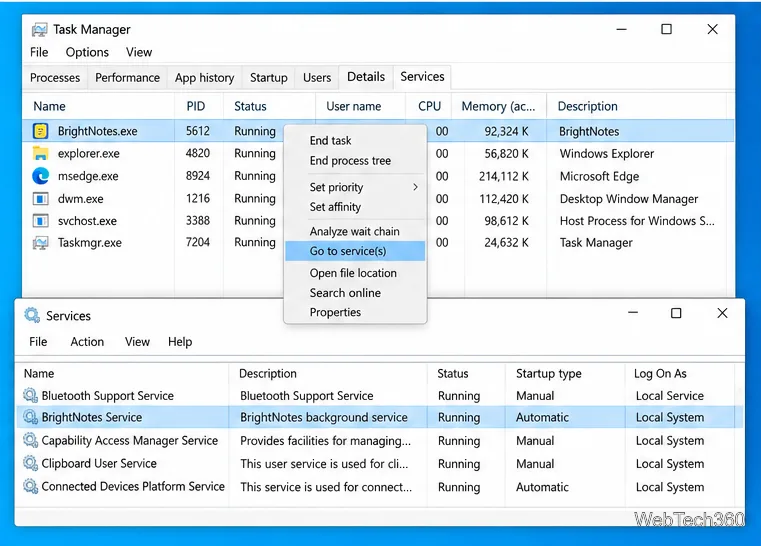
Right-click the entry and choose Go to details when that command is available. The Details tab shows executable names such as example.exe. If several rows have the same name, compare their PID (process ID) and User name; a PID identifies one running instance and can change after the app restarts. Microsoft’s Task Manager troubleshooting guide describes the Processes, Details, and Services views.

In Details, right-click the process and select Open file location. File Explorer opens the folder containing the executable. The folder often reveals which application installed it, but location is a clue, not a verdict:
C:\Program Files or C:\Program Files (x86).C:\Windows\System32.AppData.Some protected Windows processes and Microsoft Store apps do not expose a usable file location, or the command may be unavailable. That limitation alone does not make a process suspicious. If the entry is a service host such as svchost.exe, use the service check below instead of assuming the host filename identifies the component.
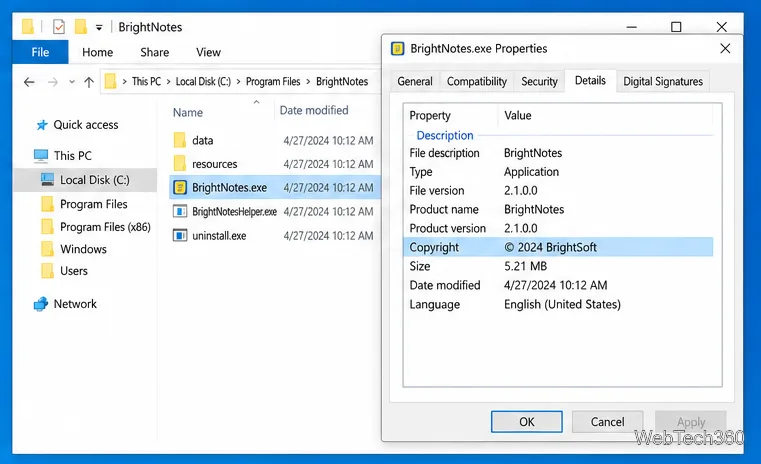
Right-click the process in Task Manager and choose Properties, or open Properties for the executable in File Explorer. On the Details tab, review fields such as File description, Product name, Company, and File version. Check Digital Signatures if that tab appears, then select the signer and inspect its certificate details.
A valid signature helps confirm that the file has not changed since it was signed and identifies the publisher. Microsoft explains how Windows digital signatures verify a file and its publisher. A signature is useful evidence, not a guarantee that software is harmless. Likewise, an unsigned file is not automatically malware; some legitimate files are unsigned, and not every file type has a signature tab.
For a process that may belong to a Windows service, right-click it in Details and choose Go to service(s) if available. Task Manager switches to the Services tab and highlights related service entries. You can also open the Services app to read a service’s description. A shared host can run more than one service, so check the highlighted service name rather than treating svchost.exe as the service itself. Do not stop a service just to test what it does; Windows and installed software may depend on it.
If the publisher is still unclear, search the exact executable name together with the publisher or product name. Prefer the software maker’s official support site or Microsoft documentation over anonymous download pages and forum guesses. Do not download a replacement executable from a search result.
To check a specific file, open its folder in File Explorer, right-click the executable, and select Scan with Microsoft Defender. Microsoft’s Windows Security instructions cover scanning a selected file or folder. If a scan reports a threat, review Windows Security’s recommended action and protection history. Don’t choose “Allow” just because a filename looks familiar or a file has a signature.
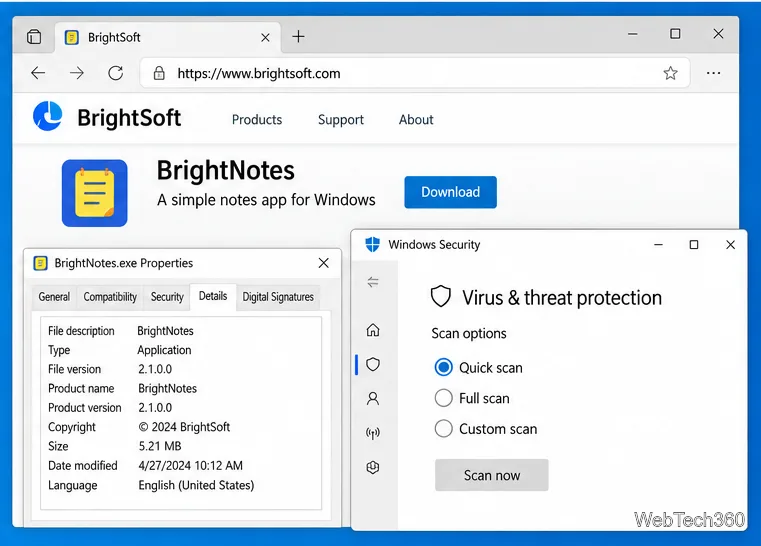
Use the name, PID, location, product details, signature, and service relationship together. If the evidence still conflicts or Windows Security flags the file, avoid opening it or ending the process blindly. Follow the security alert’s guidance and consult the software publisher or your organization’s IT administrator. Task Manager helps you investigate what is running; it does not by itself determine whether a file is safe.
Use a screenshot test, cable and port checks, monitor diagnostics, display settings, and driver rollback to pinpoint lines on a Windows 10 monitor.
Show two other time zones beside your Windows 10 clock. Set up each additional clock, give it a clear label, and find it in the taskbar calendar.
Find the File Explorer extension that delays right-click menus in Windows 10, test it safely with ShellExView, and restore any menu features you still need.
Stop Windows 10 from powering down a specific network adapter or USB device with plan-level settings and Device Manager controls, plus tips to avoid excess battery drain.
Check whether Windows 10 uses a digital license or product key, find a firmware-stored OEM key, and save license details securely for a reinstall.
Identify a Windows 10 Task Manager process by checking its executable path, file properties, publisher, linked services, and a Microsoft Defender scan.
Create a searchable Windows 10 folder inventory with PowerShell. Save every file and subfolder path as plain text or export details to a sortable CSV.
Add a custom reminder, quote, or label to your Windows 10 desktop with a Rainmeter text skin. Create the INI file, load it, then adjust its font and position.
Use Bluetooth Swift Pair on Windows 10 to pair a compatible accessory from a notification, with setup steps and fixes when the prompt does not appear.
Learn what common laptop function key symbols mean, how Fn and Fn Lock affect them, and how to confirm the right shortcut for your Windows 10 laptop model.







