How to Fix Lines on a Monitor Screen in Windows 10

Use a screenshot test, cable and port checks, monitor diagnostics, display settings, and driver rollback to pinpoint lines on a Windows 10 monitor.
If Windows 10 File Explorer pauses for several seconds after you right-click a file or folder, a third-party shell extension may be holding up the menu. Apps add these extensions to provide actions such as extracting an archive, syncing a file, or scanning it. Use ShellExView to temporarily disable one non-Microsoft context-menu extension, restart Explorer, and repeat the same right-click test. If the menu does not improve, turn that extension back on before testing another.
Notice whether the delay happens on every item or only with a particular file type, folder, or location. A handler may run only for images, archives, cloud-synced files, or a specific folder background. Write down the app or file type involved and when the slowdown began; this gives you a shorter list of likely extensions. If Windows is generally sluggish or right-click is slow outside File Explorer too, an Explorer shell extension may not be the cause.
ShellExView is a free, standalone utility from NirSoft. Its official page describes its controls for enabling and disabling individual shell extensions and lists Windows 10 compatibility. Download it only from NirSoft’s ShellExView page. Extract the downloaded archive, then open the version that matches your system if separate 32-bit and 64-bit downloads are offered. Disabling an entry temporarily removes the related Explorer integration; it does not uninstall the app.

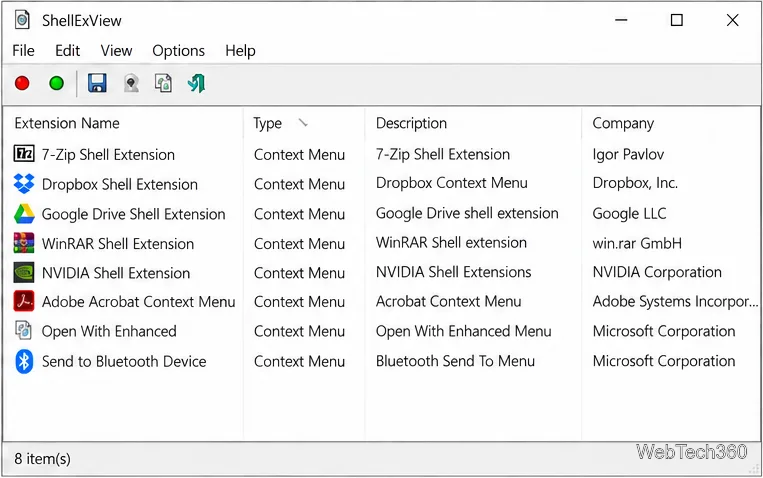
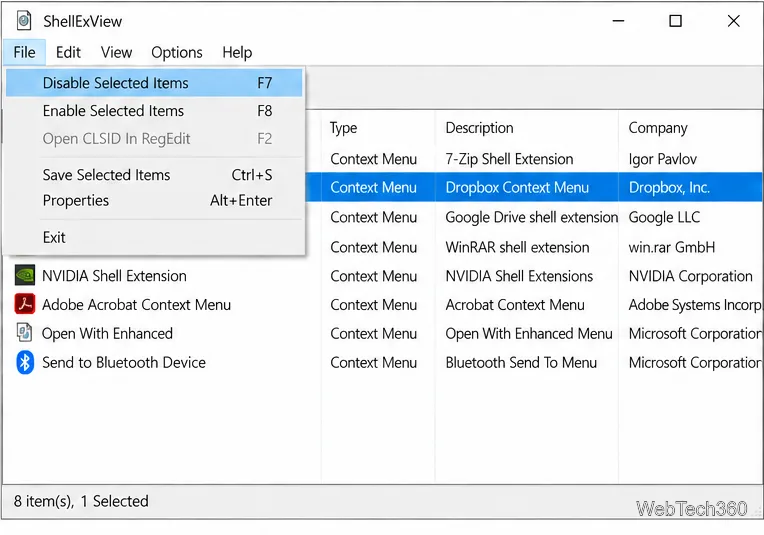
explorer.exe, and press Enter; Microsoft documents this as a way to relaunch the Explorer shell.
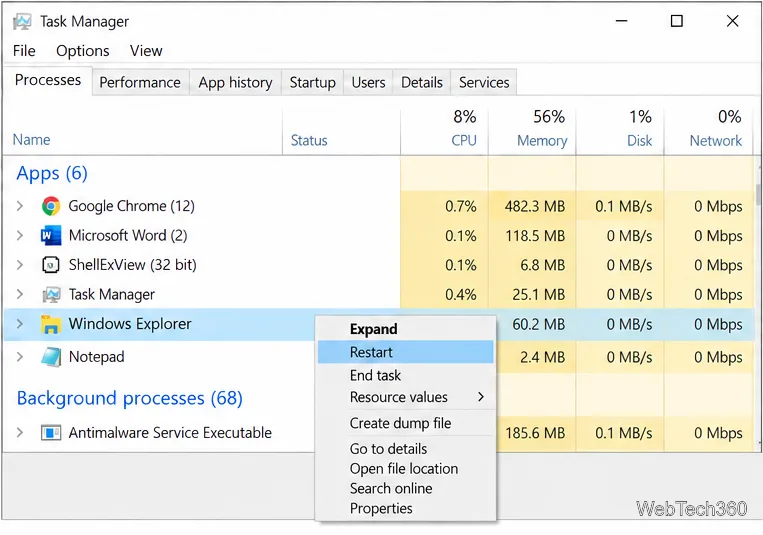
After Explorer returns, right-click the same file or folder that was slow before. If the menu now opens promptly, the disabled extension is a strong suspect. Check the app maker’s site for an update, repair or reinstall the app, or leave only that extension disabled if you do not need its menu command. An update can fix a faulty handler while preserving the rest of the app’s features.
If the menu is still slow, re-enable the extension you just tested, restart Explorer again, and then try a different likely third-party entry. Change one item per test so you can tell which change mattered. When the list is long, focus on the extension connected to the affected file type or location rather than disabling every non-Microsoft entry.
If none of the third-party context-menu entries changes the behavior, restore the entries you disabled. Then check whether the delay is limited to a network or synced folder, restart the PC, and use Microsoft’s File Explorer troubleshooting guidance if Explorer itself remains unresponsive. ShellExView is a diagnostic tool for shell extensions; it cannot identify every cause of a slow Windows menu.
Use a screenshot test, cable and port checks, monitor diagnostics, display settings, and driver rollback to pinpoint lines on a Windows 10 monitor.
Show two other time zones beside your Windows 10 clock. Set up each additional clock, give it a clear label, and find it in the taskbar calendar.
Find the File Explorer extension that delays right-click menus in Windows 10, test it safely with ShellExView, and restore any menu features you still need.
Stop Windows 10 from powering down a specific network adapter or USB device with plan-level settings and Device Manager controls, plus tips to avoid excess battery drain.
Check whether Windows 10 uses a digital license or product key, find a firmware-stored OEM key, and save license details securely for a reinstall.
Identify a Windows 10 Task Manager process by checking its executable path, file properties, publisher, linked services, and a Microsoft Defender scan.
Create a searchable Windows 10 folder inventory with PowerShell. Save every file and subfolder path as plain text or export details to a sortable CSV.
Add a custom reminder, quote, or label to your Windows 10 desktop with a Rainmeter text skin. Create the INI file, load it, then adjust its font and position.
Use Bluetooth Swift Pair on Windows 10 to pair a compatible accessory from a notification, with setup steps and fixes when the prompt does not appear.
Learn what common laptop function key symbols mean, how Fn and Fn Lock affect them, and how to confirm the right shortcut for your Windows 10 laptop model.







